Installationsanleitung_SuSE9.3_en.pdf - 第16页
Installation Description Customized LRL SuSE 9.3 16. Select the option " Static Address Setup ". 17. After you have entered the IP address and the su bnet mask, the host name must be entered. Do this by clickin…
Customized LRL SuSE 9.3 Installation Description
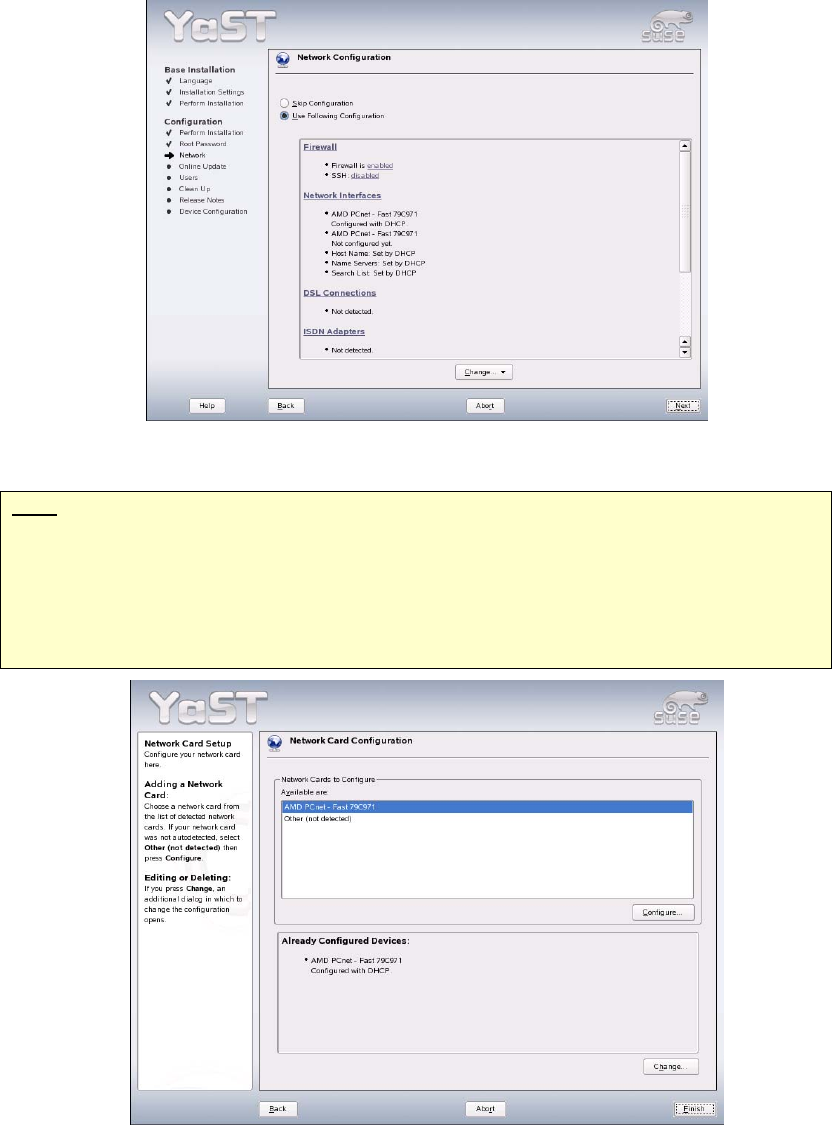
13. Now the network adapters must be configured.
14. Click the menu item "Network Interfaces" or select the option using the "Change" button.
Note
Configuration of the network adapters varies slightly between different computer types. The
following steps apply to "Econel 30" and "Econel 40" computers. These computers have an
onboard card (Intel PRO/100), which should be used for the company network and a plug-
in adapter (Intel PRO/1000), Which should be reserved for the SIPLACE network.
15. In the "Network cards configuration" dialog box, change the configuration for the second network
adapter (SIPLACE LAN) by clicking the "Configure" button.
15 of 69
Installation Description Customized LRL SuSE 9.3
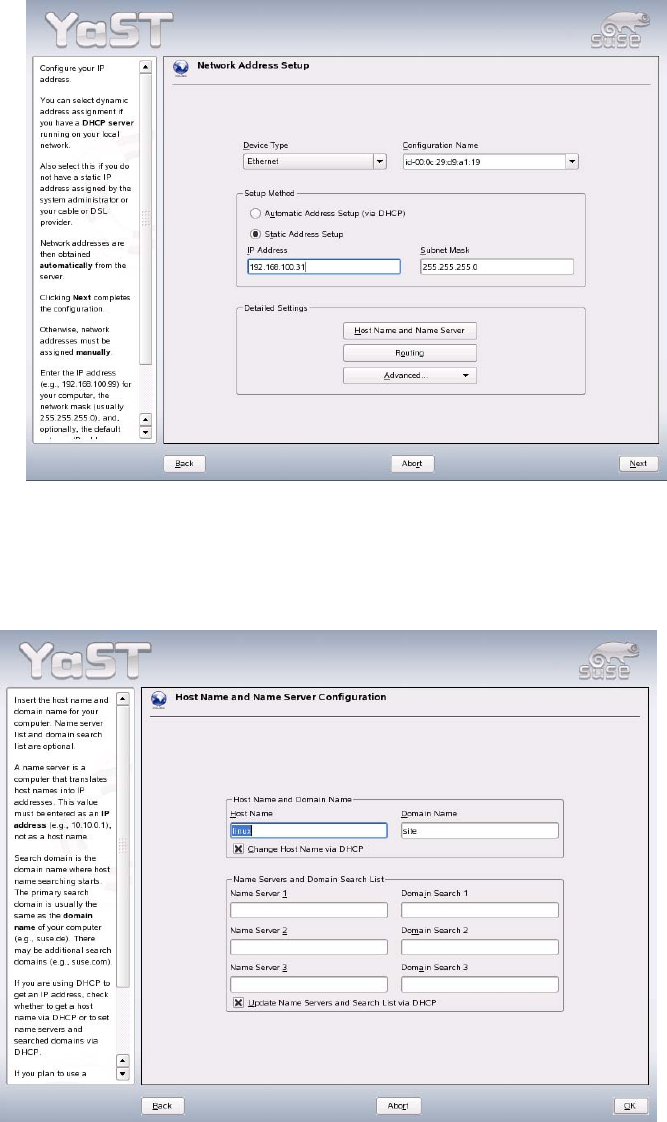
16. Select the option "Static Address Setup".
17. After you have entered the IP address and the subnet mask, the host name must be entered. Do this
by clicking the button "Host Name and Name Server".
18. Change the specifications for "Host Name" and "Domain Name".
19. Deactivate the options
- "Change Host Name via DHCP"
- "Update Name Servers and Search List via DHCP".
20. After you have entered the host name and domain name, click "OK" to confirm your entries.
21. Close the "Network Address Setup" dialog box by clicking the "Next" button.
16 of 69
Customized LRL SuSE 9.3 Installation Description
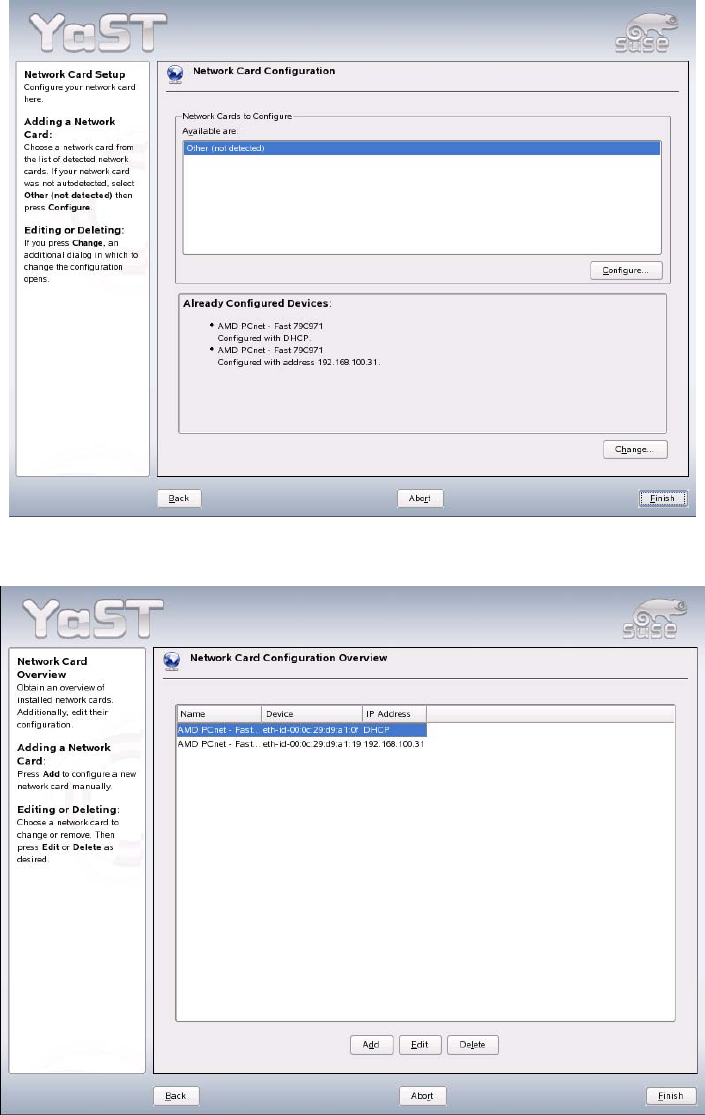
22. To change the settings for the first adapter (customer network adapter), select the "Change" button.
23. Click the "Edit" button.
17 of 69