Installationsanleitung_SuSE9.3_en.pdf - 第38页
Installation Description Customized LRL SuSE 9.3 9. All the stations are now converted. 10. Once the installation is co mpleted, the request “ to go on please press ok ” appears. 11. Confirm this messa ge with " OK …
Customized LRL SuSE 9.3 Installation Description
4.4.2 Entries during installation of the Line Computer Linux software
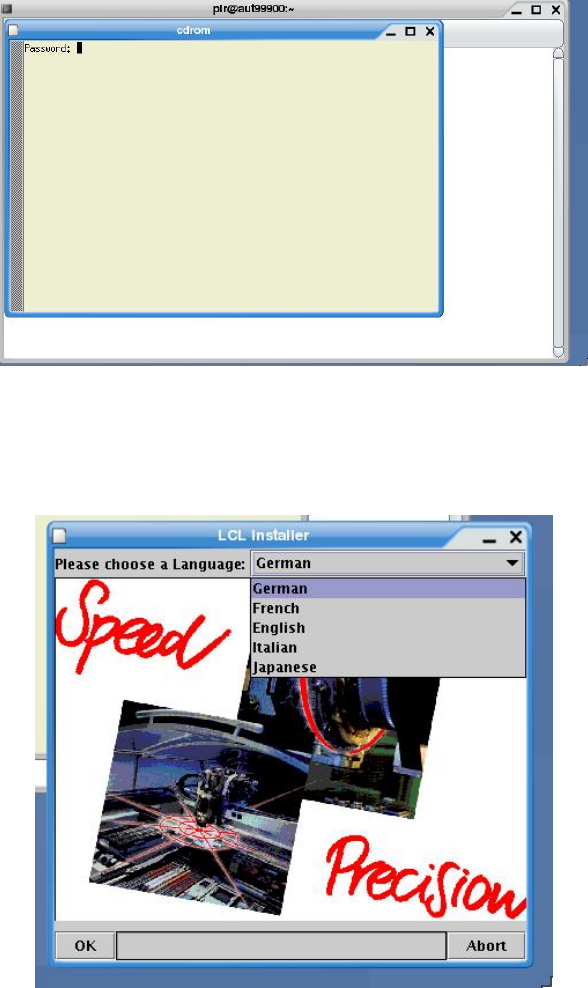
1. At the "Password:" prompt, enter the root password.
2. You must first choose a language for the line computer from the
"Please choose a Language"
list of available languages.
3. Select the required language and click "OK".
4. The line computer software is installed.
5. If master data is already on the computer, the following query appears:
"Convert GF-Bibliothek" or
"Don’t convert GF-Bibliothek"
Select the required option.
6. Click "OK".
7. The "select line" dialog box appears.
8. Select the required line and click "OK".
37 of 69
Installation Description Customized LRL SuSE 9.3
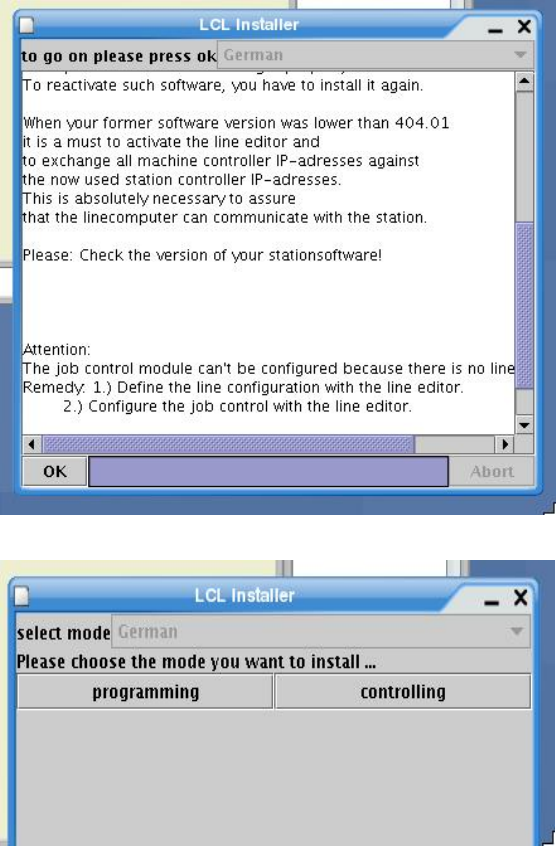
9. All the stations are now converted.
10. Once the installation is completed, the request “to go on please press ok” appears.
11. Confirm this message with "OK".
12. The “select mode Please chose the mode you want to install...” dialog box appears.
13. Select programming if the software is to be set up as a programming station or
controlling if the software is to be set up as a control station (line computer).
38 of 69
Customized LRL SuSE 9.3 Installation Description
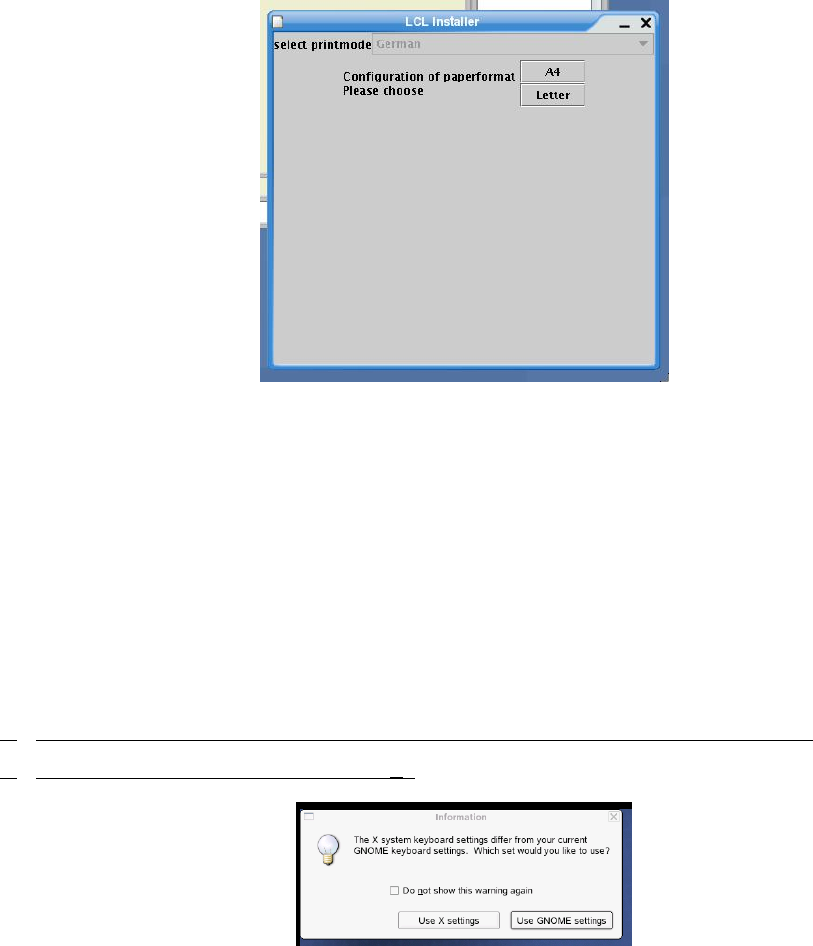
14. The "select printmode Configuration of paperformat. Please choose." dialog box appears.
15. Select A4 or Letter.
16. The message "Please take out the CD. Installation completed. Now we restart the system" is
displayed. Confirm the message with "OK".
17. The installation is now completed. Take out the CD.
18. Confirm the message "Please take out the cdrom ... and press any key" by pressing any key to
reboot the computer.
4.4.3 Logging in for the first time after installation
1. At the login prompt, log in as the user "plr".
2.
If you are using a keyboard other than an English one, the following dialog box appears.
3.
(If not, the procedure continues at point 5.)
4. The query asking you which keyboard is to be used appears. Select "Use X settings".
5. The line computer software is started.
39 of 69