Installationsanleitung_SuSE9.3_en.pdf - 第29页
Customized LRL SuSE 9.3 Installation Description 13. Change the setting of all yast2 entries from "write protected" to "up date". Procedure: - Select an entry by right-clicking it - Select "updat…
Installation Description Customized LRL SuSE 9.3
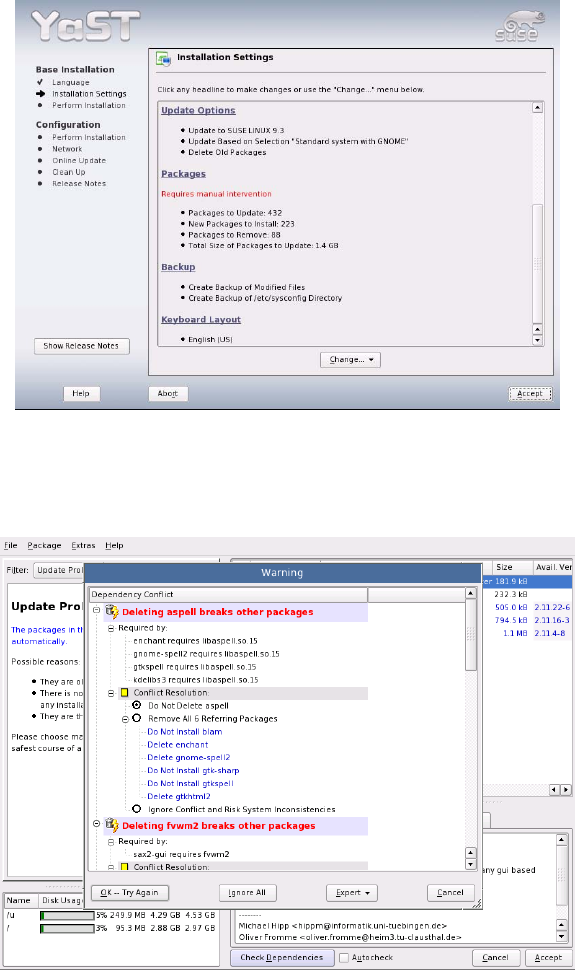
11. Scroll down the "Installation Settings" dialog box until you can see "Packages".
Click "Packages" if "Requires manual intervention" is displayed.
12. Select "Do Not Delete …" for every package listed here.
After this option has been set for all the packages, close the dialog box with "OK--TryAgain".
28 of 69
Customized LRL SuSE 9.3 Installation Description
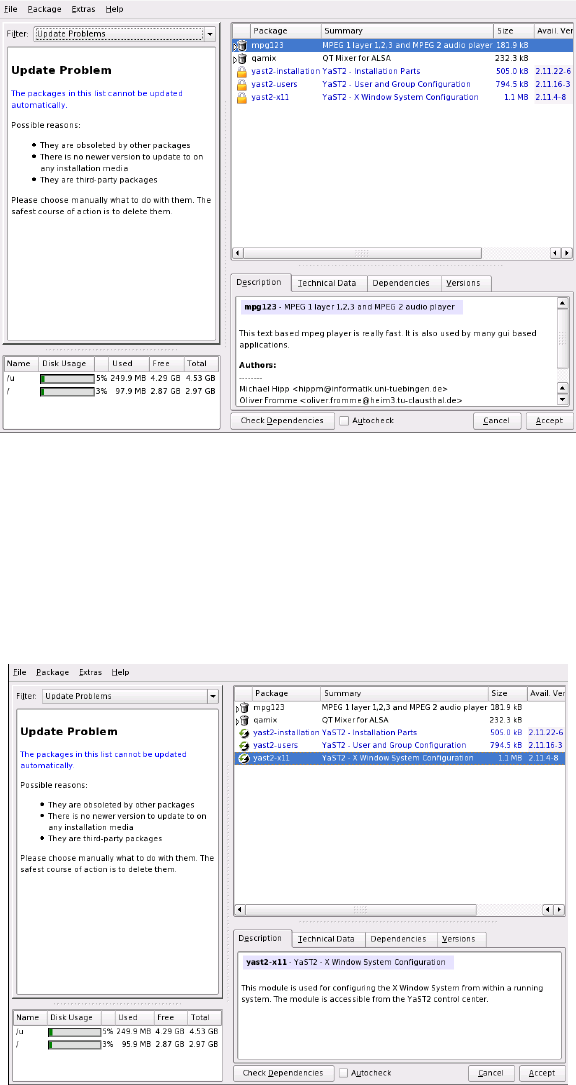
13. Change the setting of all yast2 entries from "write protected" to "update".
Procedure:
- Select an entry by right-clicking it
- Select "update"
The icons change from a padlock to an update icon.
14. Close the dialog box by clicking "Accept".
29 of 69
Installation Description Customized LRL SuSE 9.3
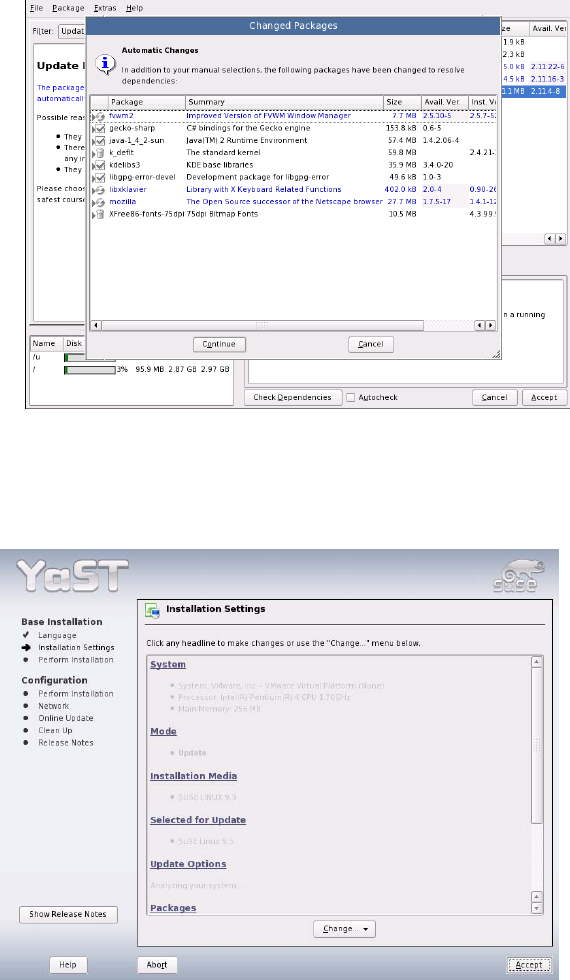
15. In the "Changed Packages" dialog box, click the "Continue" button.
As of here, update installation of SuSE 7.3 → SuSE 9.3 and SuSE 9.0 → SuSE 9.3 follow the same
procedure.
16. The suggested measures are confirmed using the "Accept" button.
30 of 69