Installationsanleitung_SuSE9.3_en.pdf - 第65页
Customized LRL SuSE 9.3 Installation Description 4.5.4.3 Configuration procedure 1. Firstly, you n eed a printout of the network configuration of the printer. If the printer is connected to the netwo rk (and switched on)…

Installation Description Customized LRL SuSE 9.3
64 of 69
4.5.4 Configuring the network address of the printer
4.5.4.1 General
The "HP Deskjet 5850" printer is supplied with a factory-set address. This is rarely within the address
range used by the customer.
The easiest way of identifying the address currently set on the printer is to print out the printer
configuration.
The address must be changed to allow the line computer to communicate with the printer. To do this, it
is necessary to temporarily change the address of a computer (e.g. a line computer) to the address
range set on the printer in order to allow this computer to access the printer configuration.
The printer is configured using a graphical configuration program which allows the address to be
changed to the new value, for instance.
WARNING
If a productive line computer is used to configure the printer, it is possible that
the temporary change of the line computer's network address causes
communication with the stations to be interrupted.
You should therefore remember to first set the stations to "Stand alone" mode
to avoid any interruptions to production.
4.5.4.2 Requirements
• The printer must be connected to the line computer network over a network cable.
• A network-capable computer with a working operating system (the following instructions refer to
SuSE Linux 9.0).
Customized LRL SuSE 9.3 Installation Description
4.5.4.3 Configuration procedure
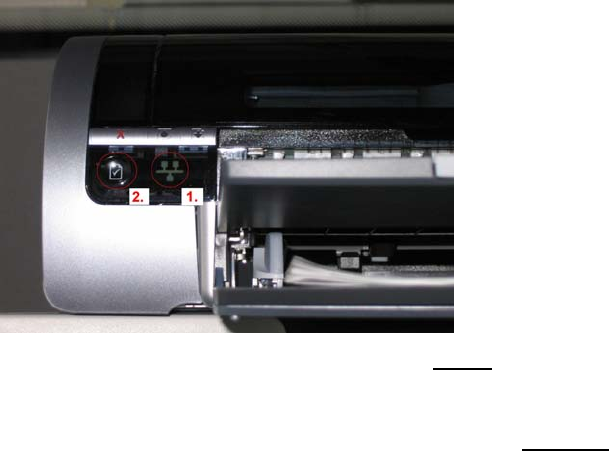
1. Firstly, you need a printout of the network configuration of the printer.
If the printer is connected to the network (and switched on), indicator lamp "1" (see the picture
below) is lit. Now you can press the network button "2" as described in the printer instructions to
print out the configuration page.
An example of such a printout is shown in Fehler! Verweisquelle konnte nicht gefunden werden.
Fehler! Verweisquelle konnte nicht gefunden werden..
Figure 4-43
2. This printout shows the TCP/IP address and the subnet mask of the printer (in the example:
"172.22.2.250" and "255.255.0.0").
3. To establish a connection from the computer to the printer, the address of the
computer has to be
changed temporarily to suit that of the printer. In the example, this is, for instance "172.22.2.240".
4. To do this, log into the line computer under GNOME as the user "plr".
5. Open a terminal window by selecting "Operating system level" from the "Options" menu.
6. Use the command
su
to get administrator permissions (and confirm with the "root" password).
7. Temporarily change the address of the computer with the command
ifconfig eth0 <address of computer> netmask <subnet mask>
In the example, this would be:
ifconfig eth0 172.22.2.240 netmask 255.255.0.0
8. The connection to the printer can be tested with the command
ping <address of the printer>
In our example, this would be
ping 172.22.2.250
9. Use the command
mozilla
to start the browser.
65 of 69
Installation Description Customized LRL SuSE 9.3
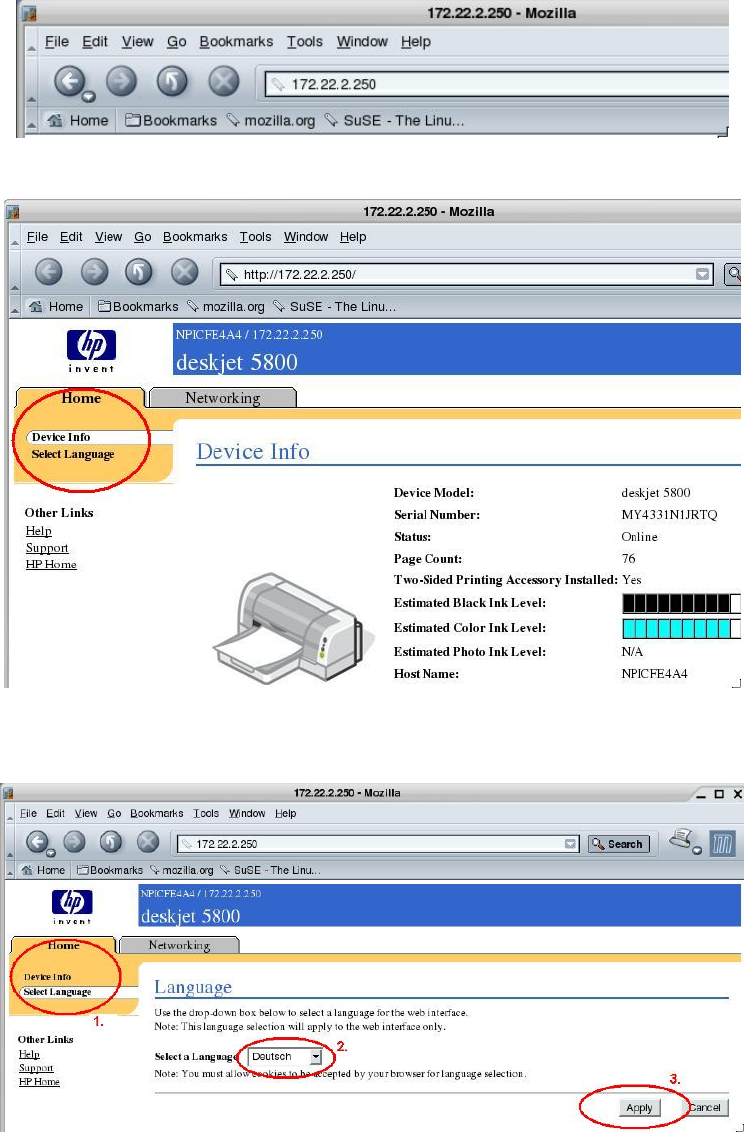
10. Establish a connection to the printer by entering the TCP/IP address of the printer in the address
field of the browser.
Figure 4-44
11. The device configuration of the printer is displayed.
Figure 4-45
12. The selection in the top left (indicated by a red circle) allows you to change the language to your
local language.
Figure 4-46
13. Confirm your selection with the "Apply" button.
14. The device selection is now shown in the selected language.
66 of 69