Installationsanleitung_SuSE9.3_en.pdf - 第36页
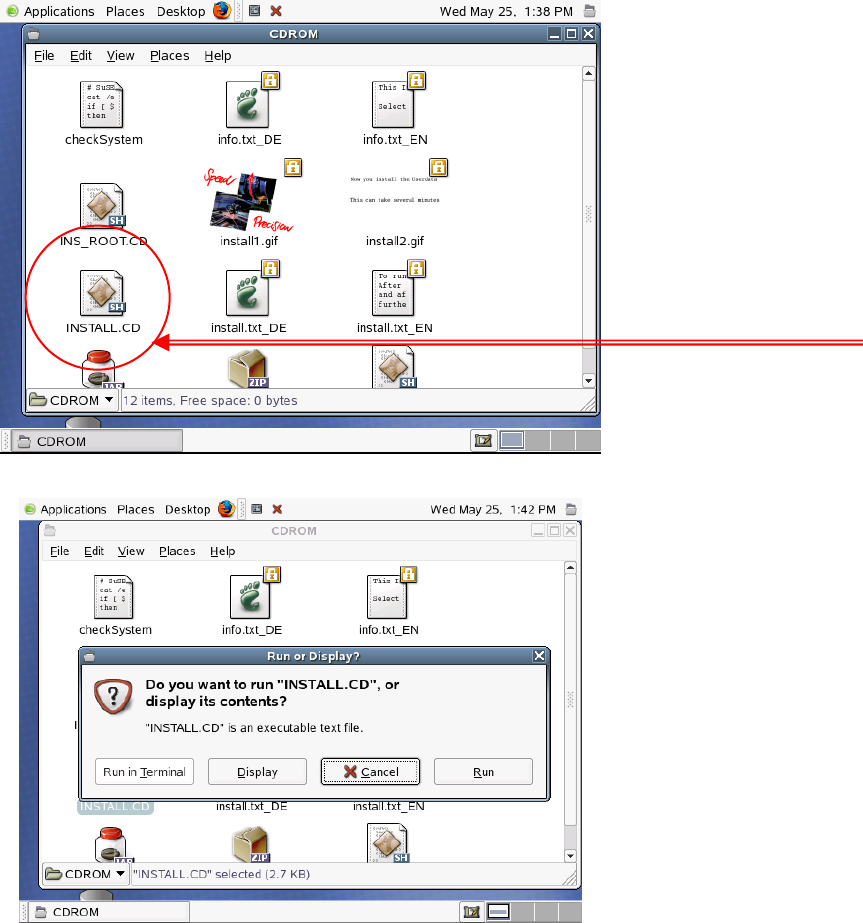
Installation Description Customized LRL SuSE 9.3 4. Double-click "INSTALL.CD". 5. Click the " Run " button. 6. This will now start the grap hical installation routine for the line computer software. (…
Customized LRL SuSE 9.3 Installation Description
4.4 Installing the line computer software LRL.503_05
The first time the Line Computer Linux is installed after updating the operating system to SuSE 9.3,
proceed with section
4.4.1. Reinstalling the Line Computer Linux is carried out in the normal manner
using the menu item "OPTIONS/Install options" (see section
4.4.2).
4.4.1 Entries during installation when updating the operating system to SuSE 9.3
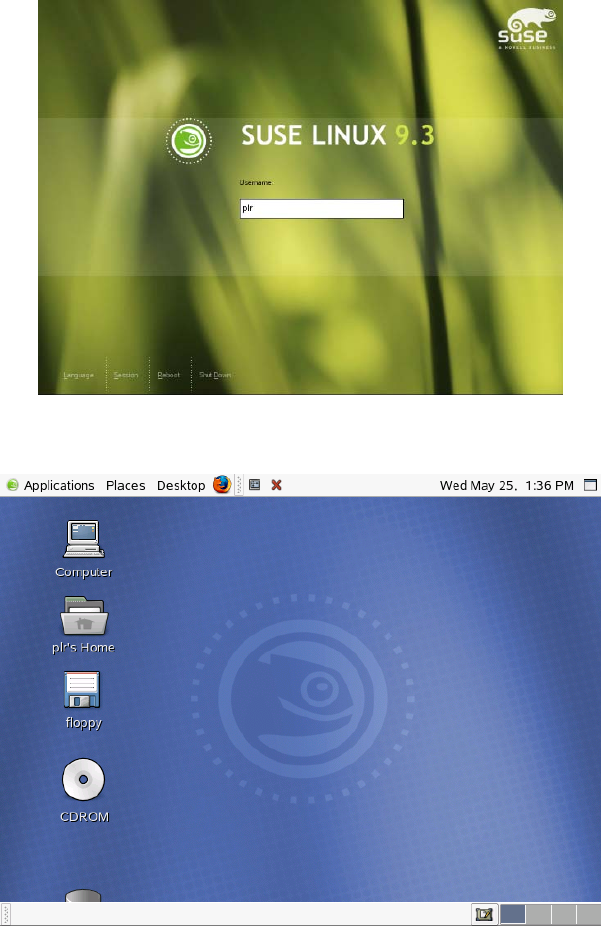
1. After rebooting, log in as the user "plr".
2. Insert the line computer software CD, if you have not already done so.
3. Double-click the CD-ROM icon.
35 of 69
Customized LRL SuSE 9.3 Installation Description
4.4.2 Entries during installation of the Line Computer Linux software
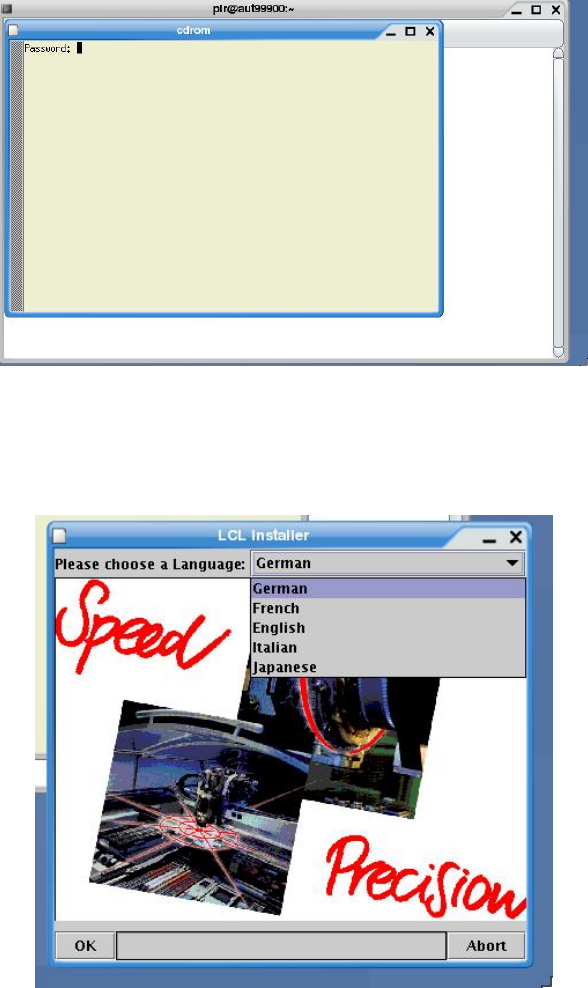
1. At the "Password:" prompt, enter the root password.
2. You must first choose a language for the line computer from the
"Please choose a Language"
list of available languages.
3. Select the required language and click "OK".
4. The line computer software is installed.
5. If master data is already on the computer, the following query appears:
"Convert GF-Bibliothek" or
"Don’t convert GF-Bibliothek"
Select the required option.
6. Click "OK".
7. The "select line" dialog box appears.
8. Select the required line and click "OK".
37 of 69