Installationsanleitung_SuSE9.3_en.pdf - 第32页
Installation Description Customized LRL SuSE 9.3 23. Respond to the prom pt "Retry boot loader configuration?" with " Yes ". 24. Click the " Edit " button. 25. Click the arrow next to Boot L…
Customized LRL SuSE 9.3 Installation Description
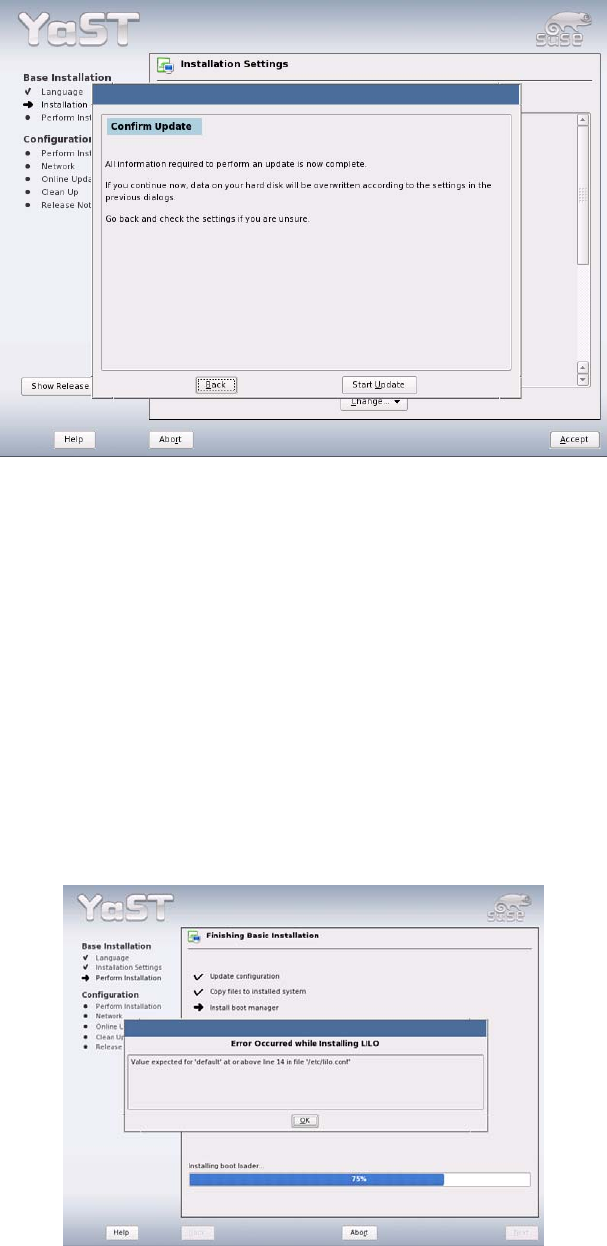
17. Before finally starting the update, another confirmation query appears. This must be confirmed using
the "Start Update" button.
18. The new programs/packages for the "base installation" are now read in. Depending on the hardware
being used, this process will take between 20 and 50 minutes (no further information will need to be
entered by the user).
19. Now an automatic configuration of the system is carried out.
20. When updating from SuSE 9.0 to SuSE 9.3, no user entries are required and you can proceed with
step
29 "Rebooting the computer".
21. When migrating from SuSE 7.3 to SuSE 9.3, an error message appears when installation is
complete:
22. The file /etc/lilo.conf must be corrected. To do this, first close the dialog box containing the error
message by clicking "OK".
31 of 69
Installation Description Customized LRL SuSE 9.3
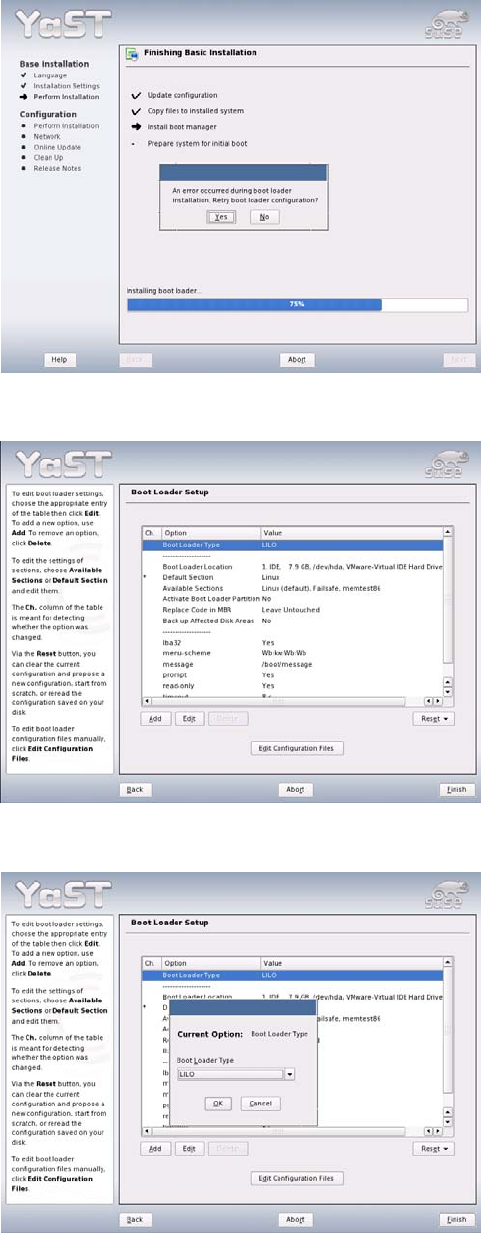
23. Respond to the prompt "Retry boot loader configuration?" with "Yes".
24. Click the "Edit" button.
25. Click the arrow next to Boot Loader Type in the dialog box and change the selection from "LILO" to
"GRUB".
26. Close the dialog box by clicking "OK".
32 of 69
Customized LRL SuSE 9.3 Installation Description
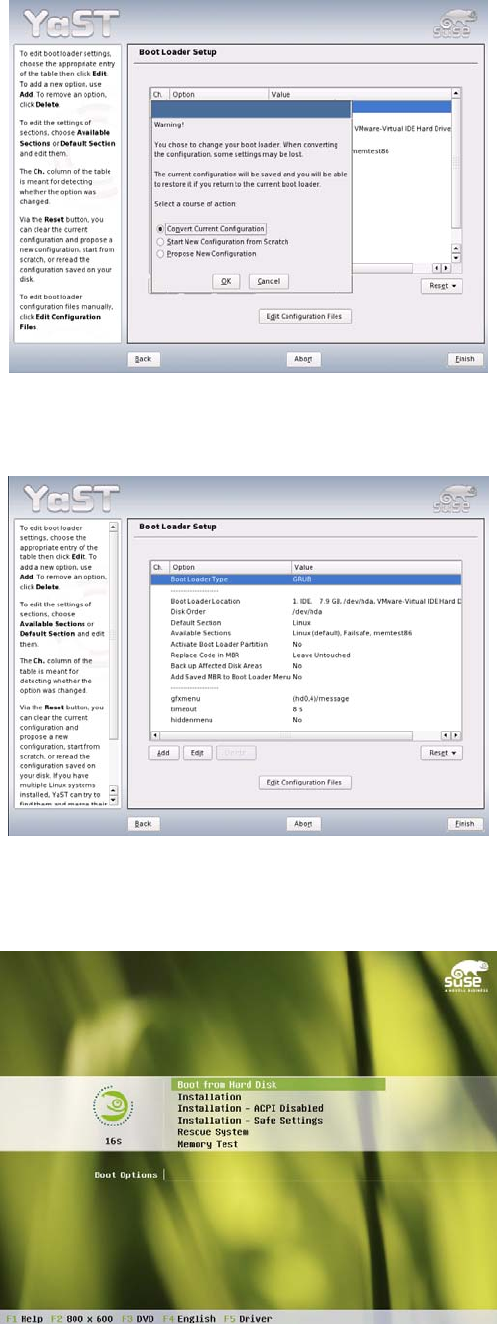
27. Leave the option "Convert Current Configuration" selected and confirm your selection by clicking
"OK".
28. Click the "Finish" button.
29. After completely reading in the new operating system, the computer will be restarted.
30. At the prompt, select "Boot from Harddisk".
31. In the boot menu, confirm the entry "Linux".
33 of 69