Installationsanleitung_SuSE9.3_en.pdf - 第34页
Installation Description Customized LRL SuSE 9.3 32. Installation is completed and finally, the "Rele ase Notes" dialog box is displayed. 33. Close the "Release Notes" dialog b ox by clicking " N…
Customized LRL SuSE 9.3 Installation Description
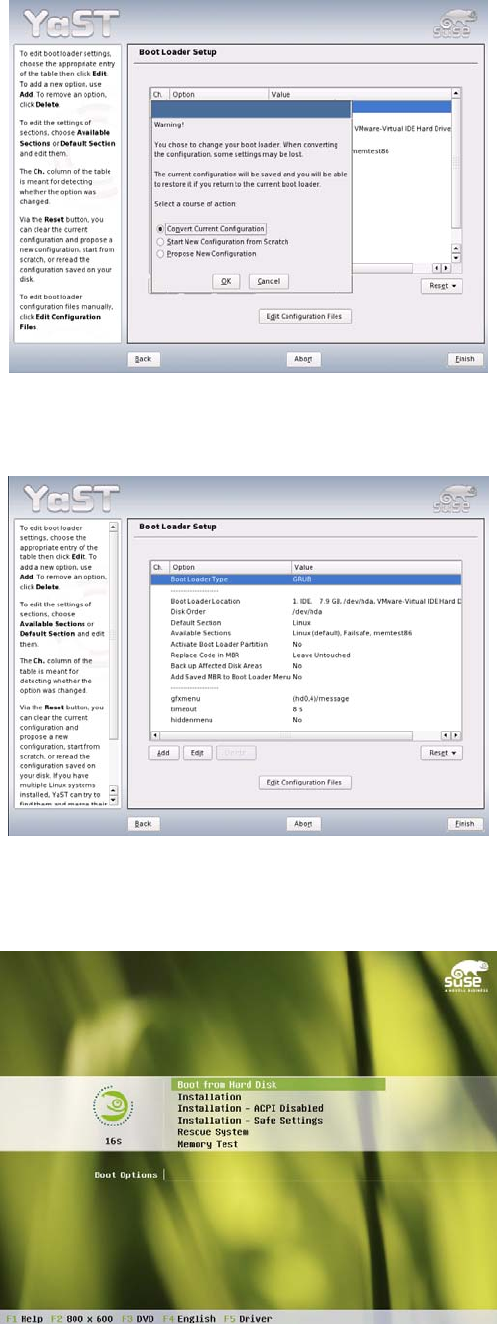
27. Leave the option "Convert Current Configuration" selected and confirm your selection by clicking
"OK".
28. Click the "Finish" button.
29. After completely reading in the new operating system, the computer will be restarted.
30. At the prompt, select "Boot from Harddisk".
31. In the boot menu, confirm the entry "Linux".
33 of 69
Installation Description Customized LRL SuSE 9.3
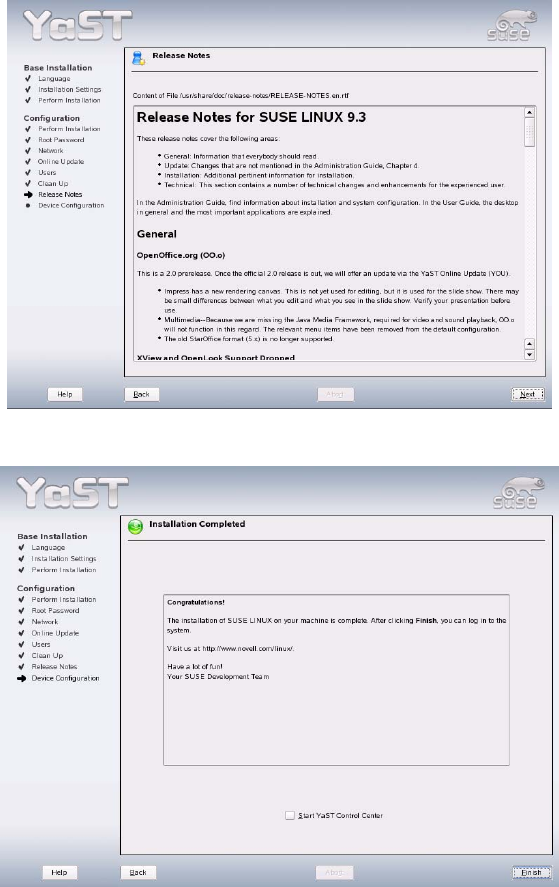
32. Installation is completed and finally, the "Release Notes" dialog box is displayed.
33. Close the "Release Notes" dialog box by clicking "Next".
34. Automatic configuration terminates with the "Installation Completed" message. This message can
then be confirmed with the "Finish" button.
35. Now remove the CD.
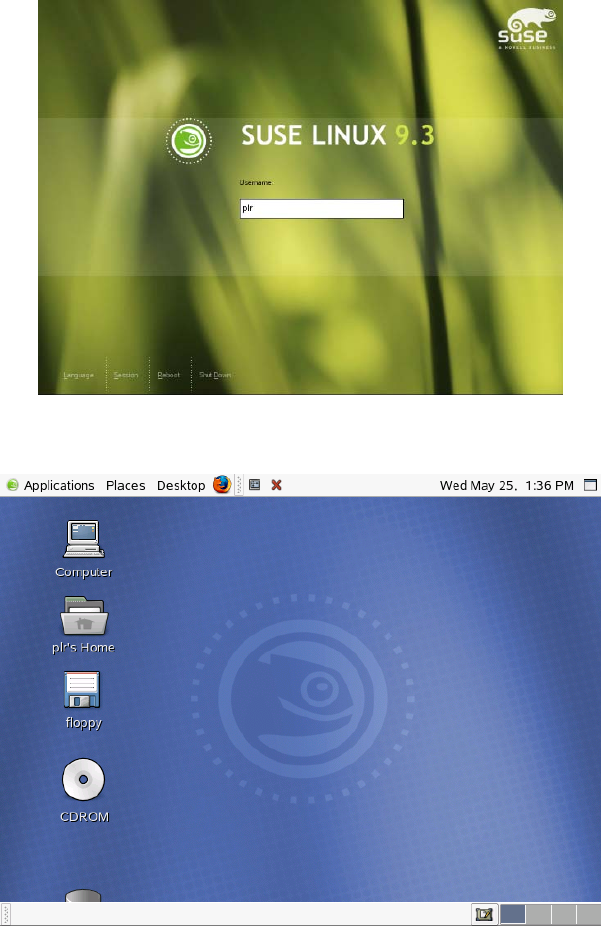
36. The system starts the graphical login and is now ready for you to carry out the installation of the line
computer software (see section
4.4.1).
37. After the line computer software has been installed, the CD writer must be configured if required.
(see section Fehler! Verweisquelle konnte nicht gefunden werden.)
34 of 69
Customized LRL SuSE 9.3 Installation Description
4.4 Installing the line computer software LRL.503_05
The first time the Line Computer Linux is installed after updating the operating system to SuSE 9.3,
proceed with section
4.4.1. Reinstalling the Line Computer Linux is carried out in the normal manner
using the menu item "OPTIONS/Install options" (see section
4.4.2).
4.4.1 Entries during installation when updating the operating system to SuSE 9.3
1. After rebooting, log in as the user "plr".
2. Insert the line computer software CD, if you have not already done so.
3. Double-click the CD-ROM icon.
35 of 69