Installationsanleitung_SuSE9.3_en.pdf - 第26页
Installation Description Customized LRL SuSE 9.3 4. The system is restarted and must be booted from CD. 5. At the boot prompt, select the "Installation" menu item. 6. You must agree to the license te rms for Su…
Customized LRL SuSE 9.3 Installation Description
4.3.3 Update: Installation via "Install Options"
1. Insert the operating system installation CD.
Note
When using an "Econel 30" system (these have both a DVD and a CD writer) the
installation CD must be inserted into the CD writer drive.
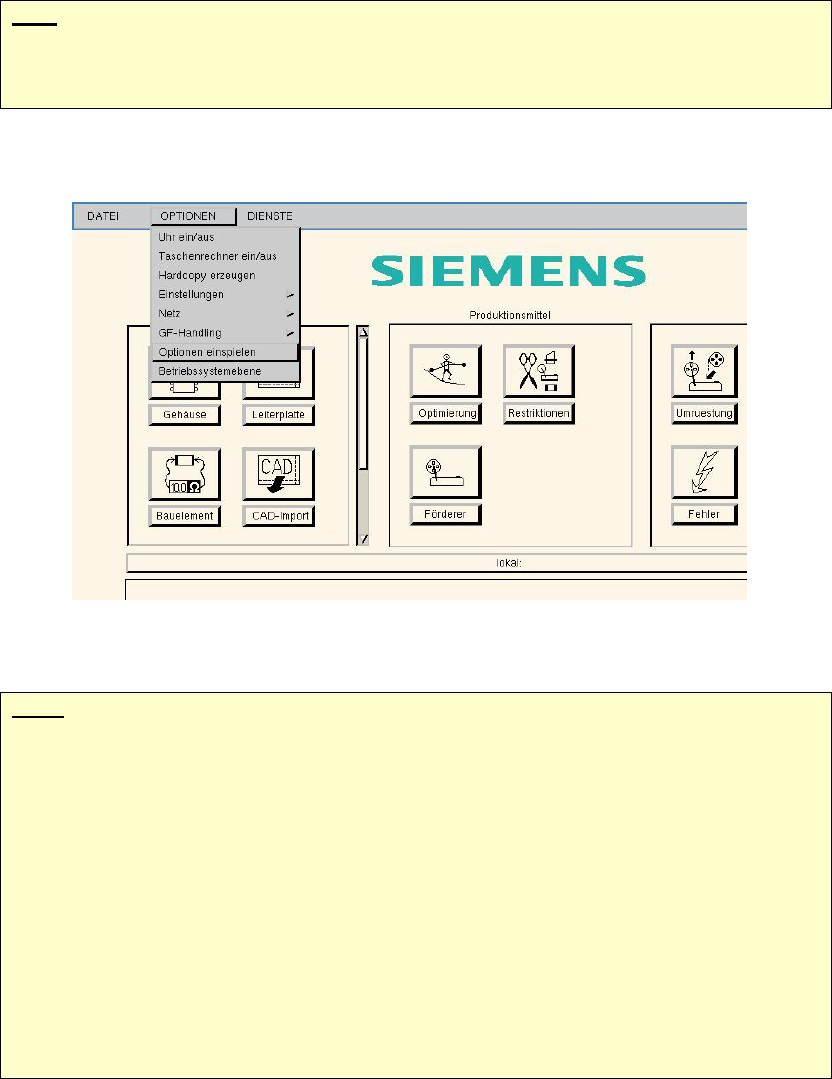
2. Select "Load options" from the "Options" menu.
3. A window opens. At the prompt, "Insert the floppy or the CD and press return.", press return.
Note:
The system now checks the sizes of the hard disk partitions.
If the partitions are too small, a message is issued to the effect that the hard disk partitions
must be enlarged (see section 4.2.1) before installation can be carried out.
If the size of the partitions is okay, the computer is shut down and booted from CD-ROM
when it is switched on again.
When installation of the operating system starts, you can select between
- a new installation of the operating system (SuSE 9.3) (see section 4.4.2 )
- an update of the operating system (from SuSE 7.3/9.0 to SuSE 9.3) (see section 0)????
The following sections describe how to update the operating system.
25 of 69
Installation Description Customized LRL SuSE 9.3
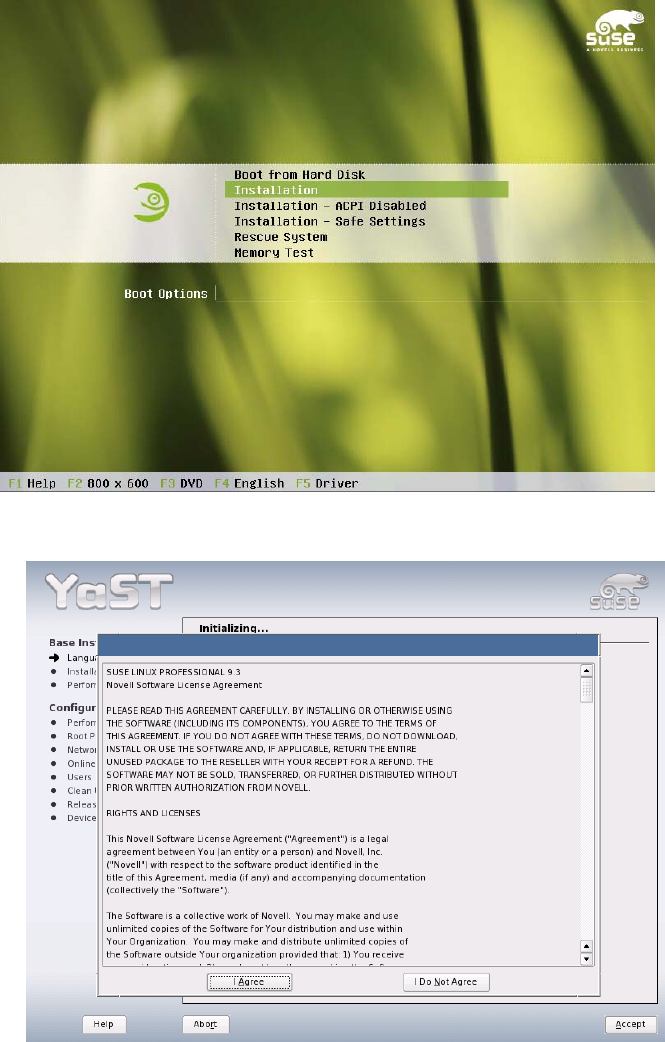
4. The system is restarted and must be booted from CD.
5. At the boot prompt, select the "Installation" menu item.
6. You must agree to the license terms for SuSE 9.3 by clicking the "I Agree" button in the next dialog
box.
26 of 69
Customized LRL SuSE 9.3 Installation Description
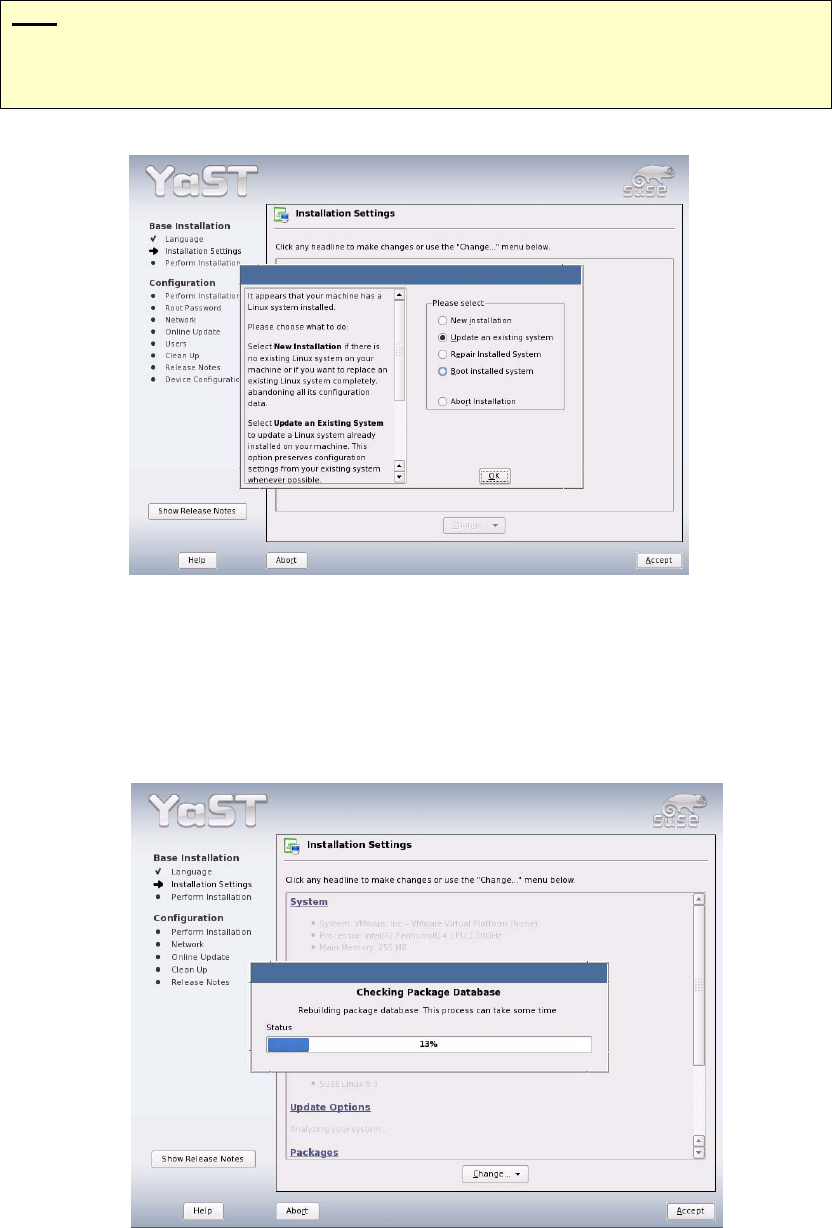
7. In the next dialog box, the installer program (YaST2) asks for the installation mode.
Note
"New installation" can also be selected at this point. If you do so, the computer will be
completely re-installed. Any existing data is lost. Continue with section 4.3.2, point 3.).
8. Select the menu item "Update an existing system" (this ensures that existing customer data and
settings remain unchanged) and confirm your choice with "OK".
9. The installer program then collects all the actions that need to be performed. The "Checking
Package Database" dialog box runs automatically.
10. If there are no problems when the system inspects the packages, proceed with step
16 ("Installation
Settings"). If any problems are displayed, proceed as follows (step
11).
27 of 69