Installationsanleitung_SuSE9.3_en.pdf - 第23页
Customized LRL SuSE 9.3 Installation Description 42. You can print a test page b y clicking " Test ". Close the dialog box by clicki ng " OK ". 43. Close the "Printer Co nfigurat ion" dialog…
Installation Description Customized LRL SuSE 9.3
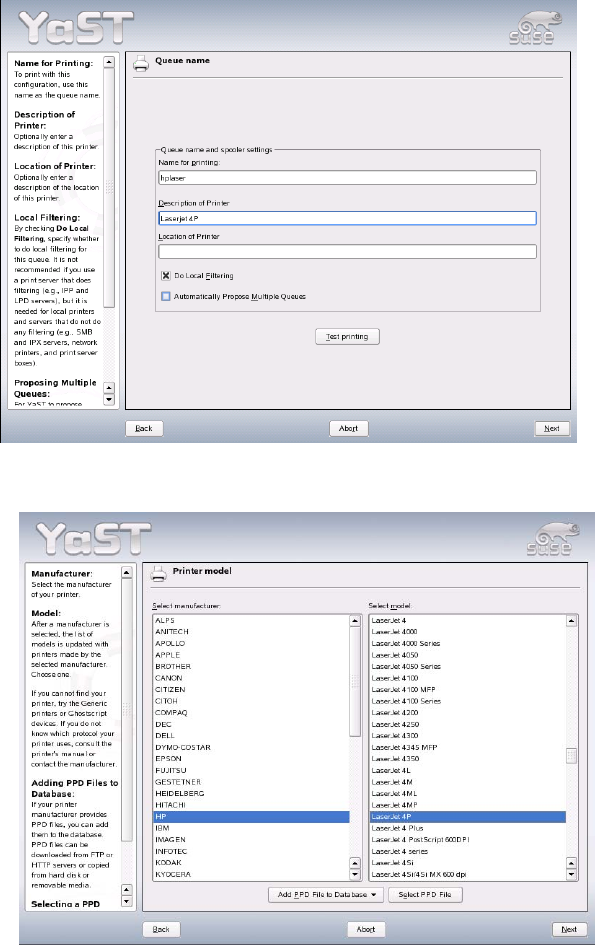
40. Click "Next" after you have entered the printer name and a description of the printer.
41. Select the printer manufacturer and model and click "Next".
22 of 69
Customized LRL SuSE 9.3 Installation Description
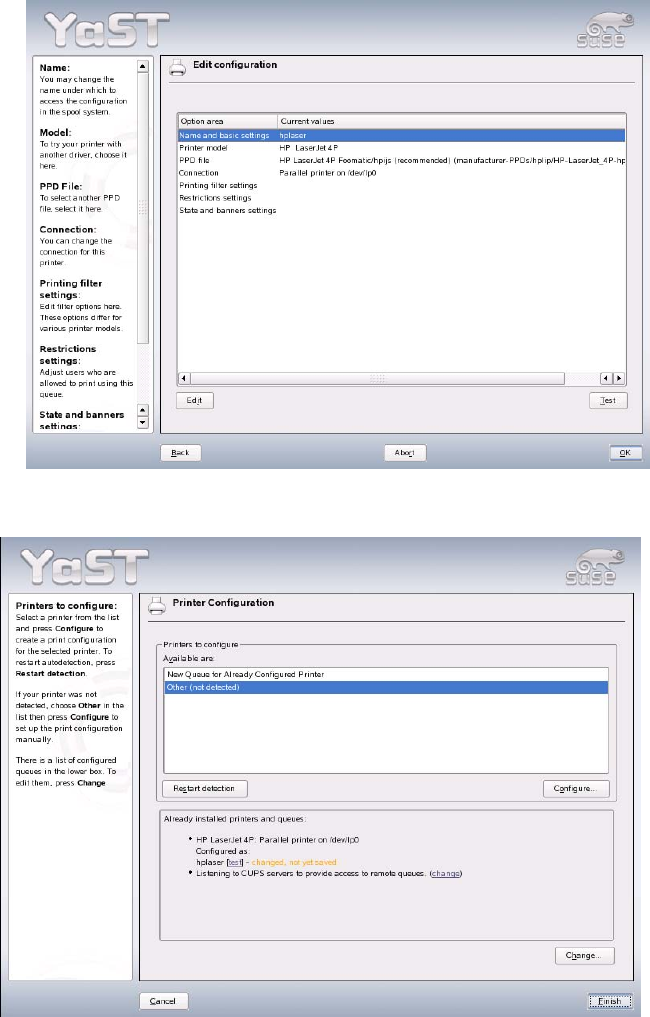
42. You can print a test page by clicking "Test". Close the dialog box by clicking "OK".
43. Close the "Printer Configuration" dialog box by clicking "Finish". This completes the installation of
the printer.
23 of 69
Installation Description Customized LRL SuSE 9.3
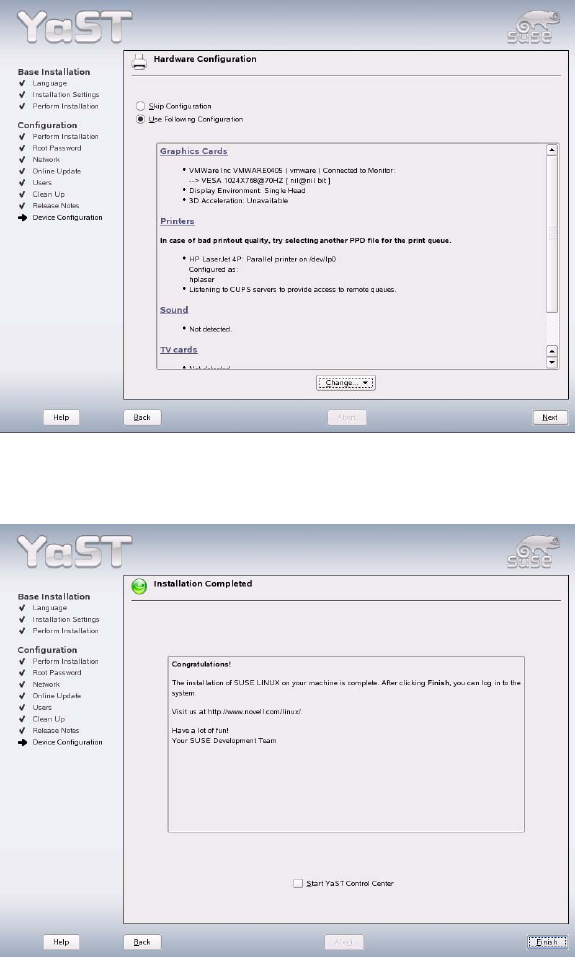
44. Close the "Hardware Configuration" dialog box by clicking "Next". This completes configuration of
the hardware.
45. Configuration terminates with the "Installation Completed" message. This message can then be
confirmed with the "Finish" button.
46. The system is restarted and is now ready for you to carry out the installation of the line computer
software (see section
4.4.1 Entries during installation when updating the operating system to SuSE
9.3
).
Remove the installation CD from the drive.
24 of 69