Installationsanleitung_SuSE9.3_en.pdf - 第61页
Customized LRL SuSE 9.3 Installation Description 12. Now enter the network address of the printer. Enter the address which was set on the printer when you configured the network printer (se e below " 4.5.4.3 Configu…
Installation Description Customized LRL SuSE 9.3
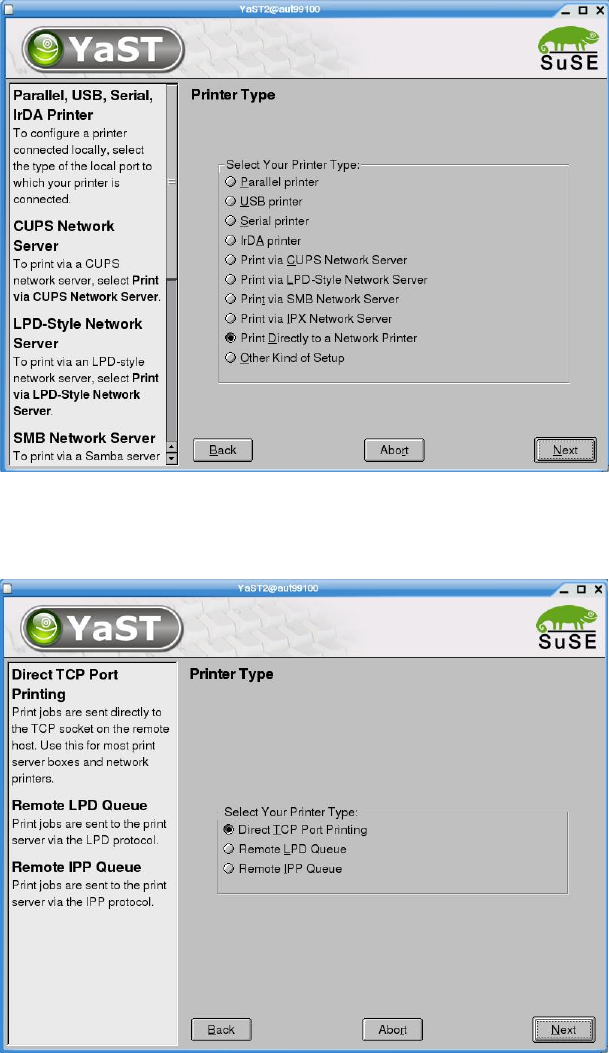
8. Select the entry "Print Directly to a Network Printer".
Figure 4-34
9. Confirm your entry with "Next".
10. Select the default setting "Direct TCP Port Printing" as the subsidiary printer type.
Figure 4-35
11. Confirm your entry with "Next".
60 of 69
Customized LRL SuSE 9.3 Installation Description
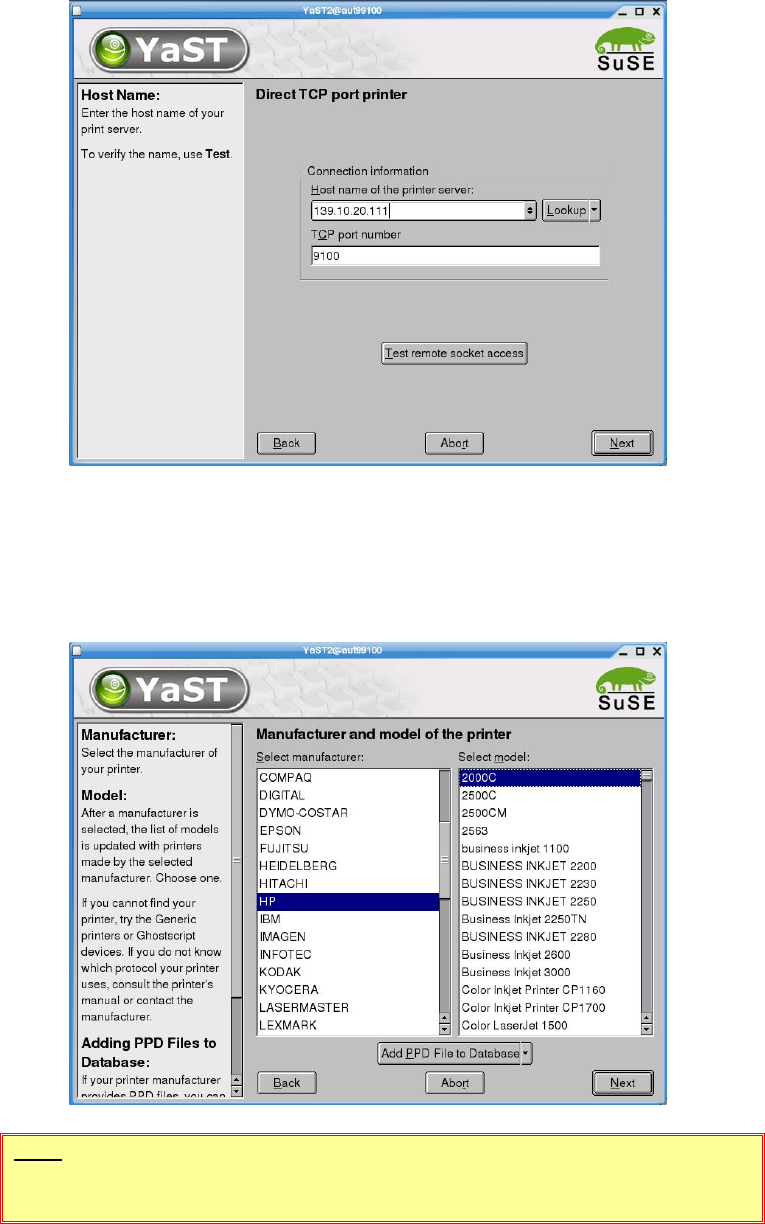
12. Now enter the network address of the printer. Enter the address which was set on the printer when
you configured the network printer (see below "
4.5.4.3 Configuration procedure").
Figure 4-36
13. Confirm your entries by clicking "Next".
14. Select the printer manufacturer and model:
HP (Hewlett-Packard)
(DeskJet) 2000C
Figure 4-37
NOTE
The model specified above must be selected!
15. Confirm your choice with "Next".
61 of 69
Installation Description Customized LRL SuSE 9.3
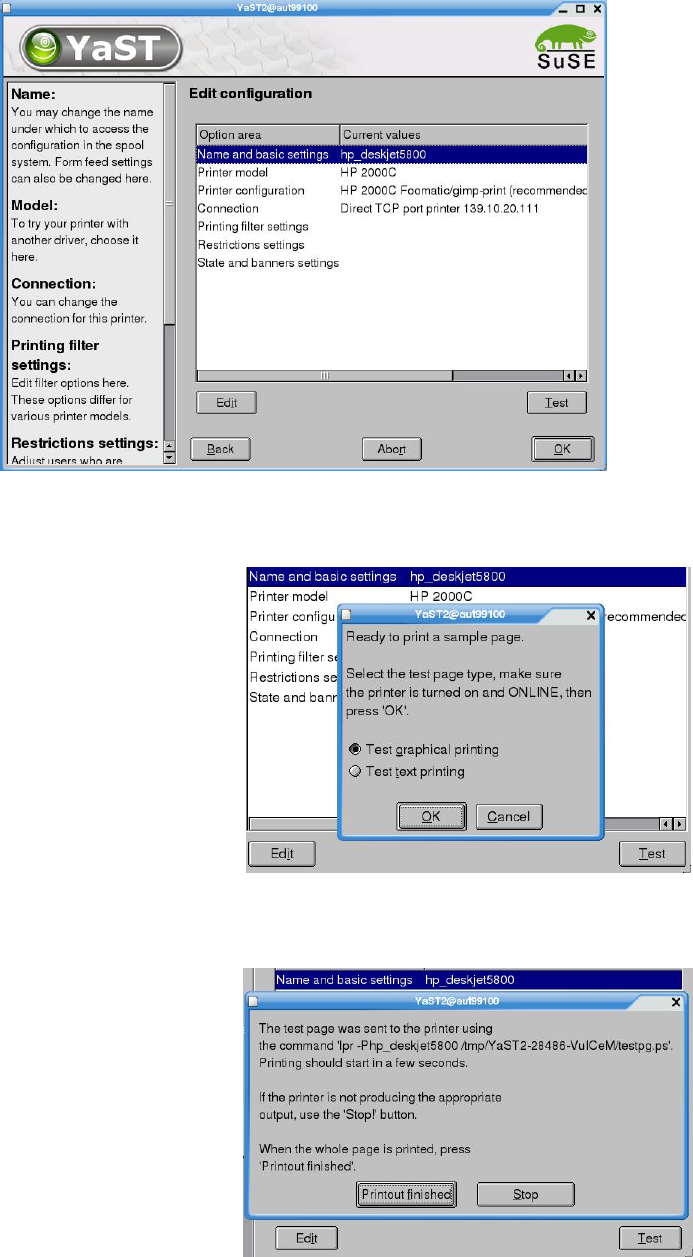
16. The printer settings are now displayed.
Figure 4-38
17. You can print a test page to test correct operation of the printer by clicking the "Test" button (you
can also skip this step and continue at point
19 below)
Figure 4-39
18. Once the test page has been printed, confirm this by clicking "Printout finished". If the page is not
printed correctly, you can stop the print operation with the "Stop" button.
Figure 4-40
19. Close the dialog box shown in Figure 4-38 by clicking "OK".
20. The dialog box shown in point
7 above then appears, with the exception that the printer you have
just installed now appears at the bottom.
62 of 69