00197195-02-UG SetupCenter 5.1_en.pdf - 第101页
Operating the Barcode Reader Barcode Test Barcode Reader - General Exercises User Guide SIPLACE Setup Center 5.1 10 1 6.3.4 Barcode Test The following steps can be used to scan in a barcode and to view its contents o n t…
Operating the Barcode Reader
Barcode Reader - General Exercises Additional Information During Setup Verification
100 User Guide SIPLACE Setup Center 5.1
If a label consists of several barcodes, these need to be scanned in, one after the other, until the a signal
indicates that you have reached the end of the label.
In this step, SIPLACE Setup Center records the packaging unit.
6.3.3 Additional Information During Setup Verification
During setup verification online and offline, you have the possibility to collect additional information for
each track via the reader, for instance the display of the component name, the current setup and line as
well as the location of the station.
Prerequisite:
You are in online/offline setup verification or in refill mode.
Using the Reader:
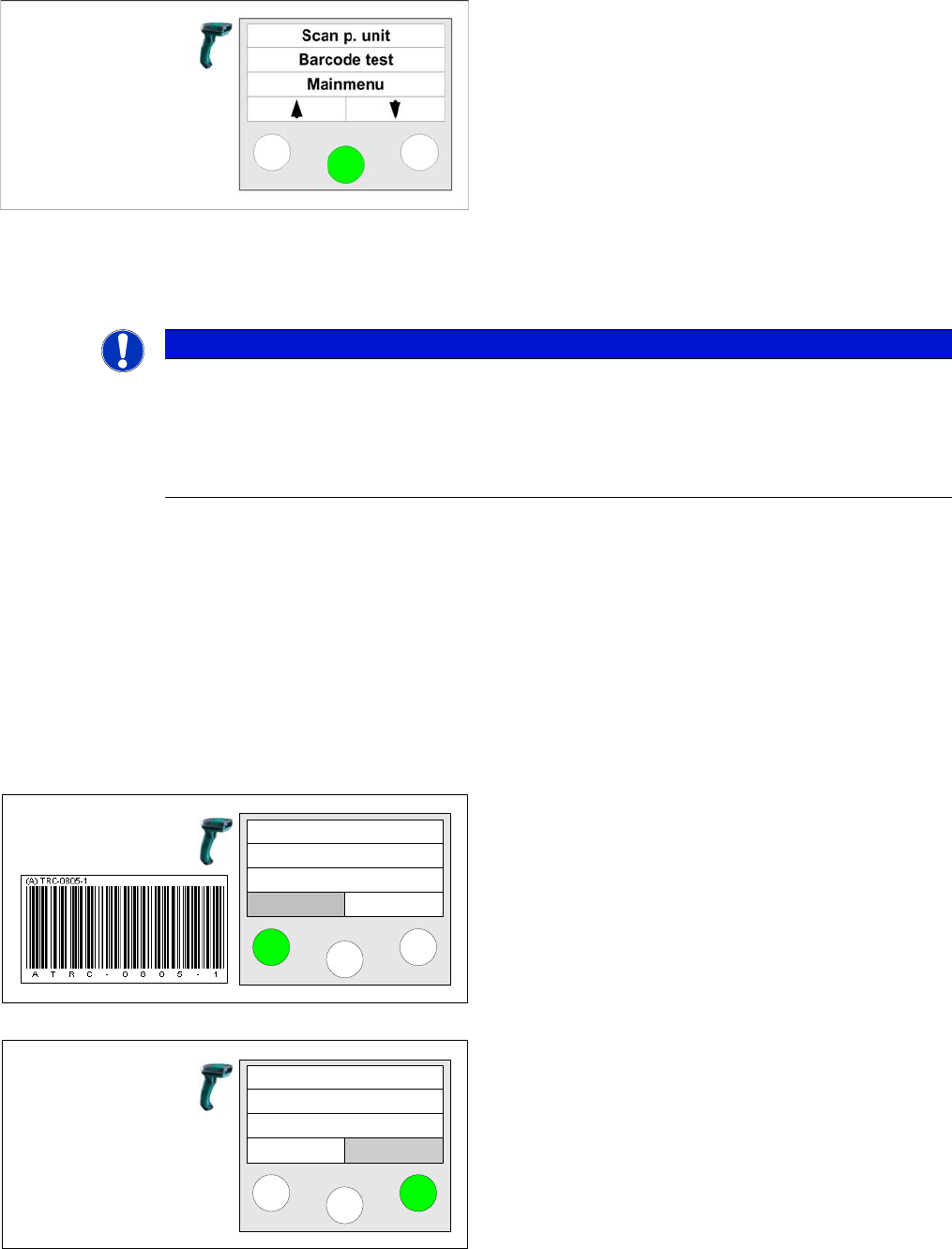
► Use the soft keys to browse "up" and "down" in the
"Scan p. unit" menu. Then press the Enter key.
► Start to scan in the barcode label on the packaging
unit.
NOTICE
Scanning the unique barcode
If a packaging unit has already been scanned in previously, you only need to scan in the unique
barcode. SIPLACE Setup Center will automatically recognize the packaging unit that has al-
ready been recorded.
This simplifies the working steps with recorded packaging units and saves you time.
Step 1
During online/offline setup verification and refill the Info
option allows you to display additional information for
each track at the reader. To do this, press the left key of
the reader.
Step 2
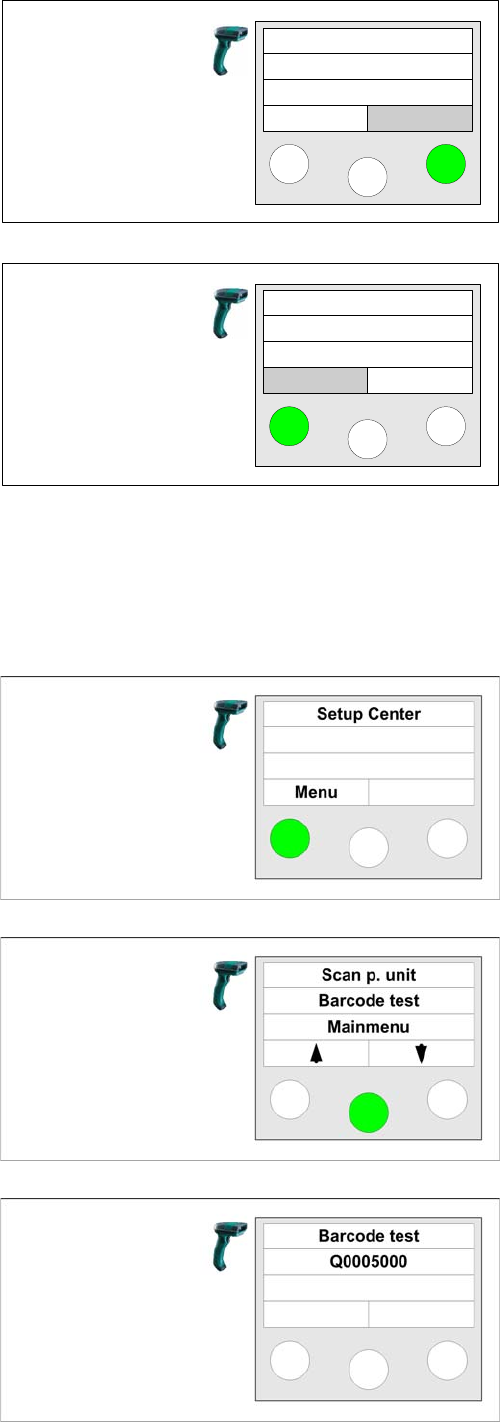
The component name is displayed .
With the Next key on the right, you can display additional
information.
With the Back key, on the left, you can exit the info menu.
You must complete this step to continue with setup veri-
fication.
Track: 55
Scan component
Info >>
Component:
TRC-0805-1
Back Next
Operating the Barcode Reader
Barcode Test Barcode Reader - General Exercises
User Guide SIPLACE Setup Center 5.1 101
6.3.4 Barcode Test
The following steps can be used to scan in a barcode and
to view its contents on the barcode reader display.
Using the Reader:
Step 3
The next information displayed is Setup and Line .
With the Next key on the right, you can display additional
information.
With the Back key on the left, you will return to the previ-
ous information menu, from where setup verification can
be continued.
Step 4
The last information displayed is Station and Location .
With the Back key on the left, you will return to the previ-
ous information menu, from where setup verification can
be continued.
S:Setup
L:Line
Back Next
St:Station
L:location
Back
Step 1
Take the barcode reader and press the Enter key until the
main menu appears on the reader display.
Step 2
Press the button under the word "Menu" (soft key
"Menu")
Step 3
Use the soft keys to browse up and down through the
"Barcode test" menu. Then press the Enter key.
Step 4
Now scan in any barcode on a packaging unit. If the code
is configured in the barcode reader, the contents will be
shown on the display. Please note that the barcode read-
er can only display ASCII characters and therefore can-
not handle all languages.

Operating the Barcode Reader
Barcode Reader - General Exercises Barcode Test
102 User Guide SIPLACE Setup Center 5.1
Step 5 (optional)
You have the possibility to check this barcode with the
settings in the barcode labels.
► Open the Extras => Settings =>Barcode labels menu.
► The scanned barcode will be entered in the Scanned
barcode input field.
► Open the context menu and select the Match func-
tion. The scanned barcode is matched with the set-
tings of the corresponding barcode label. See also
"3.3 Barcode Labels" [ ➙ 31].