00197195-02-UG SetupCenter 5.1_en.pdf - 第13页
Starting Setup Center Menu Area The User Interface User Guide SIPLACE Setup Center 5.1 13 1. Releases the window from its default p osition 2. Hides the window The function Extras => Restore Default Layout r esets all…
Starting Setup Center
The User Interface
12 User Guide SIPLACE Setup Center 5.1
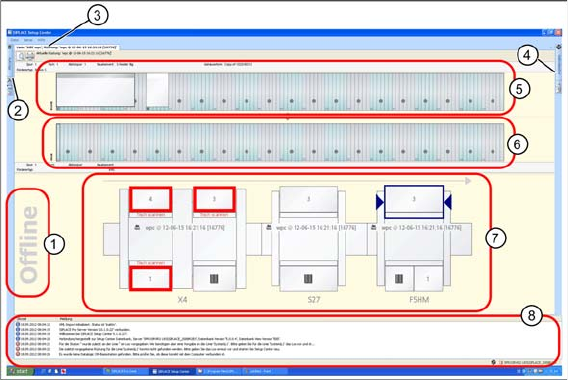
Overview
1. Type of setup verification (online/offline)
2. Structure views for jobs, recipes, setups and production schedules (offline)
3. Menu area
4. Toolbar
5. Display area selected location - target setup from SiplacePro
6. Online: display area for selected location – actual setup in machine
or
Offline: display area for selected location - actual setup in the docking station or database state for
setup verification
7. Display area line
8. Notifications window
Auto Hide Function
The tree views for jobs, recipes, setups and production schedules are on the top left of the user interface
as a default. The toolbar, with the Packaging Unit Editor, Search Material function and Verification His-
tory tool, is on the top right of the user interface as a default.
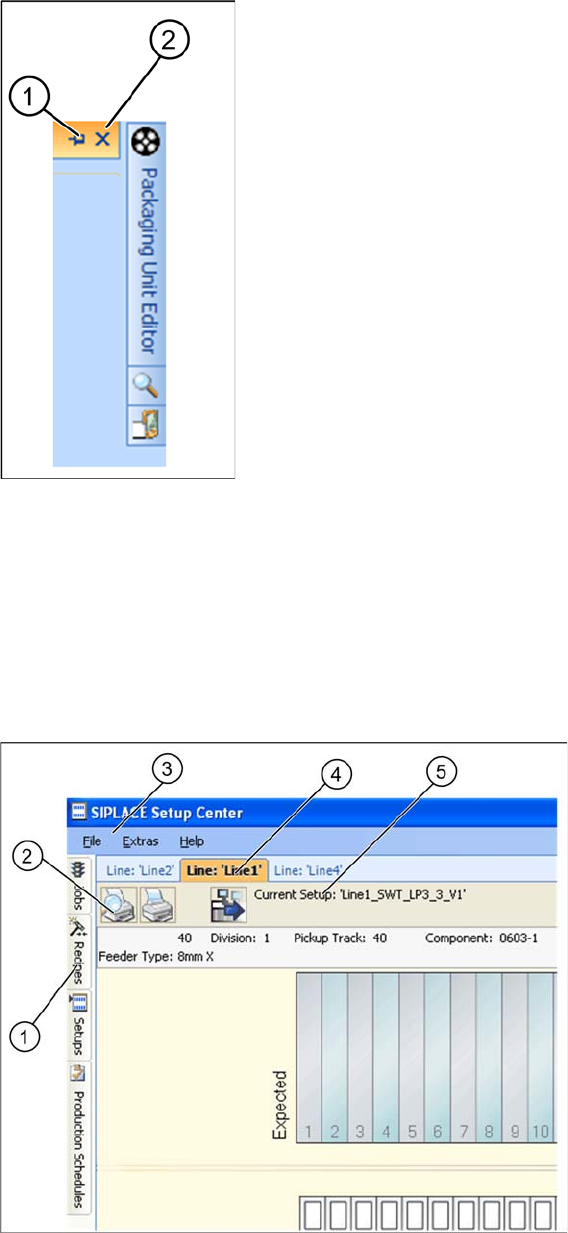
Each tree view or editor in this function area can be opened in a separate window. The auto-hide function
allows you to release the window from its default position and move it to wherever you want. To dock the
window in your required position on the user interface, simply use the arrows shown on the window.
Starting Setup Center
Menu Area The User Interface
User Guide SIPLACE Setup Center 5.1 13
1. Releases the window from its default position
2. Hides the window
The function Extras => Restore Default Layout resets all settings to their original state. The current win-
dow positions are saved when you exit Setup Center and will be applied again at the next program start.
2.2.1 Menu Area
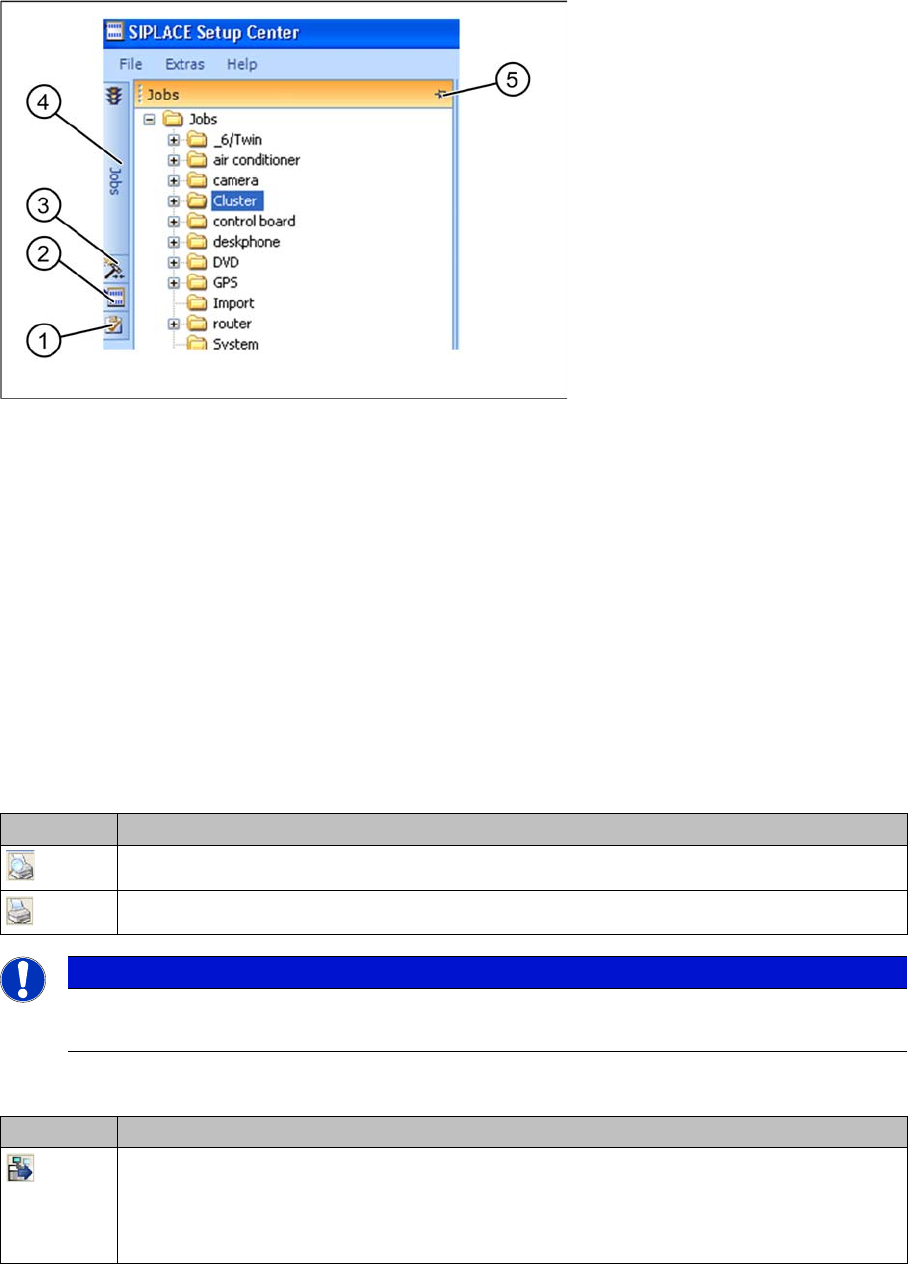
Detailed view - menu area
1. Tree views for jobs, recipes, setups and production schedules (offline)
2. Toolbar
3. Menu bar
4. Tabs for selection of active setups
5. Name of the current setup
Starting Setup Center
The User Interface Menu Area
14 User Guide SIPLACE Setup Center 5.1
2.2.1.1 Tree Views
SIPLACE Pro Desk displays its objects in various tree views. This is where you can open and print set-
ups in the pre-setup area (offline).
1. Production schedules
2. Setups
3. Recipes
4. Jobs
5. The auto-hide function allows you to release the window from its default position and move it to wher-
ever you want.
2.2.1.2 Tool bar
Printing test reports
The print buttons for the test reports are located in the upper left area of the user interface. The test report
contains a setup list with the verification status of each component in the setup. If defined, the user name
will also be printed on the test reports.
Open next setup
Icon Description
Print preview of test report.
Print test report. Prints the report directly at the configured default printer for your PC.
NOTICE
Layout of checklists
The checklist layout is saved in the PrintoutStyles.xml file.
Icon Description
Opens the view for the next setup. Is only displayed, if these functions have been activat-
ed in the settings. This option requires a license.
Activate the Prepare next step option in the Tools => Settings => General function of the
Setup Center main menu. See "7.6 Next Setup in Setup Center" [ ➙ 123].