00197195-02-UG SetupCenter 5.1_en.pdf - 第93页
Barcode Importing and Exporting Barcode Labels Barcode Labels User Guide SIPLACE Setup Center 5.1 93 Import Export Step 1 Right-click wi th the mouse in the white field of the Label Overview to open the context menu . Th…
Barcode
Barcode Labels Importing and Exporting Barcode Labels
92 User Guide SIPLACE Setup Center 5.1
Quantifiers
Quantifiers use individual characters or character classes as often as possible. If this pattern is followed
by ?, the minimum amount will be recognized. The following quantifiers are available:
Anchors, Groupings and Alternatives
Character classes and quantifiers are only a few of the many special characters. The following table ex-
plains the main special characters for barcode patterns: anchors, groups and alternatives.
5.1.5 Importing and Exporting Barcode Labels
Starting with version 3.0, you can import barcode labels from an ApplicationSettings.xml file and export
barcode labels via an ApplicationSettings.xml file.
All labels of the file are imported. It is not possible to add any labels!
This function is useful when the barcode labels need to be transferred from one Setup Center to another
within the same production process.
\S Recognizes each non-whitespace character. \s has the same meaning as [^
\f\n\r\t\v].
\d Recognizes each number. \d has the same meaning as [0-9].
\D Recognizes any sign apart from numbers. \P has the same meaning as [^0-9].
Qualifier Description
* Recognizes the preceding sample element multiple times or not at all e.g. \w* or
(abc)*. Corresponds to {0,}.
+ Recognizes the sample element located before this once or multiple times e.g. \w+
or (abc)+. Corresponds to {1,}.
? Recognizes an element once or not at all e.g. \w? or (abc)?. Corresponds to {0.1,}.
{n} Gives the exact number of hits e.g. p{2}.
{n,} Gives the minimum number of hits e.g. p{2,}.
{n,m} Gives the minimum (n) and maximum (m) number of hits e.g. p{2,3}.
*? Recognizes the sample element but recognizes as few characters/repeats as pos-
sible.
+? Recognizes the sample element at least once but then recognizes as few charac-
ters/repeats as possible.
{n,}? Recognizes the sample element at least "n" times but then recognizes as few char-
acters/repeats as possible.
{n,m}? Recognizes the sample element at least "n" times but then recognizes as few char-
acters/repeats as possible and to a maximum of "m" times.
Qualifier Description
^ Ensures that the following pattern is recognized at the beginning of a character
string, e.g. ^a
$ Ensures that the preceding pattern is recognized at the end of a character string,
e.g. z$
( … ) Groups a number of pattern elements into a single element e.g. (pizza)
… | … | … Recognizes from left to right the first indicated alternative e.g. (a|b|c)
Character class Description
Barcode
Importing and Exporting Barcode Labels Barcode Labels
User Guide SIPLACE Setup Center 5.1 93
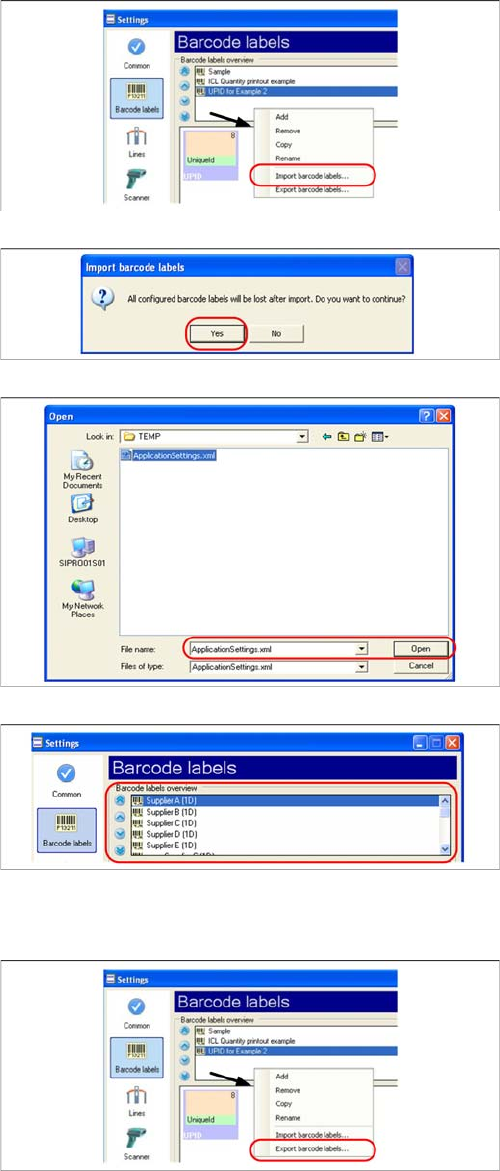
Import
Export
Step 1
Right-click with the mouse in the white field of the Label
Overview to open the context menu. Then select the Im-
port barcode labels… option.
Step 2
Confirm the subsequent message with Yes .
All previously configured labels are getting lost during im-
port.
Step 3
Select the directory of the ApplicationSettings.xml file,
from which the barcode labels should be imported.
Step 4
After successful import of the labels, you see the barcode
labels displayed in the overview.
To finish, accept the barcode labels as usual.
Step 1
Right-click with the mouse in the white field of the Label
Overview to open the context menu. Then select the Ex-
port barcode labels… .
Barcode
Barcode Labels Importing and Exporting Barcode Labels
94 User Guide SIPLACE Setup Center 5.1
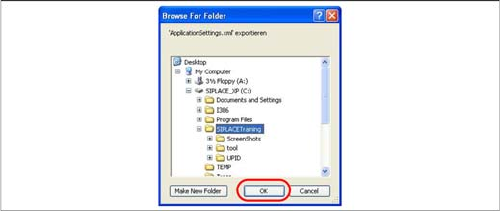
Step 2
Select the directory to which the ApplicationSettings.xml
file, with the barcode labels, is to be exported.