00197195-02-UG SetupCenter 5.1_en.pdf - 第125页
Working with the Setup Center Application Plausibility Check - Missing Refill N ext Setup in Setup Center User Guide SIPLACE Setup Center 5.1 12 5 Icons and their meanings List box: Random Setup Mode List box Feeder LED …
Working with the Setup Center Application
Next Setup in Setup Center Plausibility Check - Missing Refill
124 User Guide SIPLACE Setup Center 5.1
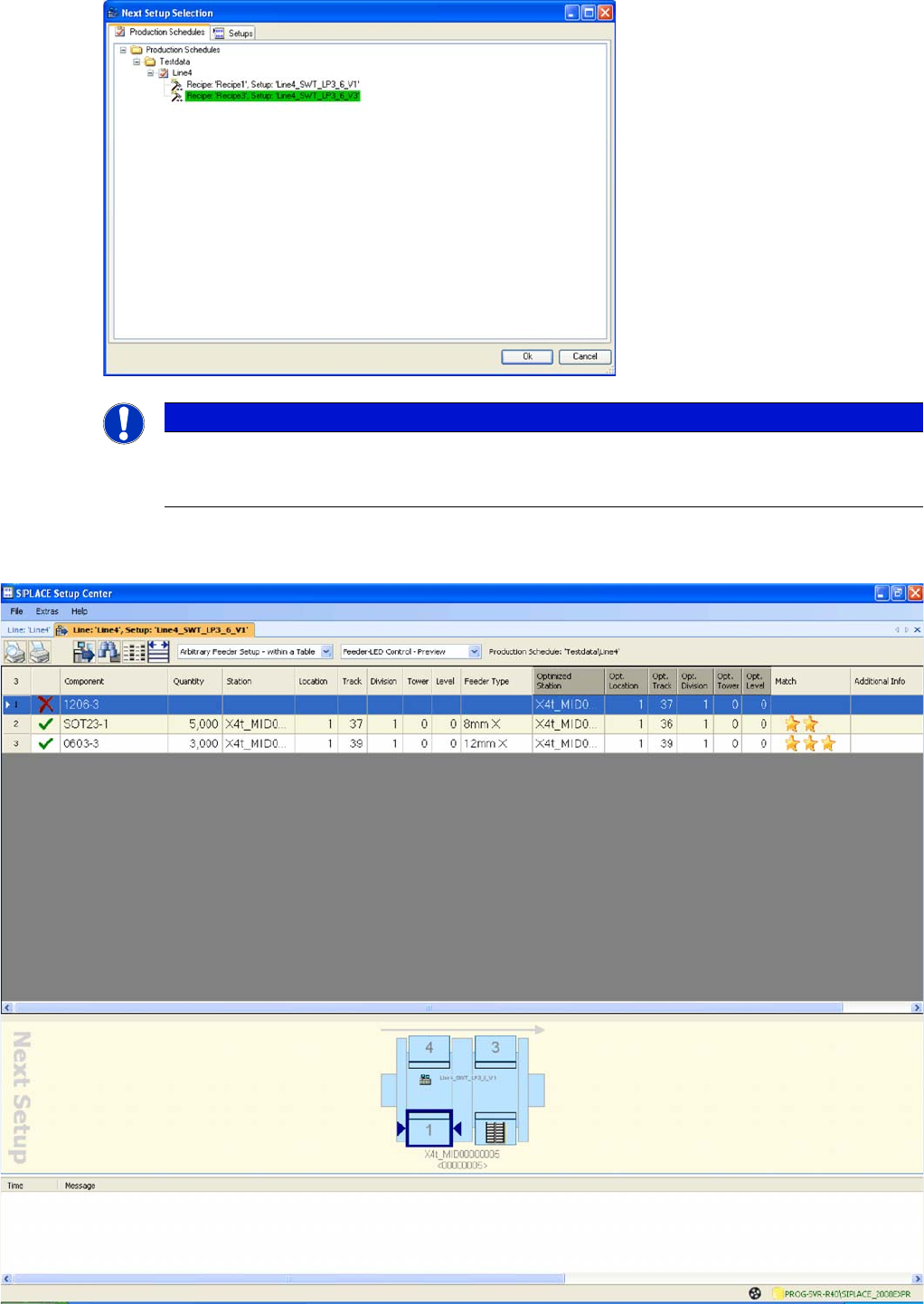
► Select the recipe for the next setup from the Production Schedules or Setups tabs.
⇨ The main Next Setup view will open.
NOTICE
The green highlighted recipe in the "Choose Next Setup" dialog box shows the current recipe
set at the line. This helps the user find the current position and select the next recipe with the
next setup.
Working with the Setup Center Application
Plausibility Check - Missing Refill Next Setup in Setup Center
User Guide SIPLACE Setup Center 5.1 125
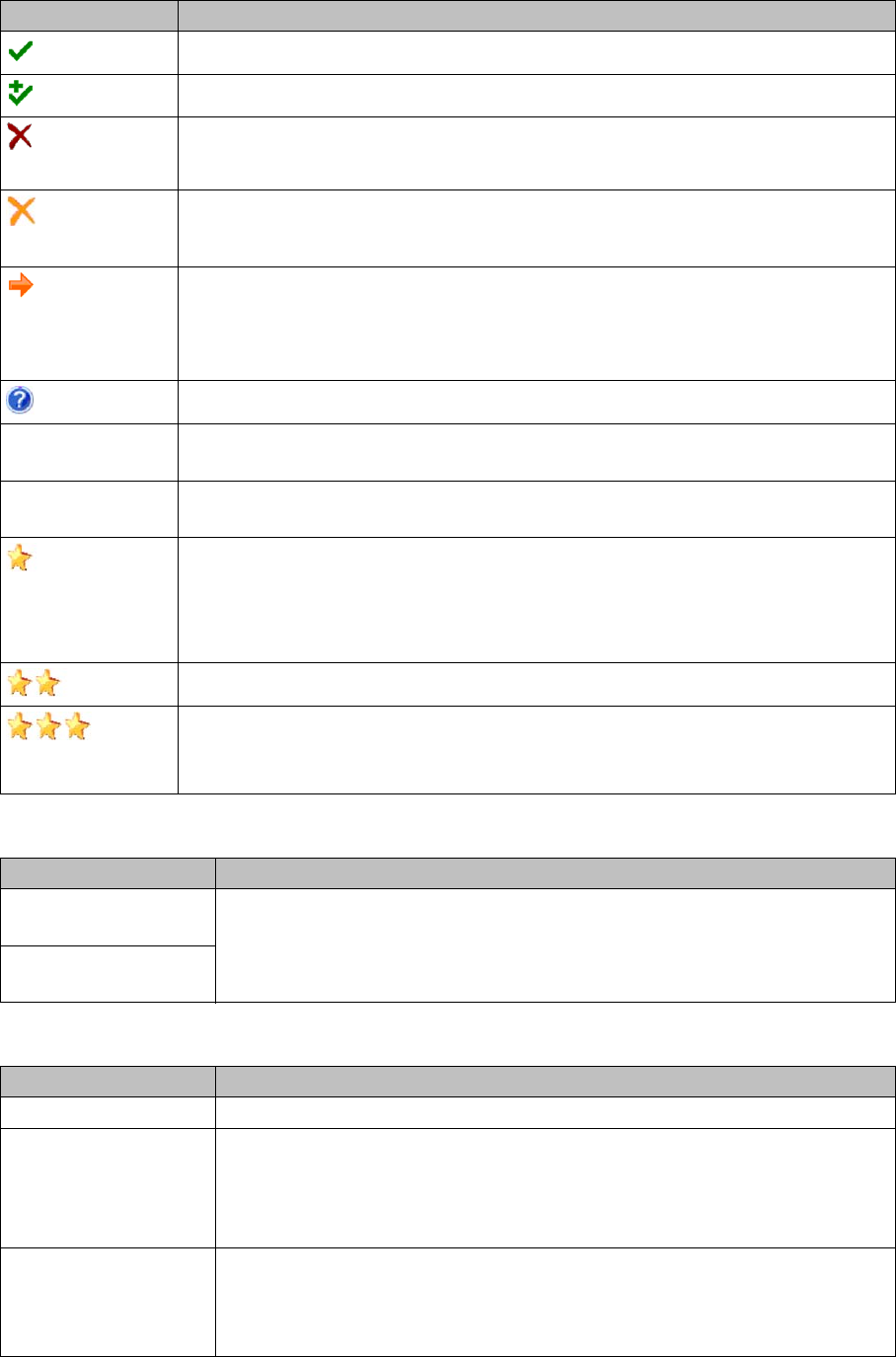
Icons and their meanings
List box: Random Setup Mode
List box Feeder LED Control
Icon/meaning Meaning
The component is already at the line and does not need to be configured.
The component also needs to be configured on a spare track.
(red)
The component is missing at the line and needs to be configured.
(orange)
The component is missing from this location but is configured at another location.
The component has been wrongly configured at this location and should instead
be set up at another location. The correct location can be found in the Optimized
Location column.
The component is unknown.
-- The component will not be needed in the next setup and can be torn down at setup
changeover.
Correlation The actual location of the configured components at the line is compared with the
location of the optimized setup.
Setting Random Setup – Within a Table:
No value
Setting: Random Setup – On the Line:
The component is already at the line but on a random table and track.
The component is already on the correct table of the line but on a random track.
The component is on the correct table and on the correct track.
The component is already on the right track and has been configured and verified
at the station, according to the optimization specifications in SIPLACE Pro.
Designation Meaning
Random Setup – Within
a Table
When you open the Next Setup view, the download settings are adopted from
the Line Control GUI and displayed. The setting can be changed for test pur-
poses, for example to check the completeness of the components. Changing
these settings has no impact on the settings in the Line Control GUI.
Random Setup – On
the Line
Designation Meaning
Station The status of the feeder LEDs is controlled only by the station.
Preview The status of the feeder LEDs is controlled by the station and by Setup Center.
▪ The station for feeders used in the current setup.
▪ Setup Center for feeders which have already been configured for the next
setup.
Changeover The status of the feeder LEDs is only controlled by Setup Center in relation to
the next setup. Setup Center thereby excludes LEDs for the feeders which are
not required for the next setup. This enables the user to tear down feeders no
longer required.
Working with the Setup Center Application
Setup Verification with Supplier Barcode Search Component
126 User Guide SIPLACE Setup Center 5.1
Toolbar
7.6.1 Search Component
Allows searching for component names. The Station, Location and Track on which the found compo-
nents are set up are displayed.
► In the Next Setup view select the Search component icon.
⇨ The Find component dialog box will open
Enter the required Component name and start the search.
7.7 Setup Verification with Supplier Barcode
A supplier barcode is an alternative barcode which is entered in the programming system and is uniquely
marked in the factory.
► In the main menu open Extras > Settings; the Settings window will be opened.
► Select the category Barcode labels and the settings are opened.
► Select the relevant function from the Component verification list field.
▪ Component barcode for verification
Or
▪ "Component“ fragment for component verification
See also "3.3 Barcode Labels" [ ➙ 31].
7.7.1 Example
This example shows the correct supplier barcode and the corresponding filters in SIPLACE Pro.
Setup Center barcode label definition: ^(?<Component>.{10,10})(?<UniqueId>.{10,12})$
Scanned barcode: LBC0000001UID1982345
Component barcode for verification
The correct length is checked and the barcode is compared to the barcode which was scanned in. Since
the UID allows different lengths, you may need to enter up to three supplier barcodes:
[Status display] LED Off
The component is not needed in the current or next setup.
LED green
The component is needed in the current or next setup.
LED orange-flashing
The component is configured at the wrong location.
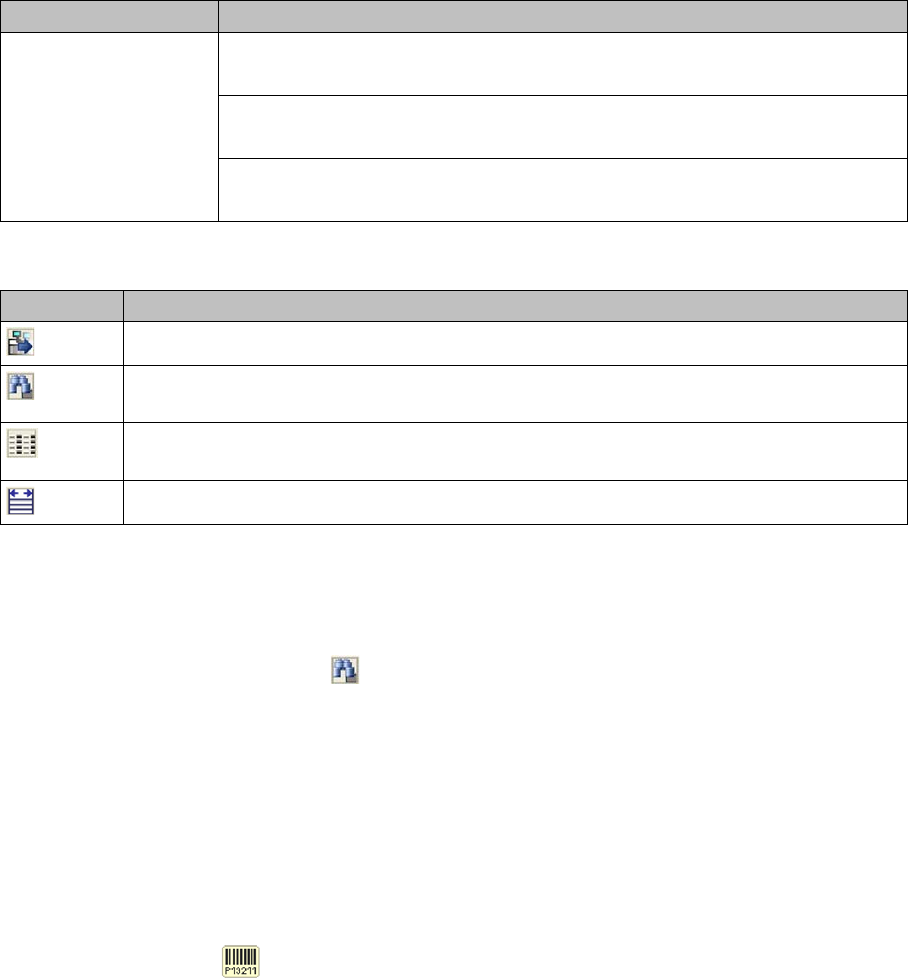
Icon Meaning
Allows the selection of the next setup and opens the Next Setup view afterwards.
Allows searching for components. The Search component dialog box will open. See
"7.6.1 Search Component" [ ➙ 126].
Specify the parameters that will be shown in the table. A dialog box is opened in which
you can activate/deactivate the columns.
The width of the individual columns within the table is aligned to their contents.
Designation Meaning