00197195-02-UG SetupCenter 5.1_en.pdf - 第146页
Working with the Setup Center Application Barcode Label Wizard Barcode Label Types 146 User Guide SIPLACE Setup Center 5.1 ► Select Add , to add a new machine ID to the lis t. ► If you mark the entry, the following setti…
Working with the Setup Center Application
Barcode Label Types Barcode Label Wizard
User Guide SIPLACE Setup Center 5.1 145
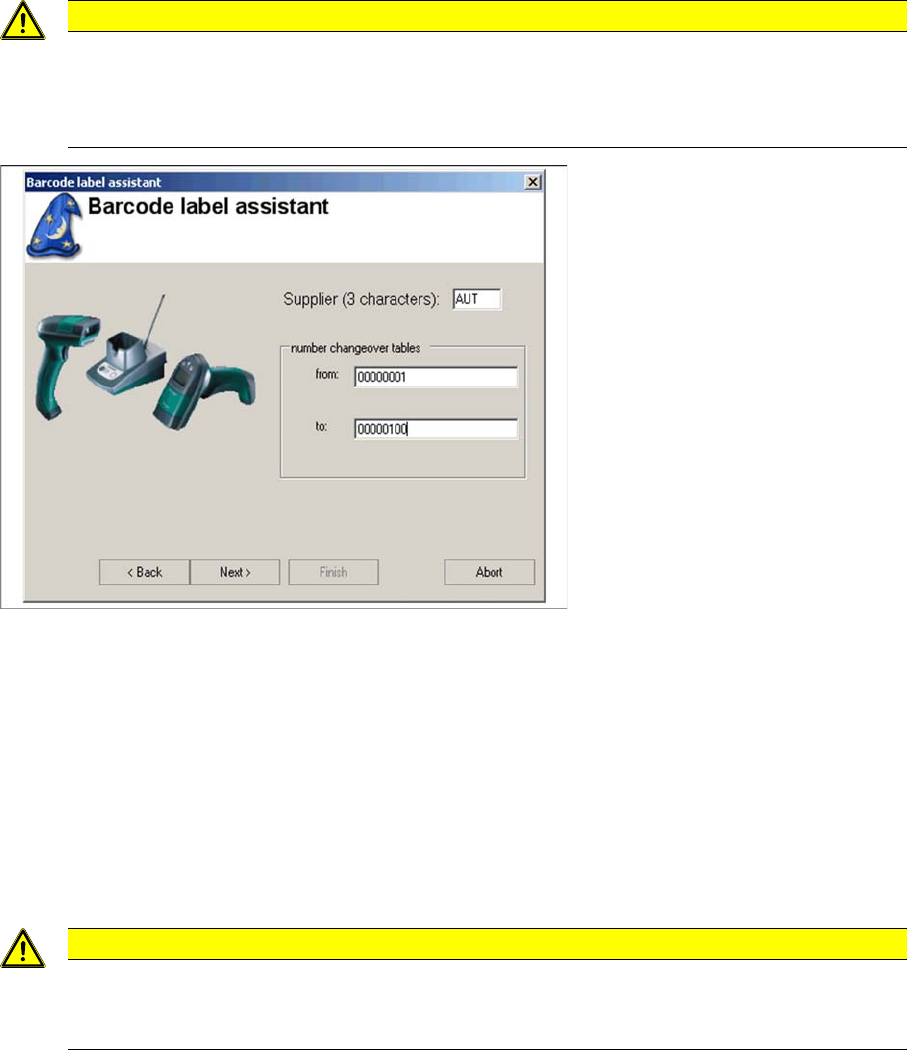
7.11.1.4 Changeover Tables
The following dialog box appears if the barcode type "Changeover tables " has been selected. It is used
for printing barcodes and for identifying of changeover tables.
► Enter the abbreviation for the barcode supplier and serial number for the changeover tables in the
relevant fields.
► Click on Next.
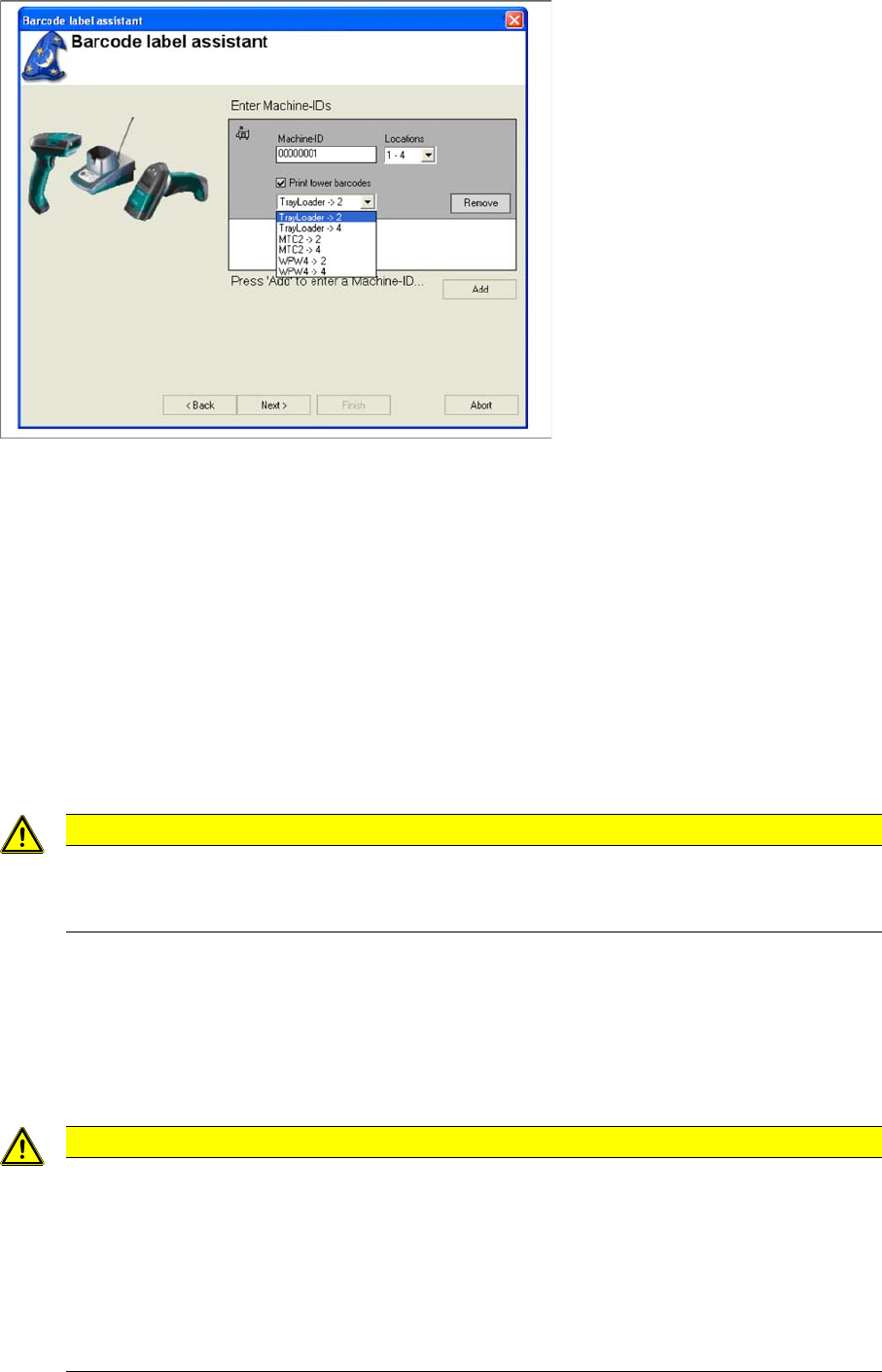
7.11.1.5 Machine IDs
The following dialog box appears if barcode labels are needed to identify locations at S, F, HS or HF
series machines. X series and D series machines are equipped with these barcodes at the factory.
These barcodes contain a unique machine ID.
After scanning the barcode, the required action, such as table check or new setup, can be selected from
the menu.
CAUTION
Changeover table barcodes need to be unique
The changeover table barcodes need to be unique for systems using Setup Center. This
uniqueness is not guaranteed by the Barcode Label Assistant and needs to be checked man-
ually.
CAUTION
Machine IDs need to be unique
The machine IDs need to be unique for systems using Setup Center. This uniqueness is not
guaranteed by the Barcode Label Assistant and needs to be checked manually.
Working with the Setup Center Application
Barcode Label Wizard Barcode Label Types
146 User Guide SIPLACE Setup Center 5.1
► Select Add, to add a new machine ID to the list.
► If you mark the entry, the following settings will be shown and can be edited.
▪ Machine ID
Specify the required machine ID here. The machine ID needs to be unique for systems using Setup
Center.
▪ Locations
Select the correct location number system here for the corresponding machine. You will find the lo-
cation number on the right or left of the table on every SIPLACE machine.
▪ Print tower barcodes
Select this option if the machine is equipped with a waffle pack tray feeder which has no own track
ruler with barcodes (e.g. WPC) and still needs to be integrated into the setup verification.
► Select Remove, if you do not wish to print the barcode.
► Click on Next.
7.11.1.6 Shift Change Verification
The following dialog box appears if barcode labels are needed to start a shift change verification at the
line. The shift change verification enables you to perform a table check without sending quantities to the
station. The machine IDs in the configuration dialog are integrated into the barcode.
CAUTION
Lost settings
These settings will be lost when you exit Setup Center. Setup Center does not support an in-
ventory management function.
CAUTION
Reprinting barcodes
The barcodes for "Shift Change Verification" need to be printed out again, as they now contain
the machine ID, instead of the line number. The previous concept of line numbers is no longer
supported.
The machine IDs need to be unique for systems using Setup Center. This uniqueness is not
guaranteed by the Barcode Label Assistant and needs to be checked manually.
After printing, these barcodes have to be attached to the correct location or waffle pack tray
feeder on the machine.
Working with the Setup Center Application
Barcode Label Types Barcode Label Wizard
User Guide SIPLACE Setup Center 5.1 147
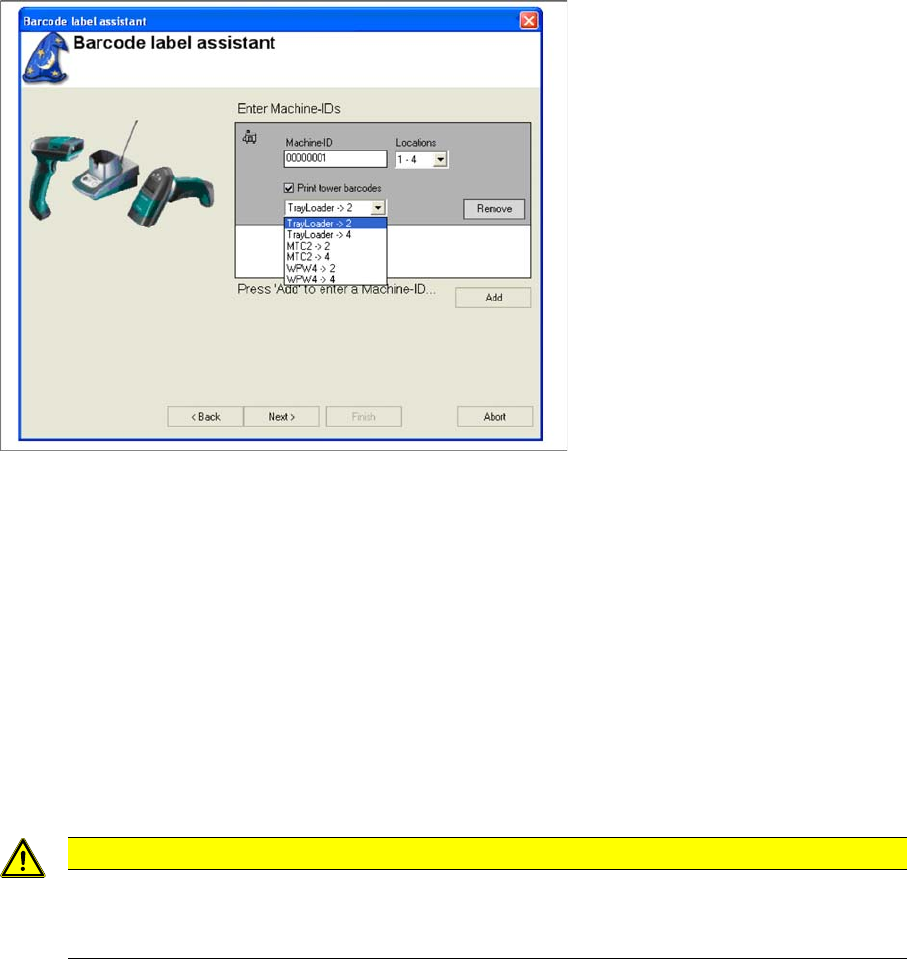
► Select Add, to add a new machine ID to the list.
► If you mark the entry, the following settings will be shown and can be edited.
▪ Machine ID
Specify the required machine ID here. The machine ID needs to be unique for systems using Setup
Center.
▪ Locations
Select the correct location number system here for the corresponding machine. You will find the lo-
cation number on the right or left of the table on every SIPLACE machine.
▪ Print tower barcodes
Select this option if the machine is equipped with a waffle pack tray feeder which has no own track
ruler with barcodes (e.g. WPC) and still needs to be integrated into the setup verification.
► Select Remove, if you do not wish to print the barcode.
► Click on Next.
7.11.1.7 Online Feeder Kitting
The following dialog appears if barcode labels are required for starting the online component feeder kit-
ting.
CAUTION
Lost settings
These settings will be lost when you exit Setup Center. Setup Center does not support an in-
ventory management function.