00197195-02-UG SetupCenter 5.1_en.pdf - 第127页
Working with the Setup Center Application Warehouse Stock Locations Advanced Setup Report User Guide SIPLACE Setup Center 5.1 12 7 "Component“ fragment for c ompon ent verification The supplier barcode check is per …
Working with the Setup Center Application
Setup Verification with Supplier Barcode Search Component
126 User Guide SIPLACE Setup Center 5.1
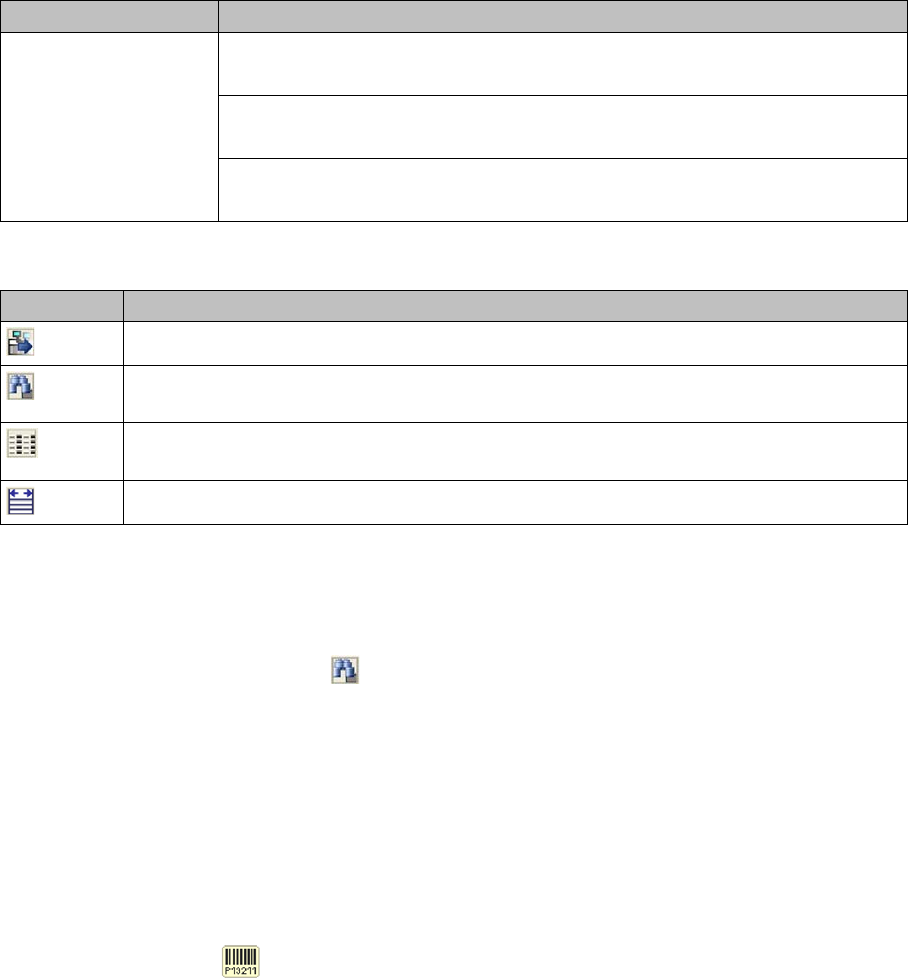
Toolbar
7.6.1 Search Component
Allows searching for component names. The Station, Location and Track on which the found compo-
nents are set up are displayed.
► In the Next Setup view select the Search component icon.
⇨ The Find component dialog box will open
Enter the required Component name and start the search.
7.7 Setup Verification with Supplier Barcode
A supplier barcode is an alternative barcode which is entered in the programming system and is uniquely
marked in the factory.
► In the main menu open Extras > Settings; the Settings window will be opened.
► Select the category Barcode labels and the settings are opened.
► Select the relevant function from the Component verification list field.
▪ Component barcode for verification
Or
▪ "Component“ fragment for component verification
See also "3.3 Barcode Labels" [ ➙ 31].
7.7.1 Example
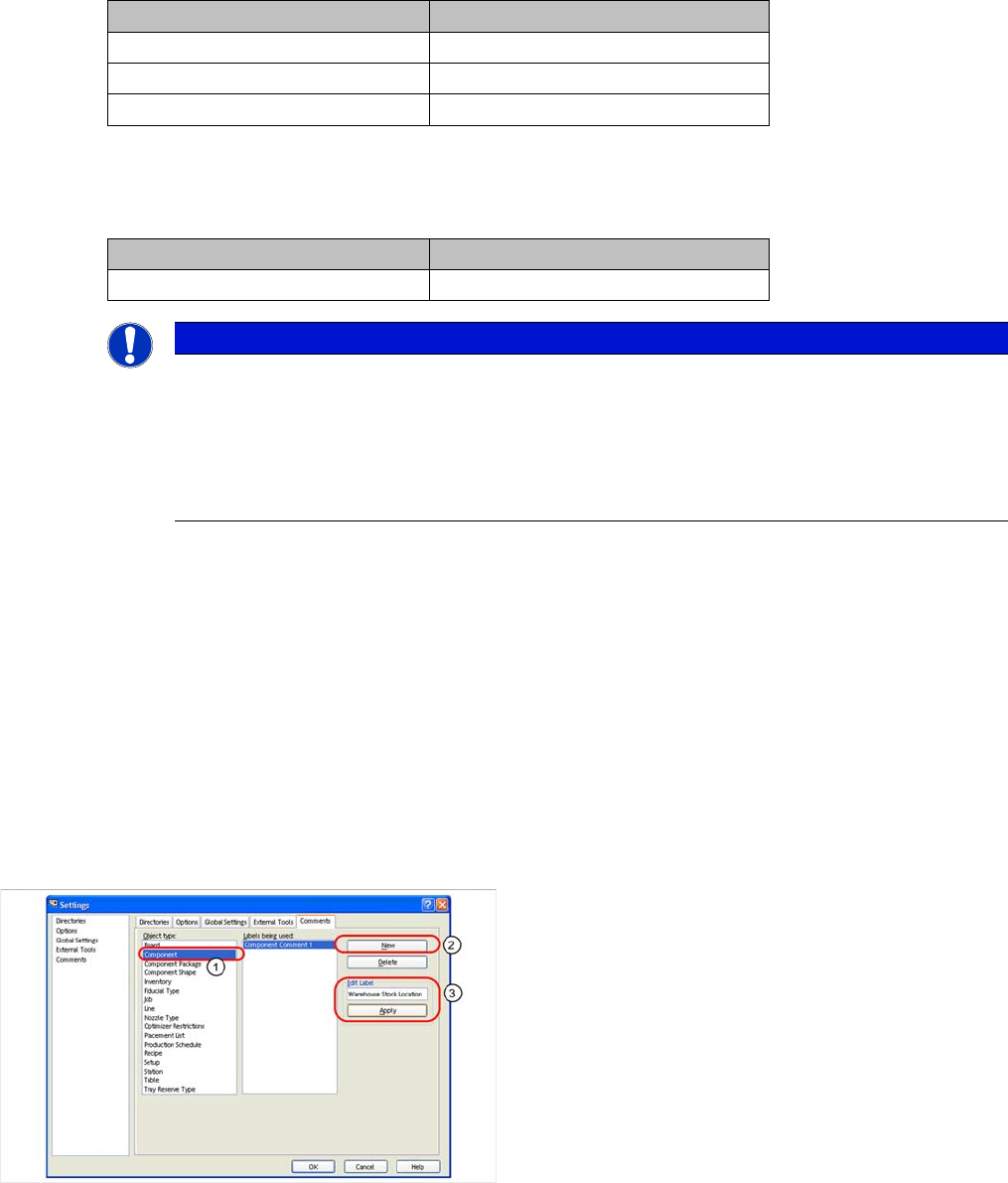
This example shows the correct supplier barcode and the corresponding filters in SIPLACE Pro.
Setup Center barcode label definition: ^(?<Component>.{10,10})(?<UniqueId>.{10,12})$
Scanned barcode: LBC0000001UID1982345
Component barcode for verification
The correct length is checked and the barcode is compared to the barcode which was scanned in. Since
the UID allows different lengths, you may need to enter up to three supplier barcodes:
[Status display] LED Off
The component is not needed in the current or next setup.
LED green
The component is needed in the current or next setup.
LED orange-flashing
The component is configured at the wrong location.
Icon Meaning
Allows the selection of the next setup and opens the Next Setup view afterwards.
Allows searching for components. The Search component dialog box will open. See
"7.6.1 Search Component" [ ➙ 126].
Specify the parameters that will be shown in the table. A dialog box is opened in which
you can activate/deactivate the columns.
The width of the individual columns within the table is aligned to their contents.
Designation Meaning
Working with the Setup Center Application
Warehouse Stock Locations Advanced Setup Report
User Guide SIPLACE Setup Center 5.1 127
"Component“ fragment for component verification
The supplier barcode check is performed only in relation to the fragment "Component" and its correct
length.
7.8 Advanced Setup Report
The setup report is extended in Setup Center and/or SIPLACE Pro Desk as follows.
7.8.1 Warehouse Stock Locations
The setup report shows the stock location in the materials warehouse for each individual component.
This information helps you to locate components in the warehouse more easily and quickly.
A setup report with information about the warehouse stock location (central stock) can only be loaded
from SIPLACE Pro Desk and Setup Center.
Prerequisites:
Supplier barcodes Filters
LBC0000001xxxxxxxxxx 11111111110000000000
LBC0000001xxxxxxxxxxx 111111111100000000000
LBC0000001xxxxxxxxxxxx 1111111111000000000000
Supplier barcodes Filters
LBC0000001 1111111111
NOTICE
Supplier Barcodes
A supplier barcode is an alternative barcode which is entered in the programming system and
is uniquely marked in the factory e.g. with a part number. The supplier barcode must not match
the name of any other component.
If this is the case, the "Alternative components" function is required. This function is not sup-
ported by Setup Center.
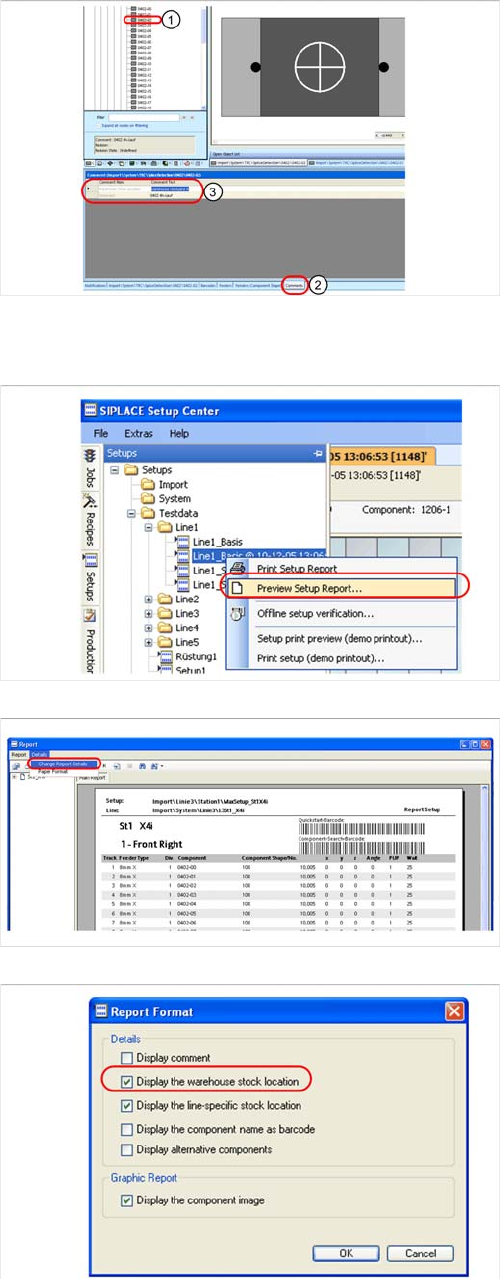
► Define a comments field for each component in the
SIPLACE Pro programming system. Start the "Set-
tings" dialog box via Extras Settings in the menu
bar.
► Select Component as the Object type. Click on New,
to define a new label. Go to the "Edit Label" field,
specify Warehouse Stock Location and confirm this
with Apply. The new label will be shown in the Labels
being used field.
► Click OK.
Working with the Setup Center Application
Advanced Setup Report Warehouse Stock Locations
128 User Guide SIPLACE Setup Center 5.1
Steps:
► Select the component in the Component tree view.
Enter the component stock location from the "Ware-
house Stock Location" field as a comment in the
Comment tab.
► In Setup Center select the setup to be verified as an
offline setup, from the menu window at the left edge.
Right-click with the mouse to open the context menu
for the setup and select the option "Preview setup re-
port". The "Report" dialog box will open:
► Start the "Report Format" settings window via the De-
tails Change Report Details menu. The settings win-
dow will open:
► The option "Display the warehouse stock location"
can be enabled/disabled here. Enable this option to
add the stock location information to the setup report.
Confirm this with OK.