00197195-02-UG SetupCenter 5.1_en.pdf - 第140页
Working with the Setup Center Application Barcode Label Wizard Firmware Download 140 User Guide SIPLACE Setup Center 5.1 ► Under Firmware versions you see the currently installed versions. If you want to insta ll new fir…
Working with the Setup Center Application
Firmware Download Firmware
User Guide SIPLACE Setup Center 5.1 139
Menu Bar
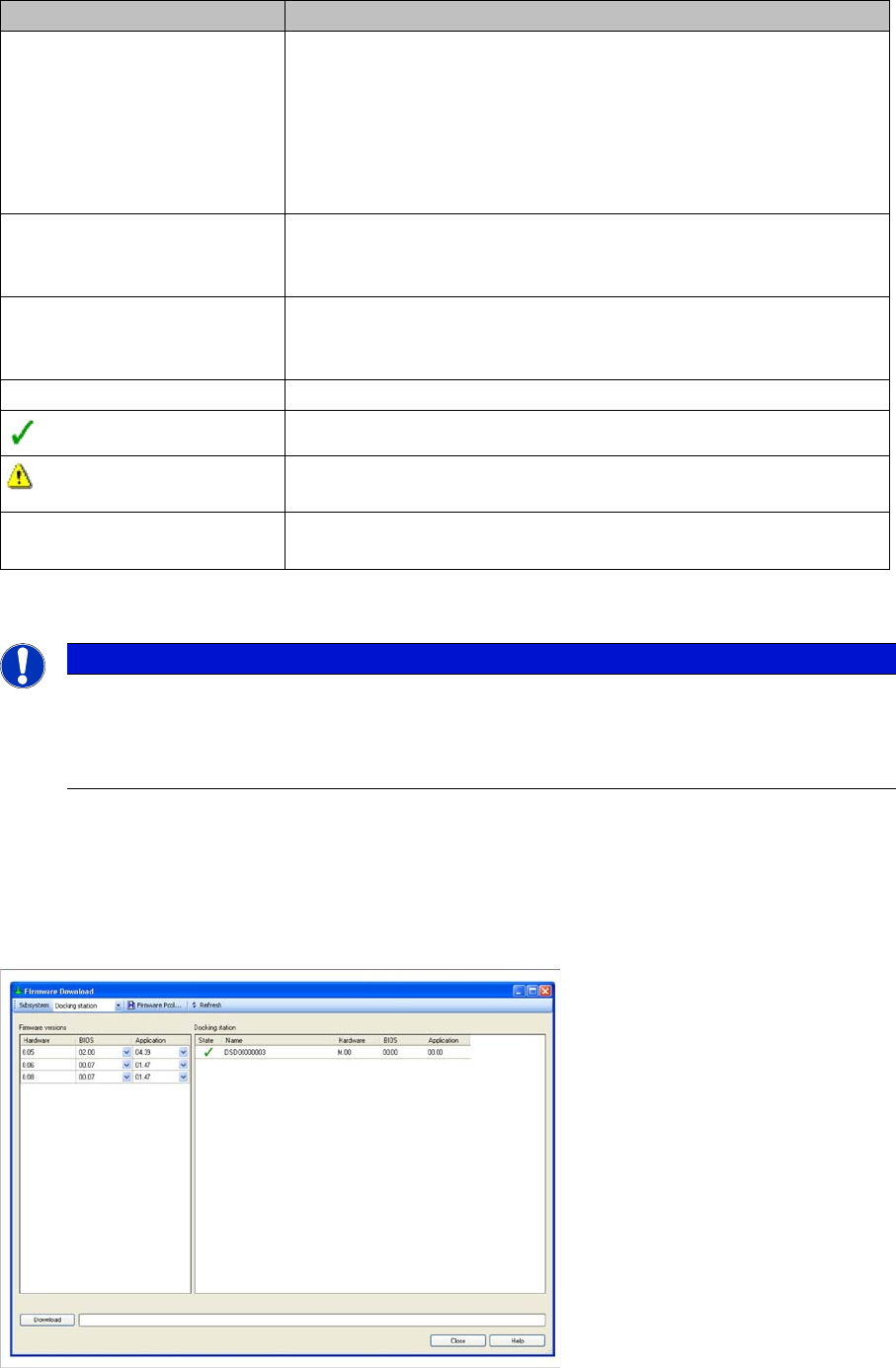
7.10.3.1 Firmware Download to the Docking Stations
► In the main menu open Extras > Firmware > Download and the context menu with the present tables
or docking stations is displayed.
► Select the relevant docking station from the context menu.
► The Firmware download dialog box is shown.
► Select Subsystem => Docking station.
Parameter Description
Subsystem Depending on the subsystem selected the relevant firmware versions
for the download are displayed.
Feeder Types
Shows the available firmware versions for the feeders.
Docking station
Shows the available firmware versions for the docking stations.
Firmware Pool… Opens the Firmware Pool dialog. This view shows you the installed
firmware versions, you can install new firmware and delete firmware
that is no longer required. See "7.10.2 Firmware Pool" [ ➙ 137].
Refresh Refreshes the view of the firmware versions for all X-feeders and
docking stations. This is useful, if you have set up or torn down feed-
ers later on.
Status
The status of the firmware is OK.
The status of the firmware is not OK. The corresponding firmware pa-
rameter is highlighted in red in the adjacent list.
Download The download is carried out for all feeders and docking stations with
data set under Firmware version.
NOTICE
Firmware download at docking station
The firmware download to the docking station can be accessed via the main menuExtras =>
Settings => Docking stations and from there via the context menu in the list of available docking
stations. See "3.8 Docking Stations" [ ➙ 42].
Working with the Setup Center Application
Barcode Label Wizard Firmware Download
140 User Guide SIPLACE Setup Center 5.1
► Under Firmware versions you see the currently installed versions. If you want to install new firmware
or remove existing firmware, select the Firmware Pool function. See "7.10.2 Firmware Pool"
[ ➙ 137].
► Click on the Download button to start the firmware download.
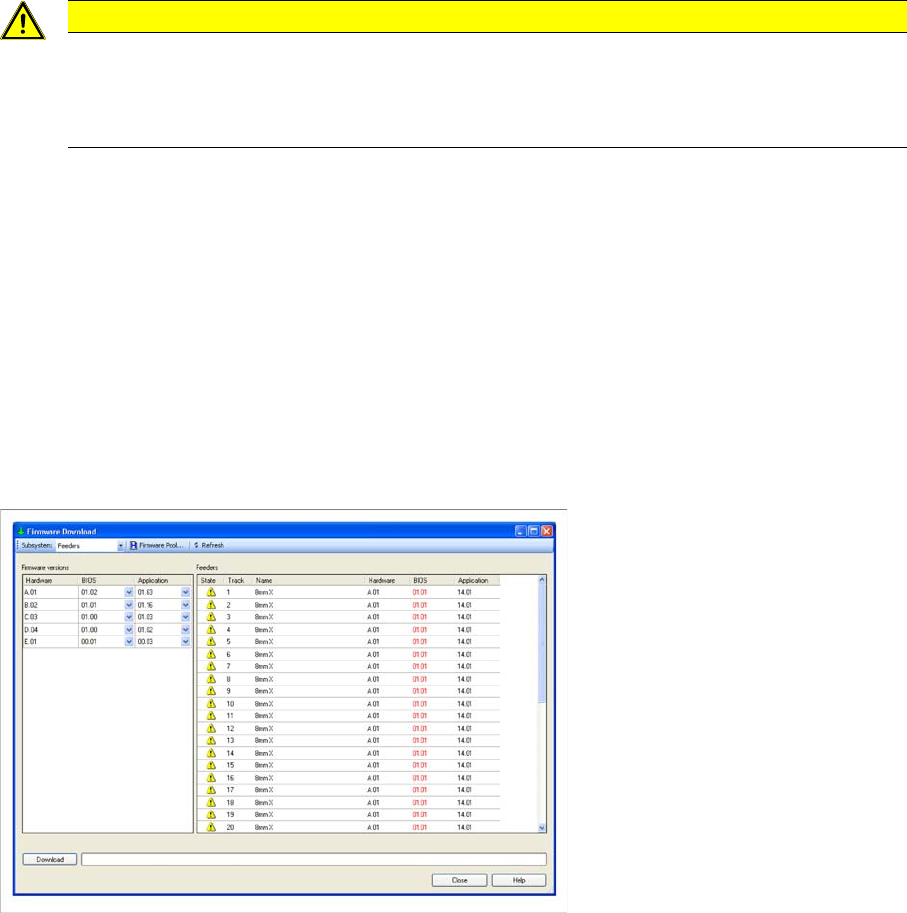
7.10.3.2 Firmware Download to X-Feeders/X-Adapaters
► In the main menu open Extras > Firmware > Download and the context menu with the present tables
or docking stations is displayed.
► Select the relevant table from the context menu.
► The Firmware download dialog box is shown.
► To select, go to Subsystem => Feeders.
► Under Firmware versions you see the currently installed versions. If you want to install new firmware
or remove existing firmware, select the Firmware Pool function. See "7.10.2 Firmware Pool"
[ ➙ 137].
► Click on the Download button to start the firmware download.
7.11 Barcode Label Wizard
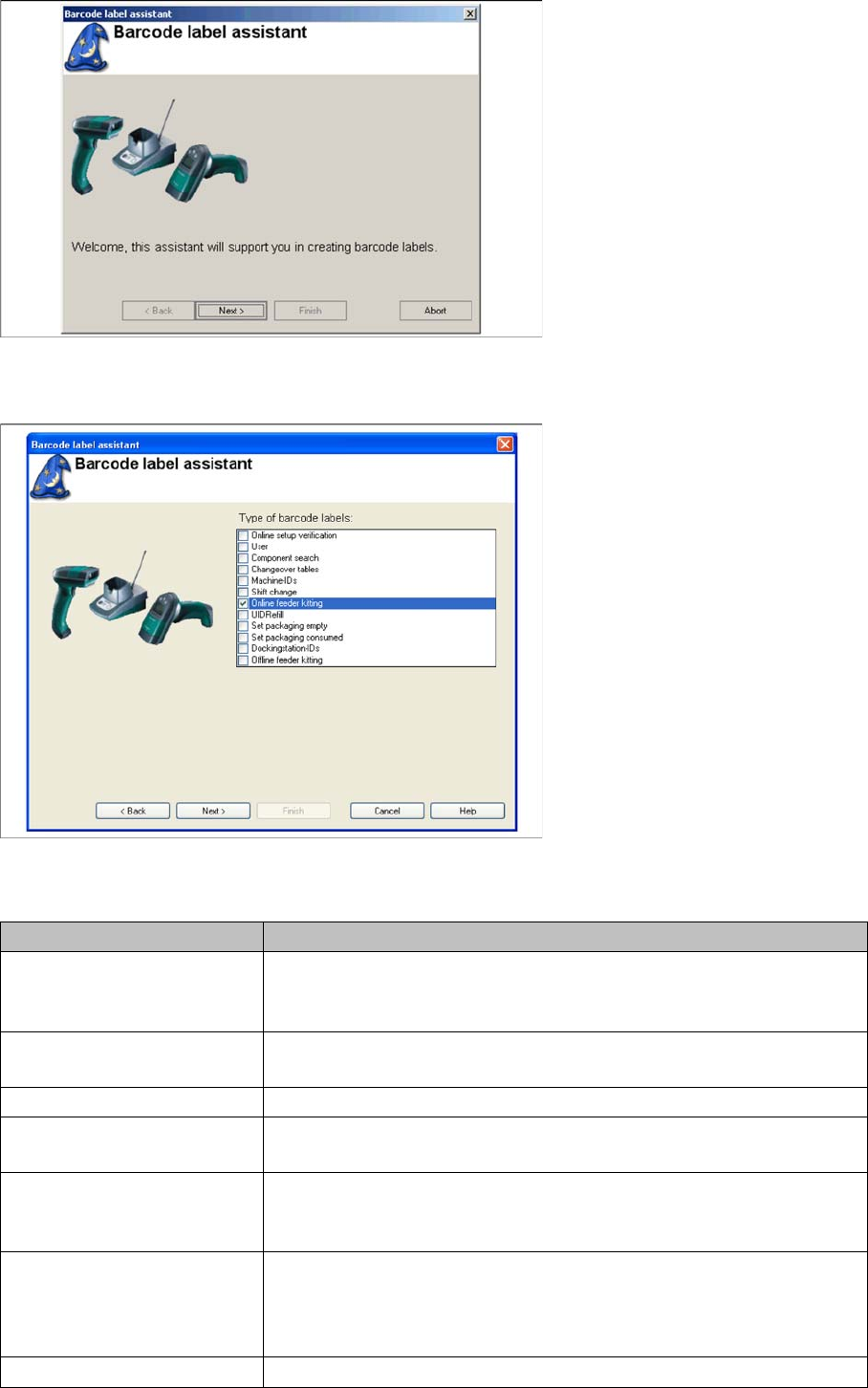
The Barcode Label Assistant enables you to print out barcodes needed for the operation of the SIPLACE
Setup Center.
The Barcode Label Assistant can be called up via the menu Extras -> Barcode Labels. Enter the same
password as in the chapter "Login Dialog". The Barcode Label Wizard will open.
Use the Barcode Label Assistant to configure and print barcodes. In order to print out the barcode, a
printer must be connected to your PC and ready for operation. We recommend that you print on barcode
labels of type Avery Zweckform 3660.
CAUTION
Docking station during download
Connecting or disconnecting X-feeders to or from the docking station up to 10 seconds before
the download is not permitted. The download will take about 2 to 3 minutes. Do not interrupt the
connection during the download in any case! Do not switch off the docking station in any case!
Working with the Setup Center Application
Firmware Download Barcode Label Wizard
User Guide SIPLACE Setup Center 5.1 141
► Click Next.
The barcode label you want to configure and print can be selected in this window.
Barcode Label Types
Barcode Types Description
Online Setup Verification Control barcodes for starting the table check or refilling locations or line
towers. This barcode type is only needed, when online setup verifica-
tion is active.
User Barcodes for user login with the scanner. This barcode type is only
needed, when user management is active.
Component Search Control barcode used to search for components in the line setup.
Changeover Tables Barcodes for identifying changeover tables. This barcode type is only
needed, when changeover table management is active.
Machine IDs Barcodes which uniquely identify a location at the SIPLACE S, F, H- or
HF series placement machines. This barcode contains a unique ma-
chine ID.
Shift Change Verification Control barcodes for starting shift change verification. The shift change
verification enables you to perform a table check without sending quan-
tities to the station. This barcode type is only recommended, when on-
line setup verification is active.
Online Feeder Kitting Control barcodes for starting the online component feeder kitting.