00197195-02-UG SetupCenter 5.1_en.pdf - 第88页
Barcode Barcode Labels P ractical Example 88 User Guide SIPLACE Setup Center 5.1 When you scan in a packaging unit for the first time, all the b arcodes defined in the label will need to be scanned in. At the same time, …
Barcode
Practical Example Barcode Labels
User Guide SIPLACE Setup Center 5.1 87
If a packaging unit is scanned-in for the first time, the unique barcode, the component barcode and the
quantity barcode must be scanned. At the same time, a data set will be created in the Setup Center da-
tabase. This remains in the database, even after tear down. If this packaging unit is used again at a later
date, you will only need to scan in the unique barcode.
5.1.3.5 Unique Barcode (as Multiple Fragments)
If the packaging units to be processed have no explicit unique barcode but can be clearly identified by
looking at multiple fragments (e.g. supplier and serial), these can then be processed in Setup Center.
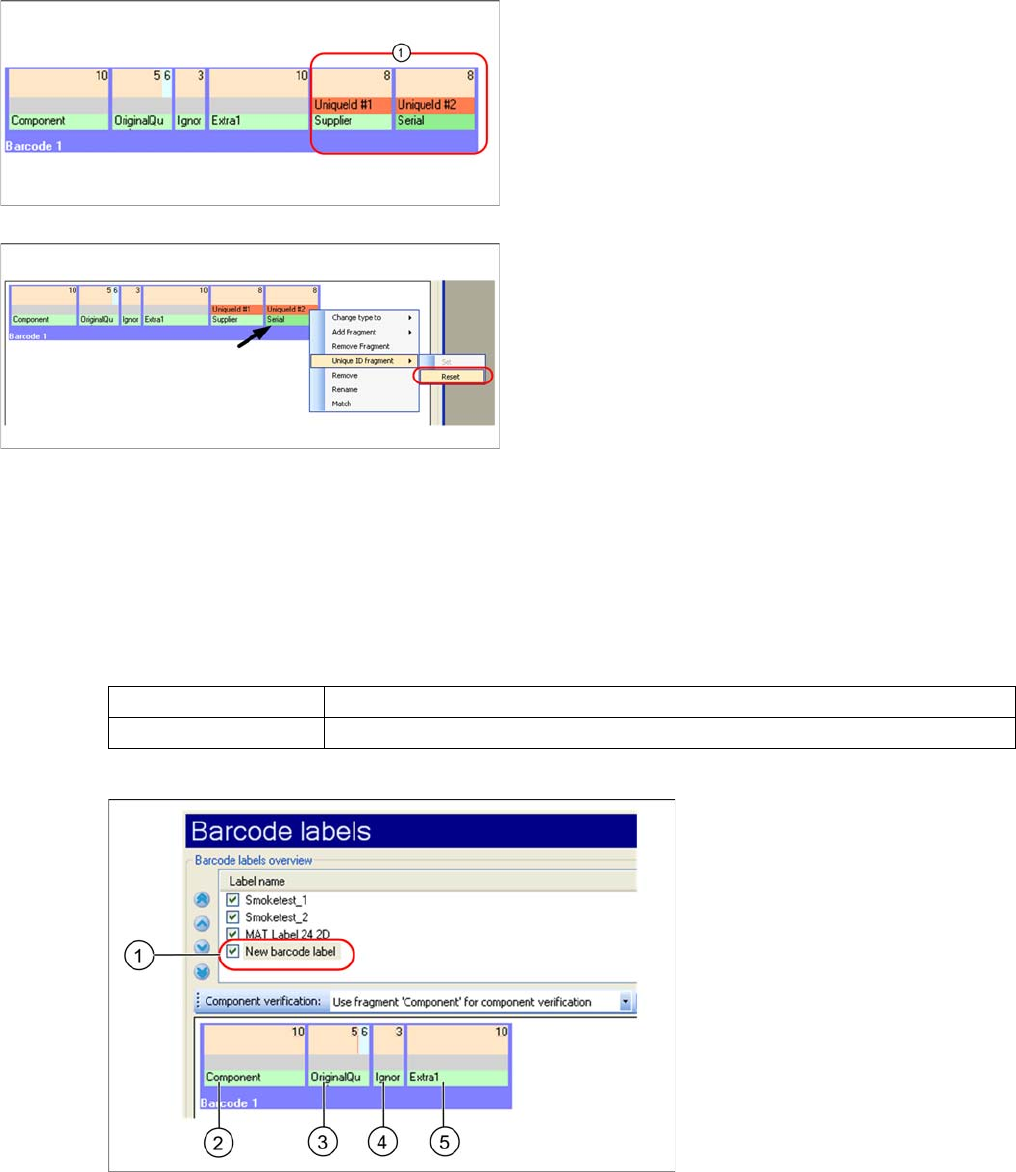
You need to mark the supplier and serial fragments accordingly.
Step 2
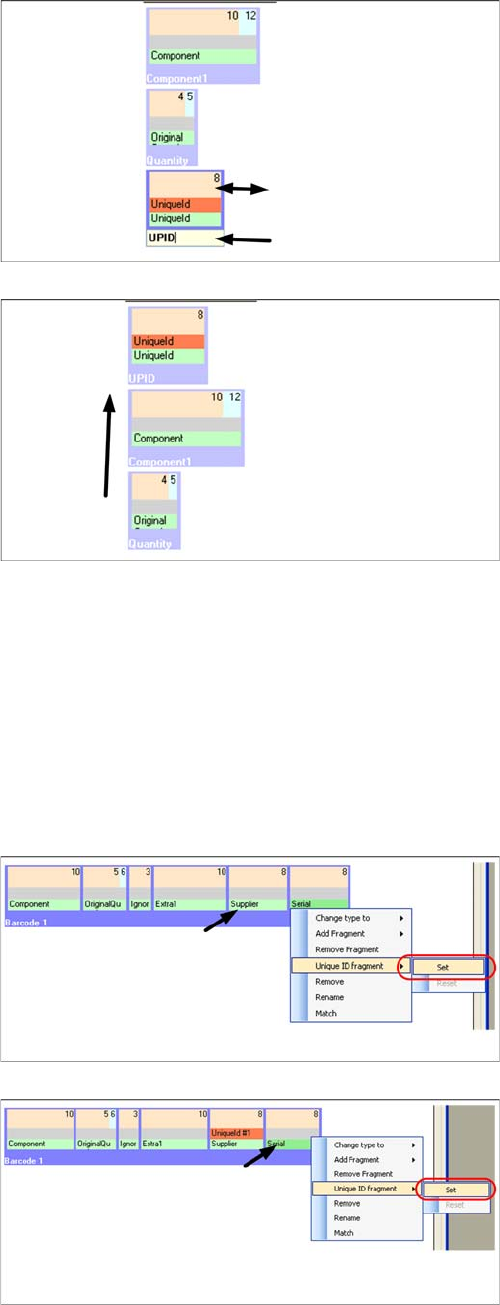
The unique packaging unit barcode has 8 characters.
▪ Move the mouse to the right-hand edge and then
right-click and hold.
▪ With the right mouse button pressed down, set the
length to 8 characters.
▪ Double-click in the blue field. Now enter the required
name.
Step 3
Next, you need to shift this barcode to position 1.
Step 1
▪Simply right-click with the mouse in the green Suppli-
er field to open the Unique ID Fragment context
menu.
▪ Select Set to define the "supplier" fragment as the
first part of the UniqueID.
Step 2
▪Simply right-click with the mouse in the green Serial
field to open the Unique ID Fragment context menu.
▪ Select Set to define the "serial" fragment as the sec-
ond part of the UniqueID.
Barcode
Barcode Labels Practical Example
88 User Guide SIPLACE Setup Center 5.1
When you scan in a packaging unit for the first time, all the barcodes defined in the label will need to be
scanned in. At the same time, a data set will be created in the Setup Center database. This remains in
the database, even after tear down. This remains in the database, even after tear down.
5.1.3.6 Combined Barcode
There are also barcodes which contain multiple information. Most 2D barcodes contain multiple informa-
tion.
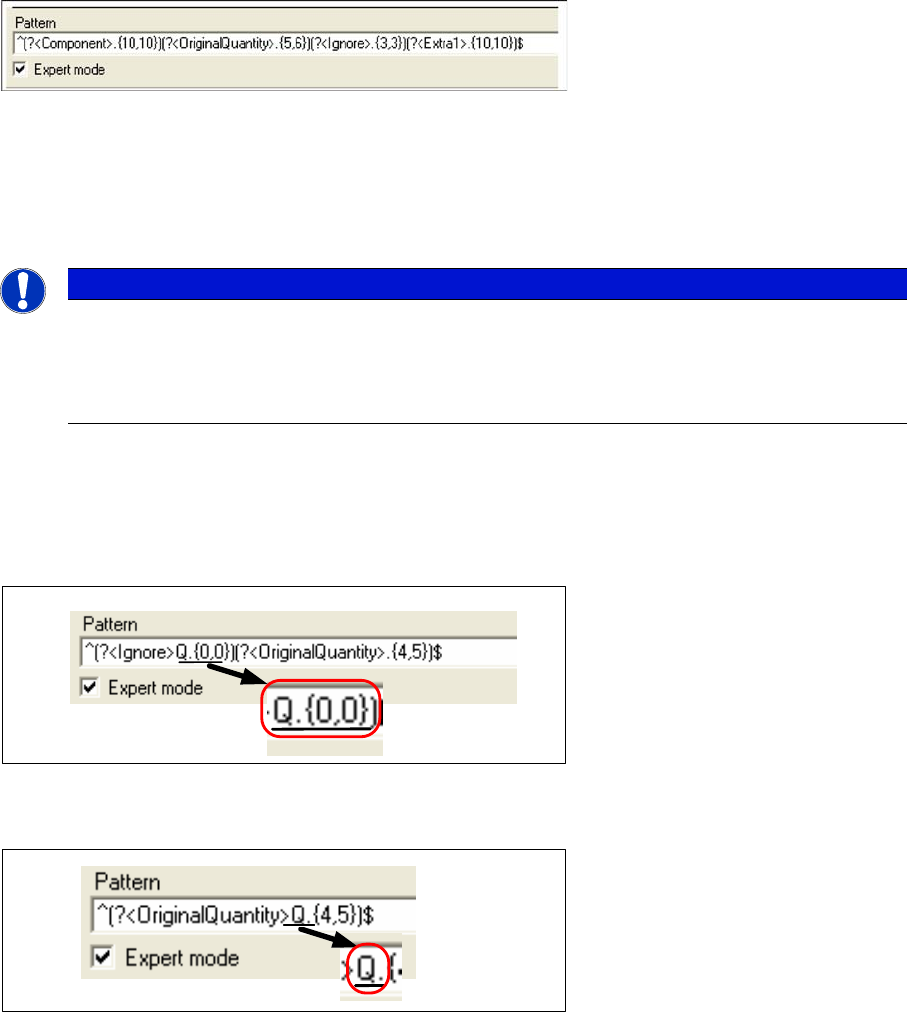
A new barcode label is therefore added and one barcode with several fragment types is generated.
1. Add new barcode label. The overall barcode consists of the following fragment types:
2. Fragment Component for component.
3. Fragment QriginalQuantity for the quantity
4. Fragment Ignore hides the following 3 characters.
5. Fragment Extra1 for the date. Extra 1 is used as the date format does not comply with the predefined
format for dates.
The corresponding regular expression:
Step 3
The unique ID will now be formed from the two fragments
"supplier" and "serial", in the fixed order.
Optional – removing a UniqueID marker
▪Simply right-click with the mouse in the green Serial
field to open the Unique ID Fragment context menu.
▪ Select Remove to delete the UniqueID from the "se-
rial" fragment.
Component Barcode
TRC-0805-1 TRC-0805-1Q15000HH/03/05/2005
Barcode
Practical Example Barcode Labels
User Guide SIPLACE Setup Center 5.1 89
5.1.3.7 Expert Mode
With the help of the graphic tools the generation of the barcodes is instantly converted into a regular ex-
pression and displayed in the Schema field.
If the tick at Expert mode is activated, the syntax of the regular expression can be edited.
A change in the fragment Ignore is a reasonable usage of the expert mode.
For example: The character "Q“ in the quantity will not be further processed later on. However, you still
want to ensure that only those barcodes with the prefix "Q" may be used as quantities. The character
"Q" is therefore entered in the Ignore fragment. Quantities without a "Q" or those with another prefix char-
acter will be ignored.
One of the special qualities of the fragment types OriginalQuantity and Quantity is that a prefix can be
entered directly into the fragment.
5.1.3.8 Checking Barcode
You have the possibility to check a barcode with the settings in the barcode labels.
NOTICE
Expert Mode
Consequences
► Complex changes to the regular expression via the expert mode can not always be accu-
rately displayed in the diagram.