00197195-02-UG SetupCenter 5.1_en.pdf - 第84页
Barcode Barcode Labels P ractical Example 84 User Guide SIPLACE Setup Center 5.1 5.1.3.1 Creating a Barcode Label Right-click with the mouse to open the context menu in the white field of the Label overview . Then select…
Barcode
Practical Example Barcode Labels
User Guide SIPLACE Setup Center 5.1 83
5.1.3 Practical Example
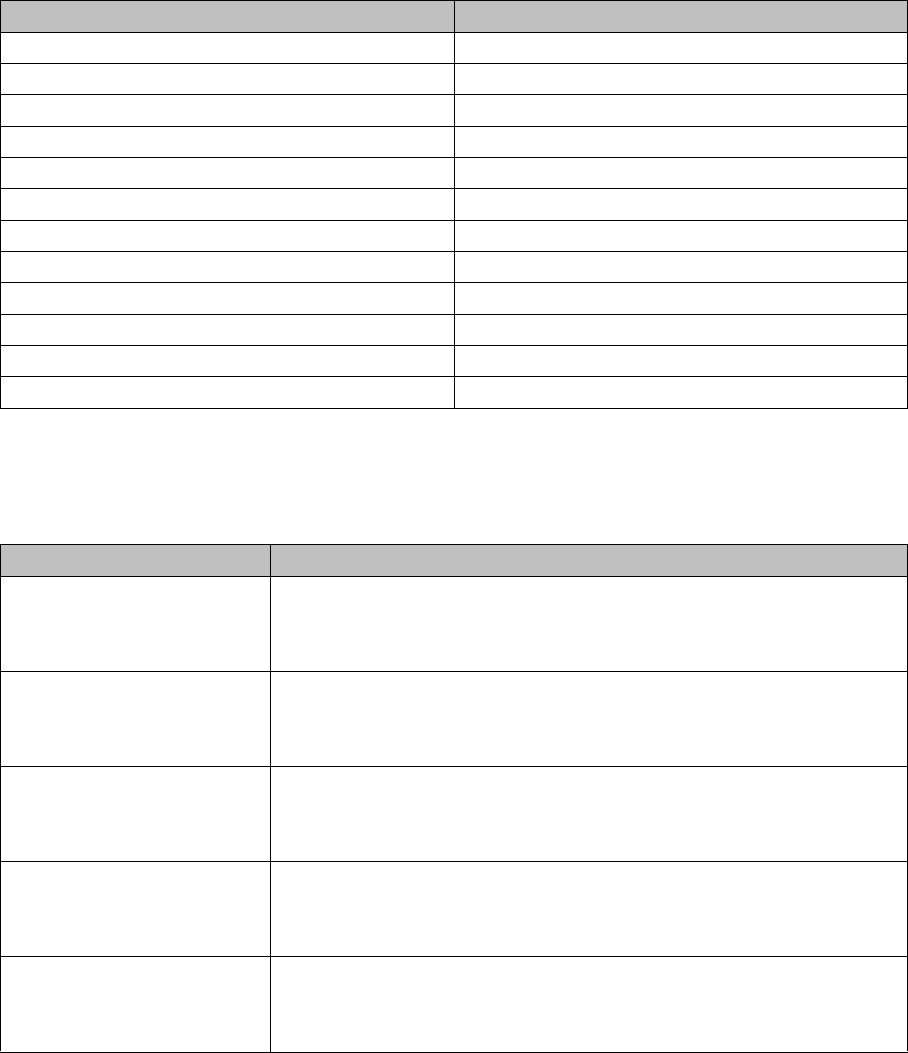
You need to create a setup verification barcode label for the following packaging units. The barcode label
can then be extended in the same way later on, to include batch information about the packaging unit.
Prerequisite:
The configuration dialog Barcode labels has been opened via
Extras Settings
.
MS-Level MsdLevel
Manufacture Part Number ManufacturerPartNumber
Ordering Code OrderingCode
Manufacture Location ManufacturerLocation
Revision Level / Index RevisionLevel
Additional Part Information AdditionalPartInformation
RoHS RoHS
Purchase Order Number PurchaseOrderNumber
Shipping Note Number ShippingNoteNumber
Package ID Serial
Batch No. #2 Batch2
Supplier Data SupplierData
MAT Label Fragments Setup Center Barcode Fragments
Component Barcode
TRC-0805-1 Component barcode: ATRC-0805-1
Quantity barcode: Q10000
Unique barcode: PIDA0021; PIDB0101
TRC-0805-2 Component barcode: CTRC-0805-2
Quantity barcode: Q5000
Unique barcode: PIDA0022; PIDB0102
TRC-1206-1 Component barcode: CTRC-1206-1
Quantity barcode: Q20000
Unique barcode: PIDA0023; PIDB0103
TRC-1206-2 Component barcode: CTRC-1206-2
Quantity barcode: Q8000
Unique barcode: PIDA0024; PIDB0104
TRC-0805-1-A Component barcode: CTRC-0805-1-A
Quantity barcode: Q2500
Unique barcode: PIDA0025; PIDB0105
Barcode
Barcode Labels Practical Example
84 User Guide SIPLACE Setup Center 5.1
5.1.3.1 Creating a Barcode Label
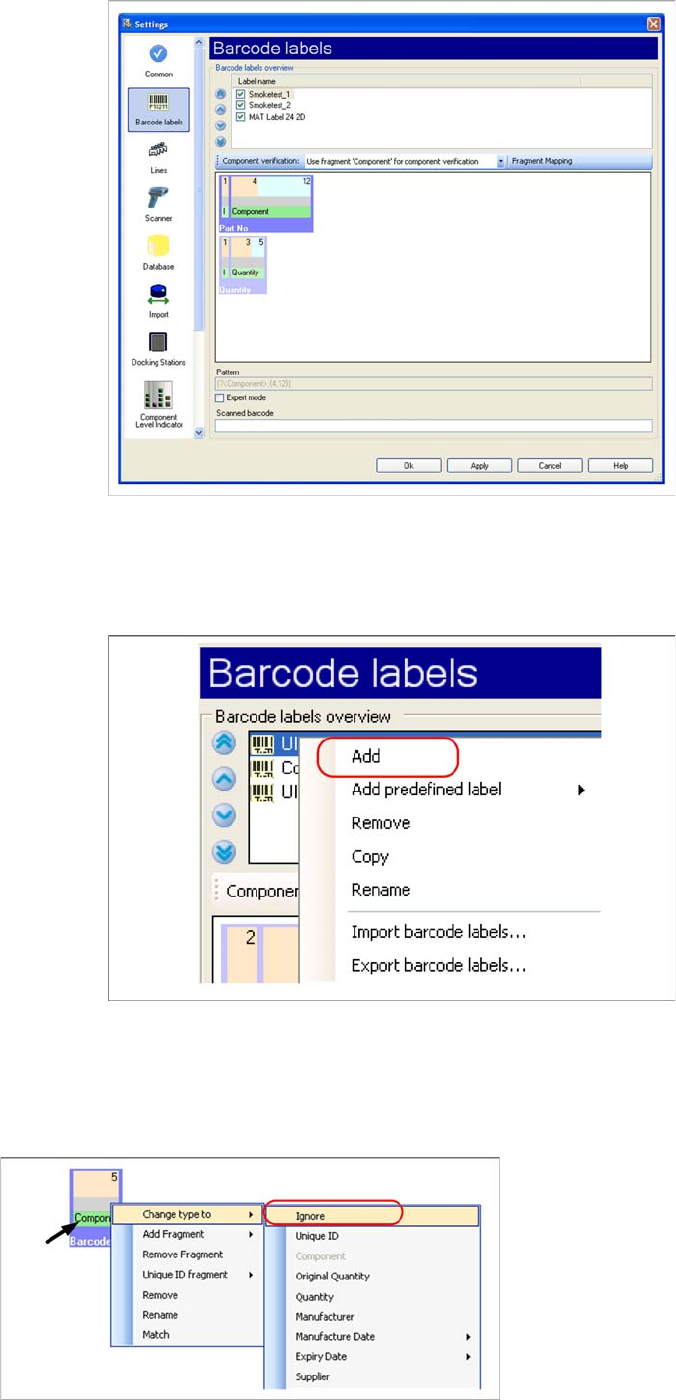
Right-click with the mouse to open the context menu in the white field of the Label overview. Then select
Add and enter a name for the barcode label.
After you have selected Add, a barcode label with the fragment Component will be created automatically.
5.1.3.2 Creating Component Barcodes
The component barcode (fragment Component) is essential for setup verification of a packaging unit
Step 1
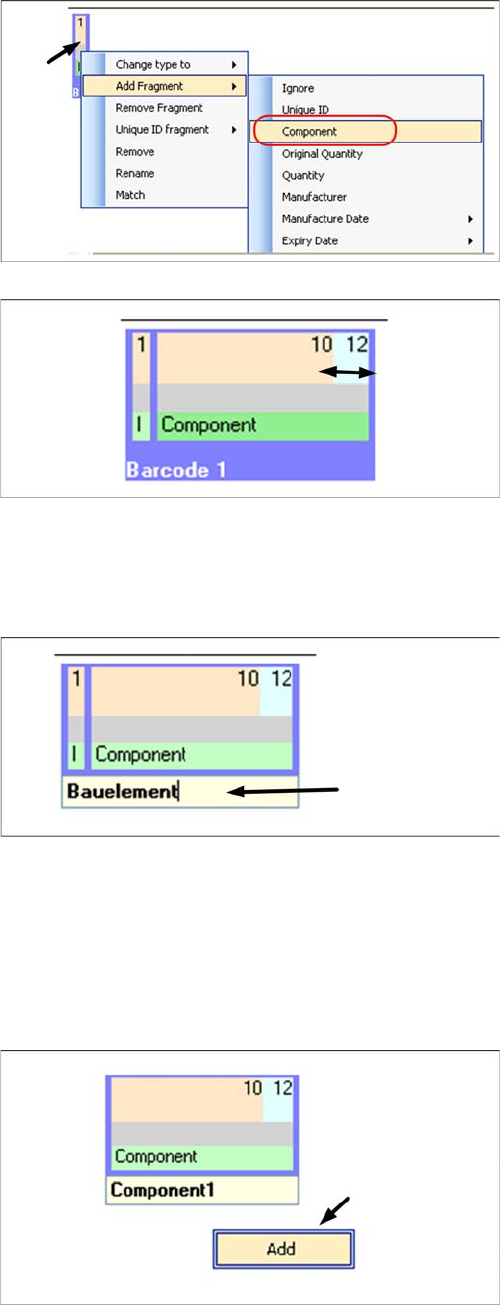
In the component barcode (e.g.
C
TRC-0805-1), ignore
the first character. You therefore need to change the
Fragment type to Ignore:
▪ Right-click with the mouse in the green field.
▪ Go to Change type to: and select the fragment type
Ignore.
Barcode
Practical Example Barcode Labels
User Guide SIPLACE Setup Center 5.1 85
5.1.3.3 Creating Quantity Barcodes
The packaging unit quantity is generally scanned in at the same time and is used for a component level
check at the station. However, it is not essential for the actual setup verification process.
Step 2
In the same way as step 1, add the fragment type Com-
ponent:
▪ Right-click with the mouse in the green field.
▪Go to Add fragment: and select the fragment Compo-
nent.
Step 3
The two fragments Ignore and Component must now be
set to the required character length; (ignore character 1
and set component length to 10 to 12 characters):
▪ Move the mouse to the right-hand edge of the respec-
tive fragment, then right-click with the mouse and
hold.
▪With the right mouse button pressed down, set the Ig-
nore length to 1 character.
▪ With the right mouse button pressed down, set the
Component length to 10 to 12 characters.
Step 4
The name of the barcode can be changed and will appear
later on the scanner display.
▪ Doubleclick in the yellow field.
▪ Now enter the required name.
Step 1
The quantity is added as a second barcode for the first
rule:
▪ Right-click with the mouse in the white field to open
the context menu Add barcode.