00197195-02-UG SetupCenter 5.1_en.pdf - 第177页
Setup Verification in Practical Cases Feeder Identification Working with X-Feeders User Guide SIPLACE Setup Center 5.1 17 7 8.12 Working with X-Feeders The new devel opments to th e X-series feeders, tables an d machin e…
Setup Verification in Practical Cases
Teardown Teardown with Quantity Printout
176 User Guide SIPLACE Setup Center 5.1
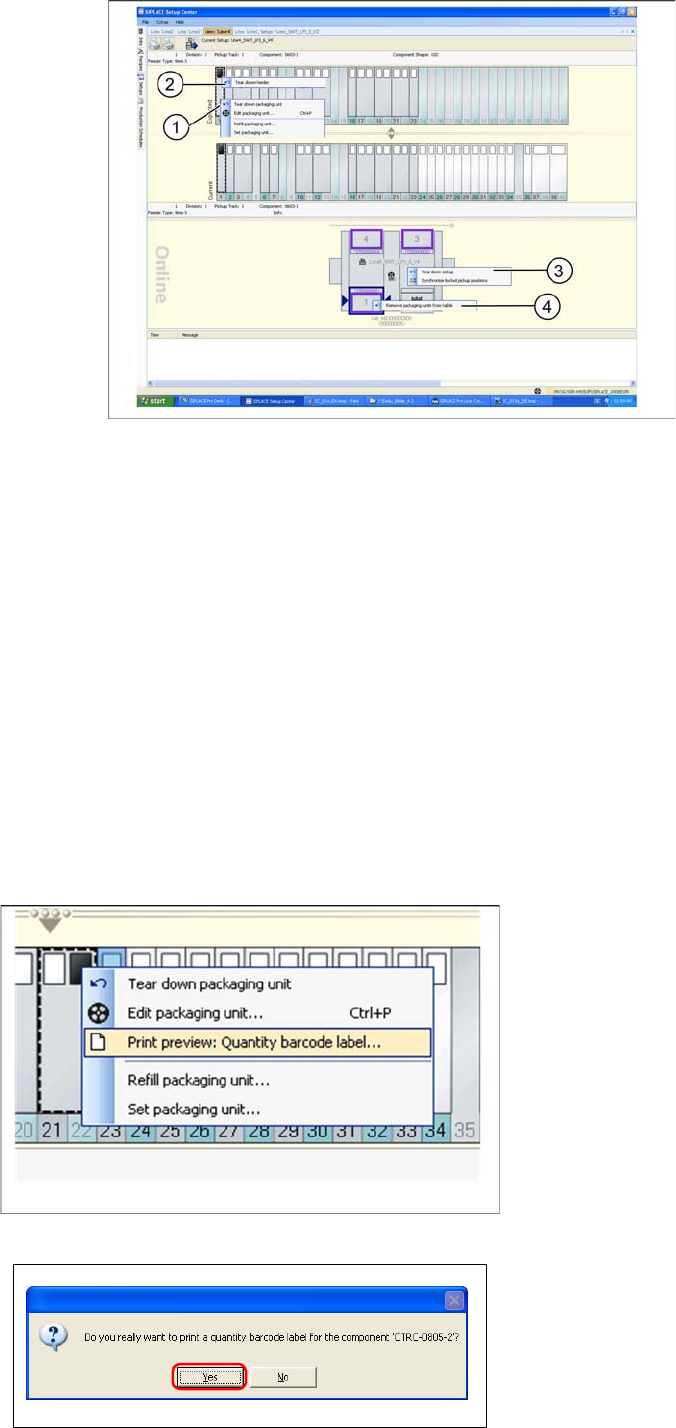
Different teardown possibilities:
1. Tear down selected packaging unit.
2. Tear down selected feeder.
3. Tear down selected station.
4. Tear down selected location.
Right-click with the mouse on a track, a feeder, a location or the station. The menu of the selected object
appears. Press Enter or click the left mouse button to execute the teardown function for this object.
8.11.1 Teardown with Quantity Printout
If the used packaging units are processed without unique ID barcodes, all entries for a packaging unit
are deleted from the Setup Center database after teardown. This also means that the current quantity
for a partially processed reel remains unused.
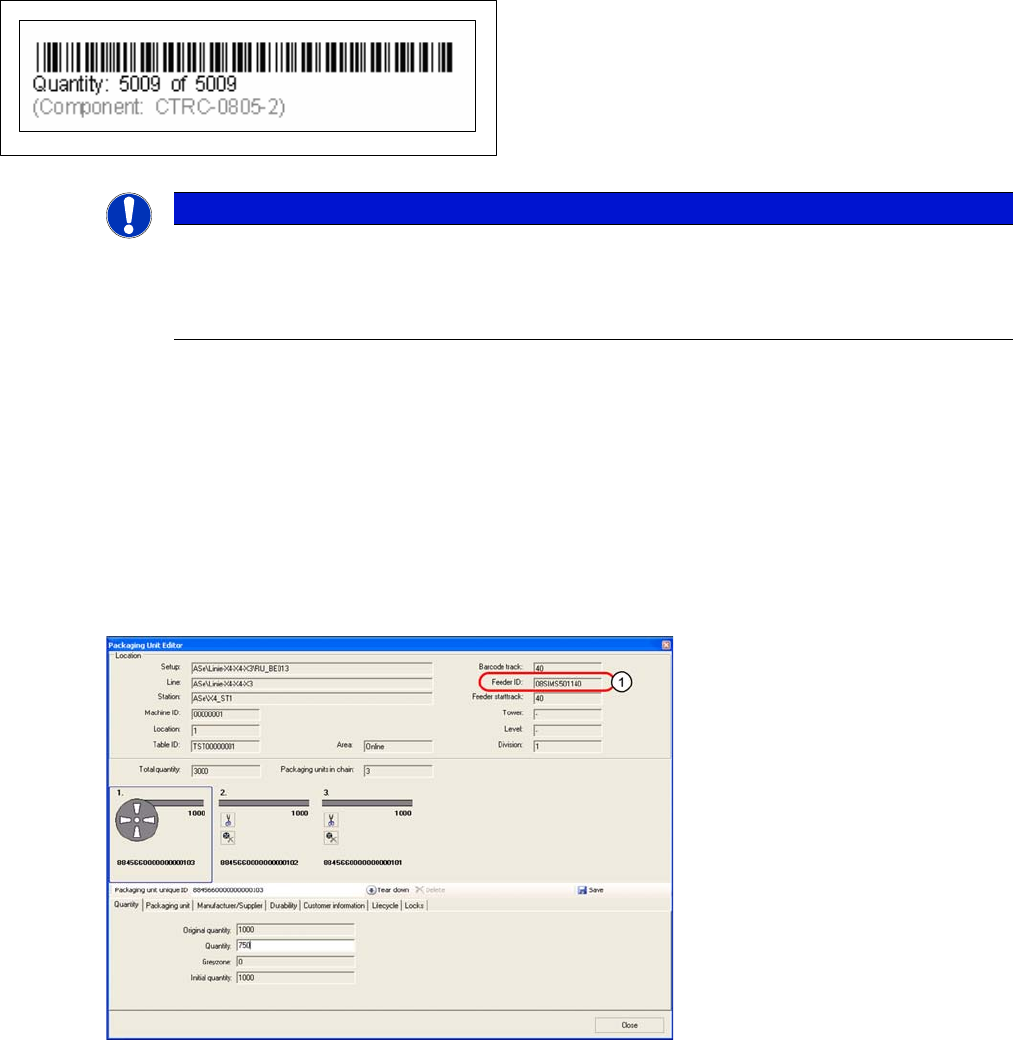
In order to prevent this, you can print out quantity barcodes during teardown.
Step-by-Step Procedure:
Step 1
Teardown a packaging unit via a track a feeder, a location
or a station.
Step 2 (optional)
Confirm the query. The query only appears if the "Confir-
mation before printout required" option has been activat-
ed via
Extras → Settings → Common → Print Quantity
Barcode during Teardown
.
Setup Verification in Practical Cases
Feeder Identification Working with X-Feeders
User Guide SIPLACE Setup Center 5.1 177
8.12 Working with X-Feeders
The new developments to the X-series feeders, tables and machines in the SIPLACE SX and SIPLACE
X series have simplified a number of procedures. These special features are explained in the following
chapter.
8.12.1 Feeder Identification
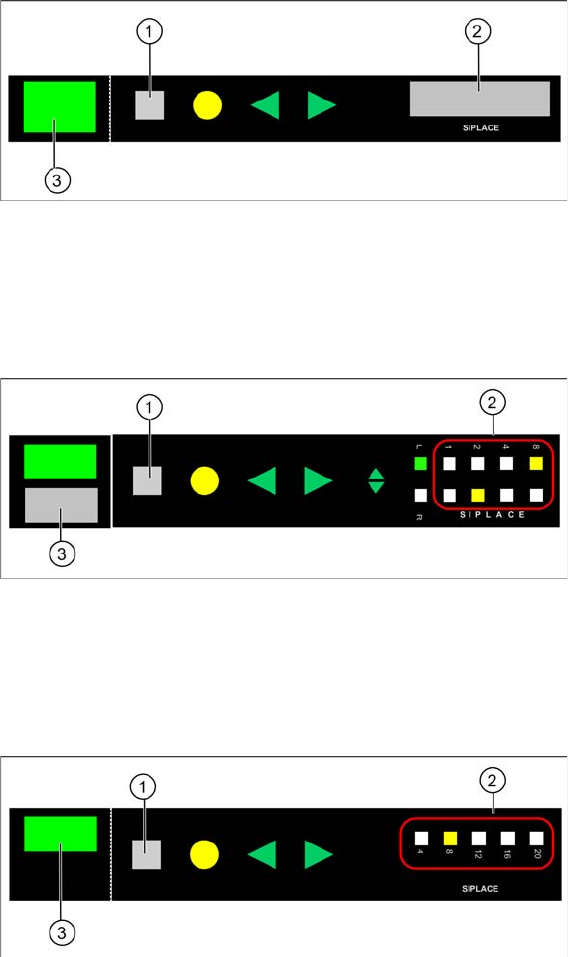
Each X-feeder is identified ex factory with a unique ID which is read out by Setup Center. The feeder ID
is shown in the Packaging Unit Editor of the Setup Center GUI.
To enable an X feeder to communicate with Setup Center, press the "scan" button on the X feeder.
8.12.2 Scan Request
During setup verification, the barcode scanner is used to check whether the correct tape reel is config-
ured on the feeder or slot. The Set button on the feeder triggers the scan request. This messages informs
the superior system (e.g. SIPLACE station or SIPLACE Setup Center) at which feeder location or on
which feeder track the tape reel is to be scanned. During online/offline setup verification or Refill this key
allows you to switch relatively quickly to the appropriate track.
Step 3
Immediate printout of the barcode labels.
NOTICE
Attach Quantity Barcodes onto Packaging Units
Since the current quantity, the original quantity and the component name are printed on the
quantity barcode only, make sure that you attach the correct quantity barcode to the packaging
unit.
Setup Verification in Practical Cases
Working with X-Feeders Scan Request
178 User Guide SIPLACE Setup Center 5.1
X feeder with LCD display
1. Set button
2. LCD display
3. Status Display
X feeder with LED display (2x8 mm)
1. Set button
2. Pitch display
3. Status Display
X feeder with LED display (12/16 mm Smart Feeder)
1. Set button
2. Pitch display
3. Status Display
8.12.2.1 Triggering a Scan Request
► To trigger the scan request, press the SET button for at least 2 seconds. After this period, the mes-
sage will be sent to the SIPLACE Setup Center.