00197195-02-UG SetupCenter 5.1_en.pdf - 第35页
Configuring Setup Center Adding, Deleting and Repairing Lines Lines User Guide SIPLACE Setup Center 5.1 35 3.4.2 Adding, Deleti ng and Repairing Lines 3.4.2.1 Adding Lines ► In the main menu open Extras > Settings and…
Configuring Setup Center
Lines Verification Settings for Domains
34 User Guide SIPLACE Setup Center 5.1
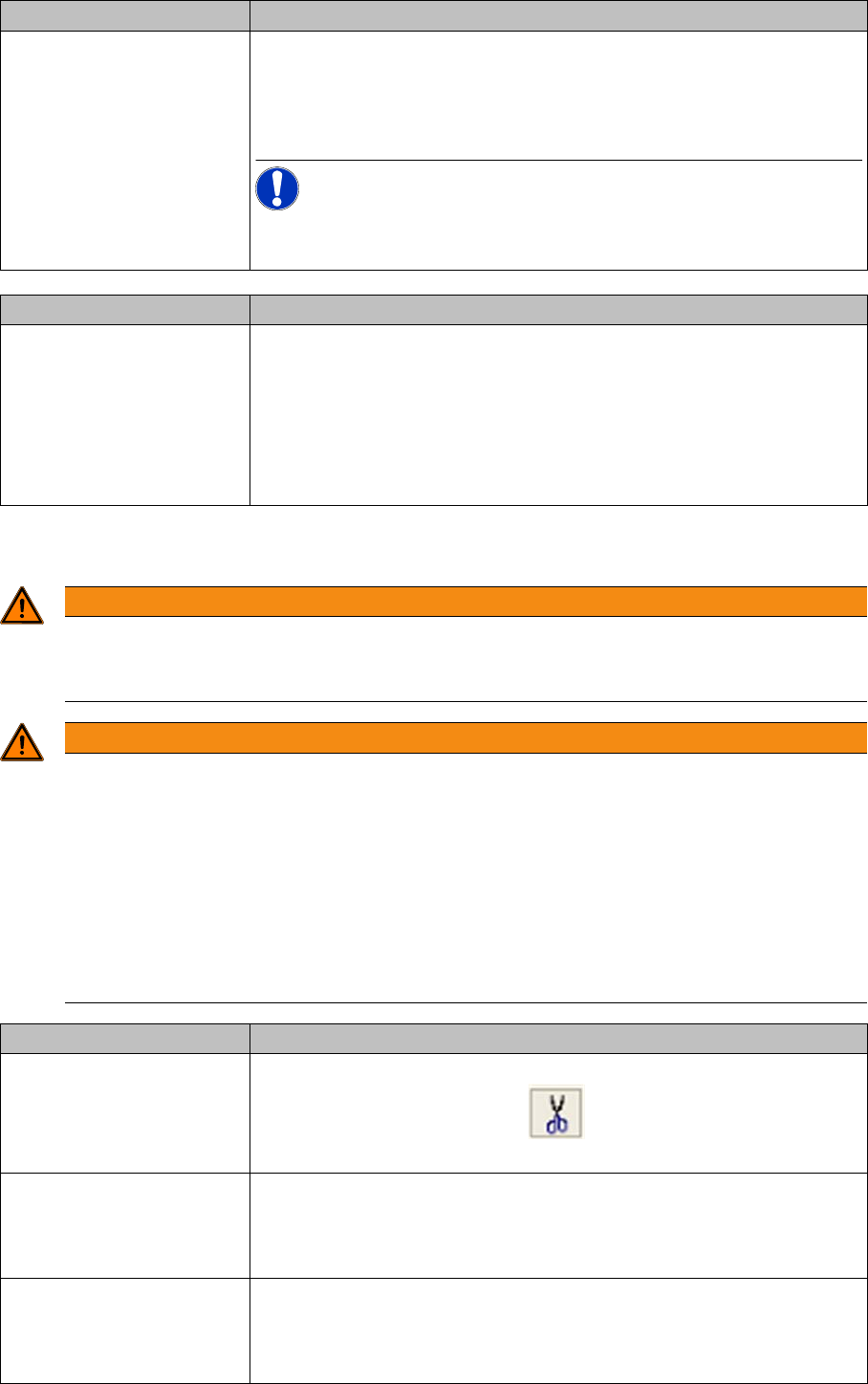
► Observe the following information when enabling the function Tear down the packaging unit if the
verification status of the X-feeder is unreliable.
Feeder kitting enabled on
single-slot EDIF
Active: permits feeder kitting in the single slot EDIF. The packaging unit-
feeder relation is formed during feeder kitting with the single slot EDIF,
by scanning in the feeder ID and the packaging unit data.
NOTICE! This function can only be applied if the option "Tear
down the packaging unit if the verification status of the X feeder is unre-
liable" has been disabled.
Settings Meanings
Tear down the packaging
unit if the verification status
of the X-feeder is unreliable
Active: As soon as an unreliable verification status is determined, Setup
Center cancels the packaging unit-feeder relation. This makes sure that
the configured packaging unit needs to be reverified, in case it has to be
replaced. The verifications status is set as unreliable if the cover foil is no
longer properly tensioned (e.g. in the event of a torn foil). This status is
also set if the cover foil tension outside the machine and/or docking sta-
tion has been released.
WARNING
Minimum station software requirement essential at all machines
All machines which are checked by Setup Center must have at least station software 706.01 or
605.03 SP3 installed.
WARNING
Recommended activation strategy
If the function Tear down the packaging unit if the verification status of the X-feeder is unreliable
has been switched on, all setups which have already been verified (online and offline) are ini-
tially unreliable and will need to be reverified.
➢ We therefore recommend that you first make sure all stations fulfil the minimum software
requirements and that you then, after a certain period (around 4 weeks) enable this func-
tion in Setup Center.
► This ensures that most packaging unit-feeder relations will have reached a reliable state so
that only a minimum of these relations will be canceled when the function is enabled.
Settings Meanings
Permit Packaging Unit
Chains to be Split in the
Packaging Unit Editor
Active: the function for canceling the packaging unit is available in the
Packaging Unit Editor. The icon for cutting the packaging unit is
shown.
Stop threshold for MSD time
(hh:mm)
Once the remaining open storage time has reached the set stop thresh-
old, the packaging unit will be locked. This setting is permanently moni-
tored by Setup Center. The stop threshold can be used, for example, to
add the time which passes between placement and soldering.
Stop threshold for use-by
date (hh:mm)
Once the remaining open storage time has reached the set stop thresh-
old, the packaging unit will be locked. This setting is permanently moni-
tored by Setup Center. The stop threshold can be used, for example, to
add the time which passes between placement and soldering.
Settings Meanings
Configuring Setup Center
Adding, Deleting and Repairing Lines Lines
User Guide SIPLACE Setup Center 5.1 35
3.4.2 Adding, Deleting and Repairing Lines
3.4.2.1 Adding Lines
► In the main menu open Extras > Settings and the Settings window is opened.
► Select the category Line and the settings will be opened.
► Select This Setup Center in the tree view to which you want to add a line.
► Open the context menu and select Add line.
► Select the required line from the SIPLACE Pro tree view and confirm with OK.
3.4.2.2 Removing Lines
► In the main menu open Extras > Settings and the Settings window is opened.
► Select the category Line and the settings will be opened.
► Select This Setup Center in the tree view.
► Select the line.
► Open the context menu and select Remove Line.
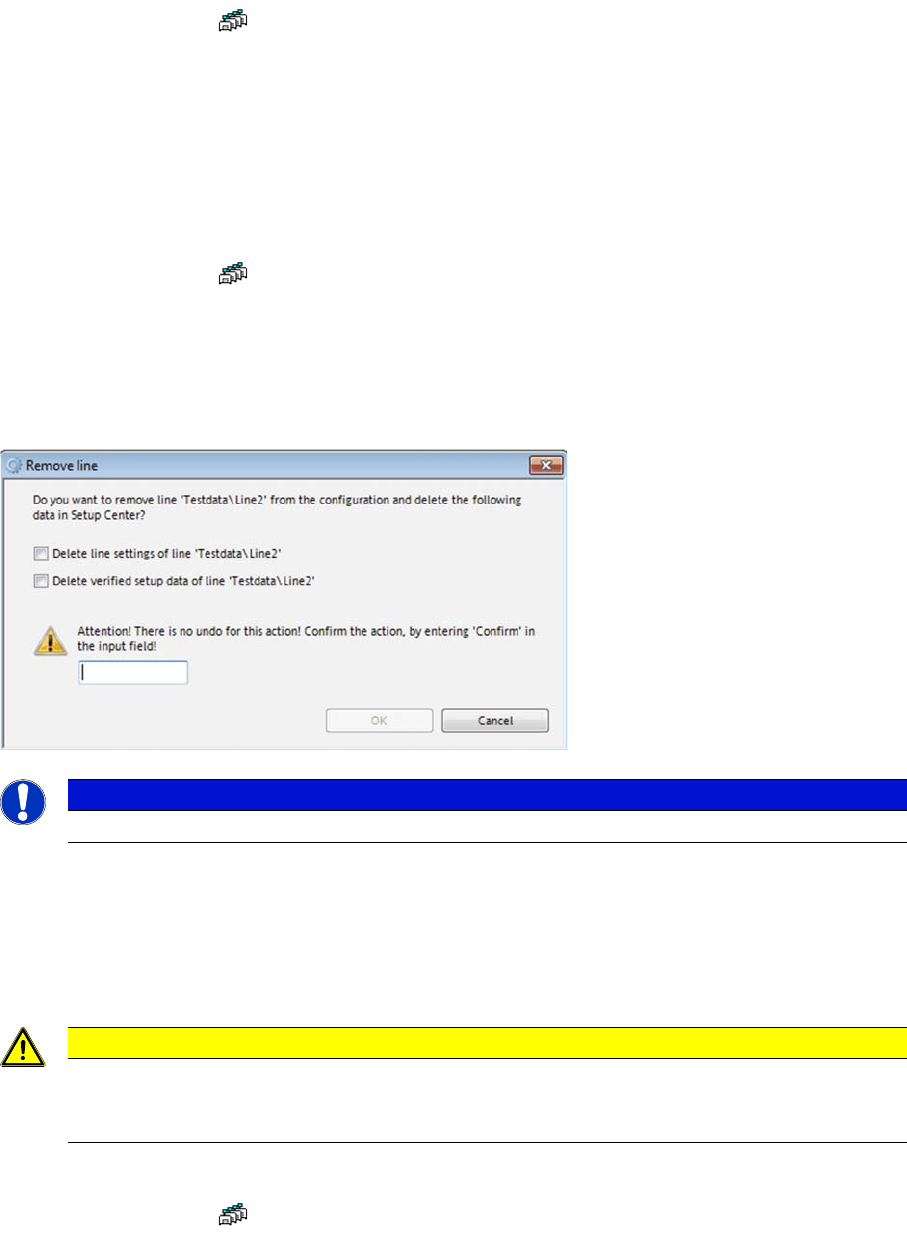
► The Remove Line dialog box will open.
► Observe the information in the Remove Line dialog box.
► Select the required options and perform the necessary tasks.
► Acknowledge the information shown with OK.
3.4.2.3 Repairing Lines
► In the main menu open Extras > Settings and the Settings window is opened.
► Select the category Line and the settings will be opened.
► Select the line.
NOTICE
When deleting a line from the configuration, the setup verification data of the line will be lost.
CAUTION
If the line name or directory changes in the programming system, the settings have to be adapt-
ed in SIPLACE Setup Center. The function "Repair Line" is available for this. If this is not done,
error messages may occur in SIPLACE Setup Center.
Configuring Setup Center
Lines Adding, Deleting and Repairing Lines
36 User Guide SIPLACE Setup Center 5.1
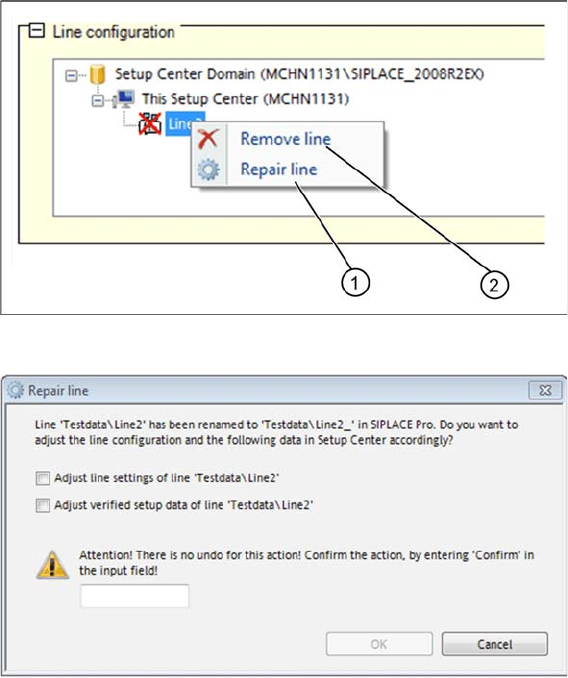
► Open the context menu and select Repair Line(1). Alternatively, you could also remove the line (2).
► The Repair Line dialog box will open.
► Observe the information in the Repair Line dialog box.
► Select the required options and perform the necessary tasks.
► Acknowledge the information shown with OK.