00197195-02-UG SetupCenter 5.1_en.pdf - 第174页
Setup Verification in Practical Cases Refilling a Track for Offline Setup Verification Using the Scann er (Steps with UID) 174 User Guide SIPLACE Setup Center 5.1 NOTICE Unique ID To enable refilling with a unique ID, go…
Setup Verification in Practical Cases
Using the Scanner (Steps with UID) Refilling a Track for Offline Setup Verification
User Guide SIPLACE Setup Center 5.1 173
8.9.3 Using the Scanner (Steps with UID)
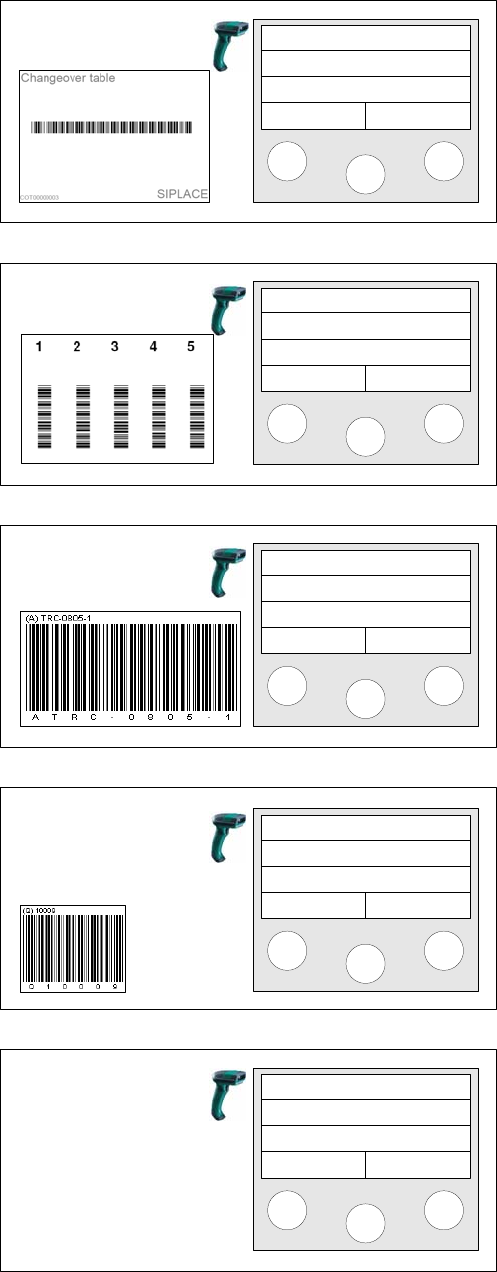
The following section describes the step-by-step procedure with a unique packaging unit ID (Unique ID).
Step 4
Scan the Changeover table barcode.
Step 5
Scan the Track barcode.
Step 6a
Depending on the configuration of the barcode rule, the
component barcode or the unique barcode will be
scanned.
Step 6b (optional)
If additional barcodes have been defined for the packag-
ing unit, they must be scanned consecutively.
Step 7
Once all barcodes have been scanned, the main menu
will be shown again.
If additional packaging units need to be refilled, the entire
procedure must be repeated from Step 5.
Scan COT barcode
Scan track
Track: 55
Scan component
Info >>
Next barcode
Info >>
Setup Center
Menu
Setup Verification in Practical Cases
Refilling a Track for Offline Setup Verification Using the Scanner (Steps with UID)
174 User Guide SIPLACE Setup Center 5.1
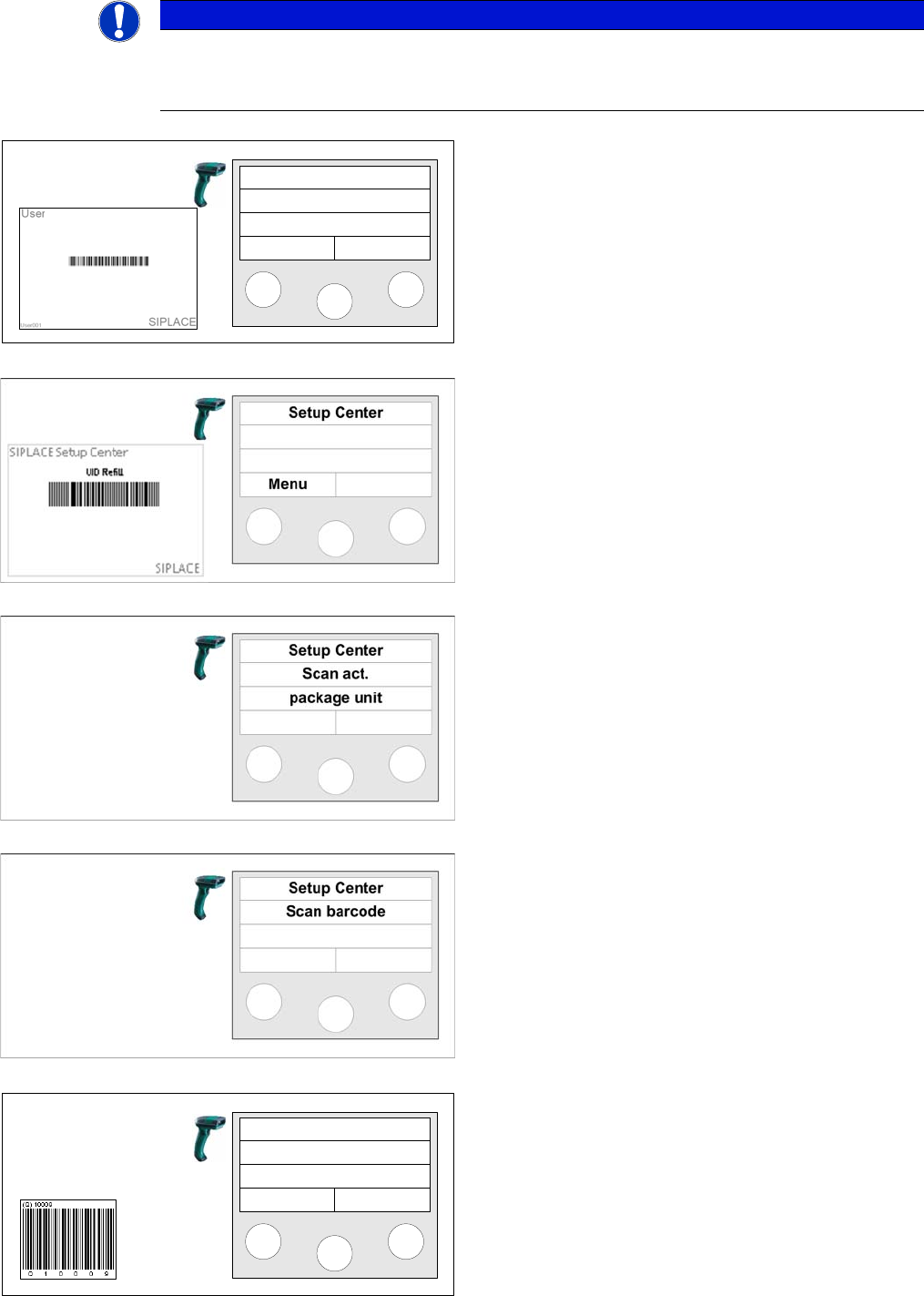
NOTICE
Unique ID
To enable refilling with a unique ID, go to Extras => Settings => Line => Domain-Wide Verifi-
cation Settings and enable the option UID refill enabled.
Step 1 (optional)
Scan in the the User if the User registration at the reader
required option has been activated via
Extras Settings
Security
.
Step 2
Scan the unique ID refill barcode.
Step 3
Scan the unique ID for the current packaging unit.
Step 4
Scan the unique ID for the next packaging unit.
Step 5 (optional)
If the packaging unit to be refilled has not been recorded
yet, it may be necessary to scan more barcodes.
Setup Center
Menu
Next barcode
Info >>
Setup Verification in Practical Cases
Using the Scanner (Steps with UID) Skip Track
User Guide SIPLACE Setup Center 5.1 175
8.10 Skip Track
You do not always want to verify the complete location. For example, at the time of offline setup verifi-
cation, a packaging unit is not yet available and not all setup components are used by the current job.
During online and offline setup verification it is therefore possible to arbitrarily skip any track.
Prerequisite:
The user works in online or offline setup verification mode.
Using the Reader
8.11 Teardown
Teardown of a packaging unit means that the connection between the track and the component has
been cut off in Setup Center. This means that setup verification needs to be executed anew. Several
options exist to tear down packaging units from a verified setup.
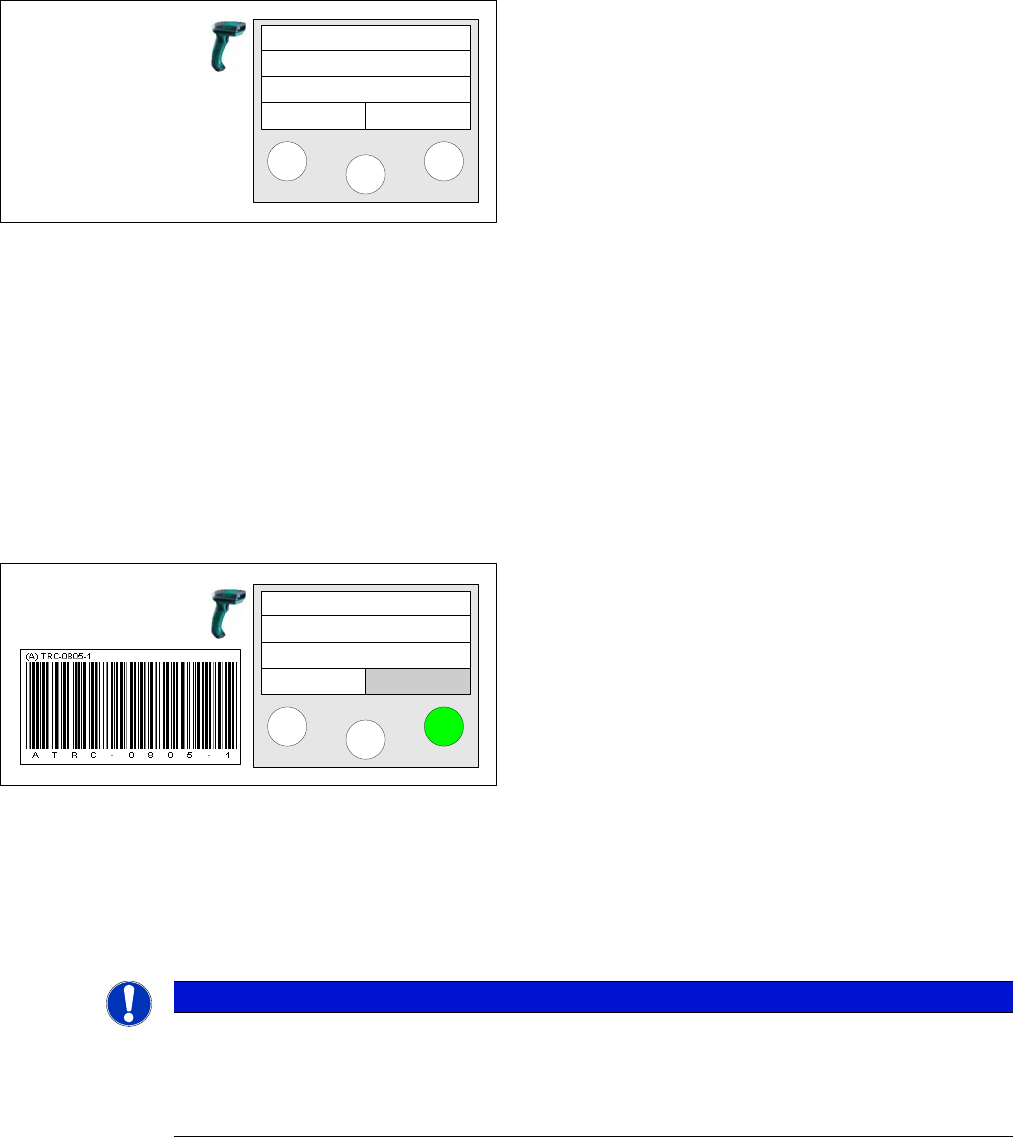
Step 6
Refilling has finished once all barcodes have been
scanned in. The main menu will be shown again.
Setup Center
Menu
If the packaging unit on the track should not be verified,
enter ">>" to skip this track. To do this, press the right
reader key. You will be switched to the next track.
Track: 55
Scan component
Info >>
NOTICE
X-Feeder Features
For X-feeders, the teardown via Setup Center does not result in the disconnection of the feeder
from the packaging unit (component) in the Setup Center database.
► For that purpose the reel must be physically disconnected from the X-feeder (foil rocker).