00197195-02-UG SetupCenter 5.1_en.pdf - 第178页
Setup Verification in Practical Cases Working with X-Feeders Scan Request 178 User Guide SIPLACE Setup Center 5.1 X feeder with LCD display 1. Set button 2. LCD display 3. Status Display X feeder with LED display (2x8 mm…
Setup Verification in Practical Cases
Feeder Identification Working with X-Feeders
User Guide SIPLACE Setup Center 5.1 177
8.12 Working with X-Feeders
The new developments to the X-series feeders, tables and machines in the SIPLACE SX and SIPLACE
X series have simplified a number of procedures. These special features are explained in the following
chapter.
8.12.1 Feeder Identification
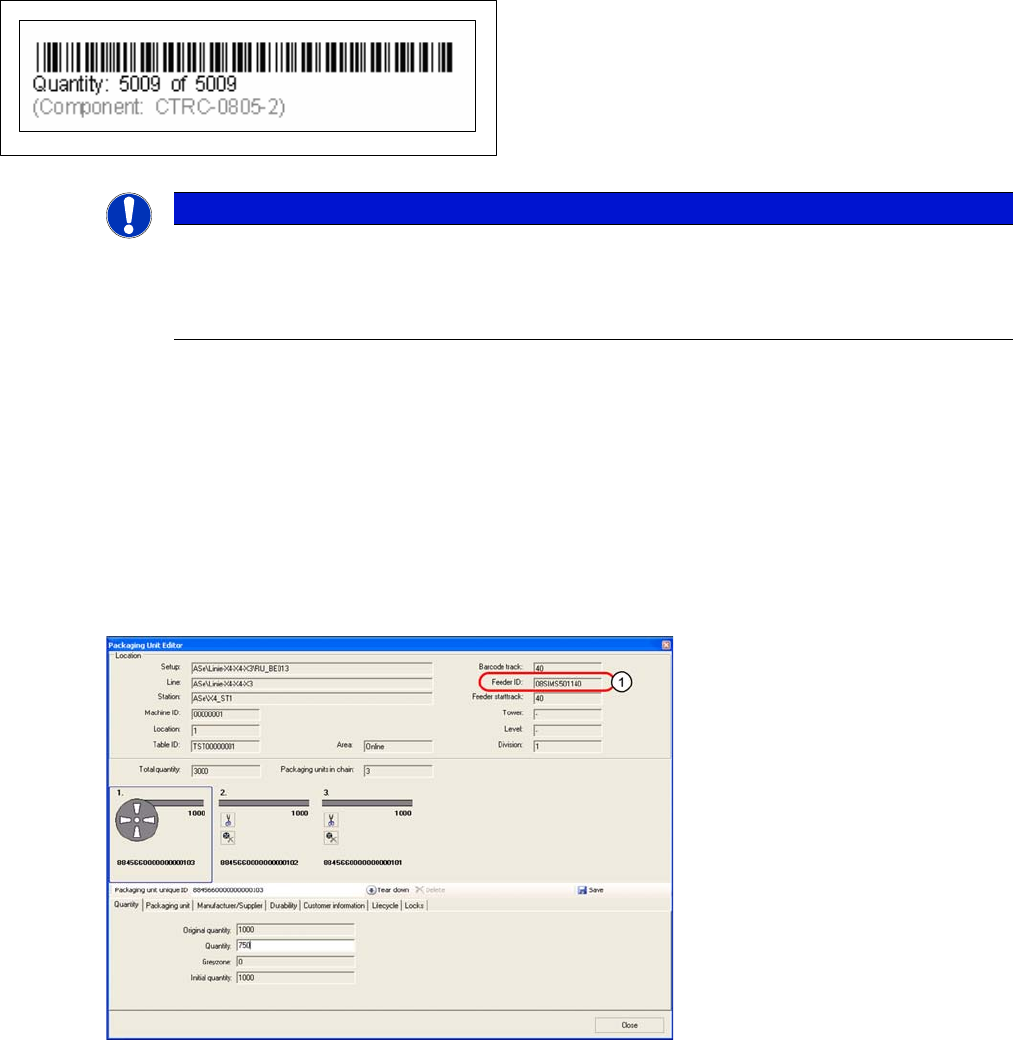
Each X-feeder is identified ex factory with a unique ID which is read out by Setup Center. The feeder ID
is shown in the Packaging Unit Editor of the Setup Center GUI.
To enable an X feeder to communicate with Setup Center, press the "scan" button on the X feeder.
8.12.2 Scan Request
During setup verification, the barcode scanner is used to check whether the correct tape reel is config-
ured on the feeder or slot. The Set button on the feeder triggers the scan request. This messages informs
the superior system (e.g. SIPLACE station or SIPLACE Setup Center) at which feeder location or on
which feeder track the tape reel is to be scanned. During online/offline setup verification or Refill this key
allows you to switch relatively quickly to the appropriate track.
Step 3
Immediate printout of the barcode labels.
NOTICE
Attach Quantity Barcodes onto Packaging Units
Since the current quantity, the original quantity and the component name are printed on the
quantity barcode only, make sure that you attach the correct quantity barcode to the packaging
unit.
Setup Verification in Practical Cases
Working with X-Feeders Scan Request
178 User Guide SIPLACE Setup Center 5.1
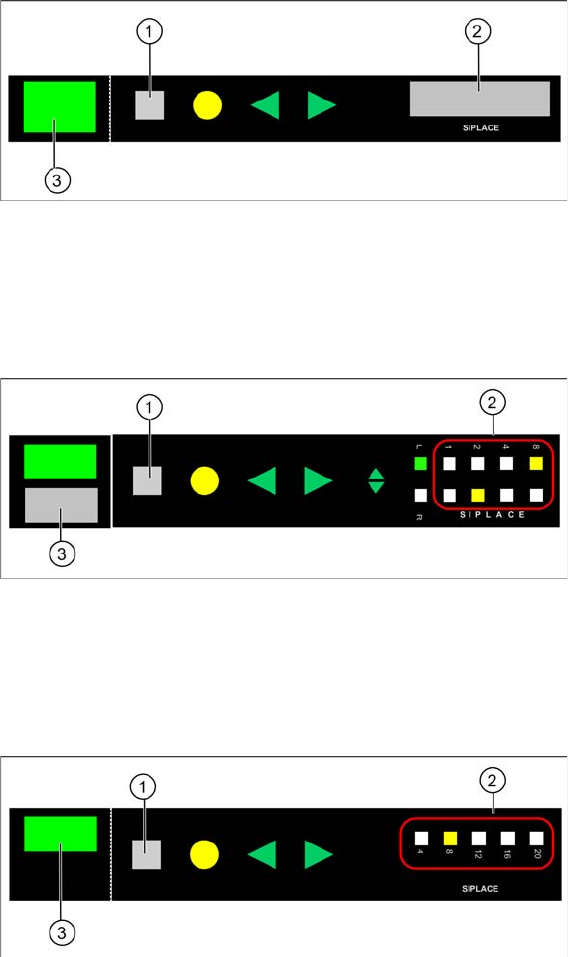
X feeder with LCD display
1. Set button
2. LCD display
3. Status Display
X feeder with LED display (2x8 mm)
1. Set button
2. Pitch display
3. Status Display
X feeder with LED display (12/16 mm Smart Feeder)
1. Set button
2. Pitch display
3. Status Display
8.12.2.1 Triggering a Scan Request
► To trigger the scan request, press the SET button for at least 2 seconds. After this period, the mes-
sage will be sent to the SIPLACE Setup Center.
Setup Verification in Practical Cases
Setup Verification Working with X-Feeders
User Guide SIPLACE Setup Center 5.1 179
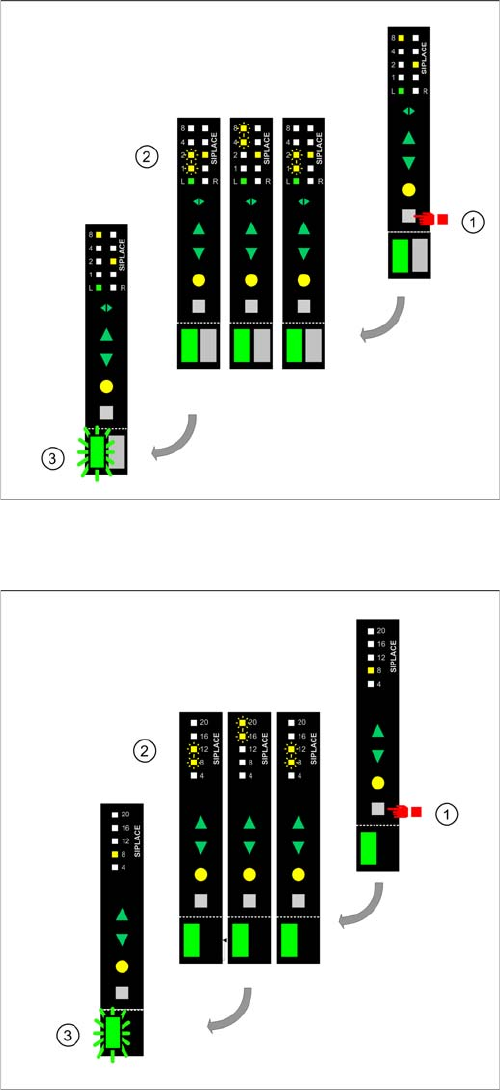
Triggering a scan request for feeders with 2 tracks (e.g. 2x8 mm X)
Triggering a scan request for the 12/16 mm Smart Feeder
8.12.3 Setup Verification
A packaging unit can only be verified if it has been threaded into an X-feeder and if this feeder is in a
pre-setup unit or a machine. In Setup Center, the packaging unit is technically "married" to the feeder
until the packaging unit has been used up or manually torn down. This enables you to manage the setup
verification data for individual X feeders, in conjunction with the feeder ID. This also means that the setup
verification data can be used again after moving an X feeder, thereby saving the need for renewed setup
verification.
Original state (1)
▪ To trigger the scan request, press the SET button for
at least 2 seconds. After this period, the message will
be sent to the SIPLACE Setup Center.
Display change for confirmation (2)
▪ The pitch display changes to the following state for
confirmation purposes: the LEDs 1+2 and 4+8 flash
alternately (shown using the example of track 1) as
long as the SET button is held pressed.
Status display change (3)
▪ To confirm that the message has been received and
that the scan process can be performed, SIPLACE
Setup Center switches the status display over to
"green, flashing".
Original state (1)
▪ To trigger the scan request, press the SET button for
at least 2 seconds. After this period, the message will
be sent to the SIPLACE Setup Center.
Display change for confirmation (2)
▪ To confirm that the message has been sent, the pitch
display changes to alternate flashing of LEDs 8+12
and 16+20.
Status display change (3)
▪ To confirm that the message has been received and
that the scan process can be performed, SIPLACE
Setup Center switches the status display over to
"green, flashing".