00197195-02-UG SetupCenter 5.1_en.pdf - 第170页
Setup Verification in Practical Cases Refilling a Track for Online Setup Verification Using the Scanne r (Steps with UID) 170 User Guide SIPLACE Setup Center 5.1 Alternative Instead of using the machine I D barcode , you…
Setup Verification in Practical Cases
Using the Reader (Steps with Machine ID) Refilling a Track for Online Setup Verification
User Guide SIPLACE Setup Center 5.1 169
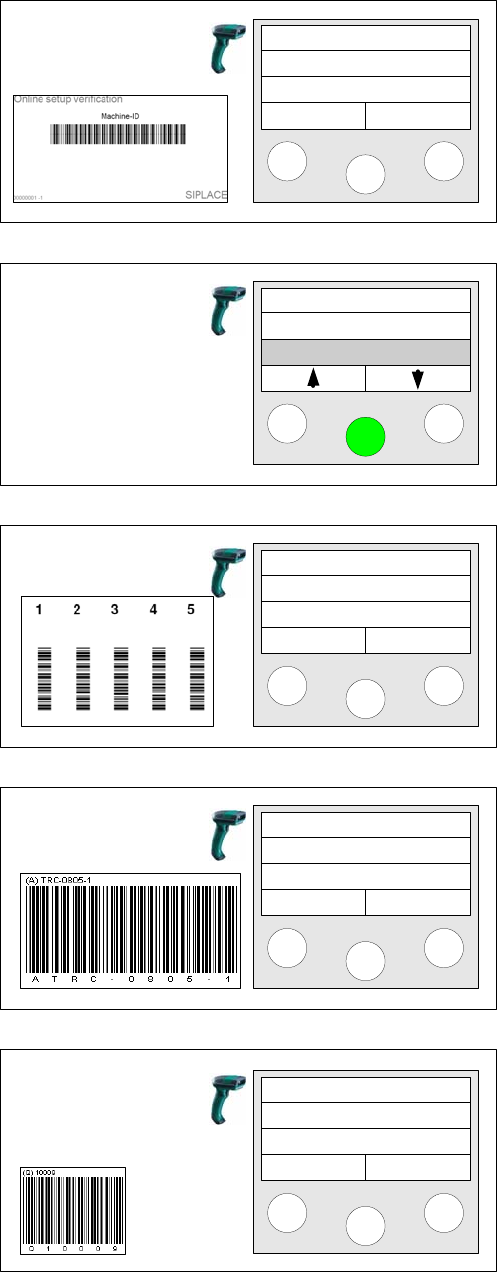
Step 2
Scan in the Machine ID barcode of the location to be ver-
ified.
Step 3
Select the Refill function and click on Enter to confirm.
Step 4
Scan the Track barcode.
Step 5a
Depending on the configuration of the barcode rule, the
component barcode or the unique barcode will be
scanned.
Step 5b (optional)
If additional barcodes have been defined for the packag-
ing unit, they must be scanned consecutively.
Setup Center
Menu
Tablecheck
Missing tracks
Refill
Scan track
Track: 55
Scan component
Info >>
Next barcode
Info >>
Setup Verification in Practical Cases
Refilling a Track for Online Setup Verification Using the Scanner (Steps with UID)
170 User Guide SIPLACE Setup Center 5.1
Alternative
Instead of using the machine ID barcode, you can also directly attach the "Refill" control barcode. After
the barcode has been scanned in, Step 4 will begin.
8.8.3 Using the Scanner (Steps with UID)
The following section describes the step-by-step procedure with a unique packaging unit ID (Unique ID).
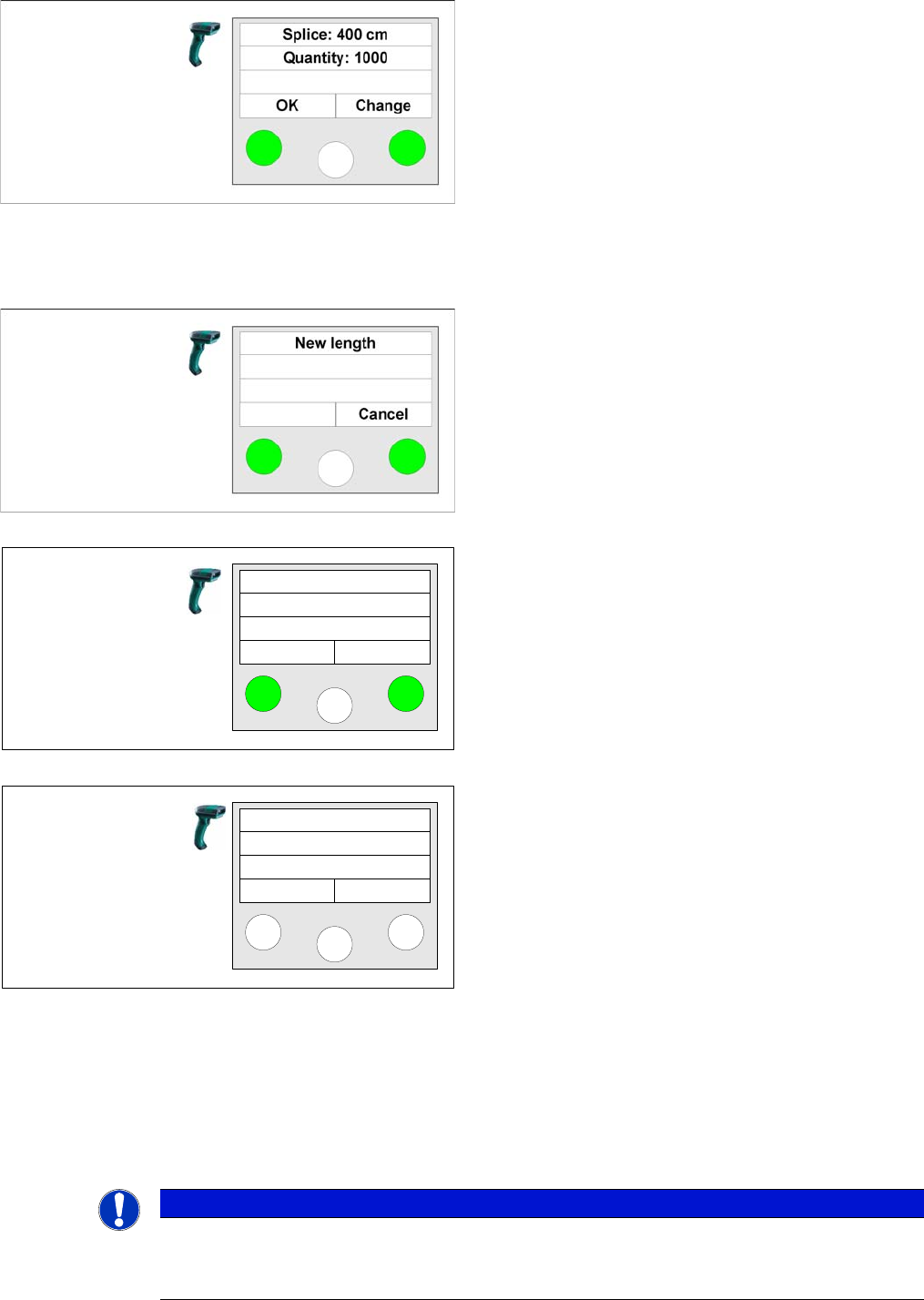
Step 5c (optional)
The quantity of the predecessor packaging unit can be
corrected. The barcode must contain the length informa-
tion in cm.
Change - shows the following display. The new length
can be scanned in.
OK - adopts the new value.
The query only appears if the Enable quantity correction
during refill option has been activated via the Setup Cent-
er menu Extras=> Settings =>Common=>
Settings of On
-
line Setup Verification
.
Step 5d (optional)
Entry of the new length can be aborted.
Step 5e (optional)
Query for reordering packaging units.
Yes - Information for reordering is saved in the SC data-
base.
No – No information for reordering.
The query only appears if the Enable quantity correction
during refill option has been activated via
Extras Set
-
tings Common
.
Step 6
After the refill, the main menu appears on the reader.
If additional packaging units need to be refilled, the entire
procedure must be repeated.
Recorder
Component?
Yes No
Setup Center
Menu
NOTICE
Unique ID
To enable refilling with a unique ID, go to Extras => Settings => Line => Domain-Wide Verifi-
cation Settings and enable the option UID refill enabled.
Setup Verification in Practical Cases
Using the Scanner (Steps with UID) Refilling a Track for Online Setup Verification
User Guide SIPLACE Setup Center 5.1 171
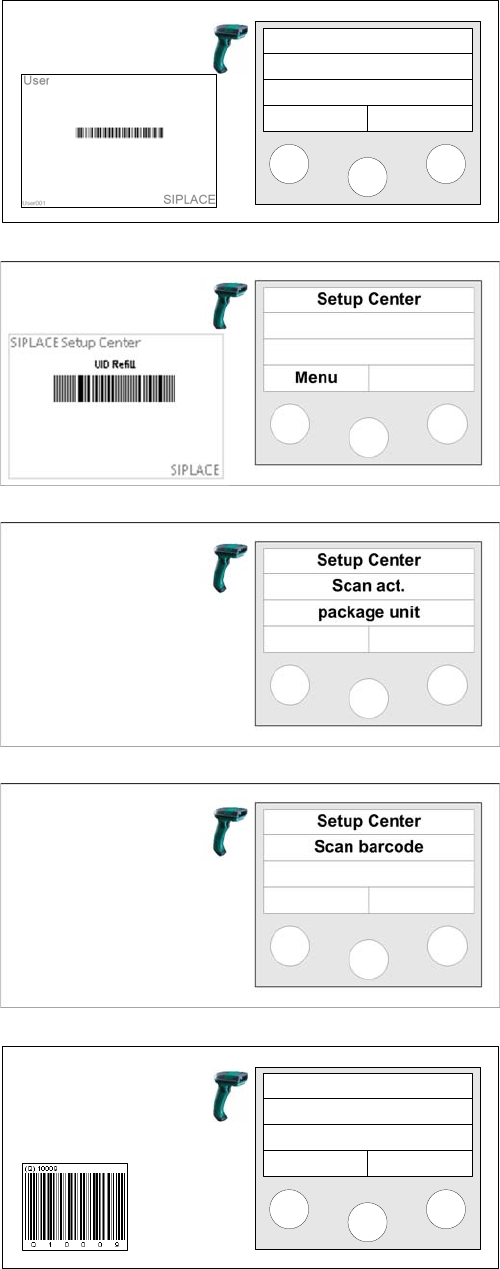
Step 1 (optional)
Scan in the the User if the User registration at the reader
required option has been activated via
Extras Settings
Security
.
Step 2
Scan the unique ID refill barcode.
Step 3
Scan the current unique ID for the packaging unit.
Step 4
Scan the unique ID for the next packaging unit.
Step 6b (optional)
If additional barcodes have been defined for the packag-
ing unit, they must be scanned consecutively.
Setup Center
Menu
Next barcode
Info >>