00197195-02-UG SetupCenter 5.1_en.pdf - 第11页
Starting Setup Center Password Request User Guide SIPLACE Setup Center 5.1 11 2 Starting Setup Center After successful installation of SIPLACE Setup Center, you will see the Windows Start menu Start Programs with the ent…

Introduction
Online Help
10 User Guide SIPLACE Setup Center 5.1
1.3 Online Help
Make use of the information provided in the Online Help!
SIPLACE Setup Center allows the context-sensitive access to the relevant subject in the online help.
The online help provides all contents of the SIPLACE Setup Center.
SIPLACE Setup Center provides the following Online Help access options:
▪ You can access the online help of the current view via Help → Help in the menu bar or via the F1 key.
▪ You can access the online help of the opened dialog via the Help button.
▪ In addition, you will find all topics from the SIPLACE Setup Center User Manual in the Online Help.
Use Help => Contents, Index and Find from the menu bar to navigate to the individual topics.
► Action Requires an action (e.g. mouse click, open file)
Equivalent to a warning. The information is essential for successful
working.
Explanatory information.
Starting Setup Center
Password Request
User Guide SIPLACE Setup Center 5.1 11
2 Starting Setup Center
After successful installation of SIPLACE Setup Center, you will see the Windows Start menu
Start Programs with the entry Siemens SIPLACE Setup Center and
the icon Setup Center on the Desktop.
Start the SIPLACE Setup Center from the menu or by clicking on the relevant icon on the Desktop.
The system will open the SIPLACE Setup Center application and then connect to the SIPLACE Setup
Center Database.
2.1 Password Request
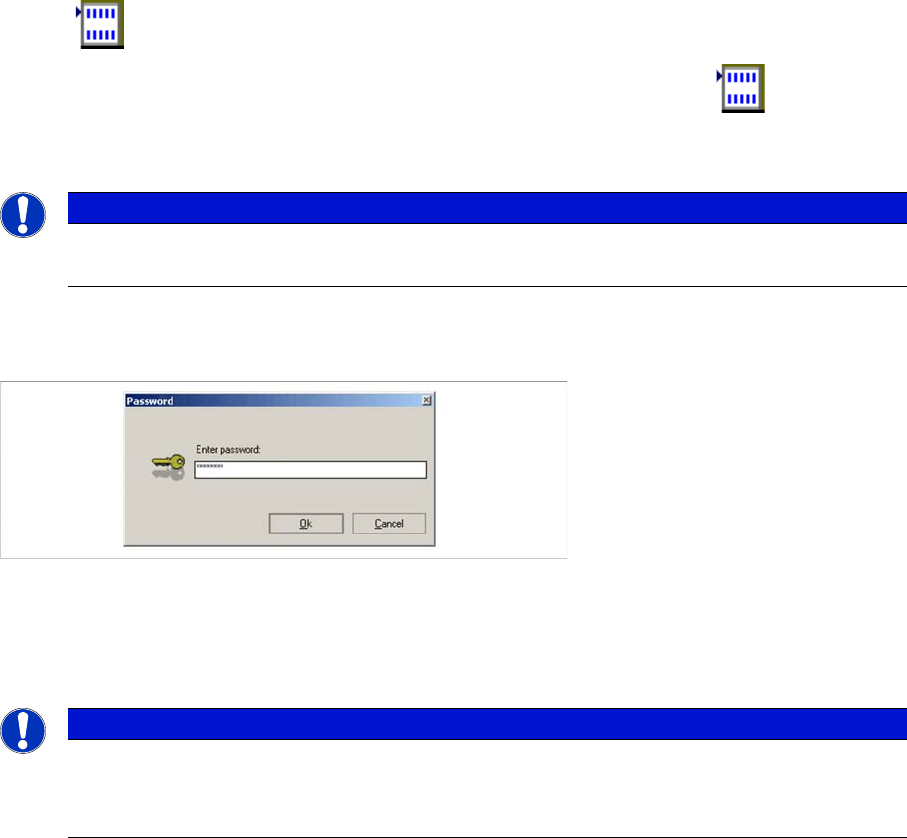
Several functions, e. g. the settings, the barcode label wizard or firmware functions can be locked by a
password request.
► For configuring the password select the Tools => Settings => Security function in the Setup Center
main menu.
2.2 The User Interface
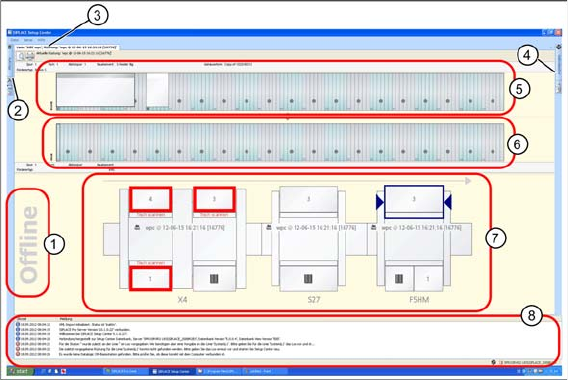
The user interface is divided into the sections described below. These sections include all the functions
and editors needed to work with SIPLACE Setup Center. The following diagram shows the user interface
with a loaded setup.
NOTICE
Installation failed
Please consult your installation manual if the installation was unsuccessful.
NOTICE
Password
Please observe case-sensitivity.
► If no password has been configured, this dialog is skipped.
Starting Setup Center
The User Interface
12 User Guide SIPLACE Setup Center 5.1
Overview
1. Type of setup verification (online/offline)
2. Structure views for jobs, recipes, setups and production schedules (offline)
3. Menu area
4. Toolbar
5. Display area selected location - target setup from SiplacePro
6. Online: display area for selected location – actual setup in machine
or
Offline: display area for selected location - actual setup in the docking station or database state for
setup verification
7. Display area line
8. Notifications window
Auto Hide Function
The tree views for jobs, recipes, setups and production schedules are on the top left of the user interface
as a default. The toolbar, with the Packaging Unit Editor, Search Material function and Verification His-
tory tool, is on the top right of the user interface as a default.
Each tree view or editor in this function area can be opened in a separate window. The auto-hide function
allows you to release the window from its default position and move it to wherever you want. To dock the
window in your required position on the user interface, simply use the arrows shown on the window.