00197195-02-UG SetupCenter 5.1_en.pdf - 第46页
Configuring Setup Center Logging Dockin g Station Dialog Box 46 User Guide SIPLACE Setup Center 5.1 User management Here, the settings for the user m anagement of the scanners are set. 3.12 Logging ► In the main menu ope…
Configuring Setup Center
Docking Station Dialog Box MES
User Guide SIPLACE Setup Center 5.1 45
Web service settings
3.10 MES
► In the main menu open Extras > Settings and the Settings window is opened.
► Select the category MES and the settings are opened.
In this view you can configure the connection of a superordinate system for managing, updating and ver-
ifying packaging unit data.
3.11 Security
► In the main menu open Extras > Settings and the Settings window is opened.
► Select the category Security and the settings are opened.
Security
Several functions, e. g. the settings, the barcode label wizard or firmware functions can be locked by a
password request.
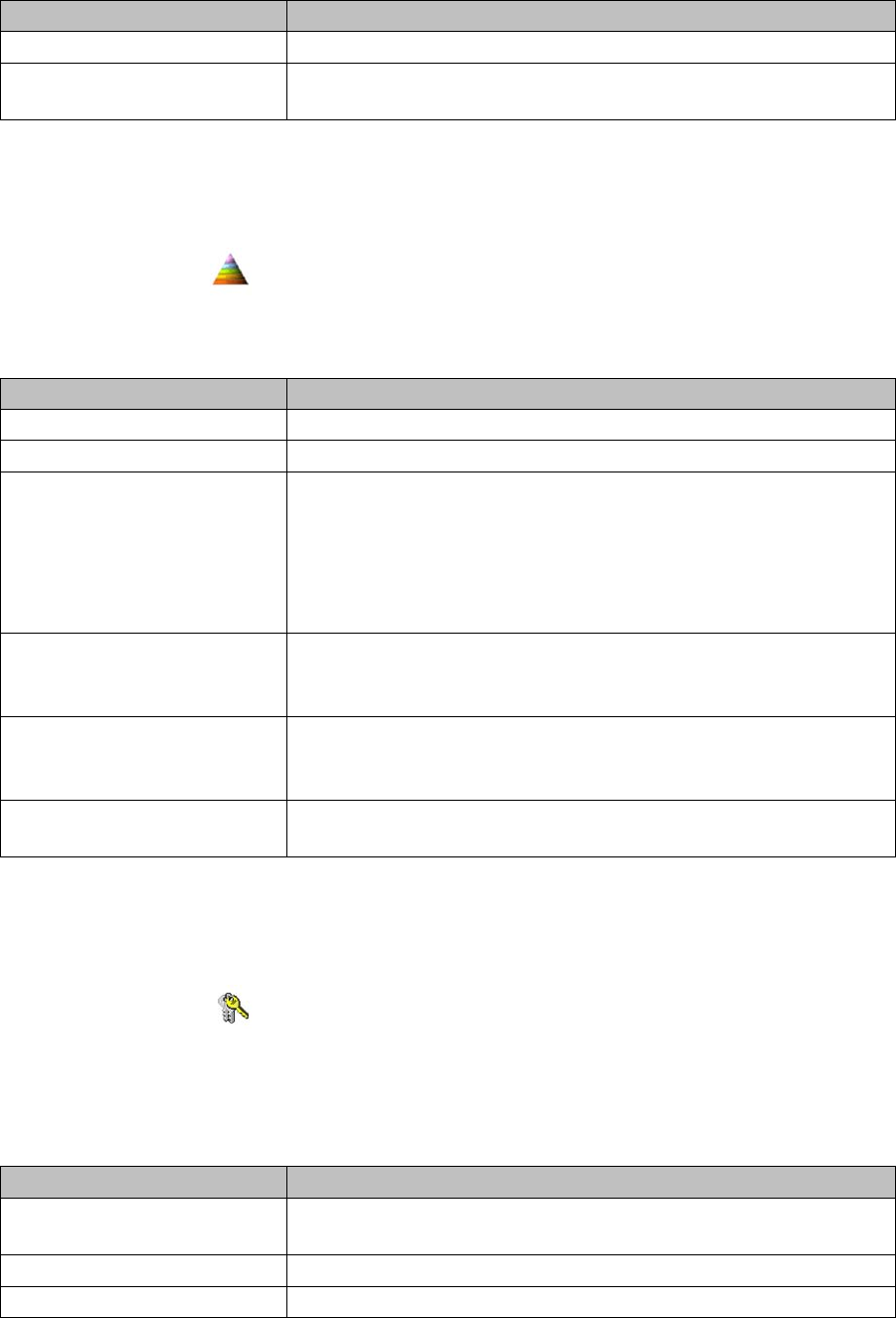
Parameter Description
Address: Address of the web service for processing the reorder.
Confirm successful reorder via
barcode reader
Activate this option to receive a feedback on the reorder (successful/
not successful) at the scanner
Parameter Description
OIB Service Locator Address Refer to the OIB SDK for the description and configuration.
OIB Service Name Refer to the OIB SDK for the description and configuration.
Requesting packaging unit data
from MES, if this is not already
in the Setup Center database
If the packaging unit data is not in the Setup Center database, this
can be requested from MES. If Setup Center does not receive any
packaging unit data, the system will be unable to use this packaging
unit. If this option is enabled, the operator will only request the pack-
aging unit ID but no other data via the scanner, irrespective of wheth-
er any data is supplied in answer to the request, or not.
Request verification status from
MES during online setup verifi-
cation
The connection is active for the online setup verification.
Request verification status from
MES during offline setup verifi-
cation
The connection is active for the offline setup verification.
Take gray zone value for the
packaging unit data from MES
If this function is enabled, the gray zone value determined by MES
will also be applied.
Parameter Description
Active The password request is activated. If the option is deactivated, the
Password Request dialog will be omitted.
Password Enter the new password.
Confirm password Reenter the new password here.
Configuring Setup Center
Logging Docking Station Dialog Box
46 User Guide SIPLACE Setup Center 5.1
User management
Here, the settings for the user management of the scanners are set.
3.12 Logging
► In the main menu open Extras > Settings and the Settings window is opened.
► Select the category Logging and the settings will open.
Verification log settings
This is where you can configure the verification logs. The verification log is a CSV file. A separate CSV
file is generated in the output folder for each line, each area (online, offline) and each day. Each com-
pleted (not including the canceled ones) scan run will be entered as a line in the log.
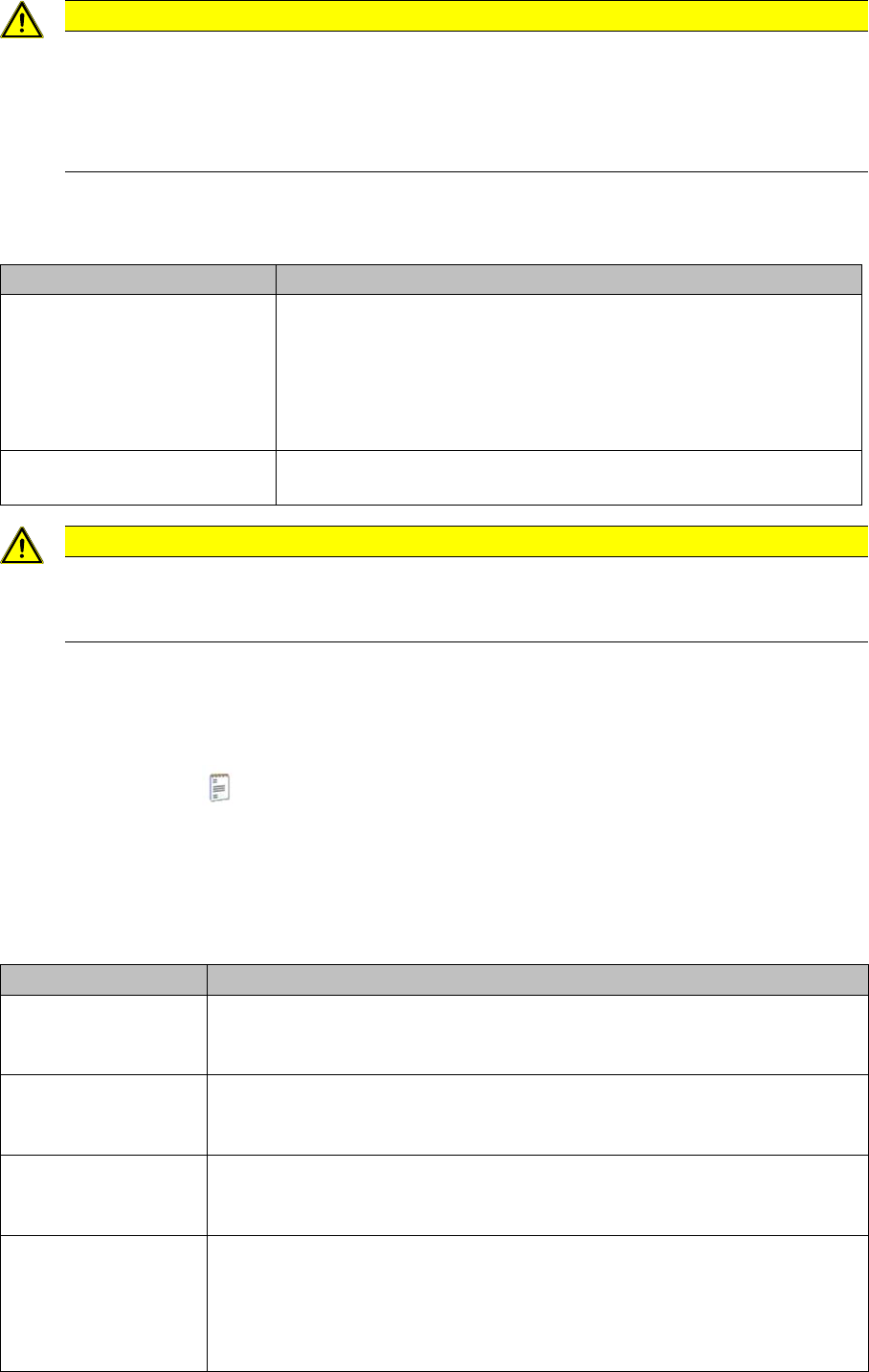
CAUTION
Encrypted password
The password is stored in encrypted form. If the password is forgotten, a complete re-installa-
tion with reentering the configuration settings is necessary.
If no password is set, data can be deleted by any user by means of the "Remove packaging
unit" dialog.
Parameter Description
Active If the user management was activated, a barcode scanner can only
be connected after a successful login. This is done by scanning the
"User ID" barcode which can be created and printed using the Bar-
code label assistant.
In addition, the user names will be added to the setup verification re-
port.
Automatic logout after If the user management is activated, the barcode scanner will be
logged out after the specified time.
CAUTION
Observe your in-house regulations.
The setup verification report can be used for employee monitoring. Please observe your in-
house regulations.
Settings Meanings
Create verification log
for online setup verifi-
cation
This specifies that the online setup verification actions are to be logged during
generation of the verification history.
Create verification log
for offline setup verifi-
cation
This specifies that the offline setup verification actions are to be logged during
generation of the verification history.
Output Folder During generation of the verification logs, the CSV files are saved in this folder
e.g. OnlineVerificationProtocol.Line2.20120924.csv or OfflineVerificationPro-
tocol.Line2.20120924.csv
Column Definition Specify which parameters are to be shown in the CSV file columns. Use the
right/left icons to drag the required parameters out of the available Columns
table into the Configured Columns table. The selected columns will then ap-
pear in the CSV file.
Use the up/down icons to change the order of columns.
Configuring Setup Center
Docking Station Dialog Box Logging
User Guide SIPLACE Setup Center 5.1 47
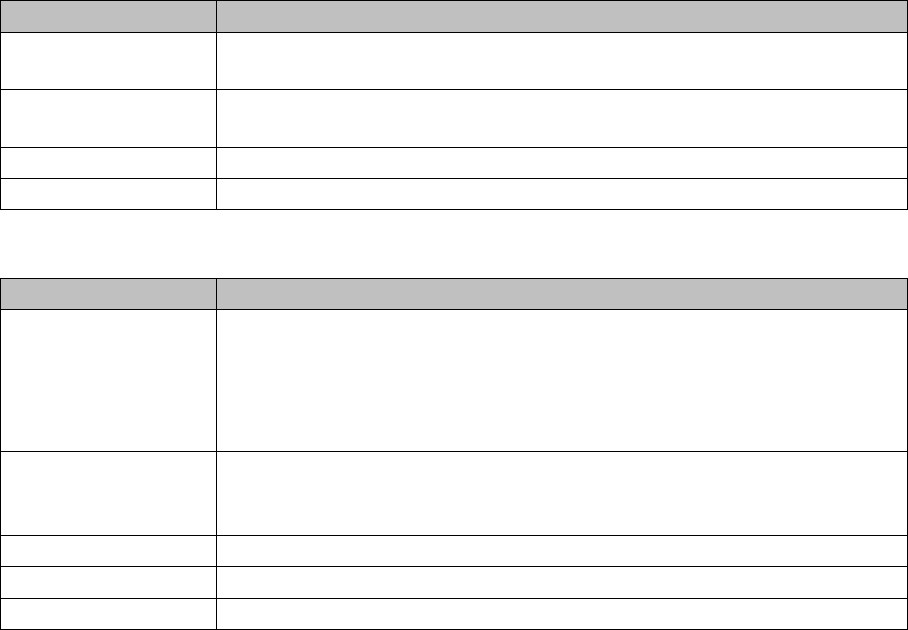
Log settings
Description A detailed description of the selected parameters will be shown via the pur-
pose.
Column Name The name of the parameters can be changed. The new name will then be
shown in the verification log.
Accept The changed column name will be applied.
Default Value If the parameter name was changed, the original name will be restored.
Settings Meanings
Logger This log is written in one or more text files. The amount of results generated
can be specified via the size and number of individual text files. Once the max-
imum limit (file size x number of files) has been reached, the oldest data is au-
tomatically removed, to make room for new information.
The list of logs is dynamic and can therefore vary.
Level This defines the level of detail (info., warning, error, debug) for the log data.
The more detailed the data is, the more capacity it will require. This means that
the time recorded will be shorter.
File size Defines the maximum size which an individual logger file may have.
Number of files Defines the number of log files which may be generated.
File name Defines the name of the log file.
Settings Meanings