00197195-02-UG SetupCenter 5.1_en.pdf - 第160页
Setup Verification in Practical Cases Offline Setup Verification Using the Reader 160 User Guide SIPLACE Setup Center 5.1 8.3.1 Using the Reader Step 1 (optional) Scan in the the Us er if the User registr ation a t the r…
Setup Verification in Practical Cases
Alternatives Offline Setup Verification
User Guide SIPLACE Setup Center 5.1 159
8.3 Offline Setup Verification
▪ The "Settings for offline setup verification“ option has been activated via
Extras Settings Common
.
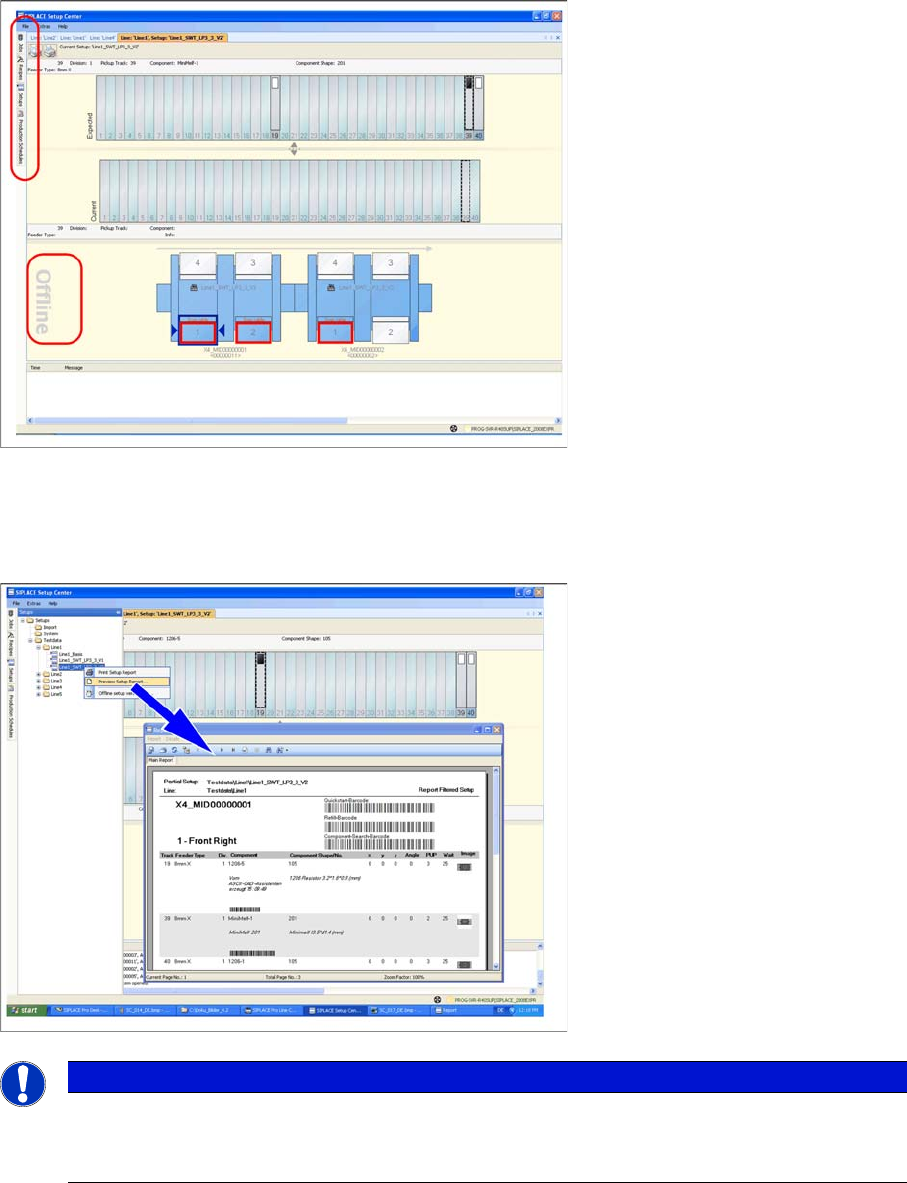
▪ The setup to be verified has been selected as an Offline setup and is displayed in Setup Center. The
selection is made at the left edge of the menu window by choosing the option "Offline setup
verification“. You can select either a job, recipe or setup. To verify a remote scanner or PDA, you
need the quick start barcode on the setup report.
▪ In the same selection window, you can right-click with the mouse to open the context menu for a set-
up, in which the option "Print report“ can be selected to print the Setup report.
Make sure that the "Setup verification" and "Component search" barcodes are in the header bar of
the printout.
NOTICE
Switch on changeover table management
If you want to run offline setup verification, you will need to switch on changeover table man-
agement.
Setup Verification in Practical Cases
Offline Setup Verification Using the Reader
160 User Guide SIPLACE Setup Center 5.1
8.3.1 Using the Reader
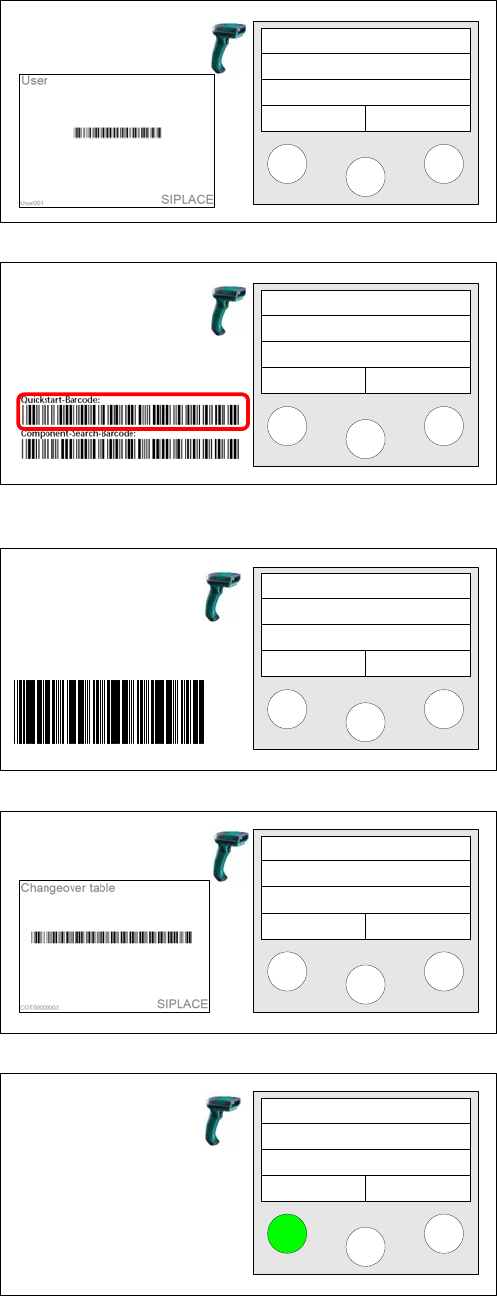
Step 1 (optional)
Scan in the the User if the User registration at the reader
required option has been activated via
Extras Settings
Reader
.
Step 2
► Set the feeders and packaging units on the table, ac-
cording to the setup report.
► Scan in the Setup Verification barcode (quick start
barcode) of the location to be verified. You find the
barcode in the headline of the setup report.
⇨ This loads the setup in the SIPLACE Setup Center
user interface and selects the table and the first com-
ponent which has been set up.
Step 3 (optional)
The query only appears during the offline setup verifica-
tion of an X or SX table. The barcode is located at the
front side of the docking station.
Step 4 (optional)
Scan in the Changeover table barcode.
Setup Center will now exchange setup verification data
between the docking station and the X-feeders. During
this, press the "Retry" soft key every 10 seconds until you
are able to start the setup verification procedure.
Step 5 (optional)
Reading in data from the X-feeders into Setup Center
takes about 20 sec. for a completely set up X or SX table.
In order for the reader to not run into a timeout you need
to press the left Retry key every 5 -10 sec. until step 7a is
displayed.
Only during verification at the docking station.
Setup Center
Menu
Setup Center
Menu
Scan DS
DID00000004
DID
Scan COT barcode
Press buttom to
continue
Retry
Setup Verification in Practical Cases
Using the Reader Offline Setup Verification
User Guide SIPLACE Setup Center 5.1 161
Offline Setup Verification With Changeover Table Management
If you rescan the table barcode and/or quickstart barcode, the following may occur:
▪ The changeover table was only partially verified:
In this case, the operator will be asked to scan in the non-verified packaging unit.
Tracks and divisions which have already been verified will be ignored. If table check was only par-
tially performed before, the remaining packaging units can be verified here.
▪ The changeover table was fully verified:
In this case, the system restarts a complete offline setup verification procedure. This enables you to
re-verify packaging units e.g. after setup changes when the table needs to be rechecked.
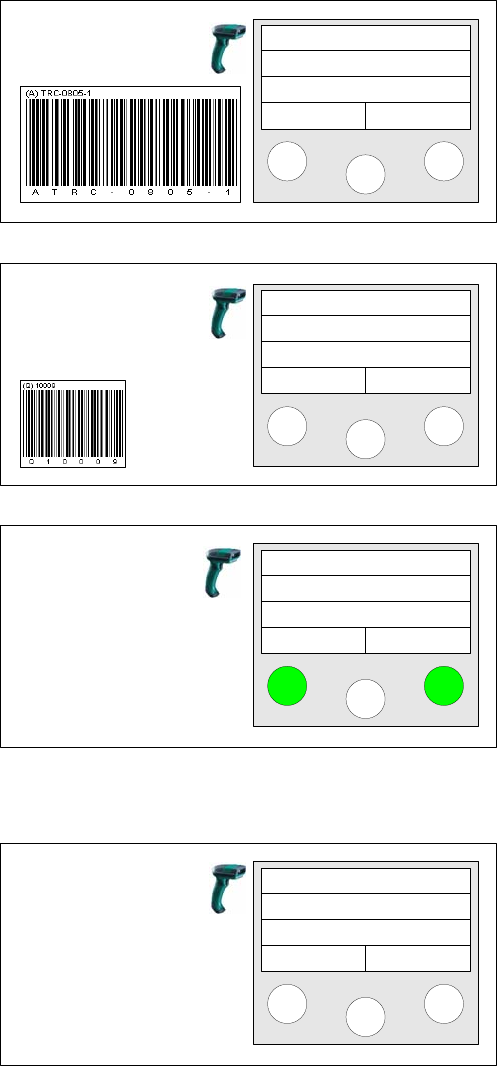
Step 6a
Depending on the configuration of the barcode rule, the
component barcode or the unique barcode will be
scanned.
Step 6b (optional)
If additional barcodes have been defined for the packag-
ing unit, they must be scanned consecutively.
If all packaging unit barcodes have been scanned, Setup
Center then switches to the next track left to be verified.
Step 6c (optional)
Query for reordering packaging units.
Yes - Information for reordering is saved in the SC data-
base.
No – No information for reordering.
The query only appears if the Enable quantity correction
during refill option has been activated via
Extras Set
-
tings Common
.
Steps 6a, 6b and 6c are repeated until all location tracks
have been verified.
Step 7
When the last track in the location has been verified (or
has been skipped with the right reader button) the main
menu appears at the reader.
Track: 55
Scan component
Info >>
Next barcode
Info >>
Recorder
Component?
Yes No
Setup Center
Menu