00197195-02-UG SetupCenter 5.1_en.pdf - 第36页
Configuring Setup Center Lines Adding, Deleting and Repairing Lines 36 User Guide SIPLACE Setup Center 5.1 ► Open the context menu and s elect Repair Line(1). Alt ernatively, you could also remove the line (2). ► The Rep…
Configuring Setup Center
Adding, Deleting and Repairing Lines Lines
User Guide SIPLACE Setup Center 5.1 35
3.4.2 Adding, Deleting and Repairing Lines
3.4.2.1 Adding Lines
► In the main menu open Extras > Settings and the Settings window is opened.
► Select the category Line and the settings will be opened.
► Select This Setup Center in the tree view to which you want to add a line.
► Open the context menu and select Add line.
► Select the required line from the SIPLACE Pro tree view and confirm with OK.
3.4.2.2 Removing Lines
► In the main menu open Extras > Settings and the Settings window is opened.
► Select the category Line and the settings will be opened.
► Select This Setup Center in the tree view.
► Select the line.
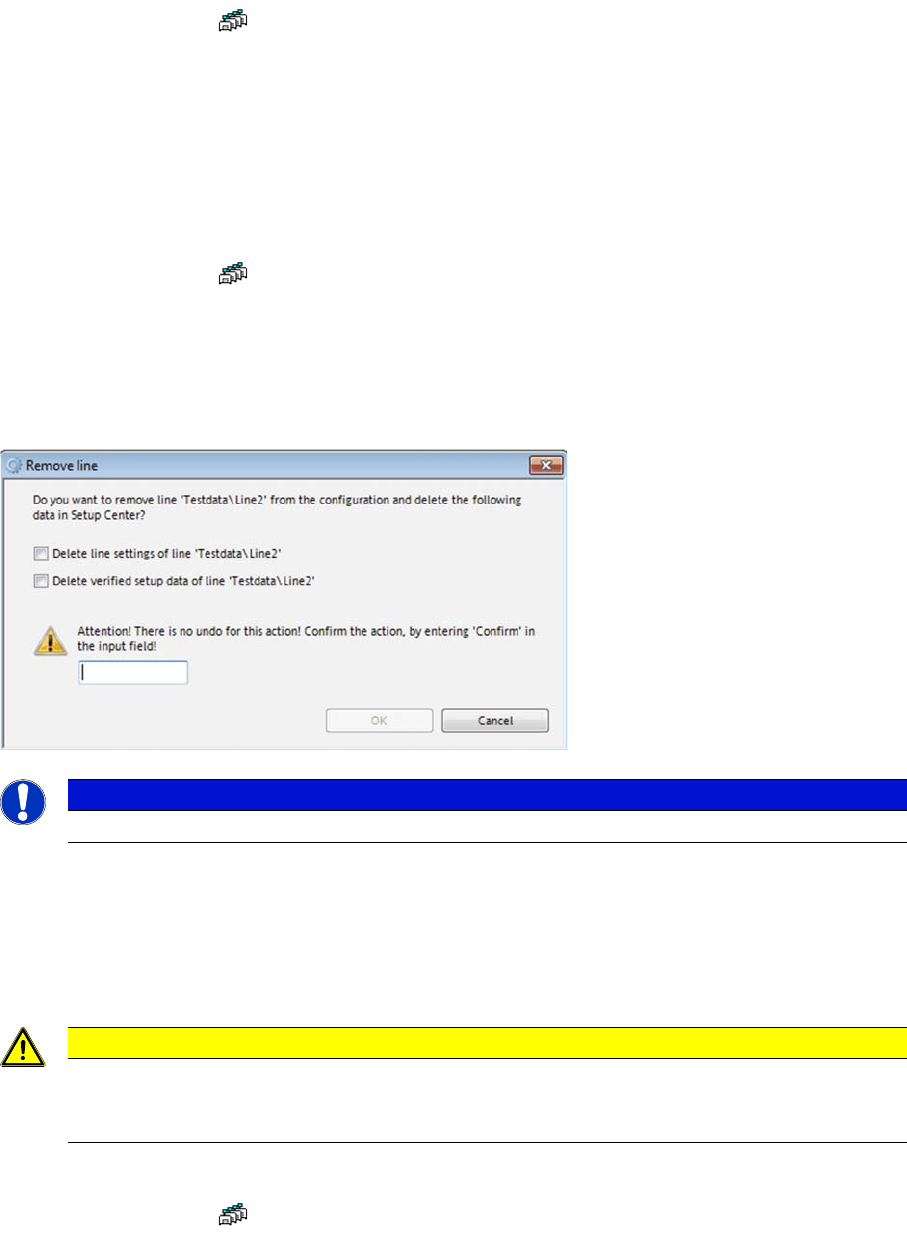
► Open the context menu and select Remove Line.
► The Remove Line dialog box will open.
► Observe the information in the Remove Line dialog box.
► Select the required options and perform the necessary tasks.
► Acknowledge the information shown with OK.
3.4.2.3 Repairing Lines
► In the main menu open Extras > Settings and the Settings window is opened.
► Select the category Line and the settings will be opened.
► Select the line.
NOTICE
When deleting a line from the configuration, the setup verification data of the line will be lost.
CAUTION
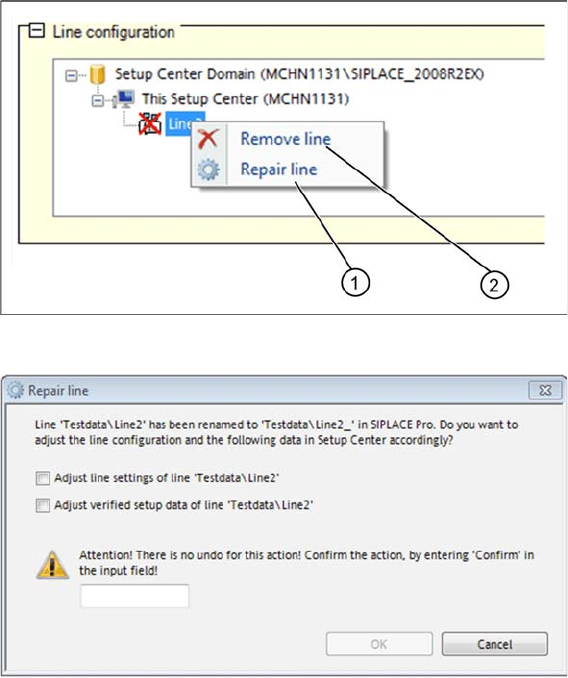
If the line name or directory changes in the programming system, the settings have to be adapt-
ed in SIPLACE Setup Center. The function "Repair Line" is available for this. If this is not done,
error messages may occur in SIPLACE Setup Center.
Configuring Setup Center
Lines Adding, Deleting and Repairing Lines
36 User Guide SIPLACE Setup Center 5.1
► Open the context menu and select Repair Line(1). Alternatively, you could also remove the line (2).
► The Repair Line dialog box will open.
► Observe the information in the Repair Line dialog box.
► Select the required options and perform the necessary tasks.
► Acknowledge the information shown with OK.
Configuring Setup Center
Verification Settings for Lines Lines
User Guide SIPLACE Setup Center 5.1 37
3.4.3 Verification Settings for Lines
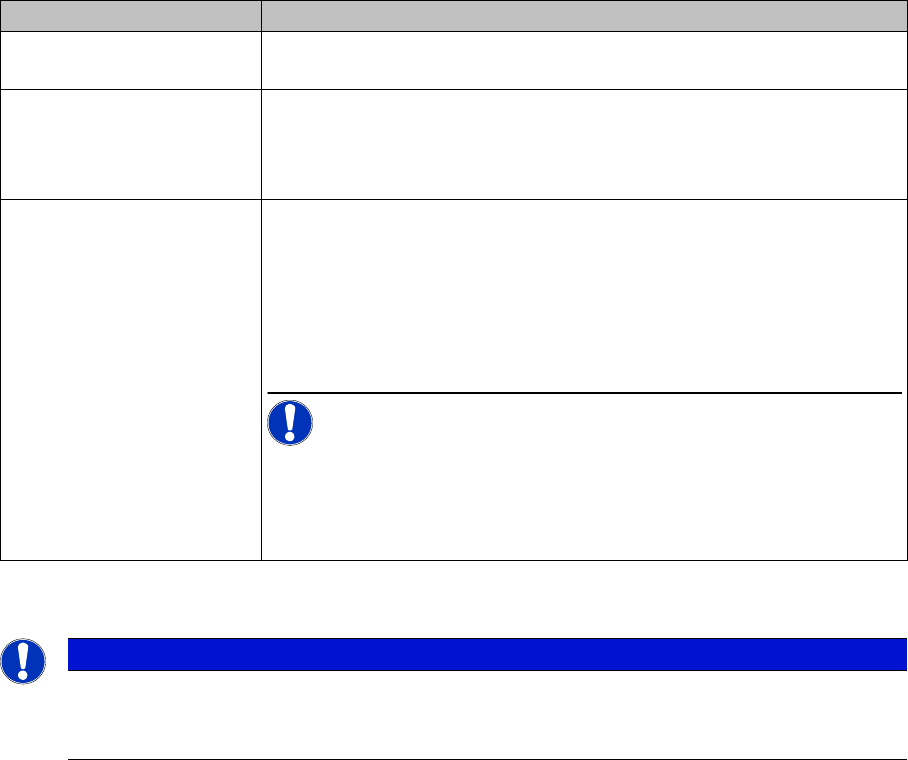
A line has been selected in the tree view. The following settings are possible for the selected line:
3.4.4 Threshold Settings
Threshold settings
This is where the threshold settings for the component level indicator are defined (from station software
701 and higher). The parameters shown differ, according to whether a line or station was selected. The
line settings apply to all 7xx stations on the line but can be modified for individual stations.
Settings Meanings
Allowed splice length The maximum number of tape parts (max. 30) of a packaging unit can be
set here for each line.
Allow feeder substitution
"8mmX“ ⇔ „2 x 8mm X"
The feeder types 8 mm X and 2x8mm X can be substituted for one an-
other, without changing the setup in SIPLACE Pro. The machine is able
to start the pickup immediately after a feeder type changeover. For pos-
sible exchange scenarios see the station software documentation.
Allow random feeder setup
during offline verification.
Active:
This enables the Random Setup setting, as defined in the SIPLACE Pro
setup, in Setup Center (at line level). The table-wise random setup func-
tion is not permitted for offline verification, irrespective of the downloaded
SIPLACE Pro setup.
NOTICE! If this option is disabled, the setup for this line must be
configured for the exact track in the pre-setup area, irrespective of the
setup setting in SIPLACE Pro. For detailed information about Random
Setup, refer to the operating manual for Random Setup, item no
[00196838-xx].
NOTICE
Only for lines with stations which have station software 701 or higher.
This view is only available if you have selected a line with stations which have station software
701 or higher.