00197195-02-UG SetupCenter 5.1_en.pdf - 第18页
Starting Setup Center The User Interface Display Area for Open Setups 18 User Guide SIPLACE Setup Center 5.1 Legend 1. Table view "expected" (view of target se tup) 2. Table view "current" (view of ac…
Starting Setup Center
Display Area for Open Setups The User Interface
User Guide SIPLACE Setup Center 5.1 17
4. The connection to the Setup Center database is not OK.
5. This reel icon will rotate when Setup Center is processing data.
6. This icon appears if global settings have been changed. These changes can be applied with a dou-
ble-click on this icon.
2.2.2 Display Area for Open Setups
This area shows the momentary state of current actions for a setup in online or offline mode. The active
setups can be selected via the various tabs. The selection lists are for choosing a setup when in offline
mode and can be expanded and locked with the auto-hide function.
See also
2.2 The User Interface [ ➙ 11]
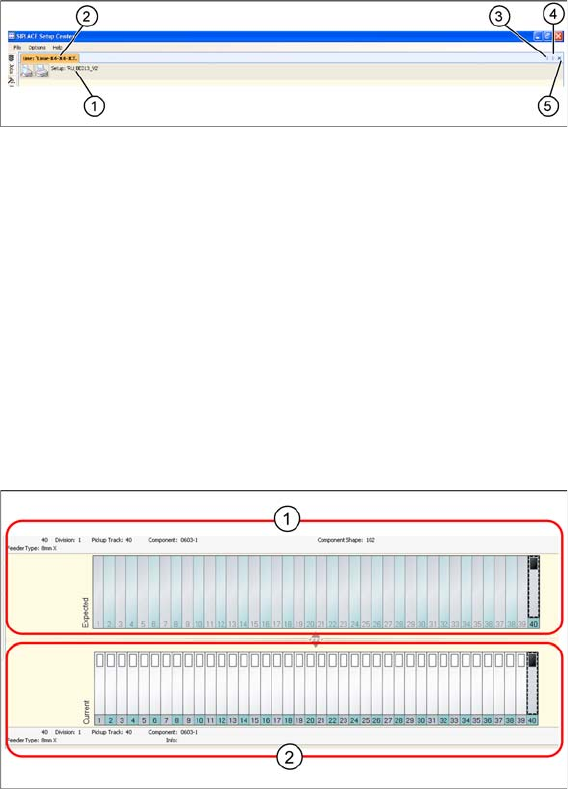
2.2.2.1 Tabs for Selection of Active Lines
Legend
1. Setup name for selected table
2. Line name
3. Switch to previous setup
4. Switch to next setup
5. Close setup (not available with online setups!)
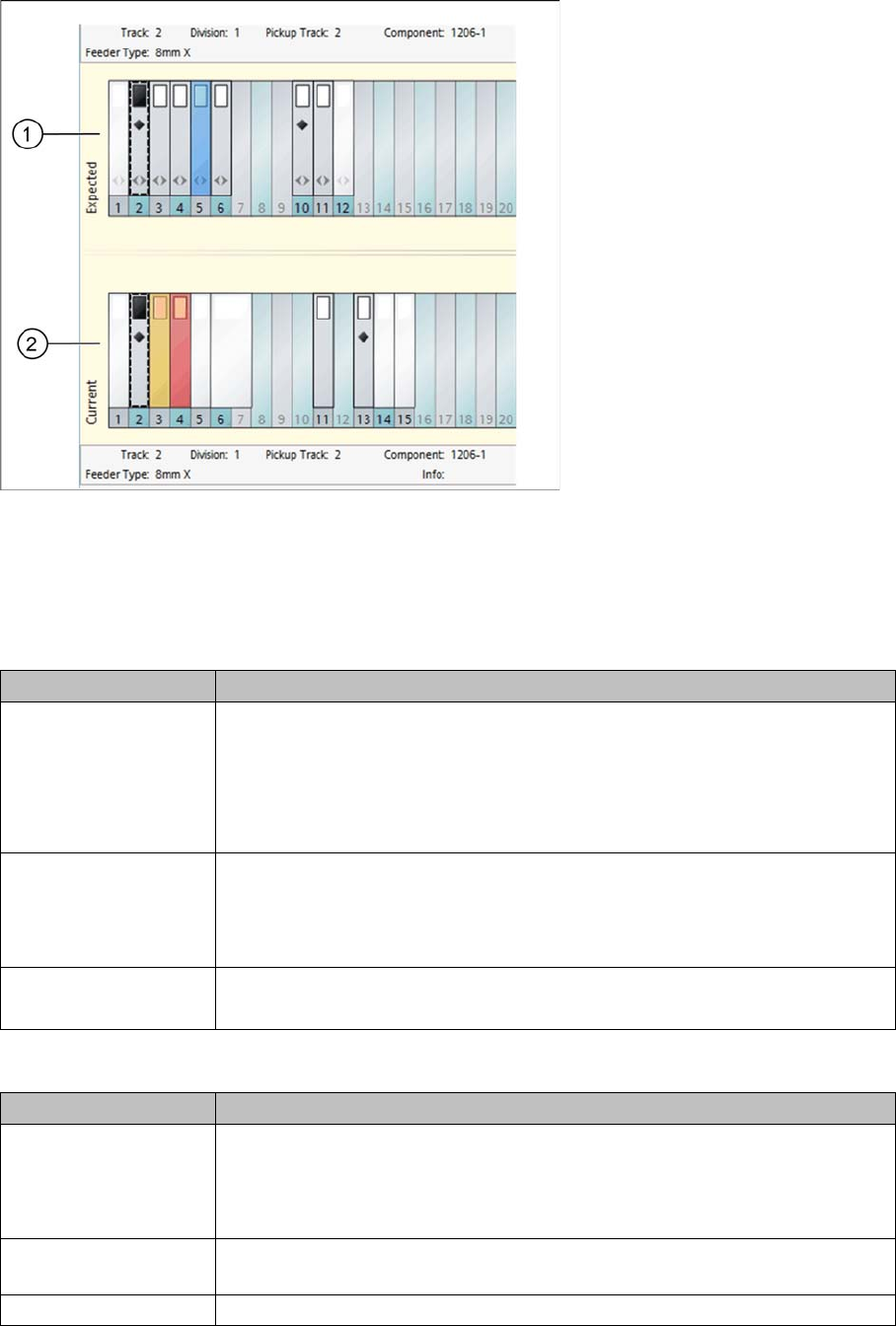
2.2.2.2 Location Display - Feeders
The top half of your screen shows the display area for the selected location.
The expected setup (target setup from Siplace Pro) and the current setup (actual setup at the machine)
are shown
Legend
1. Expected setup (target setup)
2. Current setup (actual setup)
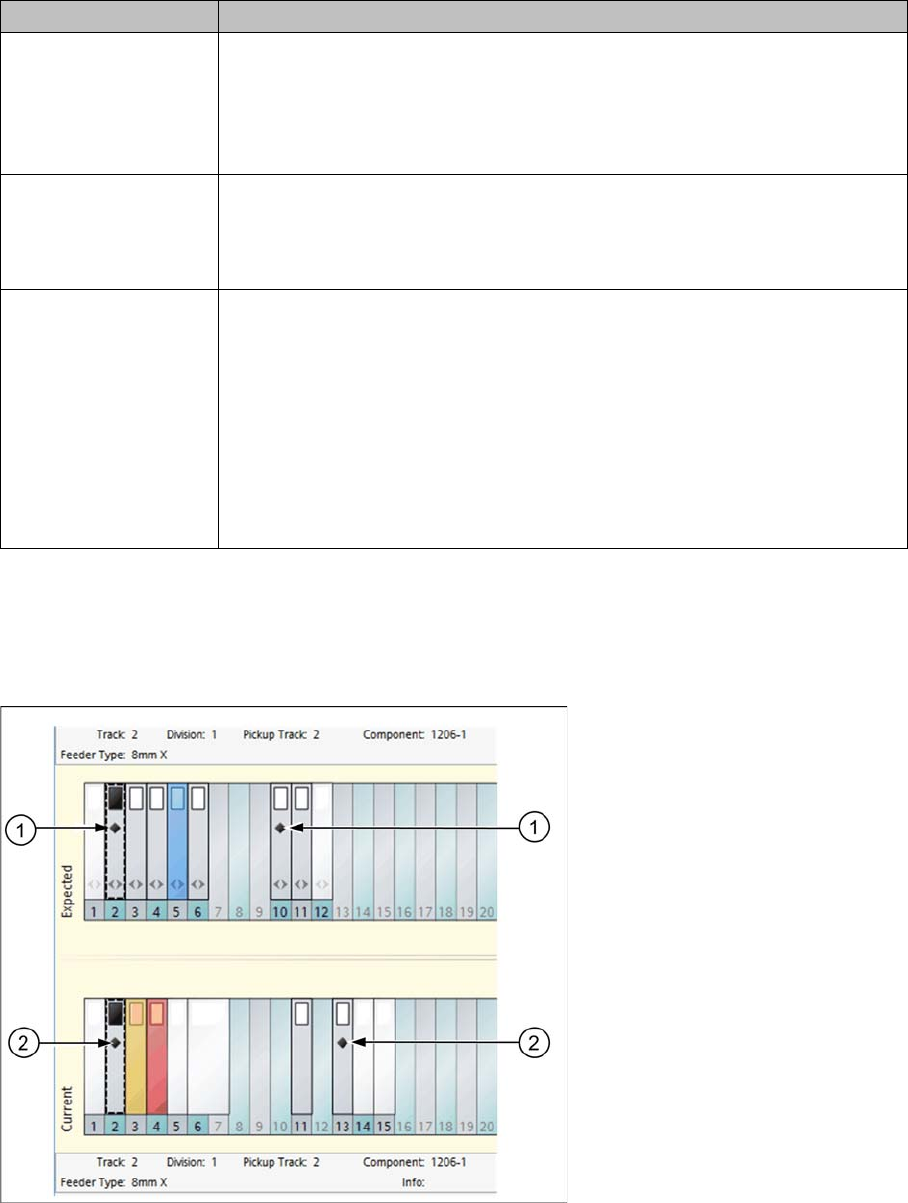
2.2.2.3 Color Coding of Tracks
SIPLACE Setup Center shows the current verification status on your user interface. It also uses the fol-
lowing color coding for your convenience:
Starting Setup Center
The User Interface Display Area for Open Setups
18 User Guide SIPLACE Setup Center 5.1
Legend
1. Table view "expected" (view of target setup)
2. Table view "current" (view of actual setup)
Table view "expected" (view of target setup)
Table view "current" (view of actual setup)
Color Meaning
Feeder - white These tracks are not checked by Setup Center, because:
▪ The feeder is defined without a component in the target setup.
▪ The feeder is defined with a component in the target setup, which is not
included in the setup verification.
Example: tracks 1 and 12
Feeder - gray These tracks are checked by Setup Center because the feeder is defined with
a component in the target setup, which is included in the setup verification.
This component has already been verified.
Example: tracks 2, 3, 4, 6, 10 and 11
Feeder - blue The feeder is defined in the target setup. The component is not yet verified.
Example: track 5
Color Meaning
Feeder - white The feeder is on a track which is not included in the setup verification of the
target setup. It does not matter whether a component is configured or not in
the feeder.
Example: tracks 1, 5, 6, 7, 14 and 15
Feeder - blue The feeder is on a track which is included in the target setup of the setup ver-
ification. This track has not yet been verified successfully.
Track blue The feeder is defined in the target setup but is missing in the current setup.
Starting Setup Center
Display Area for Open Setups The User Interface
User Guide SIPLACE Setup Center 5.1 19
2.2.2.4 Track Icons
The SIPLACE Setup Center user interface shows information about the feeders on the tracks.
Diamond icon
The diamond icon marks those feeders with components in the expected setup (1) which also have
equivalent components (2) in the current setup. This gives you a clear view of the tracks in the current
setup on which this component is already configured. You can therefore see where this component can
still be configured or picked up, something which is particularly helpful for Random Setup. Select a track
in the expected setup and all tracks with equivalent components in the current setup will be marked with
the diamond icon.
Feeder - gray The feeder is on a track which is included in the target setup of the setup ver-
ification. This track has been verified successfully. When you have an active
component level indicator with thresholds, the component level will also be
above the warning threshold.
Example: track 2
Feeder - orange The feeder is on a track which is included in the target setup of the setup ver-
ification. This track has been verified successfully. The component level has
undershot the warning level of the component level indicator.
Example: track 3
Feeder - red ▪ The feeder is on a track which is included in the target setup of the setup
verification. This track has been verified successfully. The component lev-
el has undershot the stop level of the component level indicator.
▪ An incorrect feeder type is on a track which is included in the target setup
of the setup verification.
▪ The feeder is on a track which is included in the target setup of the setup
verification. The track has been locked by Setup Center or an external
system (padlock symbol).
Color Meaning