00197195-02-UG SetupCenter 5.1_en.pdf - 第67页
Setting System Components Component Level Indicator Station Software Settings (from Version 70x) User Guide SIPLACE Setup Center 5.1 67 Track overview - status ► For more details, refer to the station softwar e Online H …
Setting System Components
Station Software Settings (from Version 70x) Component Level Indicator
66 User Guide SIPLACE Setup Center 5.1
4.2.2.1 Component Level Indicator
Overview
Component Level Indicator
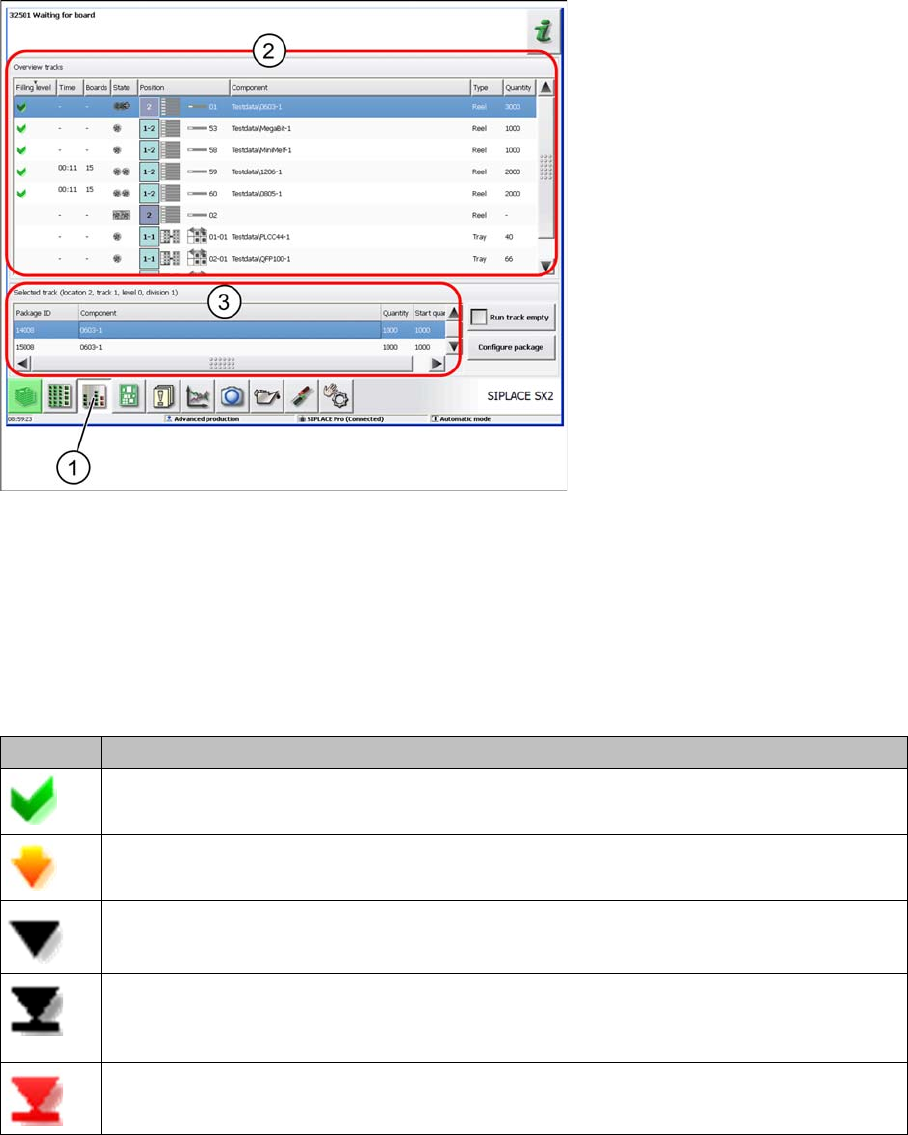
► Select the Component Level Indicator button (1).
► The component level indicator for all checked pickup positions will be shown in section (2).
► Section (3) shows the information and processing of component levels for the pickup position select-
ed in section (2).
Track overview - component level
Icon Description
Component level OK.
Component level low: warning threshold undershot
Component level empty: below threshold "empty".
Component level empty: All components in the packaging unit have been placed and the
track has been set to run empty.
Track deactivated due to pick-up error, measurement error or hardware error.
Setting System Components
Component Level Indicator Station Software Settings (from Version 70x)
User Guide SIPLACE Setup Center 5.1 67
Track overview - status
► For more details, refer to the station software Online Help.
Running Track Empty
To splice on a new tape, a certain number of components must still be in the packaging unit. The track
is marked as "empty", although several components are still in the tape.
Configuring packaging units
Opens the print view for a selected packaging unit. See "4.2.2.2 Configuring Packaging Units" [ ➙ 67].
Component Level Indicator
4.2.2.2 Configuring Packaging Units
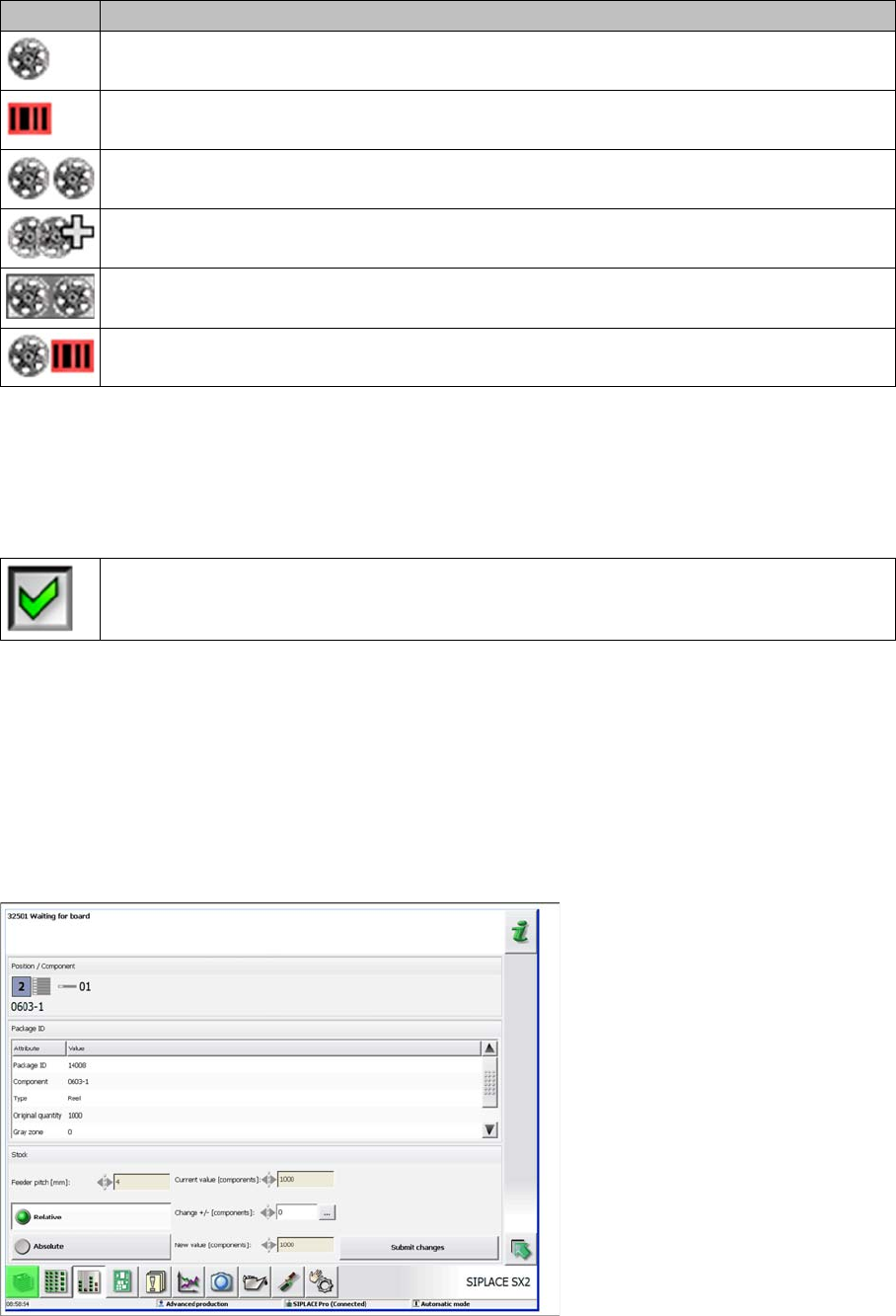
► Go to the Component Level Indicator and select the button Configure Packaging Unit to open the
following dialog box.
Configuring packaging units
► For details, refer to the station software Online Help.
Icon Description
A valid barcode is scanned.
No valid batch information.
A valid current barcode and a barcode for the next batch has been scanned.
A valid current barcode and at least 2 barcodes for the next batch have been scanned.
Two barcodes are scanned. For the currently placed components the information for both
batches is logged .
A valid barcode is scanned, after recognition of a splice point the track is deactivated: for
the following charge the barcode must be scanned again.
The track will be run empty, meaning that all components from the track will be placed.
Setting System Components
Station Software Settings (from Version 70x) Component Level Indicator
68 User Guide SIPLACE Setup Center 5.1
4.2.2.3 Matrix Tray Changer (MTC)
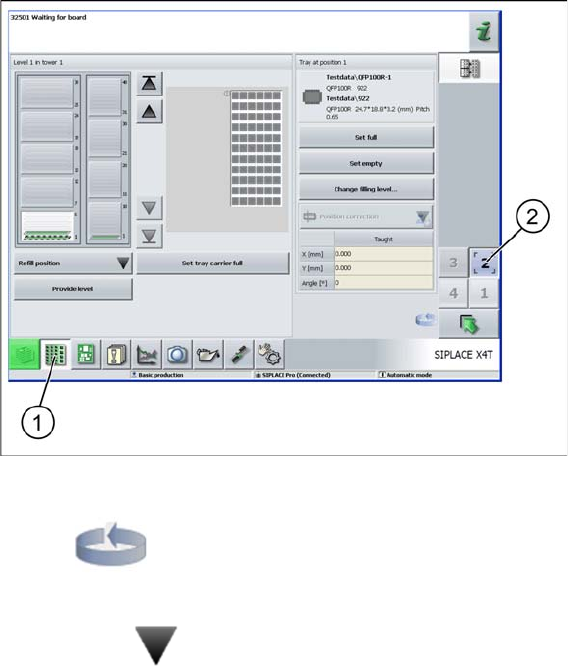
► Select the Setup button (1).
► Select the button with the location (2) on which the MTC is present.
Setup – MTC
Use the icon to switch between views.
Refill position
▪ Move to refill position
– This moves to the position in which the waffle pack tray carriers for all levels can be replaced.
Components can no longer be picked up from the WPC.
▪ End refill mode
– Moves the complete WPC back to working position. Components can be picked up again.
▪ Check WPT occupation
– This compares the existing waffle pack trays with those defined in the setup.
– The position of the waffle pack tray (cassette, level) is then shown. If waffle pack tray carriers,
which should be present according to the setup, are missing, this will also be shown.
Prepare level
The lifting axis moves the selected level to the feed axis position and the waffle pack tray carrier will be
moved to the staging position.
Confirming waffle pack tray changeover
The waffle pack tray carrier is filled according to the target setup and is inserted into the relevant level.
The maximum number of components is entered as the current component level and the waffle pack
trays are taken back into operation.
Error list (is only shown if an error occurs)
Brief description of errors for the waffle pack tray affected.