00190802-02.pdf - 第128页
4 Data Management User’s Manual Line Computer UNIX 4.3 User Interface of t he Data Manager Software Version 402.xx Edition 06/ 96 4 - 22 - Rere adi ng di recto ry The current directo r y is ne w ly read in . ● Select SER…
User’s Manual Line Computer UNIX 4 Data Management
Software Version 402.xx Edition 06/96 4.3 User Interface of the Data Manager
4 - 21
●
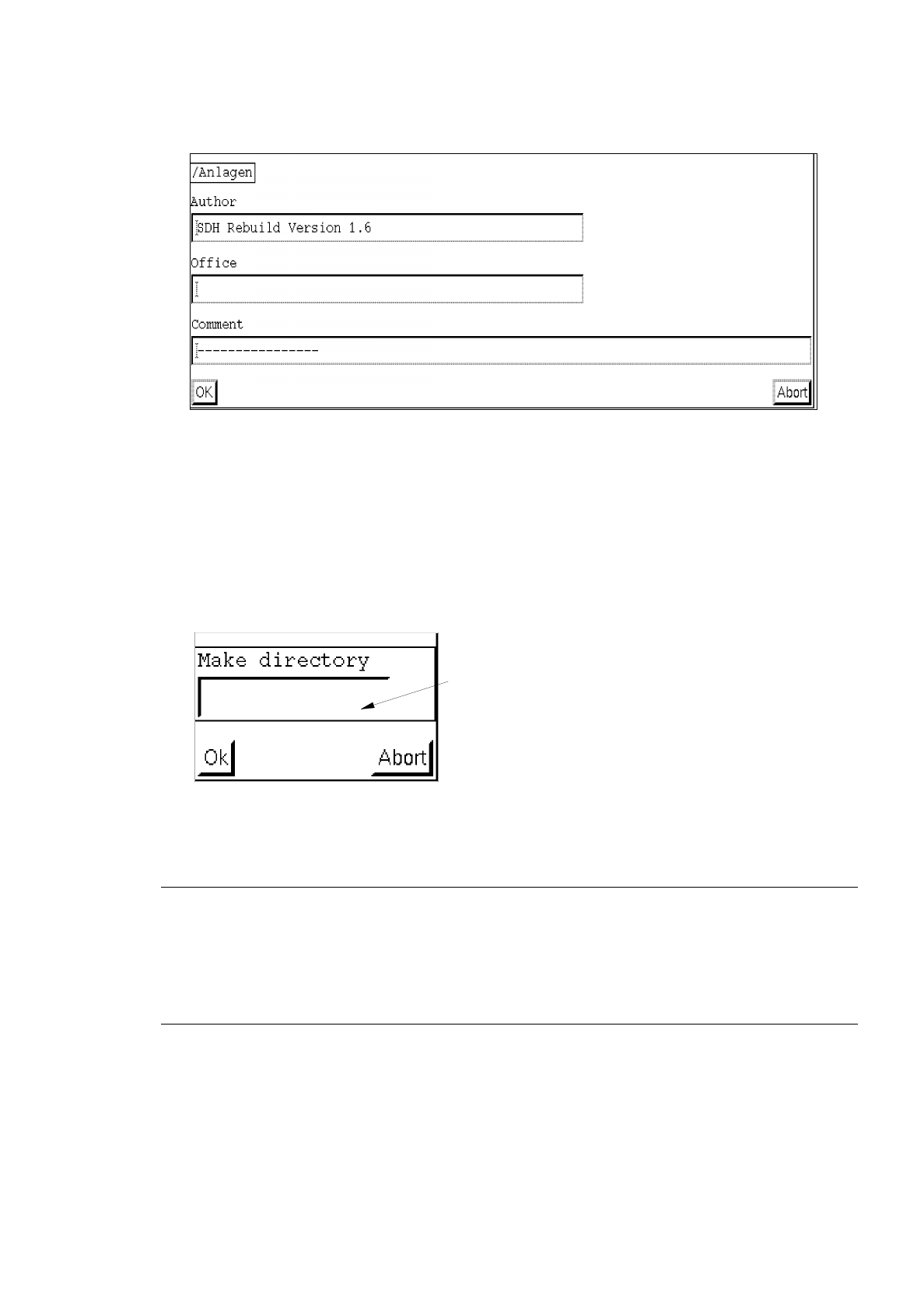
Edit the additional information and confirm the change with
OK
.
-
Creating a directory
A new directory can be created in a data partner or subdirectories can be created in a directory
(see also Chapt. 2 of this User's Manual).
●
Select
SERVICES
-->
Directory
-->
Create
.
●
Enter directory name (max. 20 characters) in the dialog box.
☞
NOTE
Each name may be assigned only once to a directory or a file.
When assigning names, the following characters must not be used:
question mark (?), asterisk (*), stroke (/), blank ( ), brackets ([ ]), quotation marks ("" ') and umlaut
vowels (ä Ä, ö Ö, ü Ü).
●
Confirm dialog box with
OK
.
-
Closing a directory
Any open directory can be closed.
●
Select
SERVICES
-->
Directory
-->
Close
.
editing field

4 Data Management User’s Manual Line Computer UNIX
4.3 User Interface of the Data Manager Software Version 402.xx Edition 06/96
4 - 22
-
Rereading directory
The current directory is newly read in.
●
Select
SERVICES
-->
Directory
-->
Reread
.
The display area is newly set up.
(This function can also be activated by clicking on "
Reread directory
" in the command area.)
4.3.4.3 DISPLAY menu
-
Text
/
Icons
(software switch)
This function allows you to select whether the files and directories are to be displayed in the main win-
dow in the form of text or as icons (see examples of a file display in the form of icons on page 4 - 15).
●
DISPLAY
-->click on
Text
or
Icons
.
-
Sorting
of directories/files
Sorting can be performed by name / extension / date / size/ author / office.
●
Click on
DISPLAY
-->
Sorted acc. to
--> (e.g.)
Date
.
☞
NOTE
When selecting the
Date
, the most recent file or the most recent directory is at the top of the list.
When selecting
Name
,
Extension
,
Author
or
Office
, sorting is performed alphanumerically in ascen-
ding order.
When selecting the
Size
, sorting is performed numerically in ascending order. (The largest file is
positioned at the top of the list).
-
Displaying
additional information
It is possible to call up all information pertaining to the displayed objects in the main window, or only
specific information, e.g. size.
☞
NOTE
The additional information are only displayed in the text display mode.
●
DISPLAY
-->
Display
--> (e.g.)
Size
.
The size is displayed behind every object in the main window.

User’s Manual Line Computer UNIX 4 Data Management
Software Version 402.xx Edition 06/96 4.3 User Interface of the Data Manager
4 - 23
4.3.4.4 Command Area
Selections Available
-
Sorted by --> Name / Extension / Date / Size / Author / Office
Files/directories are sorted in accordance with the selected option (for sorting sequences refer to page
4 - 22).
-
Layout --> Text / Icons
This function allows you to select whether the files and directories are to be displayed in the main
window in the form of text or as icons (see Fig. 4.3.2, example of a directory list in the form of text).
-
Double click --> Default
A directory is opened by double-clicking.
-
Double click --> Editor
When a file is activated by double-clicking, the main window of the editor associated to that file is
opened. If no editor has been defined for that file a corresponding error message is displayed.
-
Double click --> Compiler
If a file is selected by double-clicking, it is passed on to a compiler and shortly thereafter a dialog box
appears containing the message that the file has been properly compiled.
If no compiler has been defined for the selected file type or if the file could not be compiled, a corre-
sponding error message is displayed.
-
Double click --> Menu
When a file is selected by double-clicking, a dialog box appears in which reference is made to the
appropriate applications for that file (see example on page 4 - 24). The desired action is initiated by
clicking on an entry. The procedure to be followed is explained in more detail in section 4.3.4.5.
If no application (editor, compiler, consistence-checker) has been defined for this file, a corresponding
error message is displayed.
-
Rereading directory
The display area is newly set up.
4.3.4.5 Actions to Be Taken Following any Update/Upgrade of the LC Software
Subsequent to any update/upgrade (see chapter 1), the following steps described below are to be performed
with the aid of the Data Manager, to ensure the proper functioning of the LC software:
1. Consistency check for "stations"
●
Open the Master data data partner in the main window of the Data Manager (see Fig. 4.3.1) by
double-clicking. The main window of the data partner is displayed on the screen (see Fig. 4.3.2).
●
Open the Stationen directory by double-clicking.