00190802-02.pdf - 第417页
User’s Manual Line Computer UNIX 14 Control / Control Modules Software Version 402.xx Edition 06/96 14.2 Job Control 14 - 15 - Editing Ba sic Op timi zatio n Data ● Click on the ico n and subs equen tly the icon. The FSB…
14 Control / Control Modules User’s Manual Line Computer UNIX
14.2 Job Control Software Version 402.xx Edition 06/96
14 - 14
14.2.3.4 Editing Basic Optimization Data
For the optimization of the setup of a lot file, basic optimization data are required. These indicate on which line
and subline the lot file is to be produced and whether a fixed setup is to be used. Set-Up Optimization can be
started once the basic optimization data have been entered.
The name of the optimized setup file is composed of the name of the currently loaded lot file to which a two-
digit number is added, as well as the suffix ".ar
"
.
●
Click on SERVICES --> Basic Optimization Data....
The window containing the basic optimization data of the lot file displayed in the main window
opens. The layout and operation are similar to those of the window of the barcode type allocation
list (see pages 14 - 11 through 14 - 13).
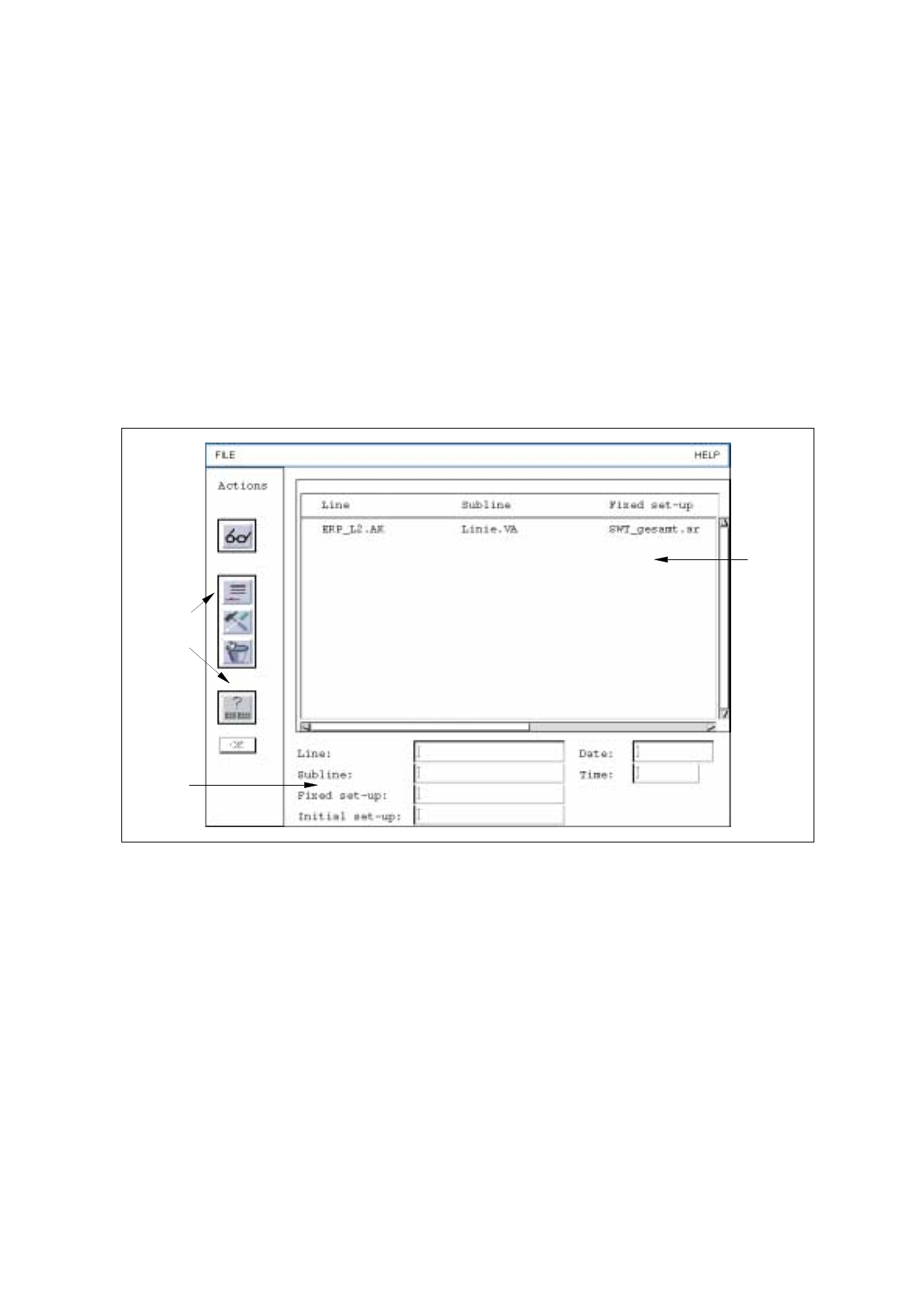
Fig. 14.2.4 "Basic optimization data" Window
The editing area contains editing fields for the basic optimization data that can be entered for each line.
-
Line / Subline: Indicates the line.
The appropriate name must always be entered.
-
Fixed setup: Setup that must not be changed.
-
Initial setup: Denotes the setup of which "Optimization" assumes that it is
available on the station.
-
Date / Time Date/Time indicates that no more jobs are being processed on a
line and thus the readiness to proceed with the jobs of the lot file
currently loaded.
Selection
area
Command
area
Editing
area
User’s Manual Line Computer UNIX 14 Control / Control Modules
Software Version 402.xx Edition 06/96 14.2 Job Control
14 - 15
-
Editing
Basic Optimization Data
●
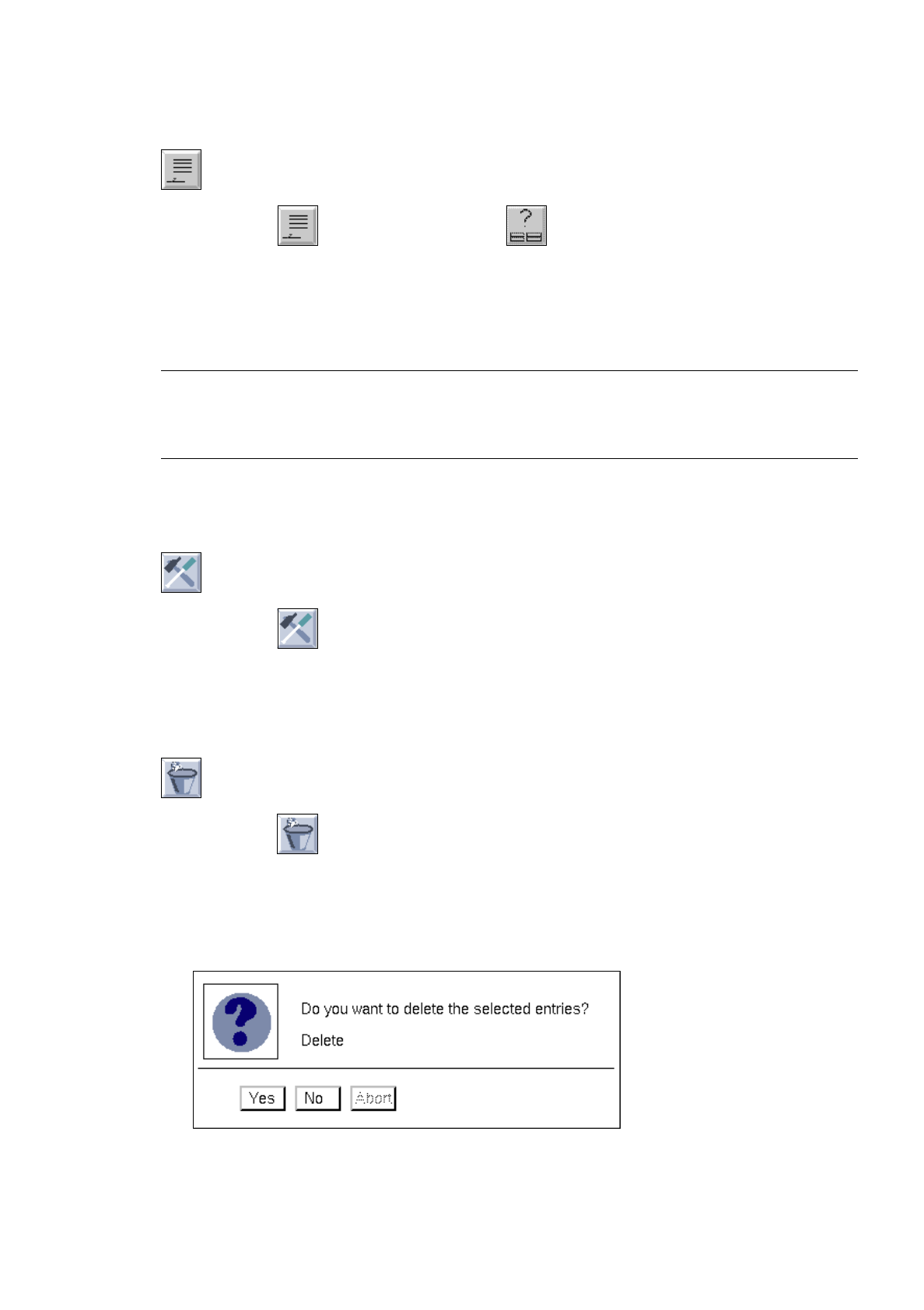
Click on the icon and subsequently the
icon.
The FSB with the file selection of all configured lines opens.
●
Successively select the line ".ak" and the subline ".va" by double-clicking.
●
Click on
Abort
in the FSB.
The FSB closes, and the selected data are transferred to the appropriate editing fields.
☞
NOTE
If a fixed setup is to be used for assembly, a setup ".ar" must additionally be selected in the FSB by
double-clicking. The FSB closes.
●
Click on
OK
in the command area.
The data are added to the list.
-
Changing
Basic Optimization Data
●
Click on the icon.
●
Using the right mouse button, click on that line in the list that contains the data to be changed.
The data are transferred to the editing fields.
●
Change the data as required and add to the list by selecting
OK
.
-
Deleting
Basic Optimization Data
●
Activate the
icon.
●
Select the line from the list that contains the data to be deleted.
The data are deleted immediately if the option "Delete without confirm." is selected in the main
window.
The following dialog box is displayed if the option "Delete with confirm." is selected in the main
window.
●
Click on
Yes
.
The dialog box closes, and the selected data are taken off the display.
14 Control / Control Modules User’s Manual Line Computer UNIX
14.2 Job Control Software Version 402.xx Edition 06/96
14 - 16
-
Searching
In the search window different search criteria, e.g. for the name of the line or the subline, are availa-
ble. Making use of a search window, the procedure is the same for all search operations (see also
page 14 - 21).
●
Deactivate all icons in the command area.
●
Click on the
icon.
The dialog window "Search for basic optimization data" opens.
●
Click on the
Subline
search criterion, for example.
●
Enter the
Search word
.
●
Select
Search
or
Search additively
.
The window closes and the matching data are highlighted in the selection area.
●
Click on
Abort
if the search process is to be abandoned.
-
Saving
the edited basic optimization data
●
Click on
FILE
-->
Quit
on the menu bar.
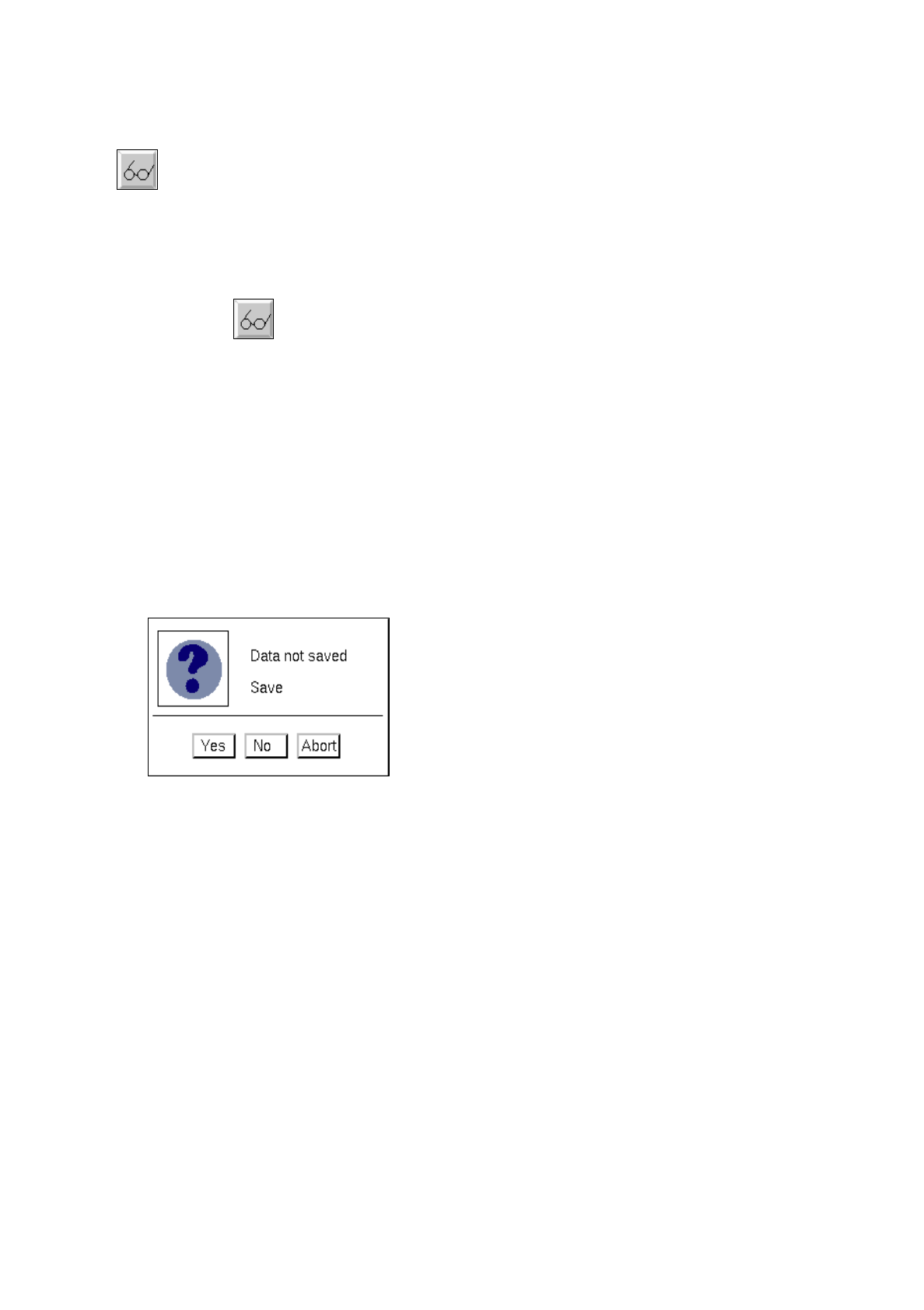
The following dialog box opens.
●
Click on
Yes
in the dialog box.
The dialog box and the "Basic optimization data" window close.
The basic optimization data are saved.