00190802-02.pdf - 第446页
14 Control / Control Modules User’s Manual Line Computer UNIX 14.5 Set-Up Modification Generator Software Version 402.xx Edition 06/ 96 14 - 44 ● Select ta rget set- up "xx .AR" by dou ble-clicking. ● Open t he…
User’s Manual Line Computer UNIX 14 Control / Control Modules
Software Version 402.xx Edition 06/96 14.5 Set-Up Modification Generator
14 - 43
The FSB is closed and the main window of the Set-Up Modification Generator is displayed on the
screen (see Fig. 14.5.2).
-
Current set-up
-->
PCB-specific set-up
This option enables the operator to obtain instructions for changeover from the current set-up to a
follow-up set-up for the production of a specific PCB type. A follow-up set-up is created in addition.
●
Click on button
Current set-up
-->
PCB-specific set-up
.
The selection window is closed and the main window of the Set-Up Modification Generator
together with the FSB for the selection of the PCB, which is located above it, is opened.
●
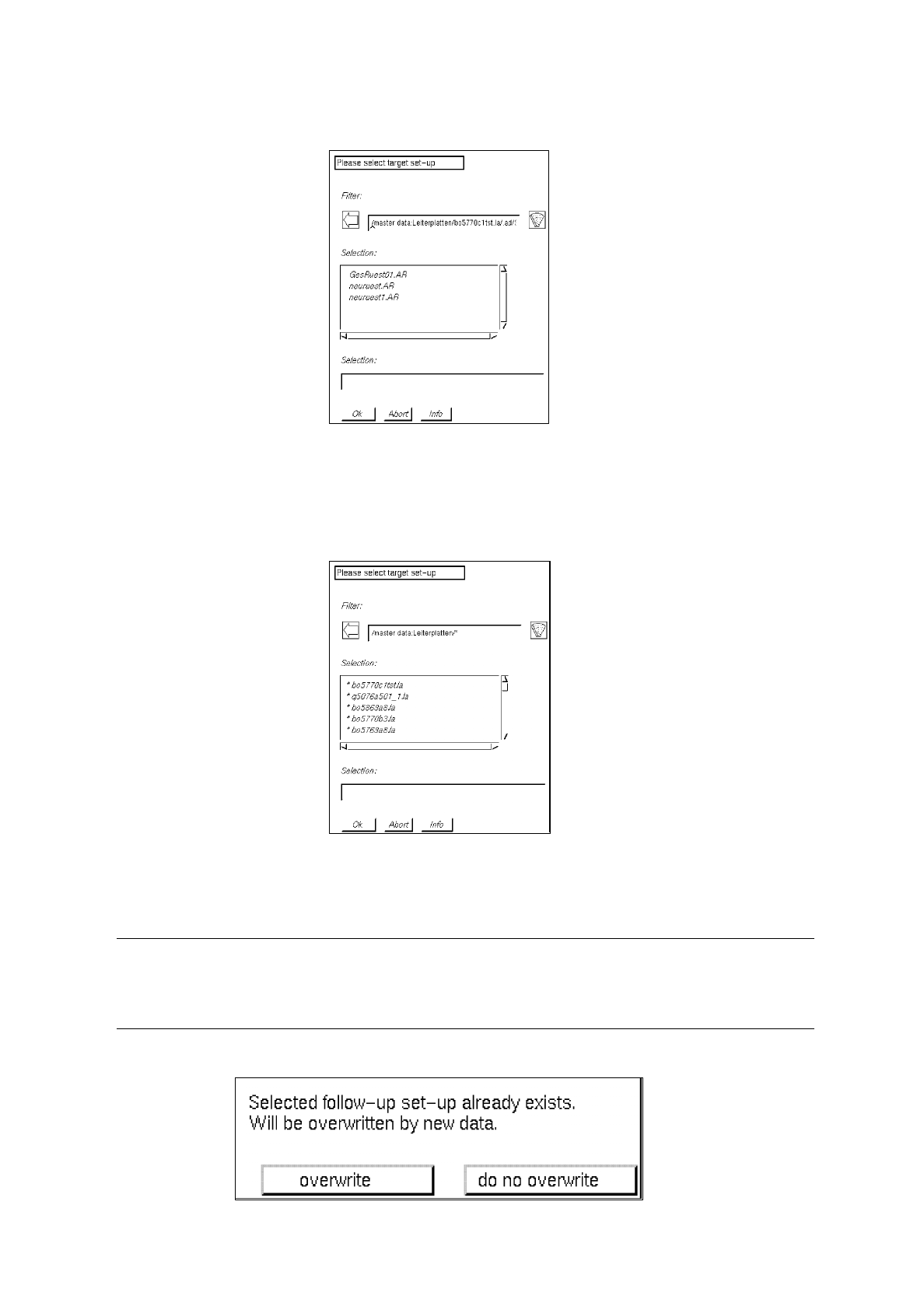
For the selection of the target set-up, open the directory "*master data:Leiterplatten" by double-
clicking, and successively select the PCB "*xx.la", "*.ad", line "*xx.AK" and subline "*xx.VA" by
double-clicking.
A list of possible target set-ups is now displayed in the FSB.
14 Control / Control Modules User’s Manual Line Computer UNIX
14.5 Set-Up Modification Generator Software Version 402.xx Edition 06/96
14 - 44
●
Select target set-up "xx.AR" by double-clicking.
●
Open the directory "*master data:Anlagen:xx.ak:xx.va" by double-clicking.
All existing follow-up set-ups are now displayed in the FSB.
●
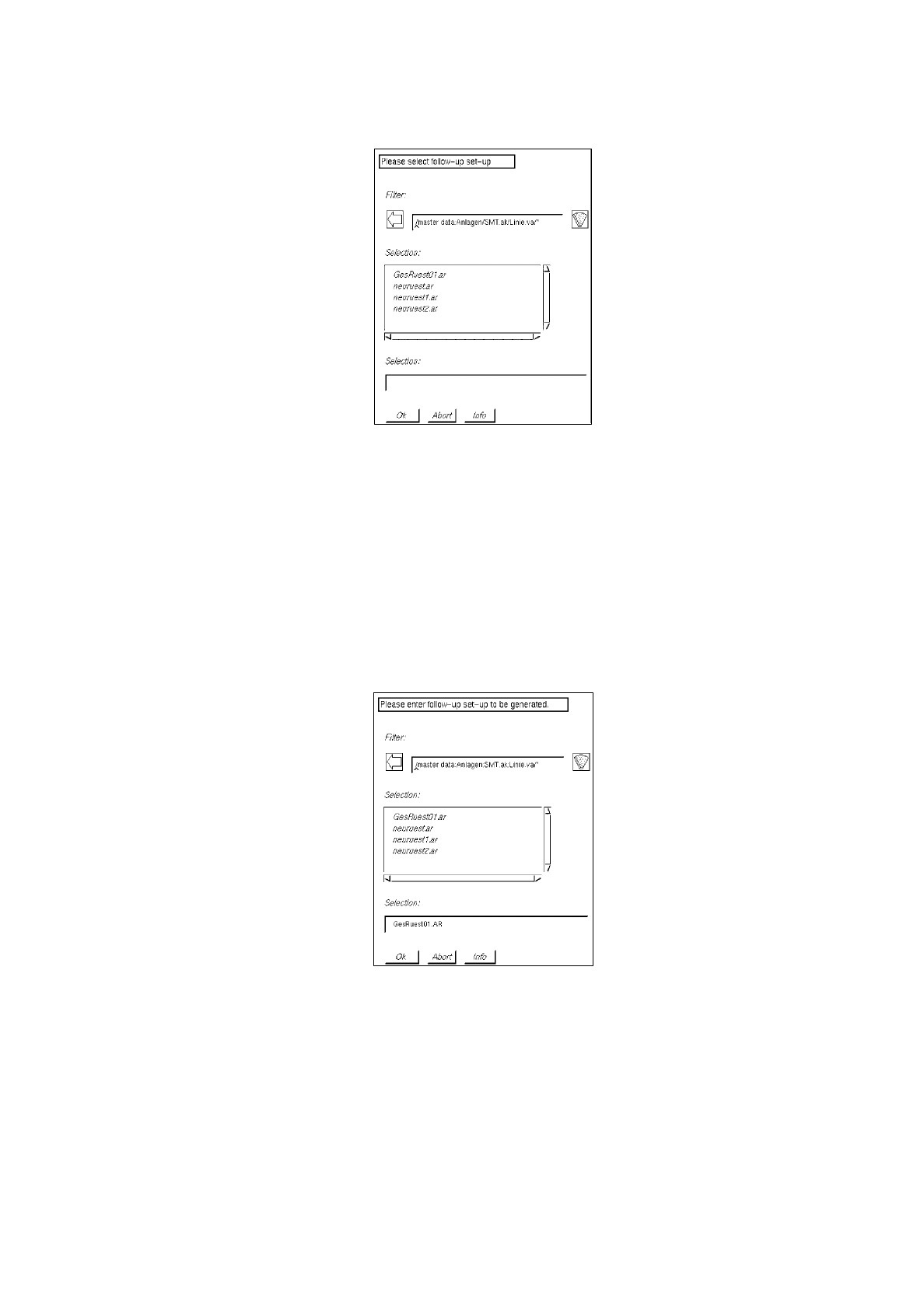
Enter name xx
.ar
for the new follow-up set-up to be created and confirm with
OK
, or select
existing follow-up set-up by double-clicking.
☞
NOTE
When the setting
with confirmation
has been selected (see section 14.5.3.1) and an
existing follow-up set-up is selected, the following dialog box is displayed:

User’s Manual Line Computer UNIX 14 Control / Control Modules
Software Version 402.xx Edition 06/96 14.5 Set-Up Modification Generator
14 - 45
●
Click on
overwrite
when the data are to be overwritten.
Or else,
●
click on
do not overwrite
when the data are not to be overwritten.
●
Enter new name xx
.ar
for the follow-up set-up in the FSB and confirm with
OK
.
The FSB is closed and the main window of the Set-Up Modification Generator is displayed on the
screen.
-
Set-up
-->
Set-up
This option enables the user to obtain instructions for the changeover from an initial set-up to be
specified (selected) to a follow-up set-up that must likewise be specified (selected).
●
Click on button
Set-up
-->
Set-up
.
The selection window is closed and the main window of the Set-Up Modification Generator toge-
ther with the FSB for the selection of the follow-up set-up, which is located above it, is opened.
●
Open the directory "*master data:Anlagen" by double-clicking.
●
Successively select line "*xx.ak" and subline "*xx.va" by double-clicking.
●
Select follow-up set-up "xx.ar" from the FSB (see example on page 14 - 43) by double-clicking.
In the FSB a prompt requesting the selection of an initial set-up is now displayed.
●
Open the directory "*master data:Anlagen:xx.ak" by double-clicking.
●
Successively select subline "*xx.va" and initial set-up "xx.ar" by double-clicking.
The FSB is closed and the main window of the Set-Up Modification Generator is displayed on the
screen.
-
Set-up
-->
PCB-specific set-up
This option enables the operator to obtain instructions for the changeover from an initial set-up to be
specified (selected) to a follow-up set-up for the production of a specific PCB type.
●
Click on button
Set-up
-->
PCB-specific set-up
.
The selection window is closed and the main window of the Set-Up Modification Generator
together with the FSB for the selection of the target set-up, which is located above it, is opened.
(see example on page 14 - 44).
●
Open the directory "*master data:Leiterplatten" by double-clicking.
●
Successively select PCB "*xx.la", "*.ad", line "*xx.AK" and subline "*xx.VA" by double-clicking.
The FSB now displays a list of possible target set-ups.
●
Select set-up "xx.AR" which is to serve as default set-up for the target set-up, by double-clicking.
In the FSB a prompt requesting the selection of an initial set-up is now displayed.
●
Open the directory "*master data:Anlagen:xx.ak" by double-clicking.
●
Successively select subline "*xx.va" and initial set-up "*xx.ar" by double-clicking.
●
Open the directory "*master data:Anlagen:xx.ak:xx.va" by double-clicking.
All previously defined set-ups are displayed in the FSB (see example on page 14 - 43).
●
Enter name xx
.ar
for the new follow-up set-up to be created and confirm with
OK
, or select
existing follow-up set-up by double-clicking.
The FSB is closed and the main window of the Set-Up Modification Generator is displayed on the
screen.