00190802-02.pdf - 第256页
8 Product / PCB User’s Manual Line Computer UNIX 8.1 PCB Editor Software Version 402.xx Edition 06/ 96 8 - 38 ● Click on the Search/Replace button. The searc h window for the entr y o f a sear ch or r eplaceme nt te xt i…

User’s Manual Line Computer UNIX 8 Product / PCB
Software Version 402.xx Edition 06/96 8.1 PCB Editor
8 - 37
-
fiducial set
Name of fiducial set (max. 11 characters; # = no fiducial set)
-
Comment
freely selectable, e.g. component type
PROCEDURE to be followed for editing
:
-
Editing
●
Position mouse cursor in the editing area and make entries from the keyboard.
A space must be left between entries of individual columns.
●
Finish the completed input line with
RETURN
.
●
Click on
Check pl.pos.
button after completing the entries (see Fig. 8.1.11).
The individual entries are now checked and placed in the corresponding columns.
If an incorrect entry has been made, the entire editing area is surrounded by a red frame and an
error message is displayed on the screen.
●
If applicable, confirm the error message by clicking on
OK
.
The dialog box is closed and the cursor is automatically positioned, within the editing area, at the
location of the incorrect entry.
-
Copying entries
in the Placement Position Editor within one and the same window or to another open
Placement Position Editor window.
●
Hold down the left mouse button and move the mouse cursor over the entries to be copied (exa-
ctly to the end of the last character) and then release the mouse button.
The lines concerned now darken.
●
Hold down the center mouse button and position the cursor to the position in the editing area of
the respective window of the Placement Position Editor where the lines are to be inserted and
then release the mouse button.
The copied entries are now displayed.
8.1.6.4 Command Area of Placement Position Editor
-
Check pl. pos. button
If this button is clicked on after the PP data have been edited, all data entered in the editing area are
checked for correctness (e.g. number of leading and trailing decimal places, number of characters,
etc.).
-
Search/Replace button
This button serves to open the window for the entry of search or replacement texts. In the editing fields
of this window any character strings desired can be entered which will subsequently be searched for
or replaced, respectively.
8 Product / PCB User’s Manual Line Computer UNIX
8.1 PCB Editor Software Version 402.xx Edition 06/96
8 - 38
●
Click on the
Search/Replace
button.
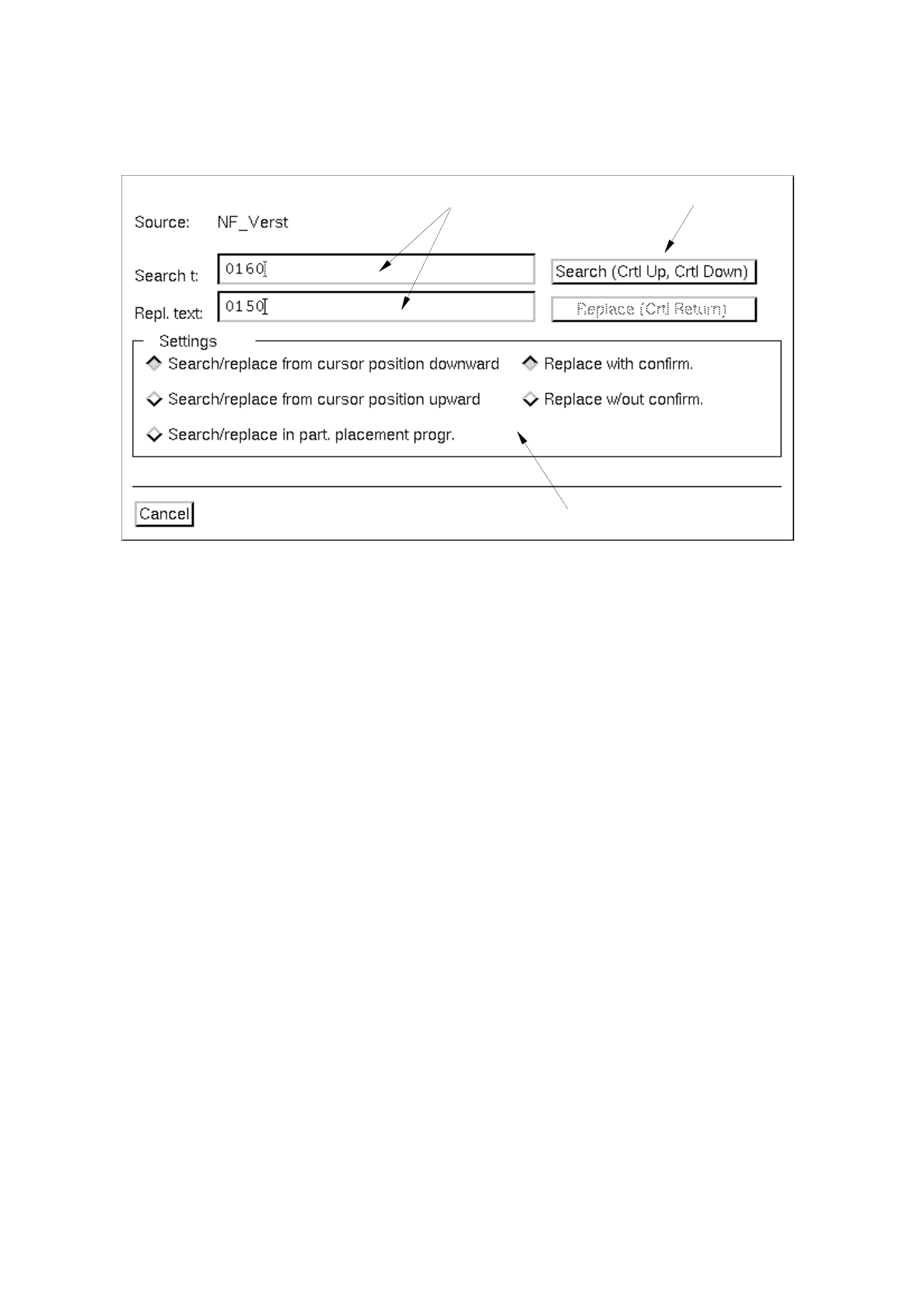
The search window for the entry of a search or replacement text is opened.
Fig. 8.1.12 Search Window "Placement Position Editor"
Setting area
The conditions for the search or replacement operation are defined in the setting area with the aid of various
buttons.
Setting possibilities for the search/replacement operations within the given text:
-
Search/replace from cursor position downward
Searching/replacing is performed within
the current placement program from the
cursor position in downward direction
-
Search/replace from cursor position upward
Searching/replacing is performed within
the current placement program from the
cursor position in upward direction
-
Search/replace in part. placement progr.
Searching/replacing is performed throughout
the current placement program (editing area)
Setting possibilities for the replacement operation:
-
Replace with confirm.
Every time an occurrence of the search
text within the searched area is replaced
with a replacement text, this must be con-
firmed by clicking on the "Replace" button in
the command area of the search window.
editing fields
command area
setting area

User’s Manual Line Computer UNIX 8 Product / PCB
Software Version 402.xx Edition 06/96 8.1 PCB Editor
8 - 39
-
Replace w/out confirm.
All occurrences of the search text found in
the searched area are replaced with the
replacement text without prior confirmation
when the "Replace" button is clicked on.
☞
NOTE
By default, the buttons "Search/replace from cursor position downward" and "Replace with confirm."
are activated.
Procedures to be followed for the searching and replacing of character strings
●
In the setting area, activate the buttons representing the desired conditions for the searching and
replacing operation (see Fig. 8.1.12).
●
Enter the character string to be searched for in the "Search t:" editing field.
●
Enter new character string in the "Repl. text:" editing field if the character string entered in the
"Search t:" editing field is to be replaced.
●
Click on the
Search
button in the command area.
The first occurrence of the character strings searched for appears darkened in the editing area of
the Placement Position Editor window. Clicking on the button again, causes the subsequent
occurrence of the character string within the given search area to be highlighted.
●
Click on the
Replace
button in the command area.
If "Replace with confirm." has been set, the highlighted character string is replaced with the cha-
racter string entered in the "Repl. text:" editing field and subsequently the next occurrence of this
character string is highlighted.
If "Replace w/out confirm." has been set, the first occurrence of the character string within the
defined text portion to be searched and all
further identical character strings found within this
searched area are replaced with the character string entered in the "Repl. text:" editing field. Sub-
sequently an information box is displayed informing you of the number of replacements made.
☞
NOTE
To speed up the searching and replacing operations, the procedure described below can be used.
After entering the search and, if applicable, replacement text, move the mouse pointer to the desired
position within the editing area of the search window.
●
To search from the cursor position downward:Press the CTRL
➢
keys simultaneously
●
To search from the cursor position upward:Press the CTRL
➡
keys simultaneously
●
Replacing the found character string:Press the CTRL
↵
keys simultaneously.
●
When the searching/replacing operation is completed, click on
Cancel
to terminate the search
window. The search window is closed.