00190802-02.pdf - 第96页
3 Desktop (Root Window) User’s Manu al Line Computer UNIX 3.2 Desktop User Interface Software Version 402.xx Edition 03/97 3 - 14 ● Close the F ile Dis play main window by select ing the FILE --> Quit menu option. ● C…

User’s Manual Line Computer UNIX 3 Desktop (Root Window)
Software Version 402.xx Edition 03/97 3.2 Desktop User Interface
3 - 13
☞
NOTE
Package forms are considered to be similar if they are of the same package form type (PDC, FDC or
BGA) and, in addition, if the following criteria are met:
- PDC / FDC / BGA same length and width of the component, including the tolerance
- FDC / BGA same number of pins or "balls"
- FDC / BGA same number of lead or ball models
Procedure:
●
Insert the diskette containing the new GF library into the floppy drive.
●
If required, activate/deactivate the appropriate buttons in the settings area of the dialog window.
●
Click on
OK
.
The following dialog box opens.
☞
NOTE
The texts displayed in the dialog box vary according to the selected settings.
●
Click on
No
or
Abort
if there are still settings to be changed.
●
Click on
Yes
if the installation process is to be started based on the settings displayed. A
message is displayed in the dialog box informing you that the diskette is being read.
●
Click on
Abort
when a message is displayed in the dialog box informing you that the GF library
has been installed.
The dialog box closes.
Use the
Report
button in the dialog box to obtain a display of the installation results and of any similarity
comparison that may have been performed.
●
Click on
Report
in the dialog box.
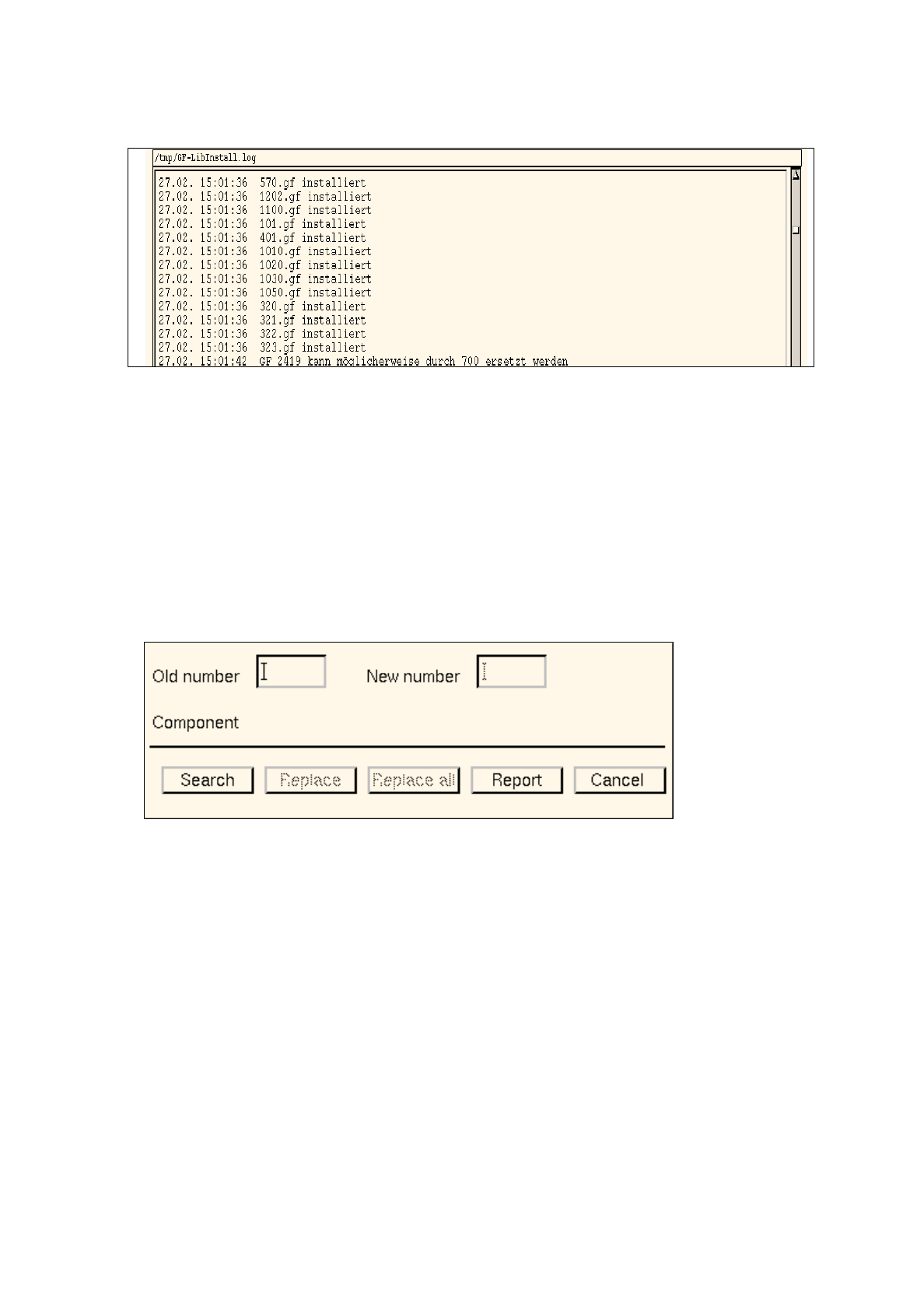
The File Display main window opens. The contents of the "GF_LibInstall.log" log file are dis-
played in the view area.
3 Desktop (Root Window) User’s Manual Line Computer UNIX
3.2 Desktop User Interface Software Version 402.xx Edition 03/97
3 - 14
●
Close the File Display main window by selecting the
FILE
-->
Quit
menu option.
●
Click on
Cancel
in the dialog box.
The dialog box closes.
●
Remove the diskette from the floppy drive.
-
Replace GF-number
Following any changes in the GF library, this menu option is used to replace the GF number
associated with given components with a different one.
●
Click on
OPTIONS
-->
Replace GF-number
.
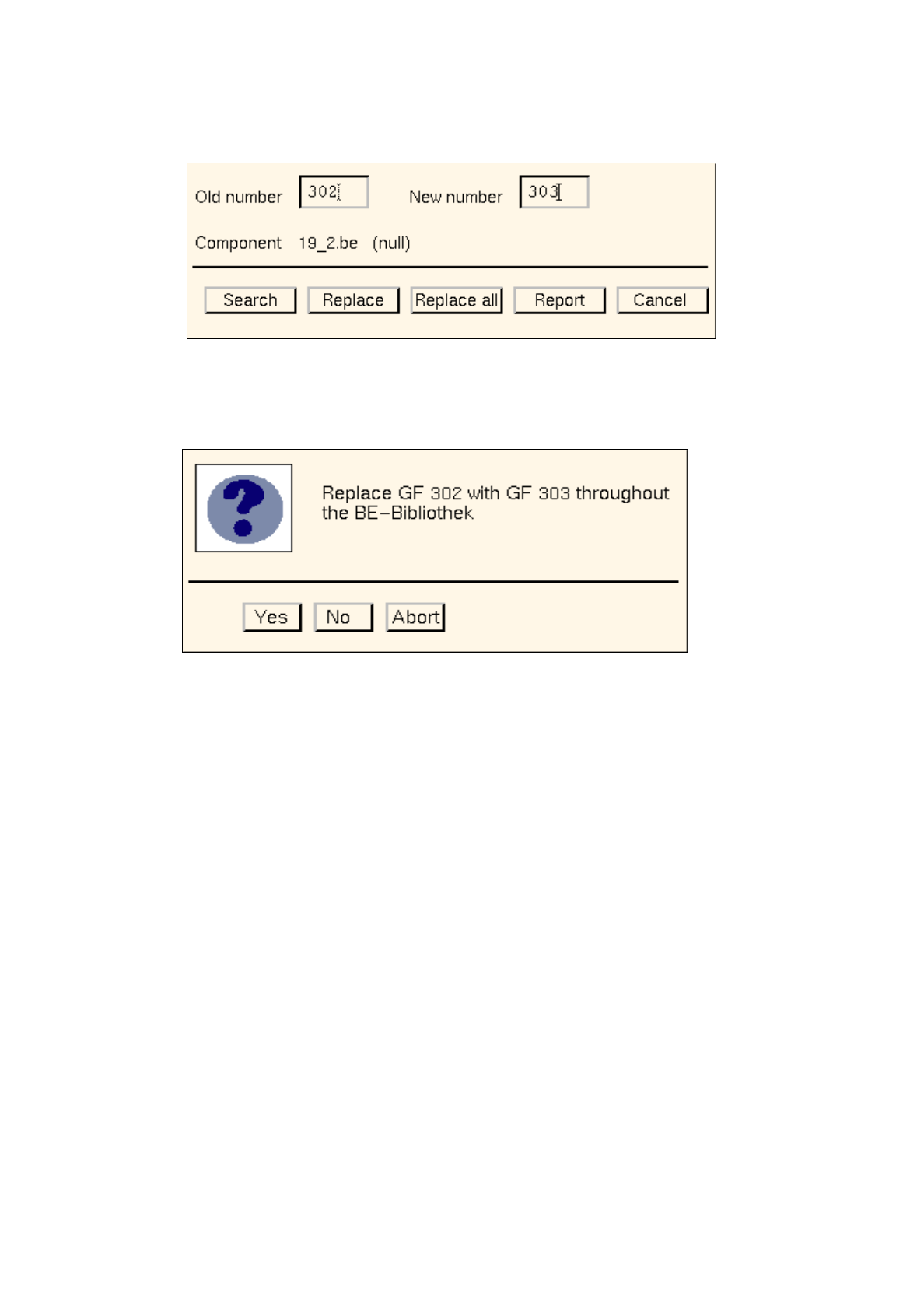
The following dialog box opens.
Procedure:
●
In the "Old number" editing field enter the GF number that is to be replaced.
●
In the "New number" editing field enter the GF number that is to replace the old number.
●
Click on the
Search
button.
The file name of the first component found that is associated with the GF number entered under
"Old number" is displayed next to the "Component" entry. In addition, the comment that may have
been entered in the Component Editor for the component concerned is displayed next to the file
name.
●
Click on the
Replace
button.
The old GF number is replaced with the new GF number in the component file displayed, and the
search for the next matching component is started.
User’s Manual Line Computer UNIX 3 Desktop (Root Window)
Software Version 402.xx Edition 03/97 3.2 Desktop User Interface
3 - 15
Or else:
●
Click on the
Replace all
button.
The following dialog box opens.
●
Click on
No
or
Abort
if the action displayed in the dialog box is not to be executed.
●
Click on
Yes
if the action displayed in the dialog box is to be executed.
From the currently found occurrence of the component (component file) onwards, the old GF
number will be replaced with the new GF number in all subsequently found occurrences of the
component (component files).
The
Report
button in the dialog box can be used to display the results of the action.
●
Click on
Report
in the dialog box.
The File Display main window opens.
●
For details on how to continue, refer to page 3 - 13.
●
When all desired replacements have been made, click on
Cancel
in the dialog box.
The window closes.