00190802-02.pdf - 第355页
User’s Manual Line Computer UNIX 12 Production Tools / S tation and Line Configuration Software Version 402.xx Edition 06/96 12.1 Configuration Editor 12 - 19 Command Area The co mmands ar e symb olized by mea ns of icon…
12 Production Tools / Station and Line Configuration User’s Manual Line Computer UNIX
12.1 Configuration Editor Software Version 402.xx Edition 06/96
12 - 18
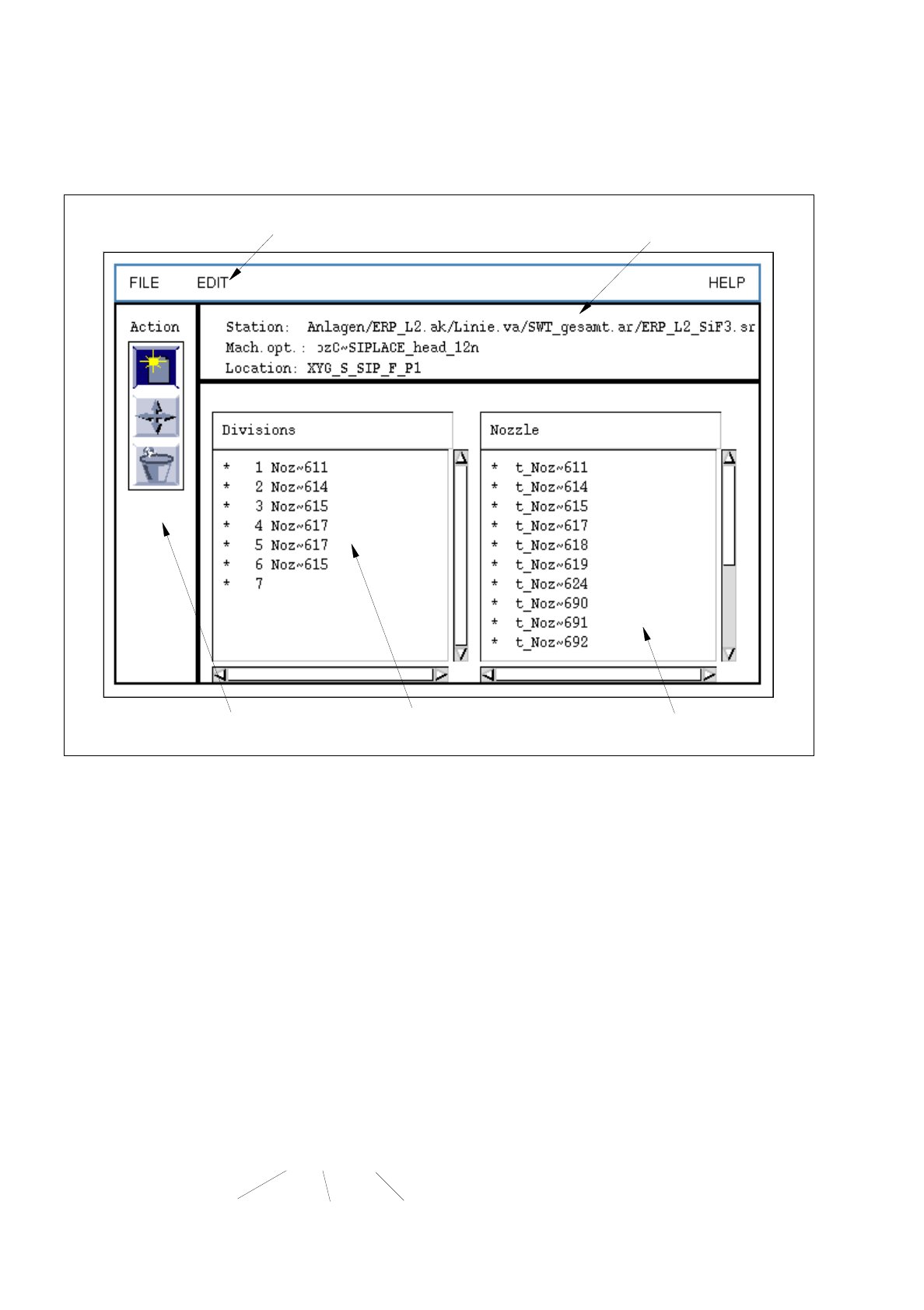
12.1.3.5 Main Window of Machine Options Editor "Nozzle Changer"
Fig. 12.1.7 Machine Options Editor "Nozzle Changer SIPLACE 80F"
Selection fields
The selection fields are located in the main window of the component editor (see Fig. 12.1.7) below the
identification field.
-
Divisions
The manufacturer has provided all divisions of the changer with numbers. These numbers are
displayed in the selection field.
-
Nozzles
All factory-defined nozzles are listed in this selection field.
Entries in the selection field contain the following information:
Example: t_Pip~ 416
selection field "Divisions"command area
menu bar
identification field
Selection field "Nozzles"
default nozzle
nozzle type no.
User’s Manual Line Computer UNIX 12 Production Tools / Station and Line Configuration
Software Version 402.xx Edition 06/96 12.1 Configuration Editor
12 - 19
Command Area
The commands are symbolized by means of icons. They determine the mode (selection mode, allocation mode
or deletion mode) in which the Configuration Editor is to operate.
☞
NOTE
Upon opening, the Configuration Editor is initially in the selection mode.
-
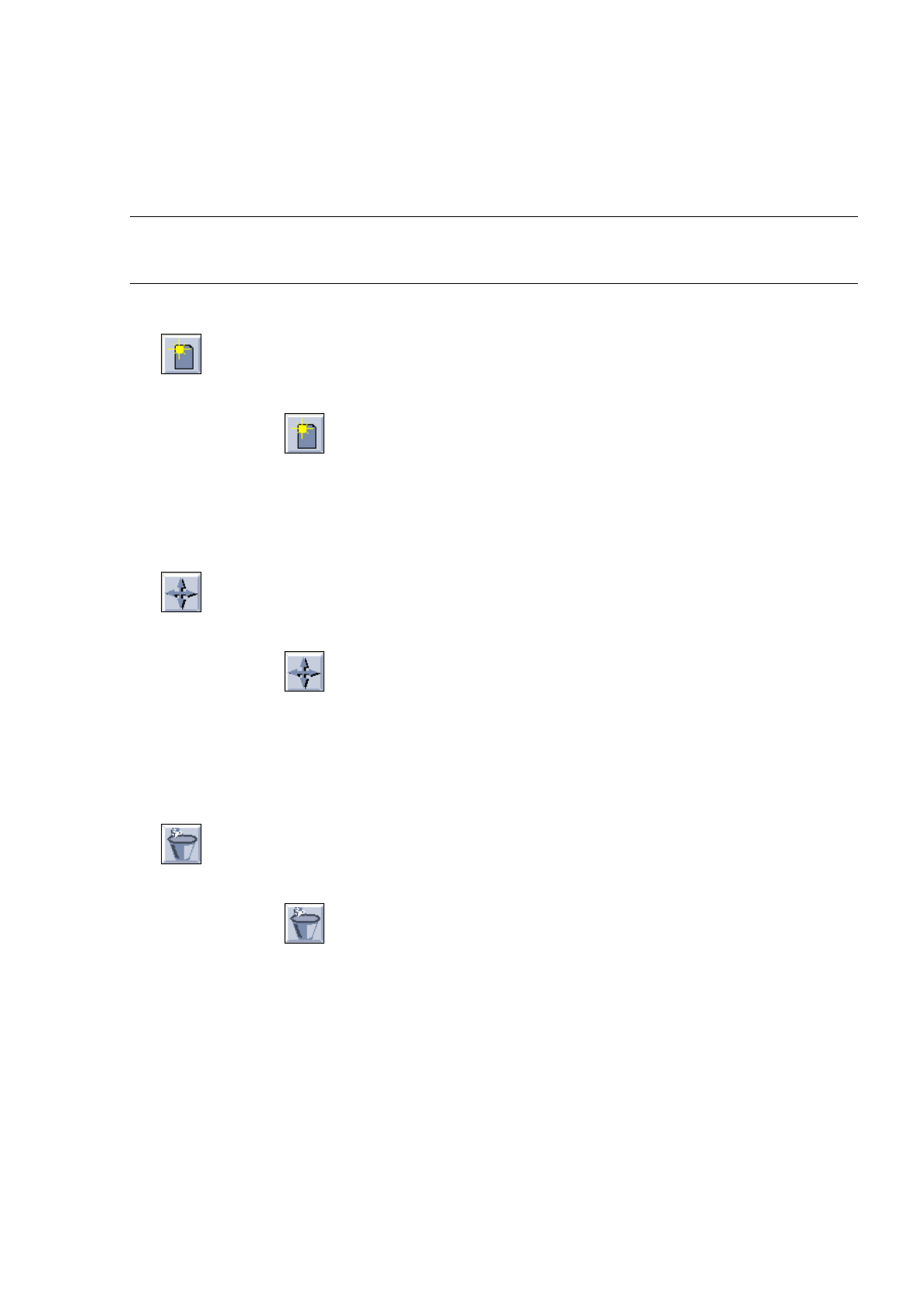
Create
If this icon is active, a nozzle can be allocated to a location in the Nozzle Changer.
●
Click on icon in the command area.
●
Click on the target location in the Divisions selection field.
●
Click on a nozzle in the Nozzle selection field.
The number of the nozzle is then entered in the target location.
-
Move
If this icon is active, a nozzle can be moved to another location within a Nozzle Changer.
●
Click on icon in the command area.
●
Click on the target location in the Divisions selection field.
●
Click on the nozzle you wish to move.
The moved nozzle is displayed in the target location (division).
-
Delete
If this icon is active, a nozzle can be deleted from a location in the Nozzle Changer.
●
Click on icon in the command area.
●
Click on the nozzle at the particular location.
The nozzle is deleted from the location without any verification query being displayed.

12 Production Tools / Station and Line Configuration User’s Manual Line Computer UNIX
12.1 Configuration Editor Software Version 402.xx Edition 06/96
12 - 20