00190802-02.pdf - 第538页
17.2 Description of Components and PCBs User’s Manual SIPLACE Line Com puter UNIX 17.2.3 PCB 3: F ocus on Cluster T echnique Software V ersion 402.xx Edition 06/96 17 - 38 The definitio n of the fiduc ials is disp ensed …
User’s Manual SIPLACE Line Computer UNIX 17.2 Description of Components and PCBs
Software Version 402.xx Edition 06/96 17.2.3 PCB 3: Focus on Cluster Technique
17 - 37
Defining ink spot:
no ink spot is present.
To create a single circuit in a cluster, proceed as follows:
42. Click on the Create icon .
43. Click on the cluster, here:
pattern_1
.
A dialog box is opened.
44. Click on the editing field.
45. Enter the name for the single circuit, here:
board_1,
and click on the
OK
button.
The dialog box is closed. The new single circuit is displayed at the third level.
To enter the offset values for the single circuit, proceed as follows:
46. Click on the Coordinate system icon .
47. Click on the single circuit, here:
board_1
.
A dialog box is opened.
48. Click on the individual editing fields and enter the offset values, see Fig. 17.2.7 on page 17-31.
49. Click on the
OK
button.
The dialog box is closed.
To load the cluster data and placement positions of another PCB for the single circuit:
50. Click on the Menu icon .
51. Click on the single circuit, here:
board_1
.
52. Click on the
Cluster Editor
option on the
SERVICES
menu.
The Cluster Editor is opened.
53. Click on the
Structure Editor
option on the
SERVICES
menu.
A file selection window is opened.
54. Select a PCB by double-clicking, here:
Example_2.la
.
The PCB Editor for Example_2.la is opened.
55. Click on the PCB (rectangle), here:
Example_2
.
56. Using the key combination Alt+Tab change to the Cluster Editor of the single circuit, here:
board_1
.
57. Click on the
Load cluster data from
option on the
EDIT
menu.
A dialog box containing the name of the source cluster is displayed.
58. Click on the
OK
button.
The cluster data of the other PCB, here:
Example_2
, are transferred to the current single circuit, here:
board_1
, the dialog box is closed. The Placement Position Editor is opened.
59. Using the key combination Alt+Tab change to the PCB Editor of the other PCB, here:
Example_2.la
.
60. Click on the PCB, here:
Example_2.la
.
61. Using the key combination Alt+Tab change to the Placement Position Editor of the single circuit, here:
board_1
.
62. Click on the
Load placement position from
option on the
EDIT
menu.
A dialog box containing the name of the source cluster is displayed.
63. Click on the
OK
button.
The placement positions of the other PCB, here:
Example_2
, are transferred to the single circuit, here:
board_1
, the dialog box is closed.
64. Click on the
Quit
option on the
FILE
menu.
The Placement Position Editor is closed.
17.2 Description of Components and PCBs User’s Manual SIPLACE Line Computer UNIX
17.2.3 PCB 3: Focus on Cluster Technique Software Version 402.xx Edition 06/96
17 - 38
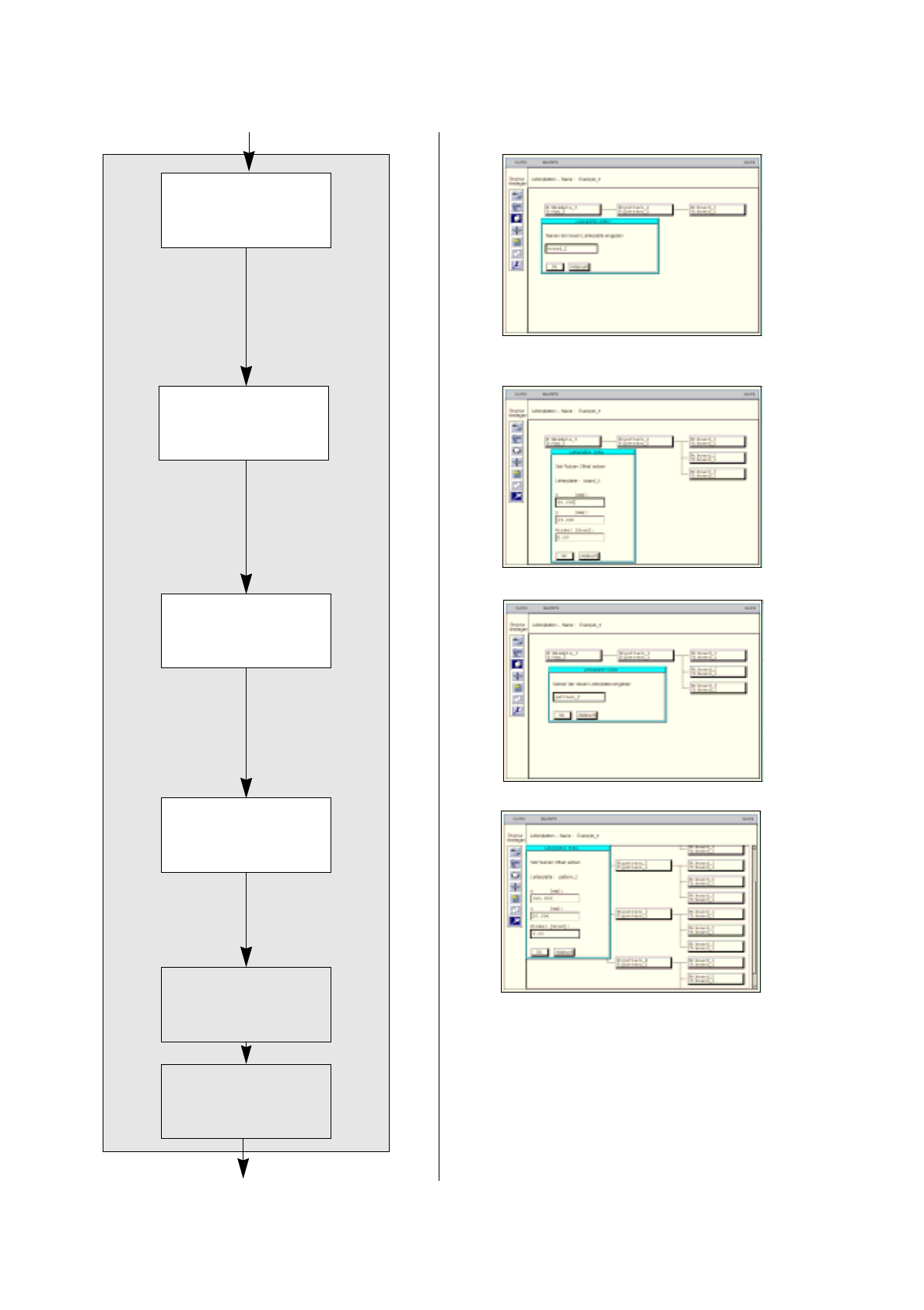
The definition of the fiducials is dispensed with for the
duplicate.
The definition of the ink spot is dispensed with for the
duplicate.
Duplicating
cluster
Entering offset values
for
duplicated cluster
Defining
fiducials
Defining
ink spot
continued from page 17-36
Duplicating single
circuits
Entering offset values
for duplicated single
circuit
continued on page 17-40
User’s Manual SIPLACE Line Computer UNIX 17.2 Description of Components and PCBs
Software Version 402.xx Edition 06/96 17.2.3 PCB 3: Focus on Cluster Technique
17 - 39
65. In the Cluster Editor activate the appropriate buttons for
PCB position recognition
and
Place. position
recognition
, here: for both options
no
.
66. Activate the appropriate button for
Ink spot
, here:
yes
.
67. Click on the
Quit
option on the
FILE
menu.
The Cluster Editor is closed
To duplicate a single circuit, proceed as follows:
68. Click on the Duplicate icon .
69. Click on the single circuit, here:
board_1
.
A dialog box is opened.
70. Click on the editing field.
Enter the name for the new single circuit, here:
board_2,
and click on the
OK
button.
The dialog box is closed. The new single circuit is displayed at the third level.
71. Duplicate the other single circuit, here:
board_3
, analogously.
To enter the offset values for the duplicated single circuits, proceed as follows:
72. Click on the Coordinate system icon .
73. Click on a single circuit, here:
board_2
.
A dialog box is opened.
74. Click on the individual editing fields and enter the offset values, see Fig. 17.2.7 on page 17-31.
75. Click on the
OK
button.
The dialog box is closed.
76. Enter the offset values for the other single circuits, here:
board_3
analogously.
To duplicate a cluster together with the single circuits contained therein:
77. Click on the Duplicate icon .
78. Click on the cluster you wish to duplicate, here:
pattern_1
.
A dialog box is opened.
79. Click on the editing field and enter the name, here:
pattern_2
.
80. Click on the
OK
button.
A new cluster with three single circuits each is set up. All data of the duplicated cluster are adopted.
81. Duplicate the other clusters, here:
pattern_3
and
pattern_4,
analogously.
To enter the offset values for the duplicated clusters, proceed as follows:
82. Click on the Coordinate system icon .
83. Click on a duplicated cluster, here:
pattern_2
.
A dialog box is opened.
84. Click on the individual editing fields and enter the offset values, see Fig. 17.2.7 on page 17-31.
85. Click on the
OK
button.
The dialog box is closed.
86. Enter the offset values for the other single circuits, here:
pattern_3
,
pattern_4
analogously.
Defining fiducials:
the definition of the fiducials is dispensed with for the duplicate.
Defining ink spot:
the definition of the ink spot is dispensed with for the duplicate.