00190802-02.pdf - 第356页
12 Production Tools / Station and Line Confi guration User’s Manual Line Computer UNIX 12.1 Configuration Edit or Software Version 402.xx Edition 06/96 12 - 20
User’s Manual Line Computer UNIX 12 Production Tools / Station and Line Configuration
Software Version 402.xx Edition 06/96 12.1 Configuration Editor
12 - 19
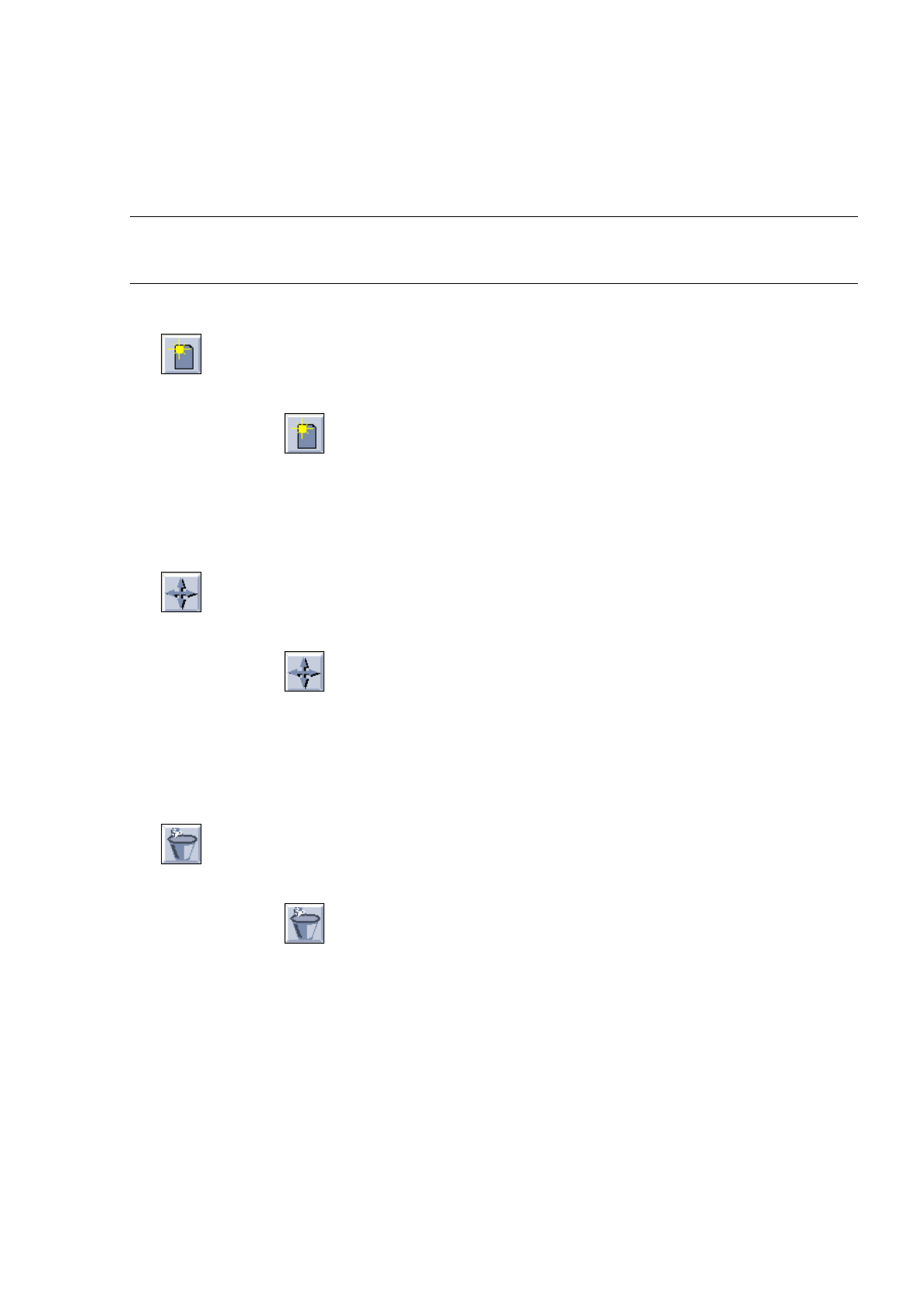
Command Area
The commands are symbolized by means of icons. They determine the mode (selection mode, allocation mode
or deletion mode) in which the Configuration Editor is to operate.
☞
NOTE
Upon opening, the Configuration Editor is initially in the selection mode.
-
Create
If this icon is active, a nozzle can be allocated to a location in the Nozzle Changer.
●
Click on icon in the command area.
●
Click on the target location in the Divisions selection field.
●
Click on a nozzle in the Nozzle selection field.
The number of the nozzle is then entered in the target location.
-
Move
If this icon is active, a nozzle can be moved to another location within a Nozzle Changer.
●
Click on icon in the command area.
●
Click on the target location in the Divisions selection field.
●
Click on the nozzle you wish to move.
The moved nozzle is displayed in the target location (division).
-
Delete
If this icon is active, a nozzle can be deleted from a location in the Nozzle Changer.
●
Click on icon in the command area.
●
Click on the nozzle at the particular location.
The nozzle is deleted from the location without any verification query being displayed.

12 Production Tools / Station and Line Configuration User’s Manual Line Computer UNIX
12.1 Configuration Editor Software Version 402.xx Edition 06/96
12 - 20
User’s Manual Line Computer UNIX 12 Production Tools / Station and Line Configuration
Software Version 402.xx Edition 06/96 12.2 Line Editor
12 - 21
12.2 Line Editor
Following the installation of the line computer software or after changes have been made to the configuration
of the line(s)/subline(s), the line configuration must be newly established or corrected, respectively. The Line
Editor is used for this purpose.
With its help, the configurations and work steps described below can be performed:
-
Configuration of new lines
-
Adding new stations to an existing line
-
Entering or changing the parameters of the individual stations
-
Removal of stations from a line
-
Configuration of new sublines
-
Removal of sublines from a line
-
Removal of stations from a subline
-
Selection of the production line
☞
NOTE
Prior to establishing the line configuration, the stations must be configured with the aid of the Configuration
Editor (see section 12.1.1).
12.2.1 Configuration of a Line
A line can consist of one or several sublines. When carrying out the configuration of the line, it is important that
the sequence be observed in which the stations are actually positioned within the line.
If the configuration of the overall line is changed, all subline configurations must be revised (see section 12.2.2).
No automatic adaptation takes place.
●
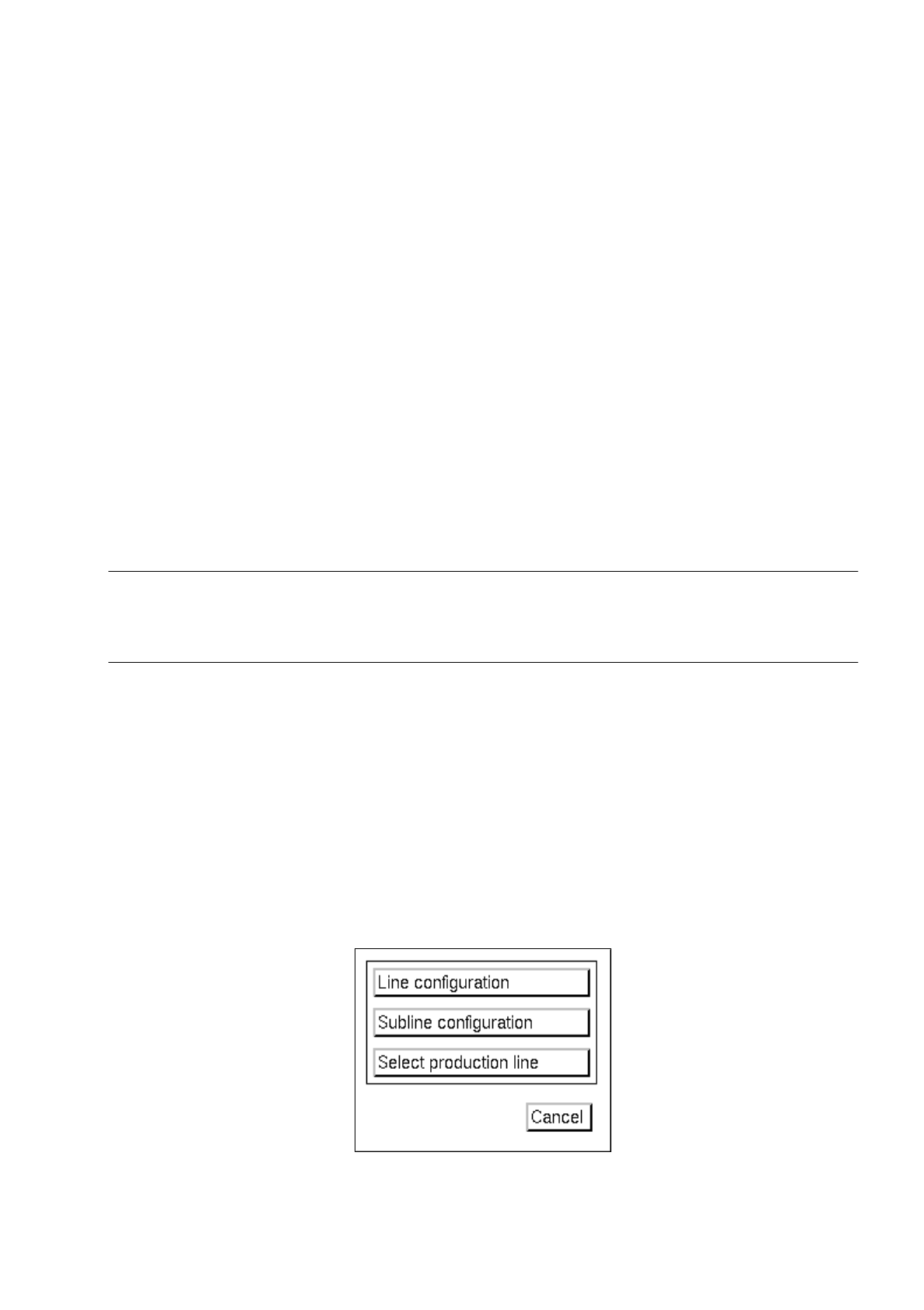
On the desktop menu bar click on SERVICES --> Line configuration.
The
"Line Configuration" selection window opens.
●
Click on the Line configuration button.
The FSB containing the "Master data: Anlagen" directory opens.