00190802-02.pdf - 第505页
User’ s Manual SIPLACE Line Computer UNI X 17.2 Description of Components and PCBs Software V e rsion 402.xx Edition 06/96 17.2.1 PCB 1: single circuit 17 - 5 17.2.1.1 Pac kage Form Descri ption The pac kage for ms used …
17.2 Description of Components and PCBs User’s Manual SIPLACE Line Computer UNIX
17.2.1 PCB 1: single circuit Software Version 402.xx Edition 06/96
17 - 4
The package form description is dispensed with.
The adhesive pattern description is dispensed with.
Open Component
Editor for a component
Enter component data
Component description
Adh. pattern description
Starting PCB Editor
for a PCB
Indicate position of
PCB in the machine
PCB Description
continued on page 17-6
Package form
description
User’s Manual SIPLACE Line Computer UNIX 17.2 Description of Components and PCBs
Software Version 402.xx Edition 06/96 17.2.1 PCB 1: single circuit
17 - 5
17.2.1.1 Package Form Description
The package forms used are contained in the standard GF-library, the description is dispensed with.
17.2.1.2 Component Description
To open the Component Editor for a component, proceed as follows:
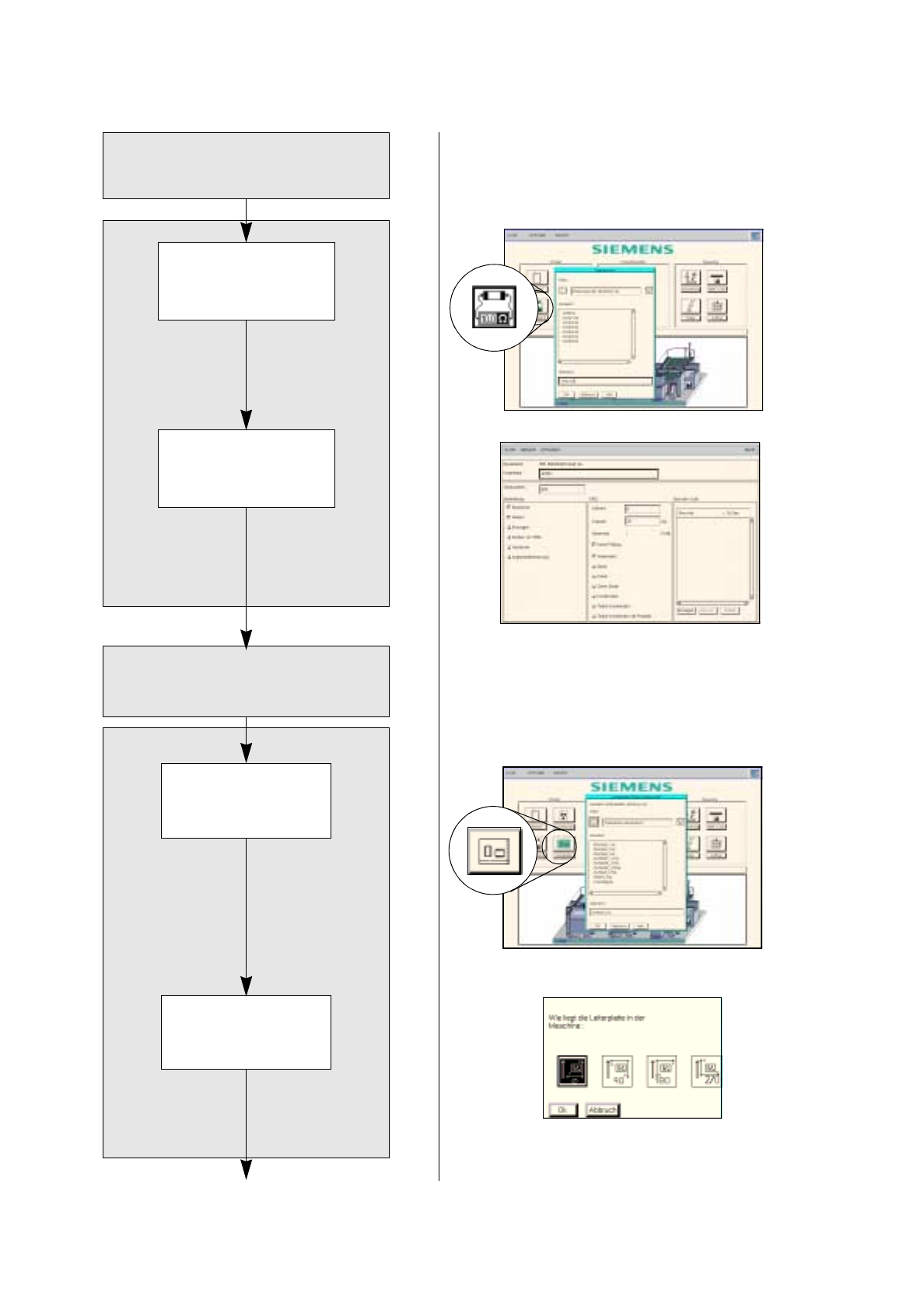
1. On the desktop click on the icon of the Component Editor .
The file selection window is opened.
2. Click on the
Selection
editing field.
3. Enter the name of the component, here:
Comp1.be
, click on the
OK
button.
The Component Editor is opened.
To enter the component data, proceed as follows:
4. Click on the
Comment
editing field.
5. Enter a comment uniquely describing the component, here:
SOT23
.
6. Click on the
Package form
editing field.
7. Enter the package form number, here:
400
.
8. Activate the appropriate button in the
Processing
selection area, here:
Placing
and
Glueing
.
9. Activate the appropriate button in the CRDL selection area, here:
No check
.
10. On the
FILE
menu click on the
Save
option.
The component data are now saved.
11. On the
FILE
menu click on the
Quit
option.
The Component Editor is closed.
12. Perform the component description for the other components, here:
Comp2.be
and
Comp3.be
.
17.2.1.3 Adhesive Pattern (DM) Description
An adhesive pattern has already been defined in the standard GF-Bibliothek for the package forms defined.
17.2.1.4 PCB Description
To open the PCB Editor for a PCB, proceed as follows:
13. On the desktop click on the icon of the PCB Editor .
The file selection window is opened.
14. Click on the
Selection
editing field.
15. Enter the name of the PCB, here:
Example_1.la
and click on the
OK
button.
A dialog box is opened.
16. Click on the
TYPE
editing field.
17. Enter a type designation, here:
SMD a
nd click on the
OK
button.
The PCB Editor is opened. The PCB is represented as a rectangle.
To specify the position of the PCB in the machine, proceed as follows:
18. Click on the Coordinate System icon.
19. Click on the PCB (rectangle).
A dialog box containing the display of four coordinate systems is opened.
20. Click on a coordinate system, here:
0°
.
21. Click on the
OK
button.
The dialog box is closed.
17.2 Description of Components and PCBs User’s Manual SIPLACE Line Computer UNIX
17.2.1 PCB 1: single circuit Software Version 402.xx Edition 06/96
17 - 6
Entering the dimens-
ions of the PCB
Defining fiducials
continued from page 17-4
PCB Description
Cluster Editor
Fiducial Editor
continued on page 17-8