00190802-02.pdf - 第550页
17.3 Set-Up Optimization User’ s Manual SIPLACE Line Computer UNIX 17.3.3 Manual Set-Up Adjustment Software V ersion 402.xx Edition 06/ 96 17 - 50 FILE Save FILE Quit Savi ng set-u p Alloca ting a c ompo- nent t o a waff…
User’s Manual SIPLACE Line Computer UNIX 17.3 Set-Up Optimization
Software Version 402.xx Edition 06/96 17.3.3 Manual Set-Up Adjustment
17 - 49
To adapt the vibration time and the pick-up angle, proceed as follows:
24. Activate the Select icon.
25. Click on a compartment of a feeder.
26. Click on the
°Packaging box
option on the
SERVICES
menu.
The Packaging Editor is opened.
27. Click on the
Pick-up ang.
editing field and enter the new pick-up angle, here:
90
degrees
.
28. Click on the
Vibrat. time
editing field and enter the new vibration time, here:
600 ms
.
29. Click on the
Quit
option on the
FILE
menu.
The Packaging Editor is closed.
To save the set-up, proceed as follows:
30. Click on the
Save
option on the
FILE
menu.
The data are saved.
31. Click on the
Quit
option on the
FILE
menu.
The Set-Up Editor (Feeder Part Editor) is closed.
To open the WPC Editor, proceed as follows:
32. On the desktop click on the Waffle-Pack Changer.
The file selector box for the set-up selection is opened.
33. Click on the set-up, here:
Examples01.ar
and click on the
OK
button.
The WPC Editor is opened.
To allocate a waffle-pack tray to a level of the Waffle-Pack Changer:
34. Click on the Create icon.
35. In the Levels display area click on a level, here:
Level1
.
36. Click on the
°Feeder list
option on the
SERVICES
menu.
The feeder list is opened.
37. Click on the waffle-pack tray carrier icon.
A list with all waffle-pack tray carriers is opened.
38. Click on a waffle-pack tray carrier, here:
FT~S_TYP_1
.
39. Click on the symbol of the Waffle-Pack Changer.
The waffle-pack tray carrier is set up at the appropriate level.
40. Click on the
°Feeder list
on the
SERVICES
menu.
The feeder list is opened.
41. On the feeder list click on the Waffle-pack tray icon.
A window containing a waffle-pack tray with the spacing 1x1 is opened.
42. Click on the waffle-pack tray on the text line.
43. Click on the waffle-pack tray carrier in the display.
The waffle-pack tray is set up on the waffle-pack tray carrier.
To define a waffle-pack tray, proceed as follows:
44. Click on the blue pick-up area of the waffle-pack tray.
45. Click on the
°Packaging box
option on the
SERVICES
menu.
The Packaging Editor is opened.
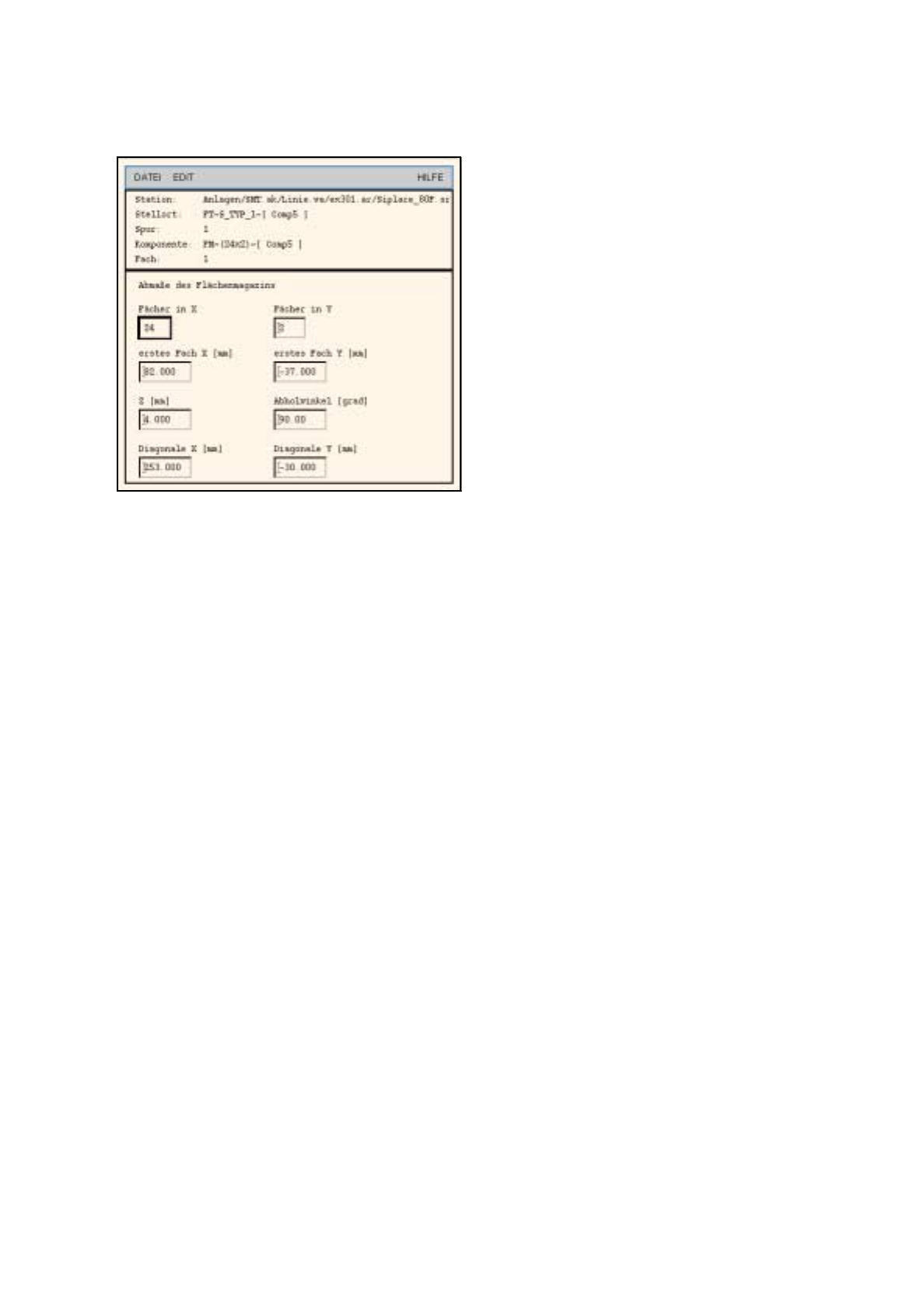
46. Enter the dimensions of the waffle-pack tray in the editing fields, see Fig. 17.3.1 on
page 17-51.
17.3 Set-Up Optimization User’s Manual SIPLACE Line Computer UNIX
17.3.3 Manual Set-Up Adjustment Software Version 402.xx Edition 06/96
17 - 50
FILE
Save
FILE
Quit
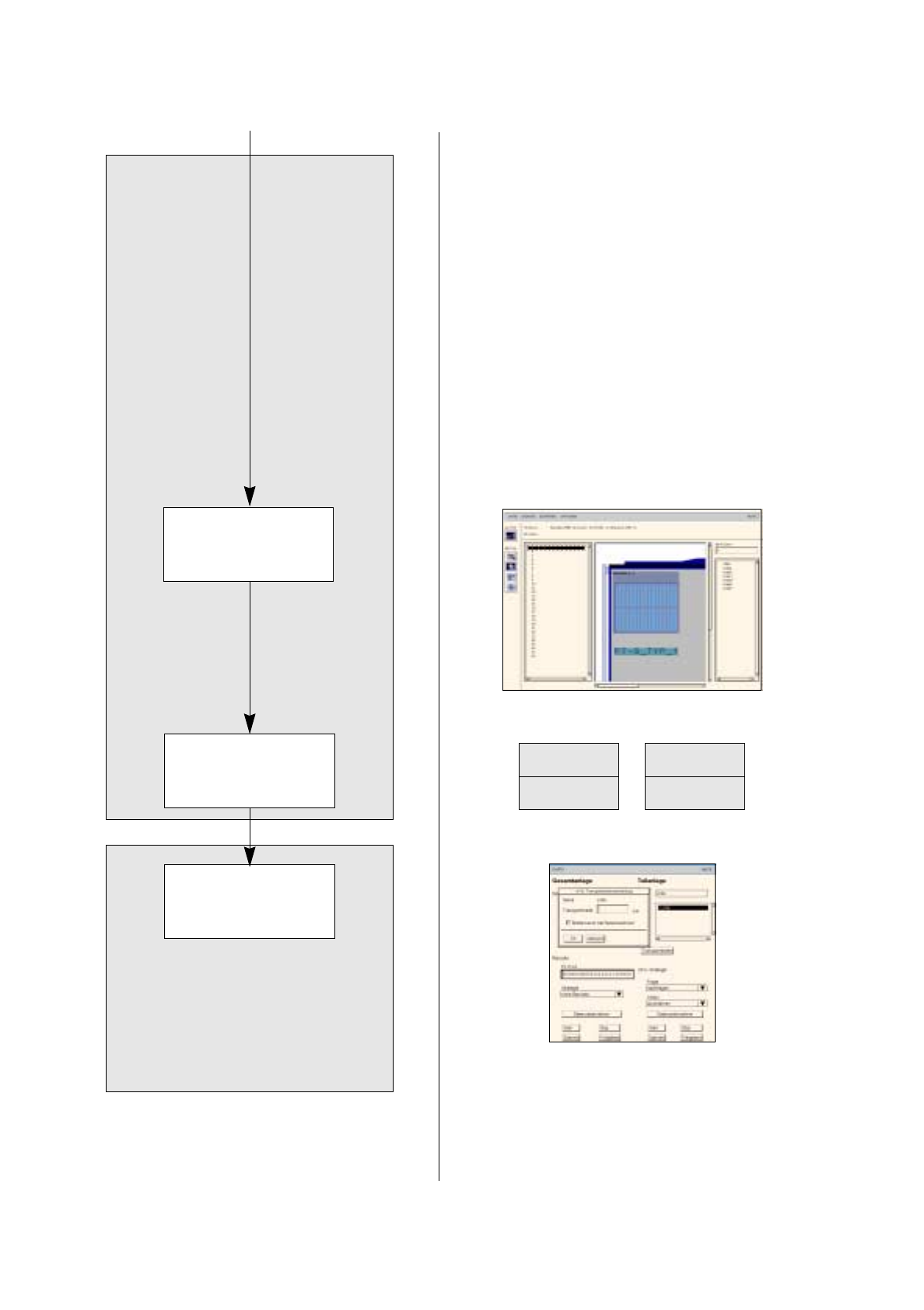
Saving set-up
Allocating a compo-
nent to a waffle-pack
tray
Adjusting conveyor
width
continued from page 17-48
Setting up waffle-pack trays
User’s Manual SIPLACE Line Computer UNIX 17.3 Set-Up Optimization
Software Version 402.xx Edition 06/96 17.3.3 Manual Set-Up Adjustment
17 - 51
Fig. 17.3.1 Definition of a Waffle-Pack Tray
47. Click on the
Quit
option on the
FILE
menu.
The Packaging Editor is closed. The pick-up area of the waffle-pack tray is displayed together with the
indicated spacing.
To allocate a component to a waffle-pack tray, proceed as follows:
48. On the component list click on the component, here:
Comp5
.
49. Click on the blue pick-up area of the waffle-pack tray.
The component is allocated to the compartments of the waffle-pack tray.
To save the set-up, proceed as follows:
50. Click on the
Save
option on the
FILE
menu.
The created set-up is saved.
51. Click on the
Quit
option on the
FILE
menu.
The Set-Up Editor is closed.
To adjust the conveyor width (if not already done), proceed as follows:
52. On the desktop click on the
Line control
option on the
SERVICES
menu.
The Line control window is opened.
53. Click on the
Conveyor width
button.
A dialog box is opened.
54. Activate the
Width adj. upon cluster change
button.
With this function, the conveyor width is adjusted automatically upon the next cluster change.
55. Click on the
OK
button.
The dialog box is closed.
56. Click on the
Quit
option on the
FILE
menu.
The Line control window is closed.