00190802-02.pdf - 第254页
8 Product / PCB User’s Manual Line Computer UNIX 8.1 PCB Editor Software Version 402.xx Edition 06/ 96 8 - 36 - Mirror -in verting PP positions about the x-axis The si gns o f all values e ntered in the edi ting a rea un…
User’s Manual Line Computer UNIX 8 Product / PCB
Software Version 402.xx Edition 06/96 8.1 PCB Editor
8 - 35
8.1.6.1 EDIT MENU
-
Resetting Placement Position data
The entries already existing for the PCB type concerned can be deleted from the editing area.
●
Click on EDIT --> Reset placement position.
The editing area is empty, new entries can be made.
☞
NOTE
If the PCB Editor is exited from without activating "Save" (in the Structure Editor), the old data will be
displayed again when the Placement Position Editor is called up.
-
Loading placement position of an existing PCB type
This function enables a placement program of another PCB type to be loaded into the Placement
Position Editor of the current PCB type.
●
Activate icon in the current window.
●
Select partial PCB structure (target).
●
Click on SERVICES --> Placement Position Editor.
The FSB for the selection of the (source) PCB is opened (see page 8 - 6).
●
Select PCB by double-clicking.
The main window of the new Structure Editor is opened.
●
Click on the partial PCB structure containing the PP data to be copied (source).
●
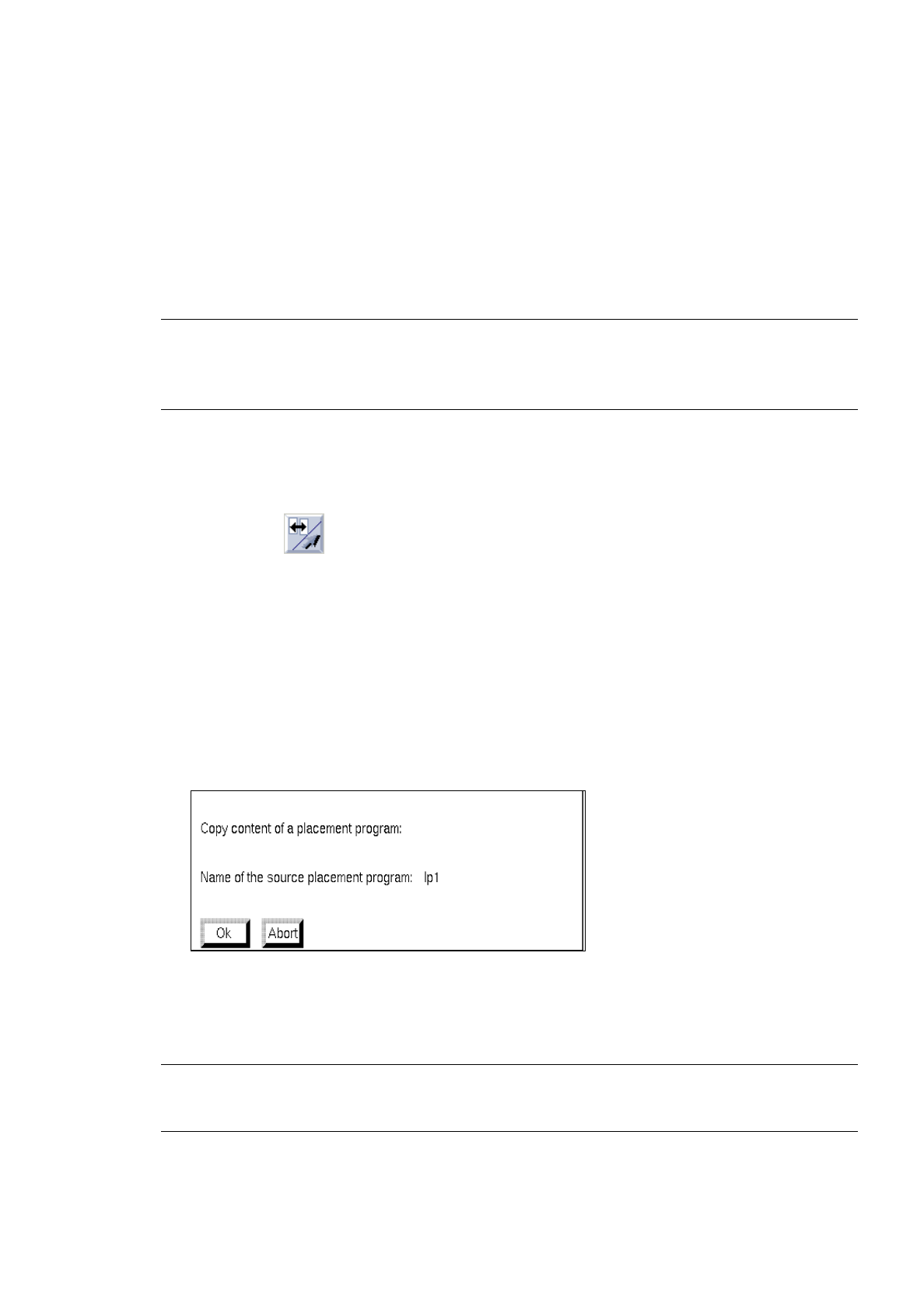
Activate EDIT --> Load placement position from in the current Placement Position Editor (target).
The following dialog box appears:
●
Confirm dialog box with OK .
The loaded placement program is displayed in the window of the Placement Position Editor.
☞
NOTE
If data had already been entered in the editing area, these will be replaced with the copied data.

8 Product / PCB User’s Manual Line Computer UNIX
8.1 PCB Editor Software Version 402.xx Edition 06/96
8 - 36
-
Mirror-inverting PP positions about the x-axis
The signs of all values entered in the editing area under "Y" (placement positions in y-direction) are
reversed.
●
Click on
EDIT
-->
Mirror-inverting placement positions about the X-axis.
All positive values entered (prior to the above clicking action) under "Y" are now displayed with a
negative sign preceding the entries, all previous negative values are now displayed as positive values.
-
Mirror-inverting PP positions about the Y-axis
The signs of all values entered in the editing area under "X" (placement positions in x-direction) are
reversed.
●
Click on
EDIT
-->
Mirror-inverting placement positions about the Y-axis.
8.1.6.2 SERVICES Menu
-
Opening the
Cluster Editor
●
Click on
SERVICES
-->
Cluster Editor
.
The window of the Cluster Editor is opened (see Fig. 8.1.8).
-
Opening new
Structure Editor
●
Click on
SERVICES
-->
Structure Editor...
.
The FSB for the selection of a new PCB is opened (see page 8 - 6).
●
Select PCB and confirm with
OK
.
The structure of the selected PCB is displayed in the display area of the newly opened window.
8.1.6.3 Editing Area of the Placement Position Editor
INPUT POSSIBILITIES:
-
Comp. name
name of the component (max. 11 characters)
-
X, Y
placement position in x and y-directions (referred to the PCB zero point);
it is possible to enter 3 decimal places before and 3 decimal places behind
the decimal point.
-
angle
angle at which component is placed during placement operation (-360° to
+360°) referred to the PCB coordinate system; it is possible to enter 3
decimal places before and 2 decimal places behind the decimal point.
-
bkdns
scheduling the processing sequence (process-specific data); b = placing,
k = gluing, d = dispensing (solder paste metering), n = reworking,
s = blocking (excluded from placement operation)

User’s Manual Line Computer UNIX 8 Product / PCB
Software Version 402.xx Edition 06/96 8.1 PCB Editor
8 - 37
-
fiducial set
Name of fiducial set (max. 11 characters; # = no fiducial set)
-
Comment
freely selectable, e.g. component type
PROCEDURE to be followed for editing
:
-
Editing
●
Position mouse cursor in the editing area and make entries from the keyboard.
A space must be left between entries of individual columns.
●
Finish the completed input line with
RETURN
.
●
Click on
Check pl.pos.
button after completing the entries (see Fig. 8.1.11).
The individual entries are now checked and placed in the corresponding columns.
If an incorrect entry has been made, the entire editing area is surrounded by a red frame and an
error message is displayed on the screen.
●
If applicable, confirm the error message by clicking on
OK
.
The dialog box is closed and the cursor is automatically positioned, within the editing area, at the
location of the incorrect entry.
-
Copying entries
in the Placement Position Editor within one and the same window or to another open
Placement Position Editor window.
●
Hold down the left mouse button and move the mouse cursor over the entries to be copied (exa-
ctly to the end of the last character) and then release the mouse button.
The lines concerned now darken.
●
Hold down the center mouse button and position the cursor to the position in the editing area of
the respective window of the Placement Position Editor where the lines are to be inserted and
then release the mouse button.
The copied entries are now displayed.
8.1.6.4 Command Area of Placement Position Editor
-
Check pl. pos. button
If this button is clicked on after the PP data have been edited, all data entered in the editing area are
checked for correctness (e.g. number of leading and trailing decimal places, number of characters,
etc.).
-
Search/Replace button
This button serves to open the window for the entry of search or replacement texts. In the editing fields
of this window any character strings desired can be entered which will subsequently be searched for
or replaced, respectively.