00190802-02.pdf - 第433页
User’s Manual Line Computer UNIX 14 Control / Control Modules Software Version 402.xx Edition 06/96 14.3 Line Control 14 - 31 ☞ NO TE The conv eyor width can onl y be adju sted in inc rements of 1/10 m m so that on ly th…
14 Control / Control Modules User’s Manual Line Computer UNIX
14.3 Line Control Software Version 402.xx Edition 06/96
14 - 30
-
Start
/
Stop
of the Line
The Start or Stop button is used to start or stop, respectively, the line. If start/stop of the line is activa-
ted, it automatically causes all sublines to be started/stopped, too.
●
Click on appropriate button
Start
or
Stop
.
-
Blocking/unblocking
of all input conveyors
The block/unblock button is used to block or unblock, respectively, all input conveyors forming part of
the sublines of the complete line.
●
Click on appropriate button
Block
or
Unblock.
14.3.3.3 Subline
Display and editing fields of the subline (right portion of main window):
-
Name
Here, the name of the current subline is displayed (see Fig. 14.3.1).
-
Changing the current Subline
The selection field (below the name of the current subline) contains a listing of all sublines forming
part of the overall line..
●
Select desired subline in the selection field by clicking.
The name of this system is now displayed as the current Subline.
☞
NOTE
Changing the "current" subline automatically causes the display for UFO strategy to be updated.
-
Editing the
conveyor width
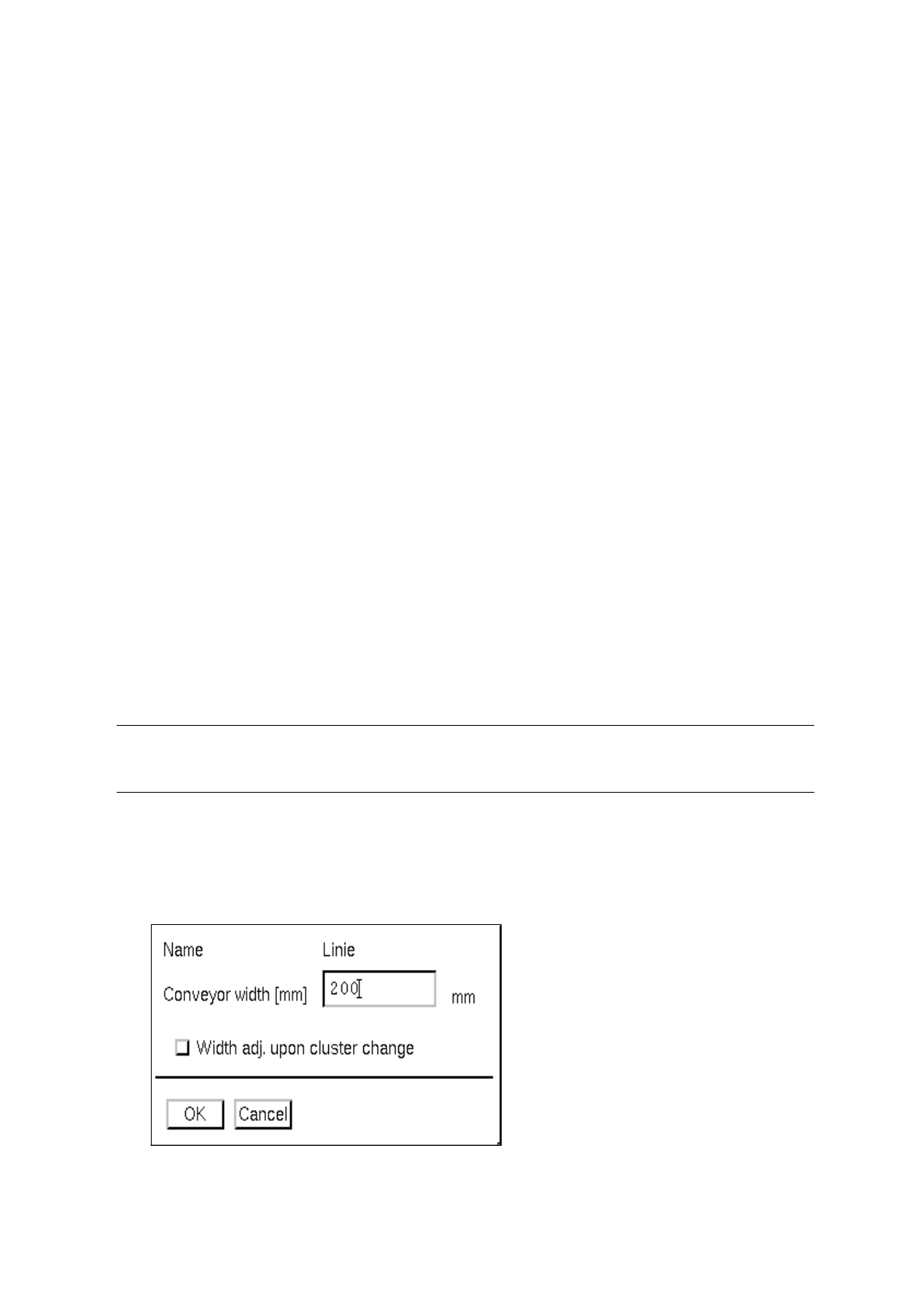
●
Click on the
Conveyor width
button.
The dialog box for entering the conveyor width is opened.
●
Enter the new width in the
Conveyor width
editing field.

User’s Manual Line Computer UNIX 14 Control / Control Modules
Software Version 402.xx Edition 06/96 14.3 Line Control
14 - 31
☞
NOTE
The conveyor width can only be adjusted in increments of 1/10 mm so that only the first digit after the
decimal point of the entered value will be taken into account. The default setting for the conveyor width
is 200 mm.
●
If the
Width adj. upon cluster change
button is activated, deactivate the same by clicking on it.
●
Click on
OK
in the dialog box for the data to be accepted.
A dialog box containing the query "Is line xx empty?" appears.
●
If the line is empty, click on
OK
.
The new conveyor width is passed on to the Line Control thus activating the width adjustment
mechanism. (Clicking on "Abort" causes the action to be aborted).
-
Activating the
Width Adjustment Upon Cluster Change
The automatic adjustment of the required conveyor width upon changing over to a new PCB type can
be activated by means of a button contained in the "Conveyor width" dialog box (see above).
●
Click on the
Width adj. upon cluster change
button.
☞
NOTE
The required conveyor width is read in from the cluster data of the new PCB type and is auto-mati-
cally adjusted by means of the width adjustment function.
When changing over to the barcode operating mode, the "Width adj. upon cluster change" button
must be deactivated.
●
Click on
OK
in the dialog box for the data to be accepted.
(When "Cancel" is clicked on, the action is aborted).
-
Changing
UFO strategy
Under "UFO strategy" the active UFO strategy for the current subline is displayed.
●
Click on arrow button located next to "Question".
The dialog box "UFO question" is opened. Only the "Confirmation" option is available for selec-
tion. The
Confirmation
cannot
be changed. It means that a query is sent to Job Control in the
case of an unknown PCB as to whether the barcode is known for this PCB.
●
Click on arrow button located next to "Action".
The dialog box "UFO action" is opened.
Here you can choose between "Pass-through" and "Remove".
●
Select
Pass-through
or
Remove
.
If the "Pass-through" option is selected, the "UFO PCB" (see description in section 14.3.1) is
conveyed through the line without being processed and must be removed at the end of the line.
If the "Remove" option is selected the PCB must be removed at the end of the station.
☞
NOTE
Only when the button
Data transfer
is clicked on will the new UFO strategy data be sent to the Line
control.

14 Control / Control Modules User’s Manual Line Computer UNIX
14.3 Line Control Software Version 402.xx Edition 06/96
14 - 32
-
Entering Edited Data
Refer to the description for the line (page 14 - 29).
-
Start
/
Stop
of Subline
The Start or Stop button is used to start or stop, respectively, the current subline.
●
Click on appropriate button
Start
or
Stop
.
-
Blocking
/
Unblocking
of input conveyor
The Block or Unblock button is used to block or unblock, respectively, the input conveyor of the cur-
rent subline.
●
Click on
Block
or
Unblock
button.