00190802-02.pdf - 第171页
User’s Manual Line Computer UNIX 5 Product / Component Software Version 402.xx Edition 06/96 5.1 Component Editor 5 - 9 The len gth of the fi lter (numb er of dig its) must co rrespo nd to the l ength of the barc ode (nu…
5 Product / Component User’s Manual Line Computer UNIX
5.1 Component Editor Software Version 402.xx Edition 06/96
5 - 8
5.1.2.4 Component Editor Command Area
The desired actions can be activated by means of the command buttons. The procedures for executing the
commands are described in the following:
COMMANDS
●
Create
This command can be used to define a barcode for the component.
☞
NOTE
For each component a total of 6 barcodes can be defined. Once the maximum permissible number
of barcodes for the current component has been reached, the "Create" button can no longer be
activated.
●
Click on Create.
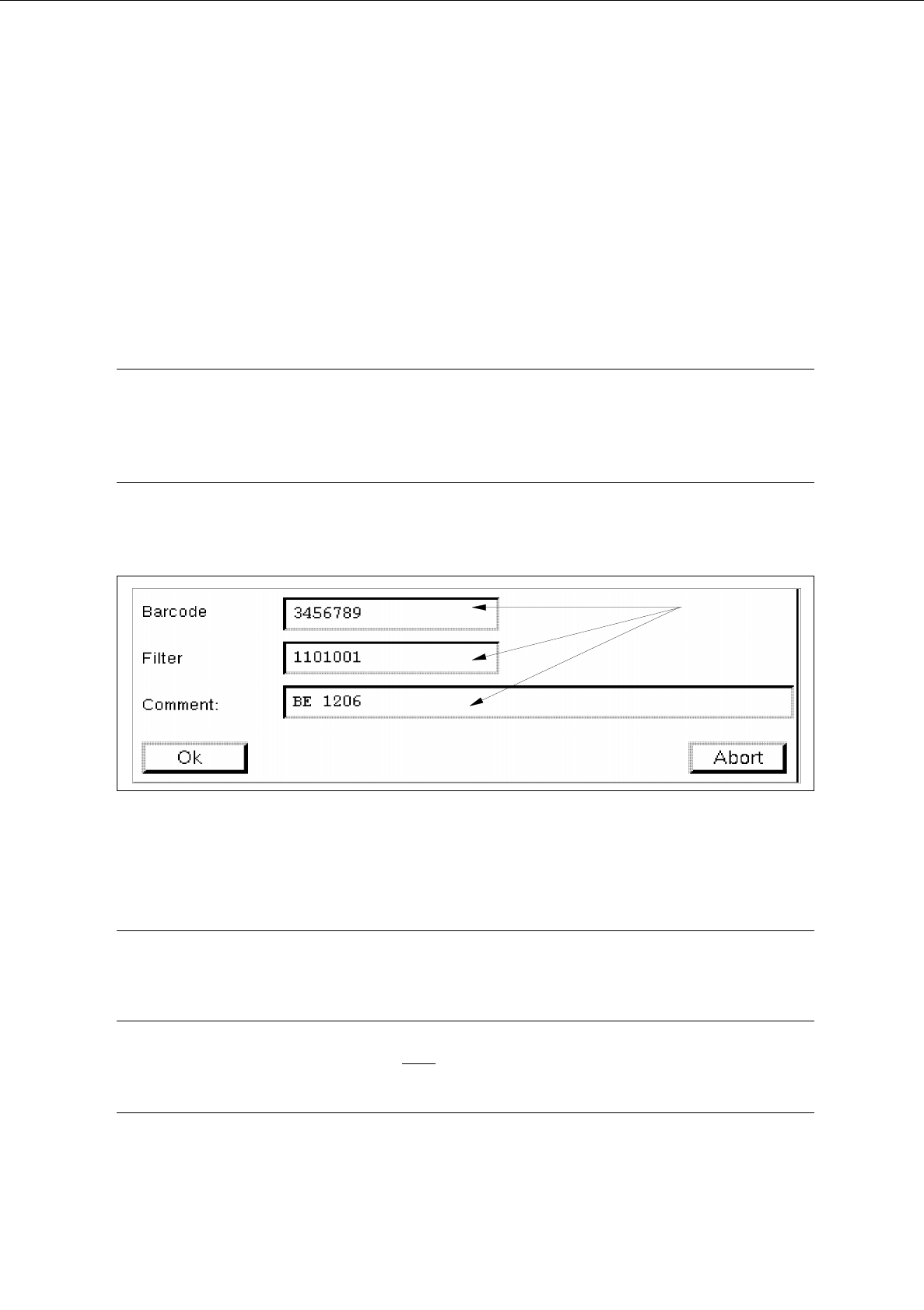
The window for the description of the new barcode is opened (see Fig. 5.1.2).
Fig. 5.1.2 Entry Window "Barcode"
●
Click on editing field "Barcode", enter the desired sequence of characters and terminate the entry
by pressing RETURN.
☞
NOTE
The barcode may comprise up to 40 characters. Valid characters are letters, numbers, points,
underscores and hyphens.
●
Click on editing field "Filter", validate each character of the defined barcode (by entering 1 or 0)
and terminate your entry by pressing RETURN.
☞
NOTE
Digit "1" stands for "valid" and digit "0" for "invalid".
editing fields

User’s Manual Line Computer UNIX 5 Product / Component
Software Version 402.xx Edition 06/96 5.1 Component Editor
5 - 9
The length of the filter (number of digits) must correspond to the length of the barcode (number of
characters).
●
Click on editing field "Comment", if required, and enter any comment desired.
●
Confirm your entries by choosing
OK
.
The entry screen is closed, the barcode and filter entries are displayed in the display area.
☞
NOTE
If invalid characters were used for the barcode entry (e.g. a comma), or if other digits than 1 or 0 were
used for entering the filter, or of the length of the barcode does not coincide with the length of the fil-
ter, the faulty field is displayed surrounded by a red frame as soon as the entry is confirmed by pres-
sing the RETURN key. If the RETURN key is not
pressed after each entry, faulty fields will not be
shown in a red frame until the entries are confirmed by choosing "OK". The entries must be corrected
as otherwise the entry screen will not be closed and the barcode cannot be accepted.
-
Delete
It is possible to delete a created barcode.
●
Select barcode entry from the display area.
●
Click on
Delete
.
The barcode entry is no longer displayed in the display area.
-
Change
An existing barcode, the associated filter or comment can be edited.
●
Select the barcode entry from the display area.
●
Click on
Change
.
The window for editing the barcode is opened (see Fig. 5.1.2).
●
Click on the editing field containing the desired entry and make the change.
●
Confirm the changes by choosing
OK
.
The entry window is closed, the edited data are displayed in the display area.

5 Product / Component User’s Manual Line Computer UNIX
5.1 Component Editor Software Version 402.xx Edition 06/96
5 - 10