00197385-03_SR70x_FeatureDescription_DE_EN.pdf - 第104页
SIPLACE Statio n Softw are 70x / Feature D esc ription Ausgabe 05/2014 Edit ion 104 Example The allow ed cor rection ar ea is d ispla yed in the f ollo wing f igure. Figure 7- 40 : Al lowed correct ion area The operator …
SIPLACE Station Software 70x / Feature Description Ausgabe 05/2014 Edition
103
In the setup overview, the icons are displayed for both problem situations and the concerned track
is additionally highlighted in orange.
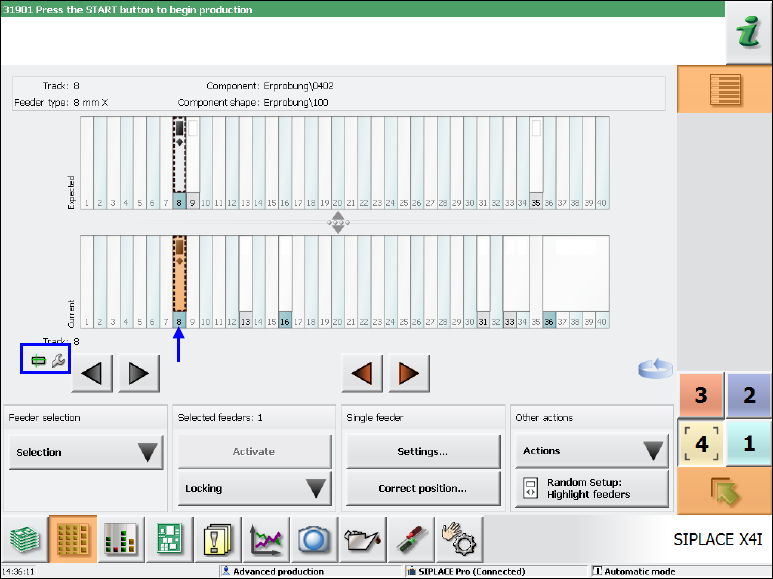
Figure 7-39: Setup overview
7.38.6 Limited Correction Area for the Pick-up Position
Compatible mode: Complete
To avoid that components are picked up from an incorrect position, the allowed correction area has
been limited on the Basic production and Advanced Production activity levels.
The maximum offset that can be set during teaching is derived from the following informations:
– Specific component length and width measurements that are defined in the component shape.
– The 50% percentage factor that is stored in the software configuration and is used for all
component and feeder types.
The allowed offset then comes out in the direction of the component length as +/- component
length * percentage factor, in the direction of the component width as +/- component
width * percentage factor.
I.e., for a component with a length of 6mm and a width of 4mm and percentage factor 50%, the
pick-up position may be changed by 3mm und 2mm respectively in the corresponding directions.
SIPLACE Station Software 70x / Feature Description Ausgabe 05/2014 Edition
104
Example
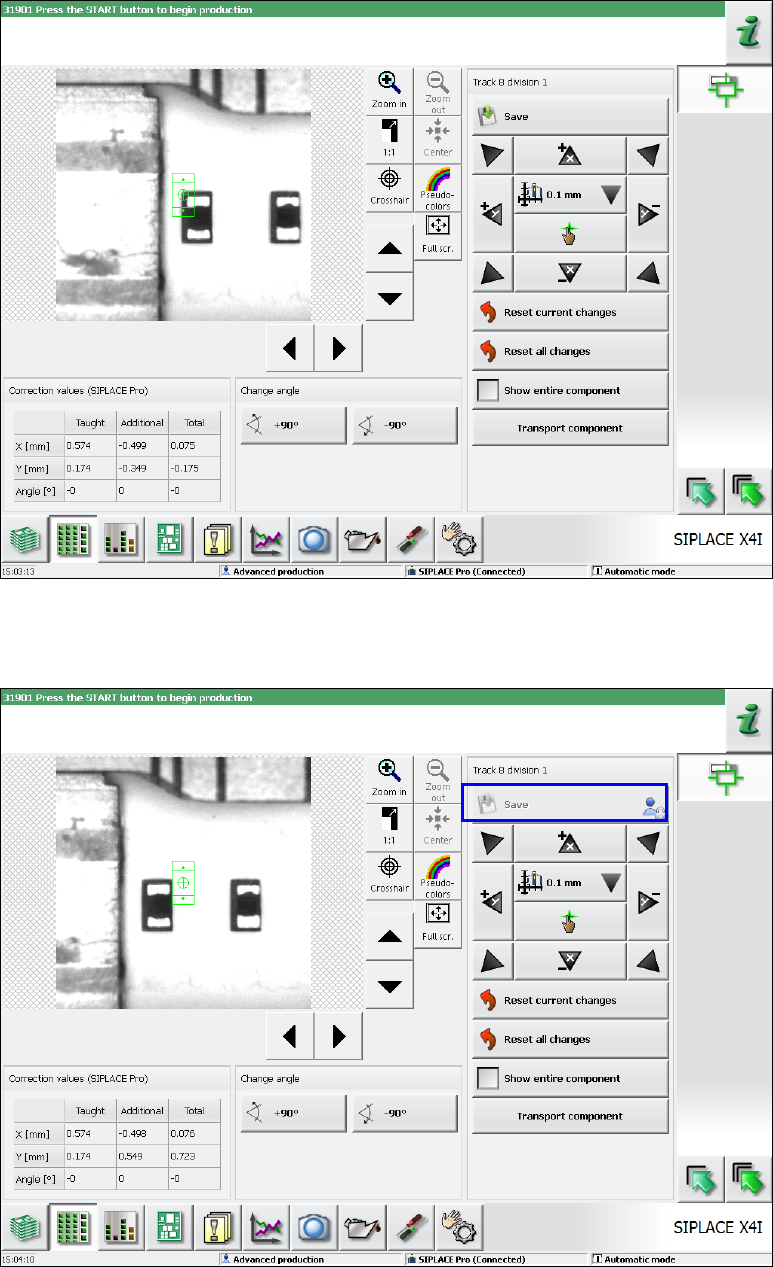
The allowed correction area is displayed in the following figure.
Figure 7-40: Allowed correction area
The operator can navigate to any position with the camera during the setting procedure. If the
allowed correction area is exceeded, the Save button will be deactivated (greyed out).
Figure 7-41: Allowed correction area exceeded
SIPLACE Station Software 70x / Feature Description Ausgabe 05/2014 Edition
105
In this case the operator has two options:
1. Make another setting within the allowed correction area.
Thereafter, the Save button is reactivated and the changed position can be saved.
Figure 7-42: Saving the changed position
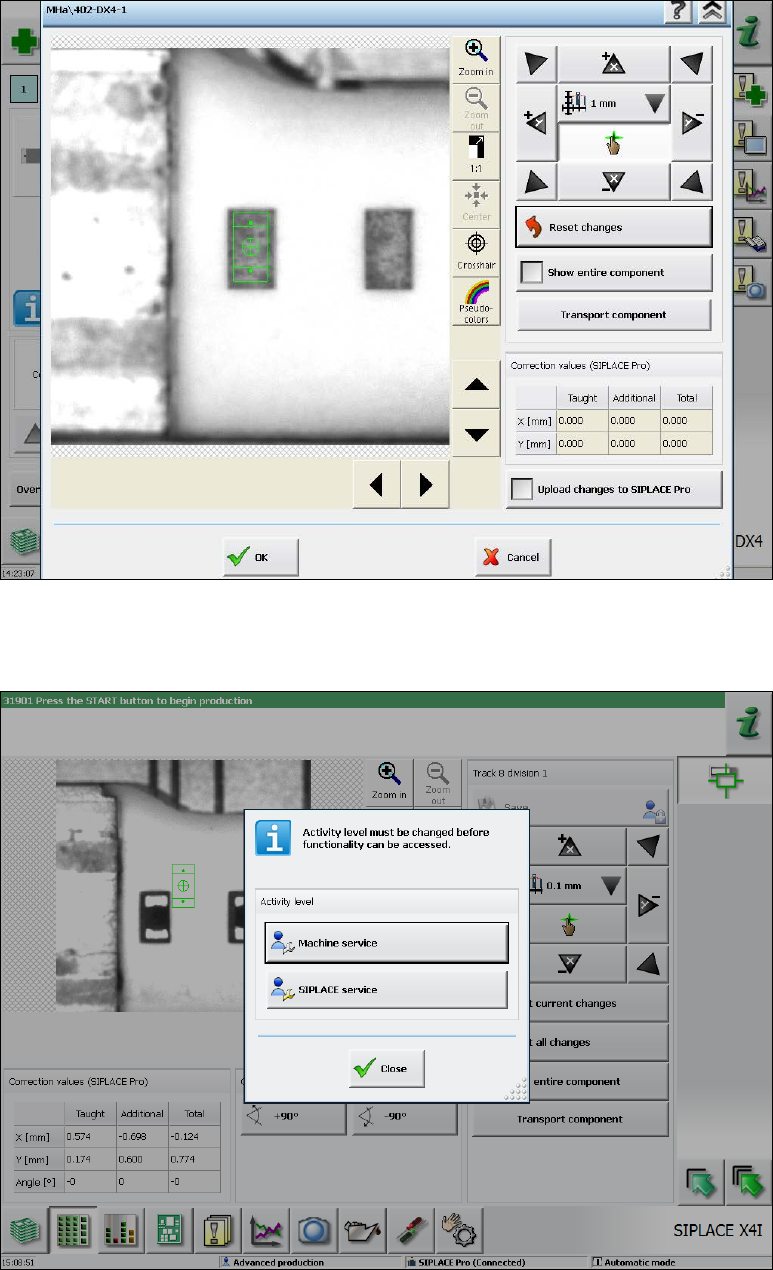
2. Right-click with the mouse on the Save button and change the activity level. Thereafter, the
Save button is reactivated and any positions can be saved.
Figure 7-43: Changing activity level