00197385-03_SR70x_FeatureDescription_DE_EN.pdf - 第76页
SIPLACE Statio n Softw are 70x / Feature D esc ription Ausgabe 05/2014 Edit ion 76 7.21 Virtual Inks pot Handler W ith the Virtual Inkspot Handler function t he ink spot inform ation can b e read f rom a file, e.g. f rom…
SIPLACE Station Software 70x / Feature Description Ausgabe 05/2014 Edition
75
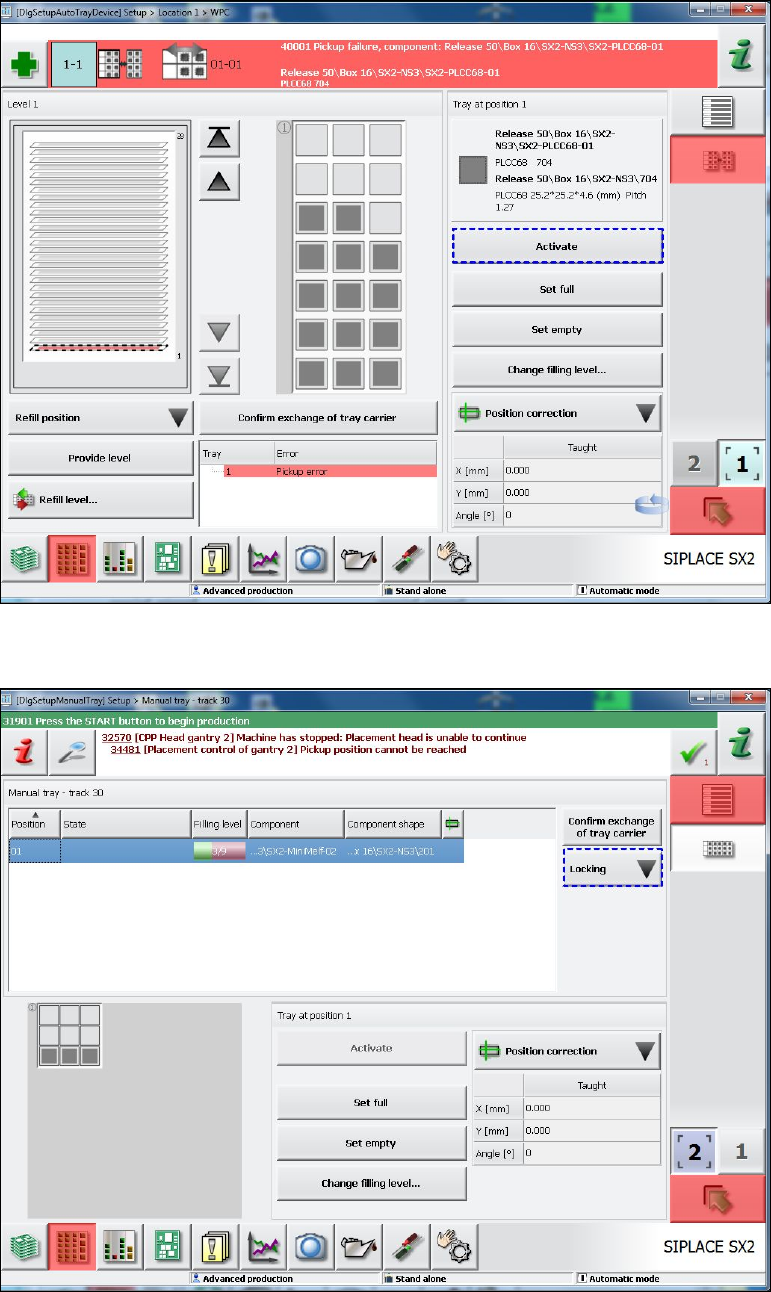
Figure 7-17: Setup view for MTC / WPC
– The Activate button is new and is activated if the operator can activate the selected tray.
Figure 7-18: Setup view for manual ray
– The Locking menu with the selection Lock/Unlock.
SIPLACE Station Software 70x / Feature Description Ausgabe 05/2014 Edition
76
7.21 Virtual Inkspot Handler
With the Virtual Inkspot Handler function the inkspot information can be read from a file, e.g. from
the board tester or inspection system. Thus, the inkspot do not have to be read by the PCB
camera.
Requirements
– A barcode reader has to be available in the machine or in the first machine of the line. Barcode
reader and assembly kit depend on the conveyor mode and machine type. The Read barcode
with PCB camera option is not used.
– WDTL license for PCB barcode included in the Line Operation package, item no. 116525-xx.
– Pure 706 line, mixed lines e.g. 706 and 605 are not supported.
Functionality
– The inkspot files (from PCB manufacturer or from an external system) can be used by every
station in the line.
– All settings are made locally at the station in XML files and activation is done in SIPLACE Pro.
– The inkspot files are named according to the barcode (e.g. SWT-LP3-O-0007). There is no
restriction for the suffix.
– The inkspot files are stored at a shared drive and can be moved or deleted automatically after
the board was placed (configurable).
– The board with its clusters is described in a matrix format (rows and columns). For each cluster,
the configuration "placement" or "no placement" has to be defined. The matrix is configurable.
– Configuration changes get effective after a new job download our machine reboot.
SIPLACE Station Software 70x / Feature Description Ausgabe 05/2014 Edition
77
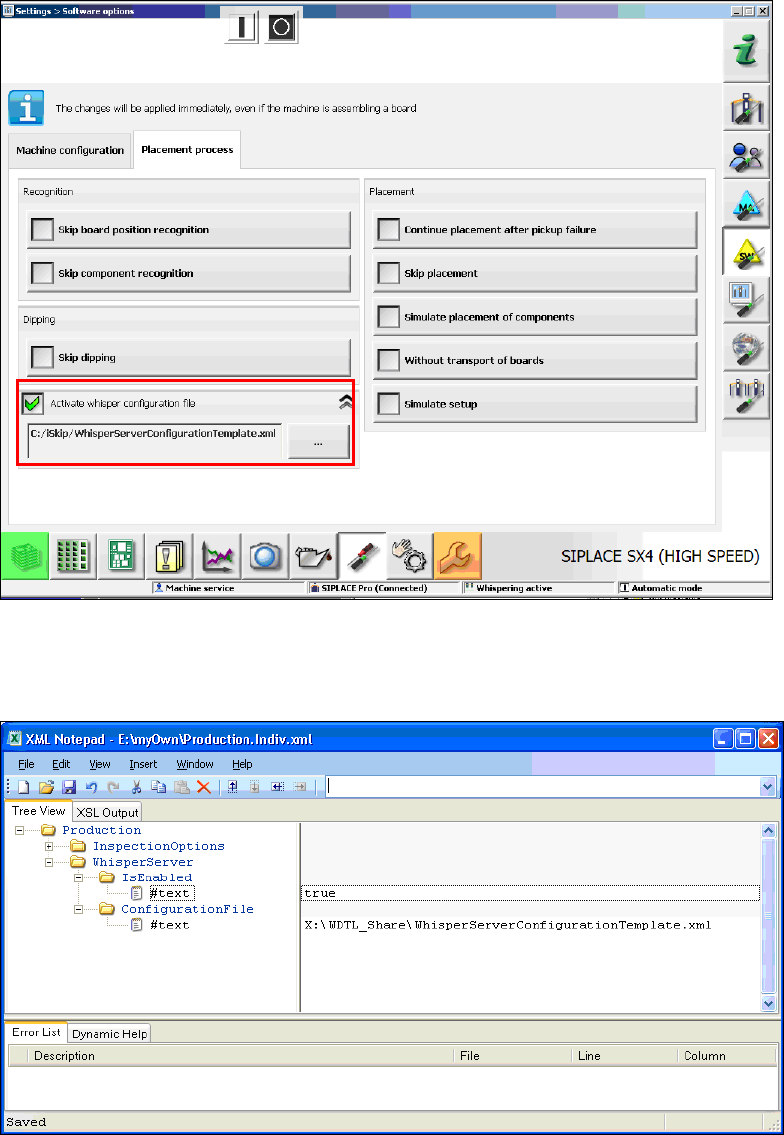
To use the function, the inkspot file has to be activated and configured at the station in the Service
view under Settings – Software options.
Figure 7-19: Activating whisper configuration file at the station
► Activate the Activate whisper configuration file option.
► Select the configuration file.
Figure 7-20: Activating Whisper function
► Check in the Production.xml file under C:\Sirio\Type\ that the Individual attribute is set to "true"
for WhisperServer. This makes sure that the information is taken from the individual file.
► Activate the Whisper function in the Production.Indiv.xml file unter C:\Sirio\Work\Individual\ and
define the location for the master configuration file.
In the WhisperServerConfigurationTemplate.xml file the function can be configured. Machine-
specific settings are assigned by the MID of the single machine.