00197385-03_SR70x_FeatureDescription_DE_EN.pdf - 第46页
SIPLACE Statio n Softw are 70x / Feature D esc ription Ausgabe 05/2014 Edit ion 46 6.10 SIPLA CE Smart G UI W ith the new SIPL A CE Sm art GUI it is possib le for an unsk illed operator on th e Production activit y level…

SIPLACE Station Software 70x / Feature Description Ausgabe 05/2014 Edition
45
NOTICE
The placement positions can only be corrected, if the user has the corresponding access
rights in SIPLACE Pro to modify a position on a panel. To release the correction
possibility, the user first has to authenticate himself or herself.
6.8 Brightness Calibration of Digital Camera Systems
Brightness calibration (calculation and comparison of the individual illumination brightness) of the
digital sensor systems for the cameras is intended to ensure that the same component with an
identical component shape description can be measured on all machines. In order to achieve this,
the brightness value must correspond across all the sensor systems. Initial calibration is carried out
ex works. However, since experience shows that sensor systems become dirty and darker with the
time, calibrating them again on-site at the customer improves recognition of components,
particularly on older machines.
As of this station software version, brightness calibration can also be performed simply on-site at
the customer. To allow this, the GUI has been extended to include the function Calibrate
illumination. This makes it possible to carry out automatic brightness calibration for every
component camera or PCB camera configured on the placement machine.
Requirements:
– The machine has to be empty.
– The FCCS tool “Camera calibration plate FCCS digital“, on which the special calibration tools
for calibrating the illumination of all digital cameras currently in use are located. You can get
more information about this tool through the SIPLACE Service.
– The operator has logged in on the Machine service or SIPLACE service activity level.
6.9 No Machine Stop at "Track Empty" Errors in I-Placement Mode
If a feeder is only emptied on one side of the processing area in I-placement mode, the machine
continues to place with the remaining placement heads and does not stop anymore. A
corresponding error message is displayed in the status area. The Machine stop at pickup failure
option can be activated / deactivated on the GUI under Settings – Software options.
Default: activated = Machine stop.
SIPLACE Station Software 70x / Feature Description Ausgabe 05/2014 Edition
46
6.10 SIPLACE Smart GUI
With the new SIPLACE Smart GUI it is possible for an unskilled operator on the Production
activity level to keep the placement machine running and, if problems occur, to solve these without
having to read any error messages. To integrate SIPLACE Smart GUI into the station software
GUI, it has to be installed after the installation of the station software from the corresponding
additional DVD that is included in the standard package. See the installation manual to the station
software, item number 00196771-xx.
On the station software GUI there is a new button for the SIPLACE Smart GUI to the left at the
bottom of the tool bar. This view is preset when the station software GUI is started.
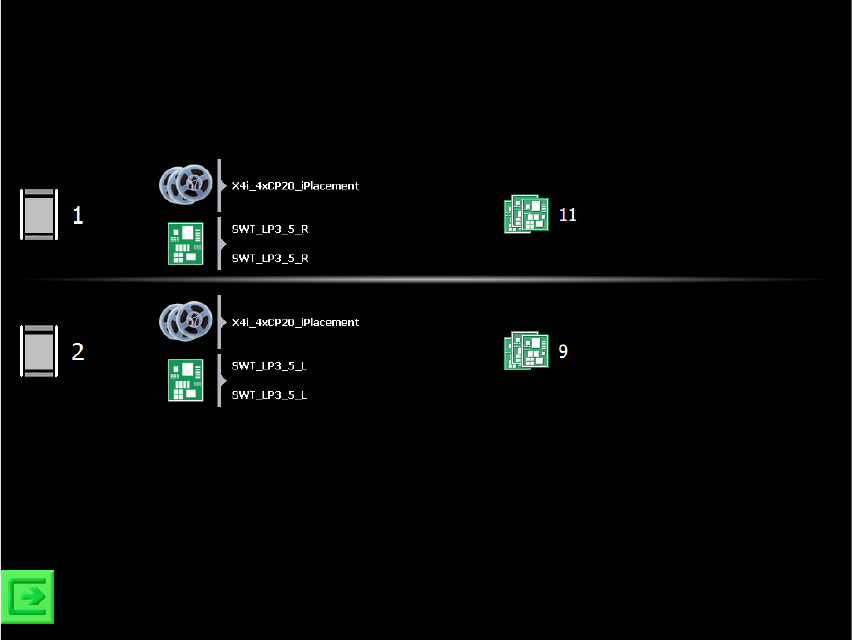
During production a simple overview with information on the setup and the number of produced
boards is displayed:
Figure 6-3: SIPLACE Smart Tool view
The recipes are displayed in table form (one row for each recipe). Each row displays the setup
name, recipe name and board name. If these names are given in form of a path with the separator
“\” (backlash), only the last part of the path will be displayed. Additionally, the lane where the recipe
is produced is displayed. If the recipe is produced in dual conveyor mode, then the lane numbers
are also displayed. The number of produced boards is displayed at the end of the row (i.e. boards
that left the machine and were not aborted).
At the bottom to the left there is a button for switching to the station software GUI. The service icon
is only displayed if a skilled operator is needed for assistance.
As soon as a detailed message arrives, a search for troubleshooting assistance is started in the
SIPLACE Smart GUI. If assistance is available, the standard view is replaced by a corresponding
troubleshooting / assistance view.
SIPLACE Station Software 70x / Feature Description Ausgabe 05/2014 Edition
47
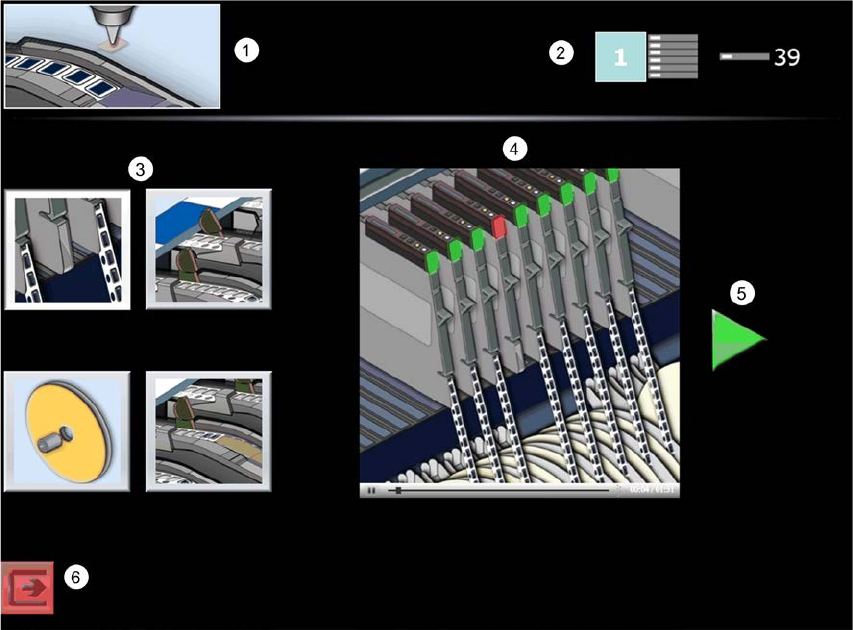
Troubleshooting assistance is automatically offered in a graphical form in the SIPLACE Smart GUI
for the most frequent downtime causes. The assistance instructions display where the problem
occurred, which problem has occurred and how the problem can be solved. In all other cases an
icon is displayed that prompt the operator to call for a skilled operator for assistance.
Figure 6-4: View with troubleshooting assistance
1) Error / Assist type
Here the error / assist type is displayed. Error / assist types exist for the following problems:
– Pick-up failure
– Dirty nozzle
– Cover foil torn
– Cover foil peeled
– Refill components
– Conveyor board jam
– PCB fiducial recognition
2) Problem location
Here the location is displayed, where the problem occurred.