00197385-03_SR70x_FeatureDescription_DE_EN.pdf - 第45页
SIPLACE Statio n Softw are 70x / Feature D esc ription Ausgabe 05/2014 Edit ion 45 NOTICE The placem ent pos itions can on ly be cor recte d, if the u ser has the corr espond ing access rights in SIPLAC E Pro t o modif y…
SIPLACE Station Software 70x / Feature Description Ausgabe 05/2014 Edition
44
6.6 LED Placement
6.6.1 Changeover Support for LED Feeders
The station software provides a function for placement machines with LED feeders with which
these feeders can be emptied for a changeover. Before a changeover all feeders have to be
emptied in order for them to get filled with components of another illumination class combination.
On the Advanced Production activity level the operator can start the Empty feeder function in the
Feeders, components and nozzles – Setup view via the Feeder details. The function has to be
activated for each single feeder. For the components that are picked up/rejected with this function,
there is an additional reject bin placed on the component table.
6.6.2 LED Machine Configuration
As the LED feeders used today are delivered with component tables of their own, some hardware
parts are not needed in combination with the LED feeders. Therefore, a new cost-saving machine
configuration is offered: the X4 configuration X4-LED. This machine is equipped with a DX table
with FCU/2 but tape cutter and unlocking rail are failing.
6.7 Teaching of Placement Positions during Placement
For some components there is a mismatch between the component shape description and the
placement position on the board. Without adaptations on the board, the component would be
placed on the wrong position in such cases. The station software provides a new function with
which the user is able to adapt the placement positions on the board with aid of the PCB camera.
Example:
Especially for plugs with connections for through-plating on a board (centering pins or springs) it is
more important to fit the contact pins exactly into the through holes as to put the described leads on
the solder pads during placement.
Via SIPLACE Pro or in the Placement positions view on the station, placement positions can be
marked as "to teach". In the placement positions list they are then marked accordingly.
During placement the procedure stops straightly before the component is set and it is then possible
for the user to manipulate the placement position. The user can correct the placement position or
intentionally ignore the teaching request. The placement continues in both cases.
If the placement position is corrected the user can additionally decide, if the component is to
appear in a schematic shape or real on the photo of the PCB camera.
Considering the component dimension and the placement angle now one or more live photos are
made of the placement position by the PCB camera that are put together to an overall picture and
displayed on the GUI. On the basis of this view the placement position can be moved and/or
rotated.
The corrected placement position can be stored. The correction does not only affect the currently
taught placement positions, but also analog positions on identical copies of the part panel. Hereby,
the new placement position is transmitted to SIPLACE Pro. The product does not have to be
specified again.
All changes of the placement positions get noticed by the station software and are entered in the
local event log.

SIPLACE Station Software 70x / Feature Description Ausgabe 05/2014 Edition
45
NOTICE
The placement positions can only be corrected, if the user has the corresponding access
rights in SIPLACE Pro to modify a position on a panel. To release the correction
possibility, the user first has to authenticate himself or herself.
6.8 Brightness Calibration of Digital Camera Systems
Brightness calibration (calculation and comparison of the individual illumination brightness) of the
digital sensor systems for the cameras is intended to ensure that the same component with an
identical component shape description can be measured on all machines. In order to achieve this,
the brightness value must correspond across all the sensor systems. Initial calibration is carried out
ex works. However, since experience shows that sensor systems become dirty and darker with the
time, calibrating them again on-site at the customer improves recognition of components,
particularly on older machines.
As of this station software version, brightness calibration can also be performed simply on-site at
the customer. To allow this, the GUI has been extended to include the function Calibrate
illumination. This makes it possible to carry out automatic brightness calibration for every
component camera or PCB camera configured on the placement machine.
Requirements:
– The machine has to be empty.
– The FCCS tool “Camera calibration plate FCCS digital“, on which the special calibration tools
for calibrating the illumination of all digital cameras currently in use are located. You can get
more information about this tool through the SIPLACE Service.
– The operator has logged in on the Machine service or SIPLACE service activity level.
6.9 No Machine Stop at "Track Empty" Errors in I-Placement Mode
If a feeder is only emptied on one side of the processing area in I-placement mode, the machine
continues to place with the remaining placement heads and does not stop anymore. A
corresponding error message is displayed in the status area. The Machine stop at pickup failure
option can be activated / deactivated on the GUI under Settings – Software options.
Default: activated = Machine stop.
SIPLACE Station Software 70x / Feature Description Ausgabe 05/2014 Edition
46
6.10 SIPLACE Smart GUI
With the new SIPLACE Smart GUI it is possible for an unskilled operator on the Production
activity level to keep the placement machine running and, if problems occur, to solve these without
having to read any error messages. To integrate SIPLACE Smart GUI into the station software
GUI, it has to be installed after the installation of the station software from the corresponding
additional DVD that is included in the standard package. See the installation manual to the station
software, item number 00196771-xx.
On the station software GUI there is a new button for the SIPLACE Smart GUI to the left at the
bottom of the tool bar. This view is preset when the station software GUI is started.
During production a simple overview with information on the setup and the number of produced
boards is displayed:
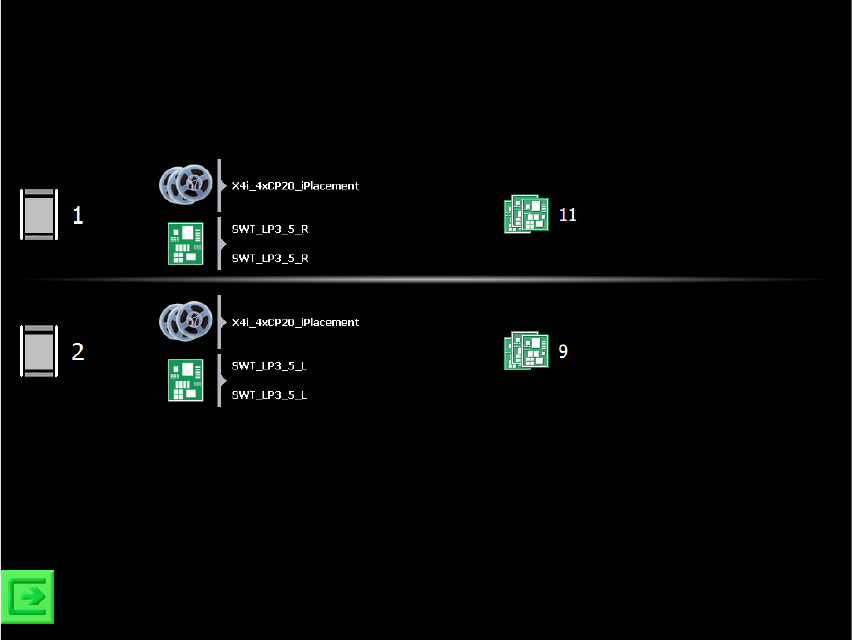
Figure 6-3: SIPLACE Smart Tool view
The recipes are displayed in table form (one row for each recipe). Each row displays the setup
name, recipe name and board name. If these names are given in form of a path with the separator
“\” (backlash), only the last part of the path will be displayed. Additionally, the lane where the recipe
is produced is displayed. If the recipe is produced in dual conveyor mode, then the lane numbers
are also displayed. The number of produced boards is displayed at the end of the row (i.e. boards
that left the machine and were not aborted).
At the bottom to the left there is a button for switching to the station software GUI. The service icon
is only displayed if a skilled operator is needed for assistance.
As soon as a detailed message arrives, a search for troubleshooting assistance is started in the
SIPLACE Smart GUI. If assistance is available, the standard view is replaced by a corresponding
troubleshooting / assistance view.