444CEOM1-CM202.pdf - 第109页
Page 3-11 FUNCTIONS 3 444C-E-OMA03-A01-05 Production Settings 3-2-6 Changing Support Pins This part describes changing support pins together with board support blocks. • For detailed information about how to change them,…
Page 3-10
444C-E-OMA03-A01-02
Production Settings
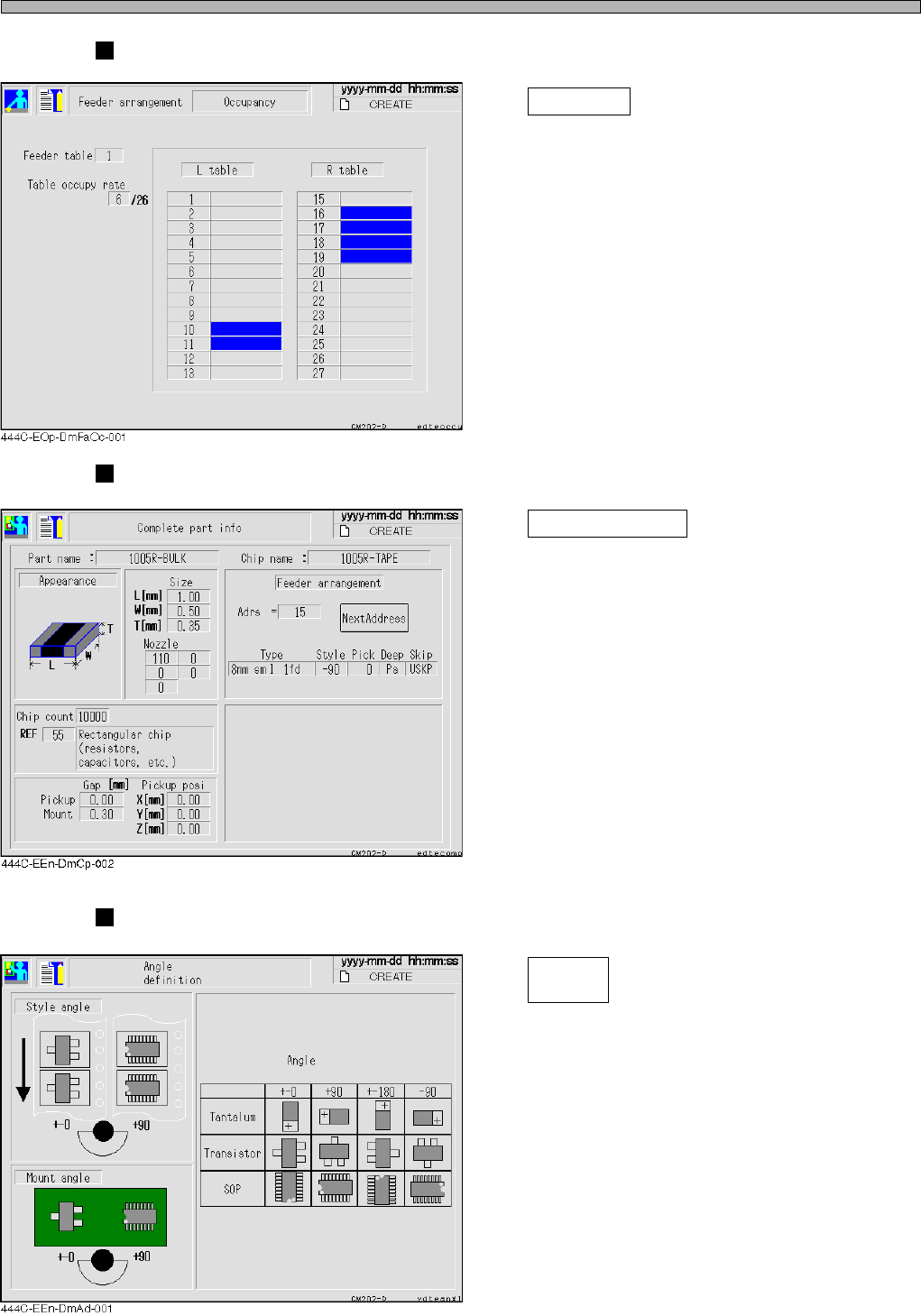
Occupancy
Occupancy
Pressing this switch displays the screen as
shown left.
The state of physical occupancy of table is
displayed.
(CM201 has the table No. 1 and 2 only.)
Comprehensive parts information
Complete part info
Pressing this switch displays the screen as
shown left.
The comprehensive information of parts
including the chip information of the feeder
pointed by a cursor is displayed.
∗ Move a cursor to the address you would like
to display, then press this switch.
Angle definition
Angle
definition
Pressing this switch displays the screen as
shown left.
The angle definition of the main chips in picking
up and mounting is displayed.
Page 3-11
FUNCTIONS
3
444C-E-OMA03-A01-05
Production Settings
3-2-6 Changing Support Pins
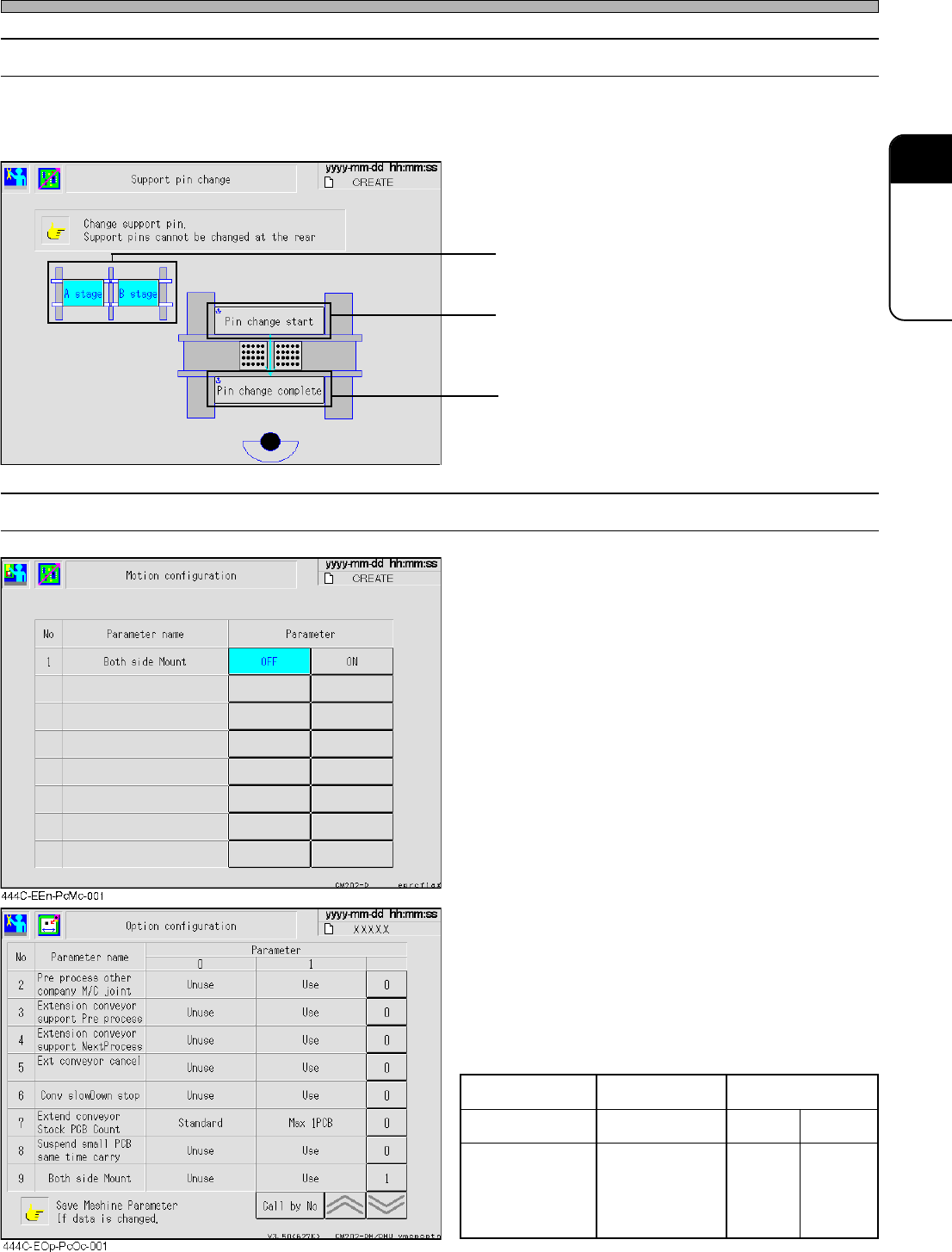
This part describes changing support pins together with board support blocks.
• For detailed information about how to change them, see “9-3 Setting the Support Pin”.
• Select the stage on which the support pins will
be exchanged. (CM202 only)
• Board support blocks rise up so that you can
draw out them.
• Board support blocks lower.
3-2-7 Motion Setup
• Select ON or OFF.
Both side Mount
When mounting the board whose reverse side
have already been mounted, set this to ON.
Enabling this function provides the following
changes.
1. For the small board transport, when the
stopper is raised, it may interfere with the
chips on the reverse side. Therefore, the
maximum length of the small board will be
changed from 215 mm to 195 mm.
(CM201-D/DU, CM202-D/DU only)
2. When the board is ejected after mounted,
the support pins may interfere with the
chips on the reverse side. Therefore, the
board will be ejected after checking the
board holder has lowered.
444C-EEn-PcSp-002
However, when both-side mounting is set to
“Use (1)” at the option configuration screen as
shown left, the motion configuration screen no
longer displays this item.
Option configuration Enabled Disabled
Motion configuration The item is hidden Enabled Disabled
Transport operation
Both-side
mounting
is Disabled
Both-side
mounting
is enabled
Both-side
mounting
is enabled
Page 3-12
Production Settings
444C-E-OMA03-A01-03
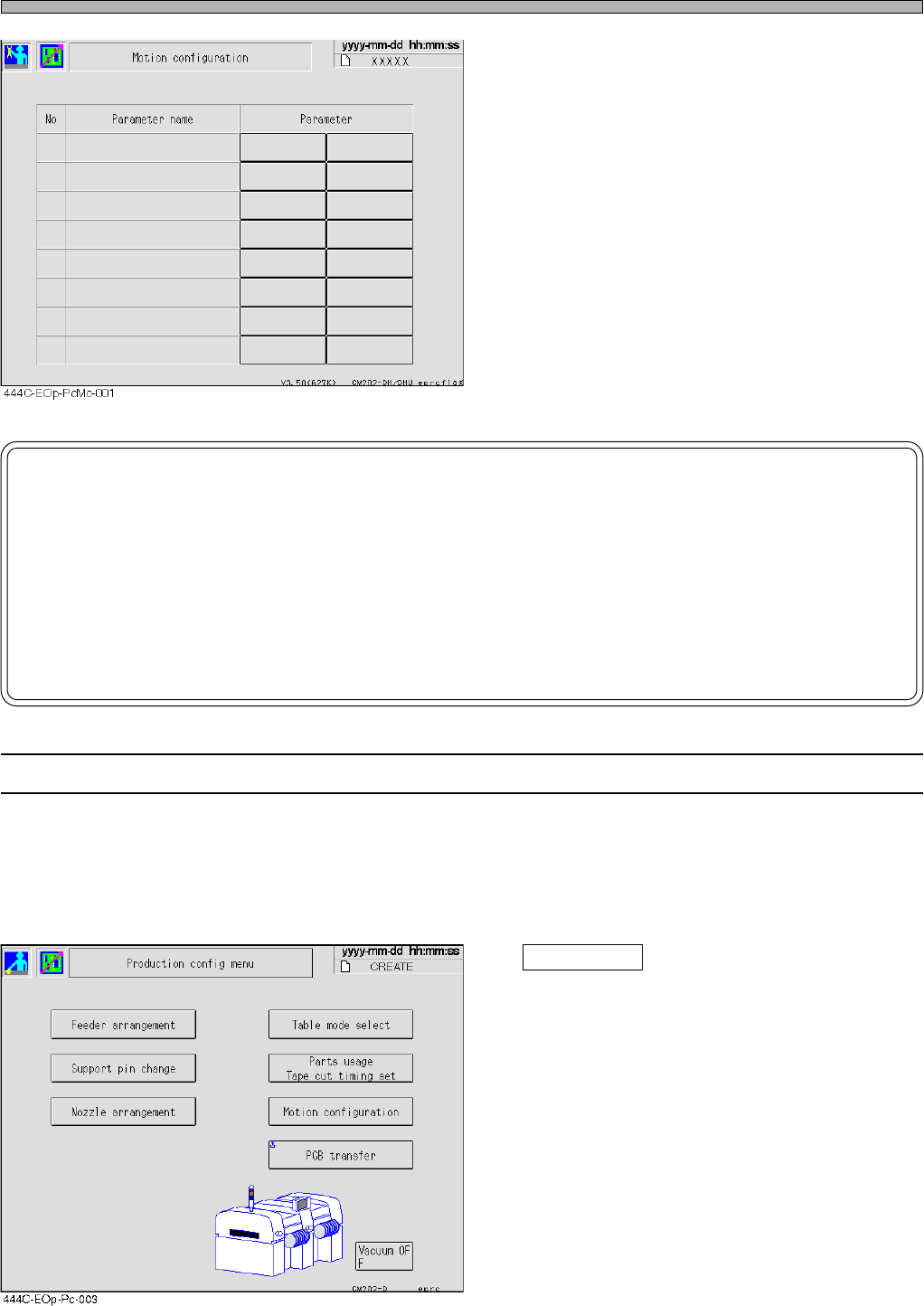
3-2-8 Vacuum OFF
When an interlock error occurs during automatic operation, the machine stops the operation
automatically. At this time, the vacuum is not cut off so as not to drop the chips.
When the operation is resumed, the chips are ejected before operation and production starts.
When wishing to cut off the vacuum, press the vacuum OFF button on the production setup
menu screen.
Vacuum OFF
Cuts off the vacuum.
∗ Note that the chips will be dropped if the
vacuum OFF button is pressed while they are
picked up.
NOTICE
By default, OFF is selected.
This data will not be changed unless a user changes this setting.
When mounting the board whose reverse side has been mounted, be sure to set
“Both side Mount” to “Use”.
If it is set to “Unuse”, the chips on the reverse side may collide with the support
pins.