444CEOM1-CM202.pdf - 第91页
Page 2-7 BASIC OPERA TION 2 Display changeover switches • Changing display modes 1) When you press this switch, display modes are changed. Blue letters on a light blue ground show the selected display mode. Stage changeo…
Page 2-6
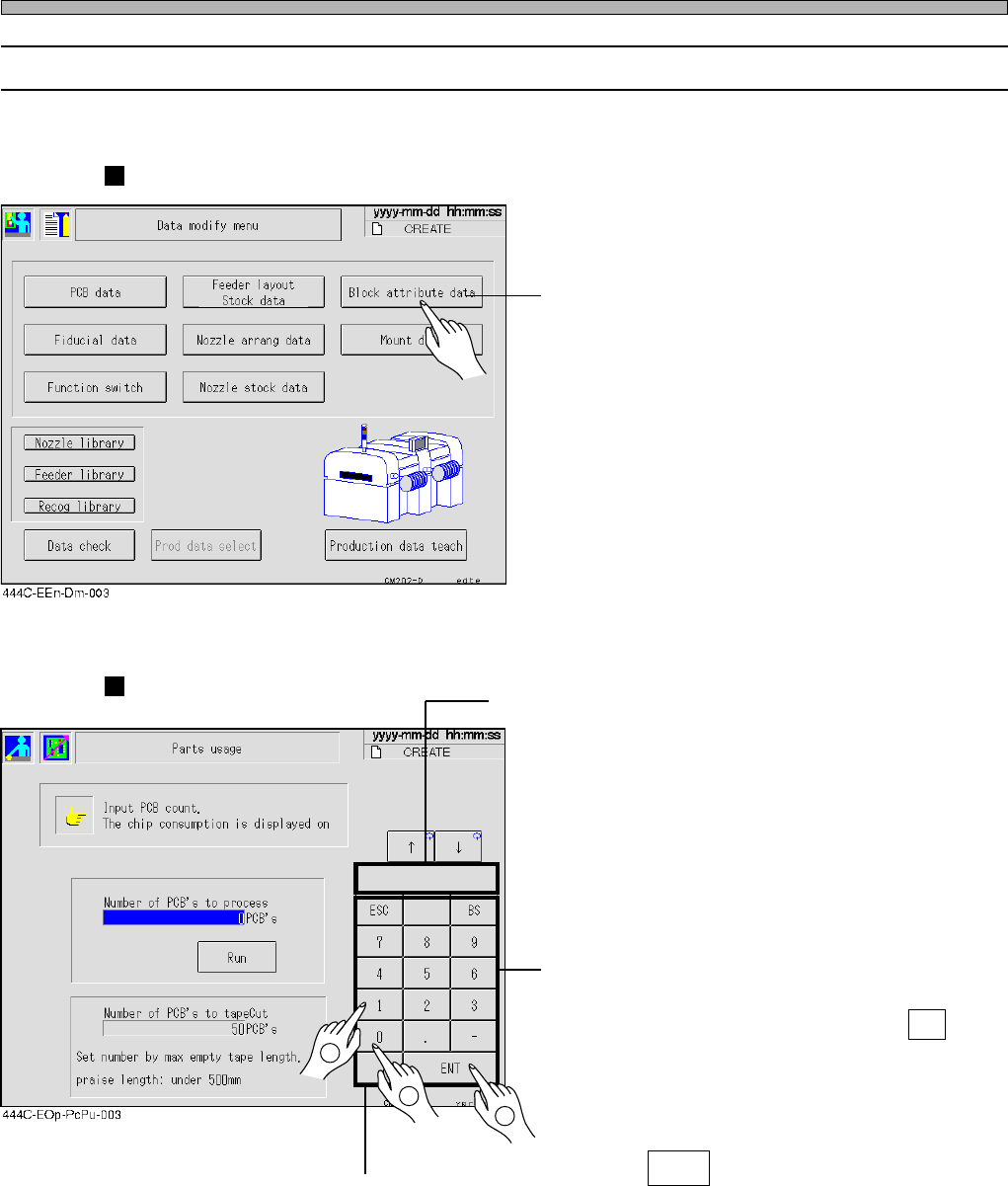
2-2-3 Switch Types and How to Operate
You can operate this machine mostly by pressing a switch on screen softly.
Selection switches
• Choosing an item
1) Press the item you want to choose
with your finger.
The screen of the chosen item is displayed.
Main menu icons belong to selection switches.
Input switches
• Typing numeric value
1) Specify the item to be input
(if there is more than one item to be
input).
Specified item will blink or will be highlighted.
2) Enter the value with numeric keys.
If you pressed an incorrect key, press BS and
re-enter a correct value.
The entered value is displayed in the numeric
value window.
3) Press ENT .
The value of specified item changes to the
newly-entered value.
444C-E-OMA02-A01-02
Touch Panel
Numeric value window
Numeric keys
2
1
3
Page 2-7
BASIC OPERATION
2
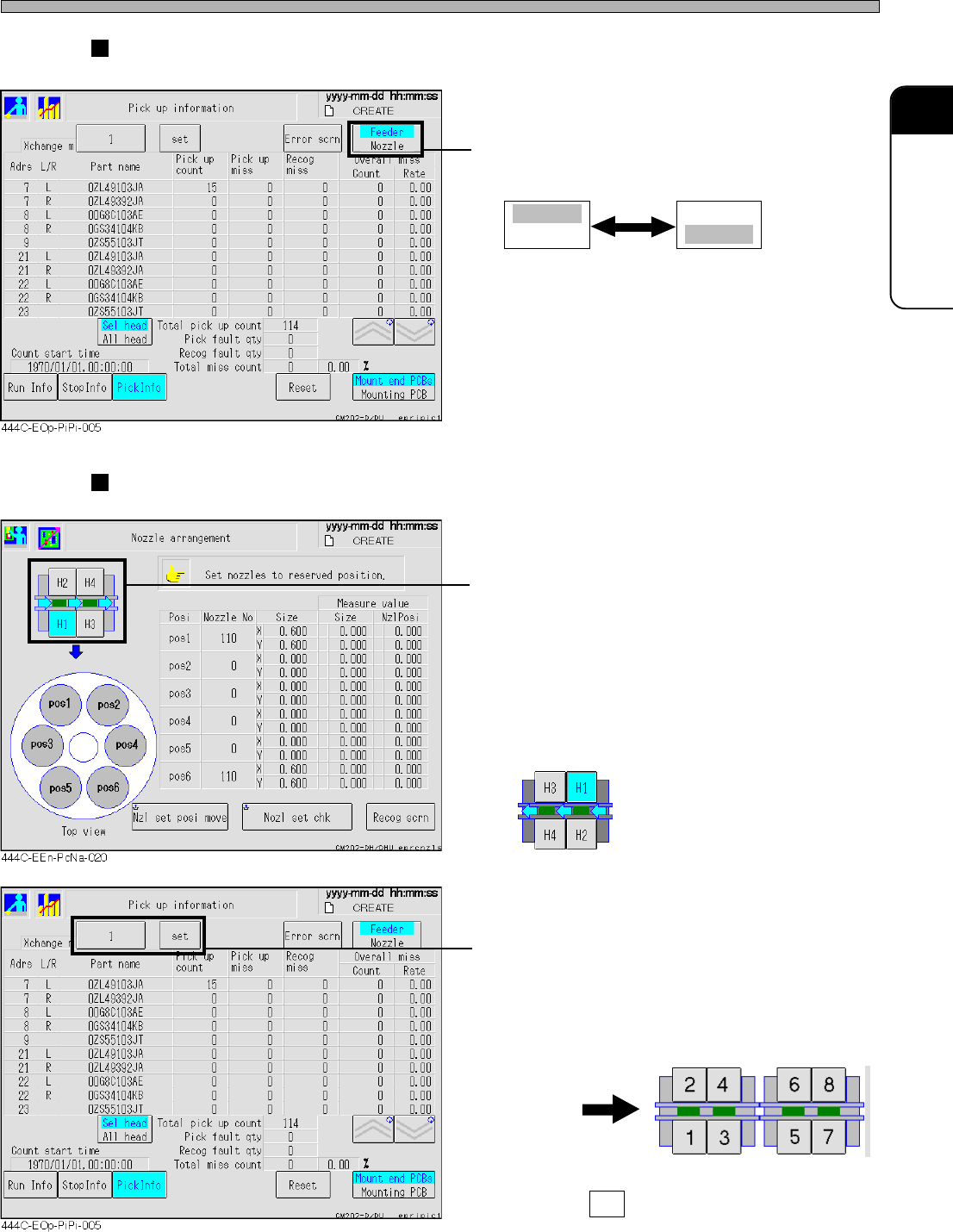
Display changeover switches
• Changing display modes
1) When you press this switch, display
modes are changed.
Blue letters on a light blue ground show the
selected display mode.
Stage changeover switches
• Changing stages on the machine
1) When you press this switch, dis-
played stages are changed.
Blue letters on a light blue ground
show the selected stage.
∗ The following is displayed at the rear operating
panel.
• Changing stages on the line
1) Every time you press the numeric key,
displayed stages are changed.
E.g.)When two CM202s are connected, pressing
this key switches the stage in sequence, 1
→ 2 → 3 → ... → 7 → 8 → 1.
Pressing set displays numeric keys, so you
can switch the stage also by entering the
number.
444C-E-OMA02-A01-05
Touch Panel
Feeder
Nozzle
Feeder
Nozzle
Board flowing direction
444C-117E
444C-118E
Page 2-8
444C-E-OMA02-A01-00
Touch Panel
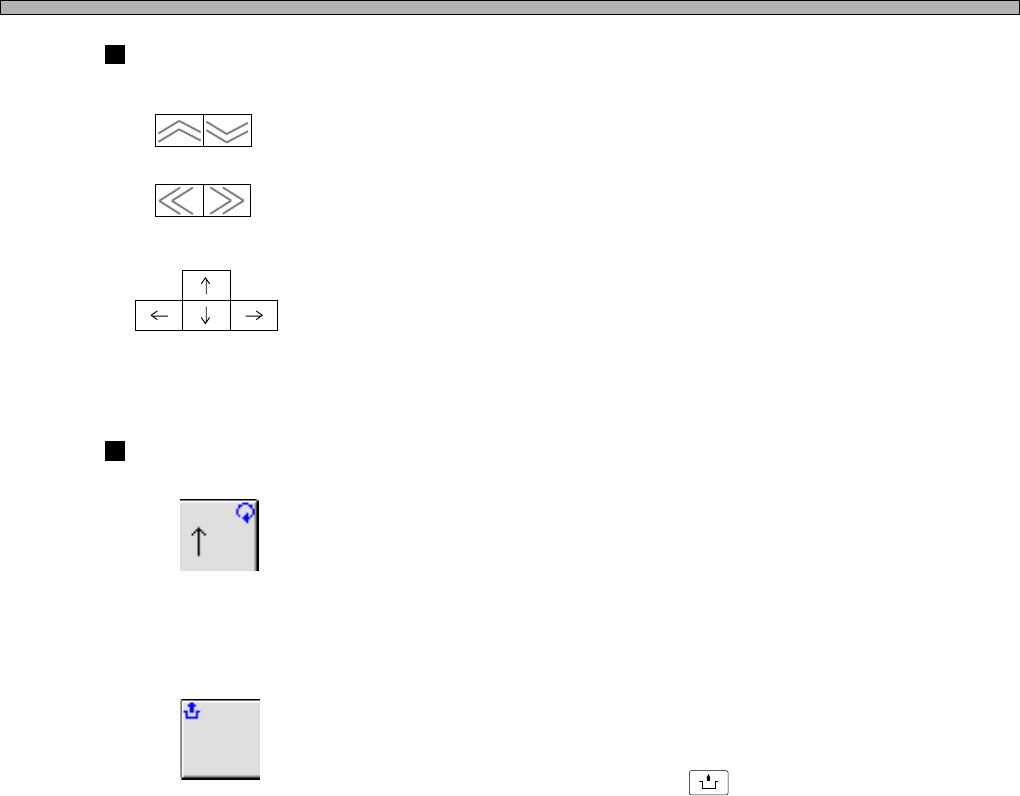
Arrow switches
------- Page turning switches
Page of displayed screen is turned.
------- Move switches
Cursor moves in the direction of arrow.
(Not all the cursors are arranged as shown left.)
Mark on switch
------- Repeat mark (at the upper right)
While the switch with this mark is pressed, its function continues to be
executed.
------- Unlock mark (at the upper left)
The switch with this mark is used while
UNLOCK
is pressed.
(Vertical direction)
(Horizontal direction)