444CEOM1-CM202.pdf - 第93页
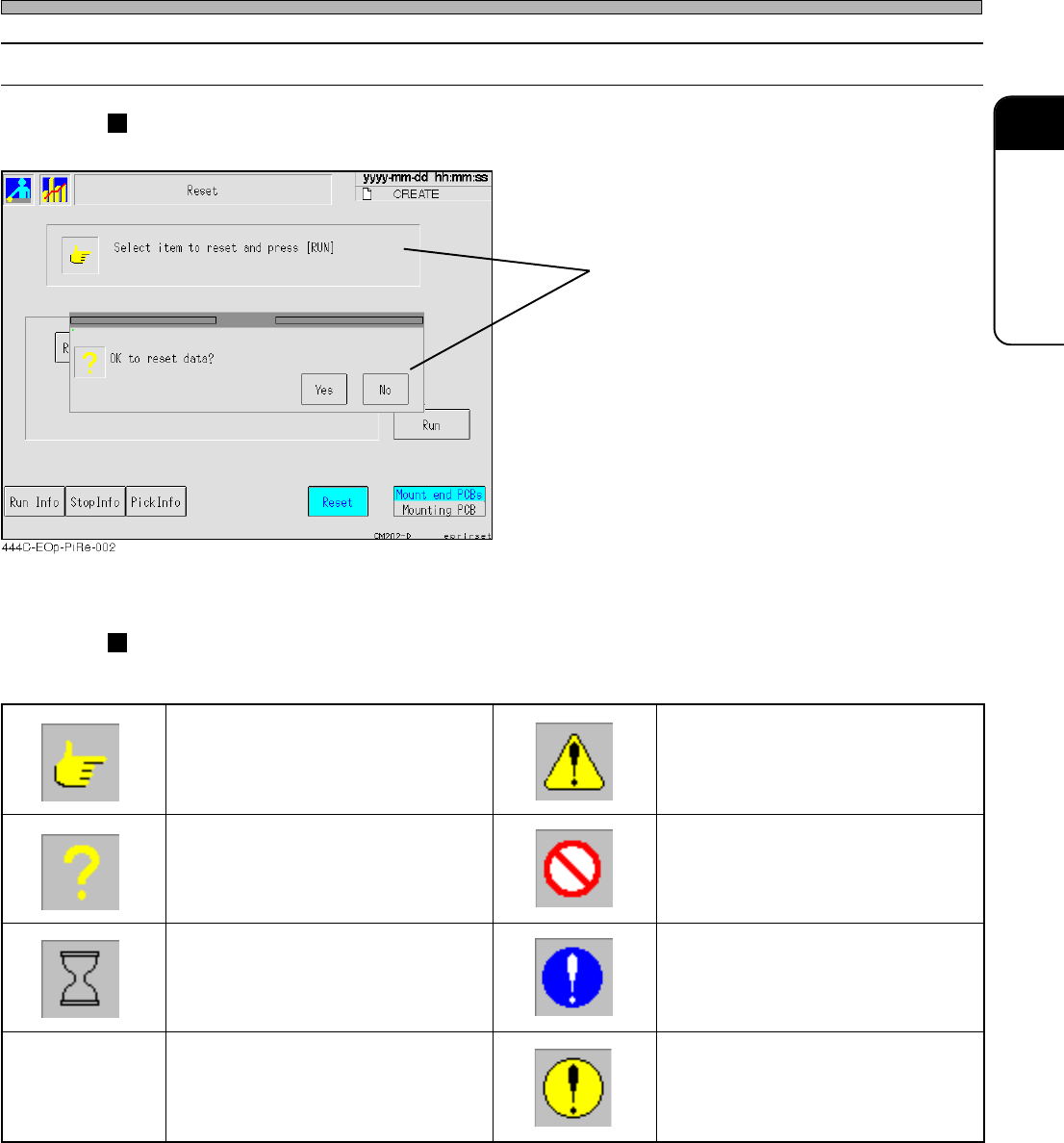
Page 2-9 BASIC OPERA TION 2 2-2-4 Messages Messages to operators are displayed inside square frames. Message icons The following icon are at the head of message to show its type. 444C-E-OMA02-A01-01 T ouch Panel Message …
Page 2-8
444C-E-OMA02-A01-00
Touch Panel
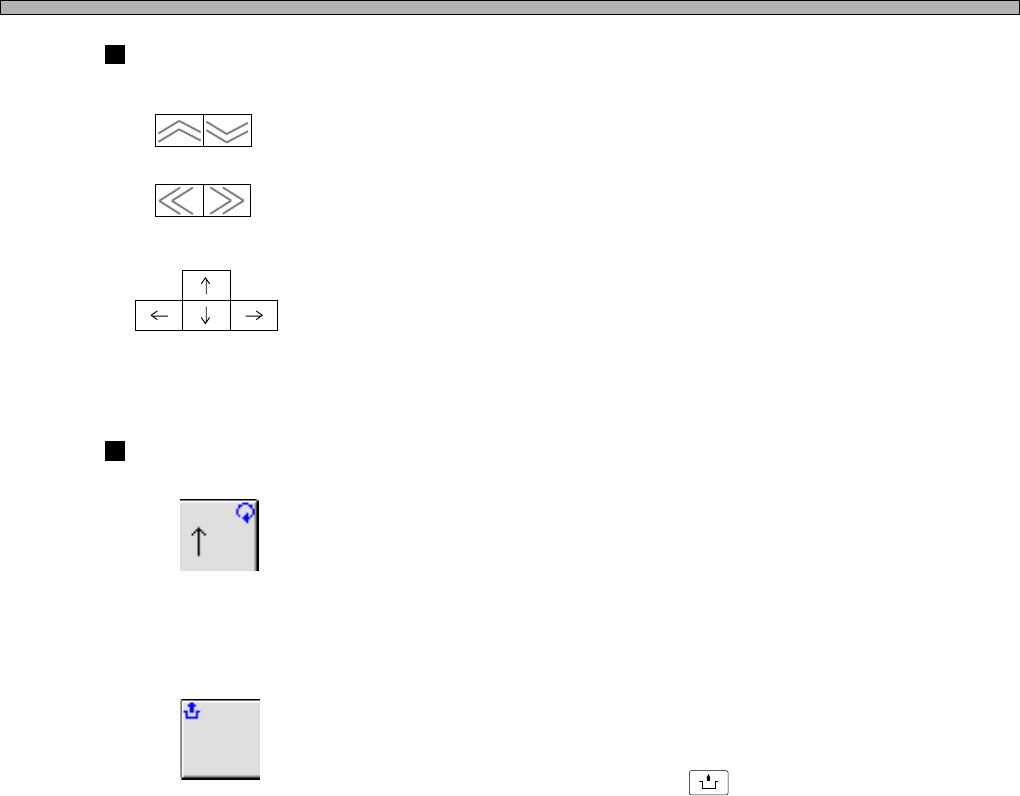
Arrow switches
------- Page turning switches
Page of displayed screen is turned.
------- Move switches
Cursor moves in the direction of arrow.
(Not all the cursors are arranged as shown left.)
Mark on switch
------- Repeat mark (at the upper right)
While the switch with this mark is pressed, its function continues to be
executed.
------- Unlock mark (at the upper left)
The switch with this mark is used while
UNLOCK
is pressed.
(Vertical direction)
(Horizontal direction)
Page 2-9
BASIC OPERATION
2
2-2-4 Messages
Messages to operators are displayed inside square frames.
Message icons
The following icon are at the head of message to show its type.
444C-E-OMA02-A01-01
Touch Panel
Message
egassemnoitcurtsnI egassemnoituac,gninraw,regnaD
egassemyriuqnI egassemnoitibihorP
egassemgnitiawemiT
egassemnoislupmoC
)dnuorgeulbano)!(krametihW(
egassemrorrE
dnuorgwolleyano)!(kramkcalB(
)emarfkcalbni
444C-107TE
Page 2-10
444C-E-OMA02-A01-02
2-3 Main Menu
NOTICE
On this equipment, you are free to change the menu configuration of the operator
mode. ( 3-5-5 Customizing Operator Mode)
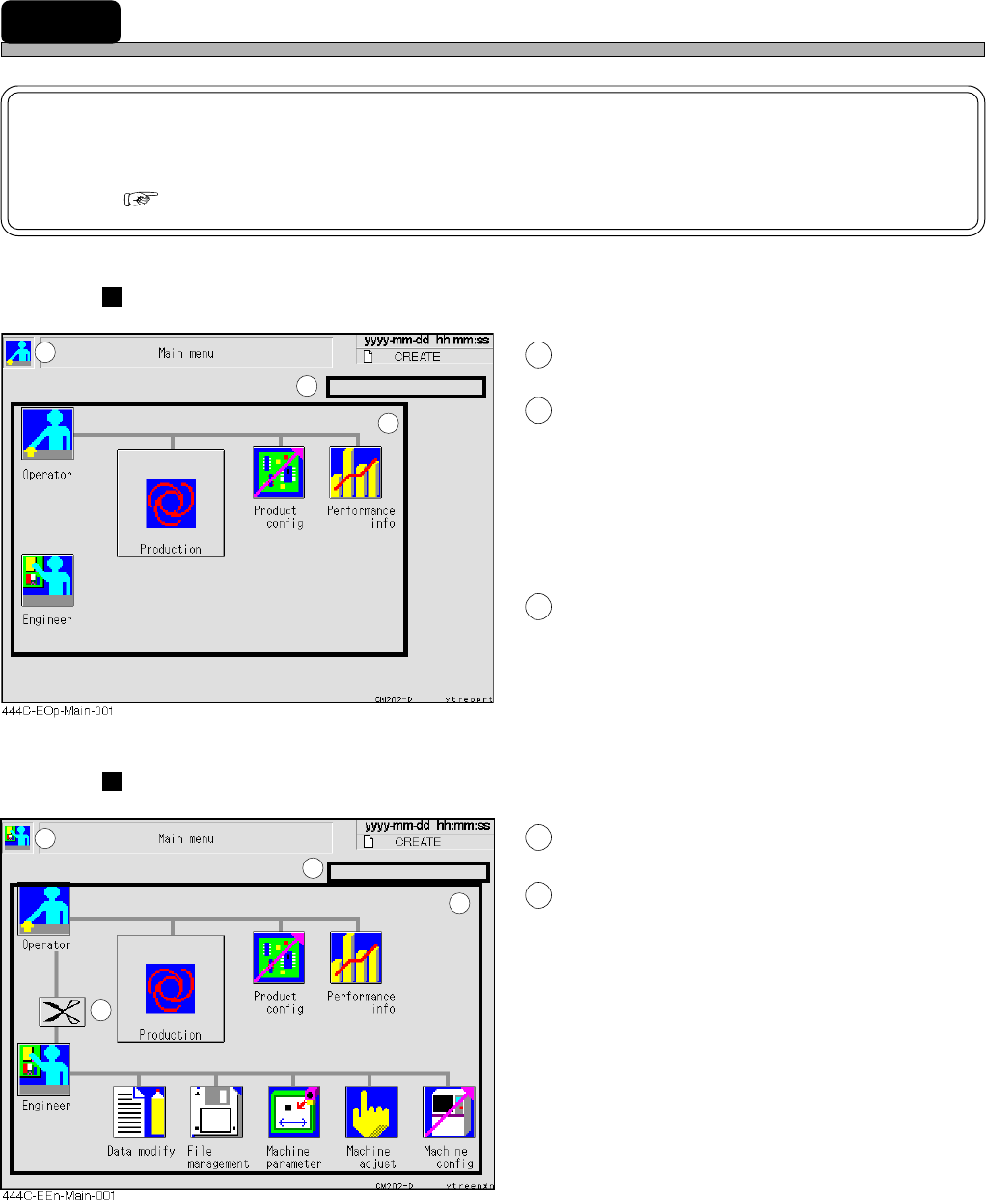
Screen of operator mode
1
This icon shows an operator mode.
2
Inspection period display area
When an inspection period is drawn on (to 90 %
of its cycle), the message is displayed in green.
When the inspection period has passed, it is
displayed in yellow.
∗ When the message is displayed, inspect this
machine. (Refer to the maintenance manual.)
3
Icon switches
Pressing each icon displays its menu screen.
Screen of engineer mode
4
This icon shows an engineer mode.
5
Pressing it displays the main menu of
operator mode.
1
2
3
4
5
2
3